Deploy ONLYOFFICE Docs Enterprise with Its Official Compose File
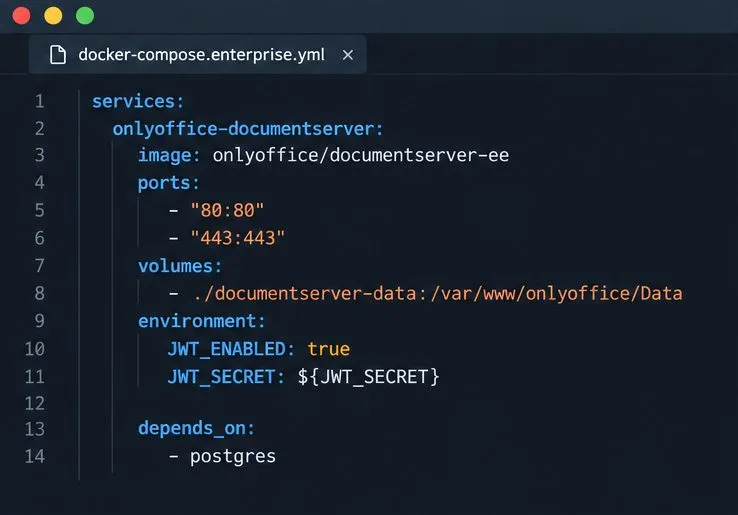
Start the Enterprise Docker Compose stack, persist its license and data, configure JWT safely, and confirm the editors are ready to integrate.
For repeatable spreadsheet cleanup, create a small JavaScript macro in the Spreadsheet Editor, target only the text range you intend to change, and test it on a duplicate workbook first. The example below removes nonprinting characters and trims extra whitespace from an email column while keeping every row in place.
ONLYOFFICE macros run inside the editor and use its Office JavaScript API. The official documentation still describes the workflow as opening View > Macros, writing or pasting code, and running it in the editor; no recent change identified in the current documentation alters this basic process. The macro itself is an illustrative, reusable script, not a report of a software test. See the ONLYOFFICE macro quick start and Spreadsheet Editor View tab reference.
Suppose a workbook contains a contact list with a header in row 1 and email addresses in column B, from B2 through B500. A few imported values may contain line breaks, tabs, or leading and trailing spaces. This example cleans that one text column only. Adjust the range to match your sheet before running the code.
Use a column-specific range such as B2:B500 instead of the entire used range. Cleaning every cell indiscriminately can change names, addresses, codes, or formula results in ways you did not intend.
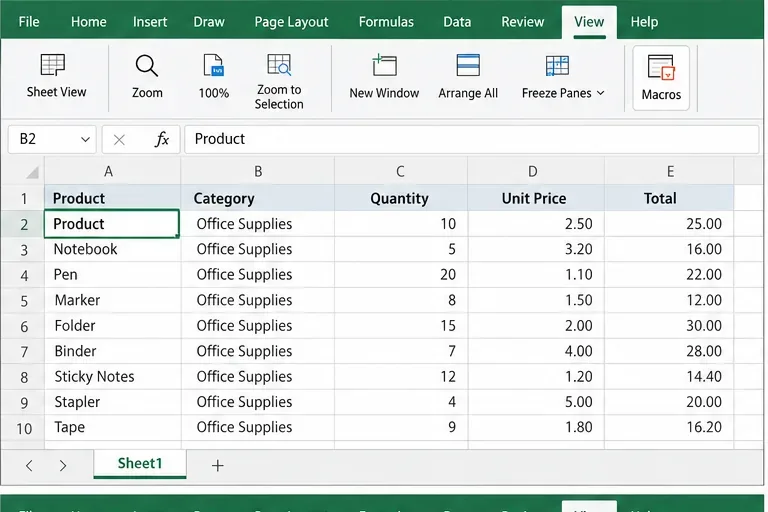
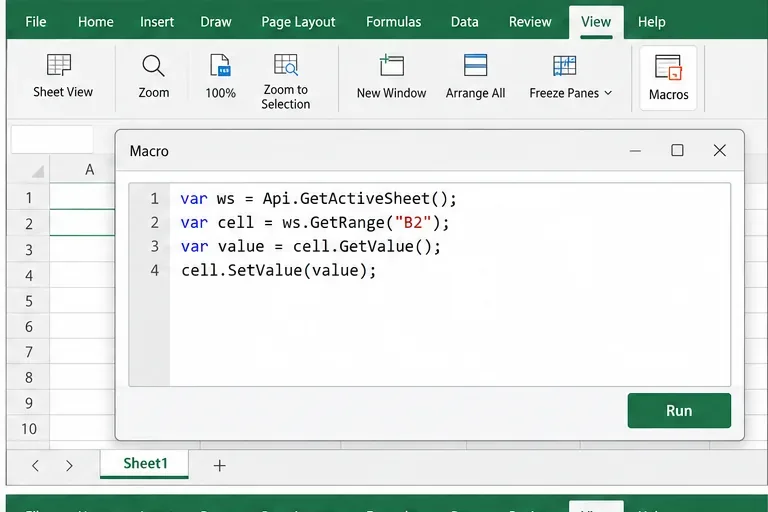
Open the workbook in the ONLYOFFICE Spreadsheet Editor. Choose View > Macros to open the macro editor, then create a macro or replace the starter code in the editor. ONLYOFFICE macros use JavaScript syntax and the Office API; they are not VBA macros. The editor’s macro workflow and supported API methods are described in the official macros getting-started guide.
Paste this example, then change B2:B500 to your actual text-only range:
(function () {
    var sheet = Api.GetActiveSheet();
    var range = sheet.GetRange("B2:B500");
    var rows = range.GetValue();
    var functions = Api.WorksheetFunction;

    for (var i = 0; i < rows.length; i++) {
        var value = rows[i][0];
        if (typeof value === "string") {
            value = functions.CLEAN(value);
            rows[i][0] = value.replace(/^\s+|\s+$/g, "")
                              .replace(/\s{2,}/g, " ");
        }
    }

    range.SetValue(rows);
})();
The macro reads the range into a two-dimensional array, processes string cells, and writes the array back to that same range. CLEAN removes nonprinting characters; the two regular-expression replacements remove whitespace at the edges and reduce repeated whitespace inside a string to one space. The API reference confirms GetValue can return a two-dimensional array for a range and that SetValue accepts arrays; the GetValue, SetValue, and CLEAN references document these calls.
Because the script writes values back, do not point it at cells containing formulas: formula cells may be replaced by their current calculated values. It also does not remove duplicate records, standardize capitalization, validate whether an address is deliverable, or change phone-number formats. Those are separate cleanup rules and should be designed and tested independently.
Starting with a narrow range makes the effect easier to understand. Once the output is correct, you can reuse the macro on another sheet by editing the range deliberately. Do not assume that a column letter or row boundary remains valid in a different workbook.
If the Macros command is missing or the code cannot run, check whether macros are enabled in the editor or disabled by the host application’s configuration. In the online editor, an administrator may control macro availability; the product’s Spreadsheet Editor advanced settings describe the user-facing macro options. Avoid enabling automatic execution for files from unknown sources; run only code you understand.
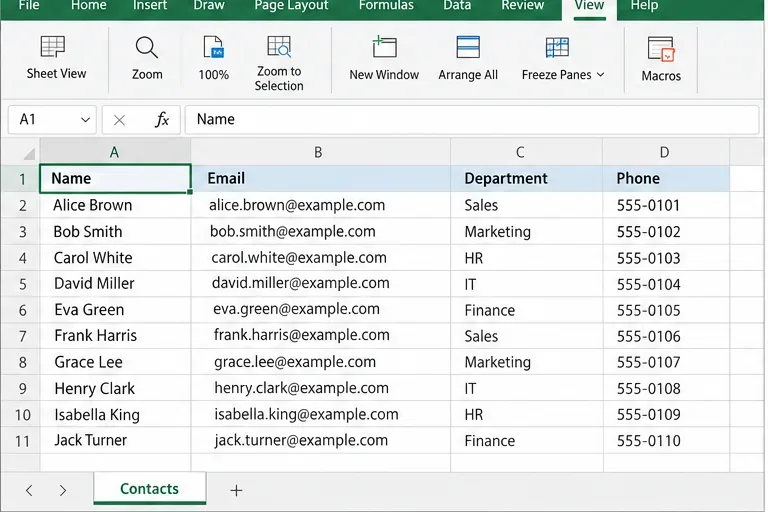
Compare the cleaned column with the original copy rather than judging success by appearance alone. Confirm that each nonblank email is still on the same row, no contact disappeared, and the only differences are the characters and spacing you intended to normalize. Check a sample near the top, middle, and end of the chosen range. Search for a space at the beginning or end of a value if your editor makes that visible, and inspect imported values that previously contained line breaks or control characters.
Also compare the row count and any dependent formulas, filters, or lookups that use the column. If a formula result changed unexpectedly, undo the edit or restore the working copy; the macro should be restricted to raw text cells. For a larger or business-critical workbook, compare the full cleaned column against the backup or use a separate output column first so changes remain reviewable.
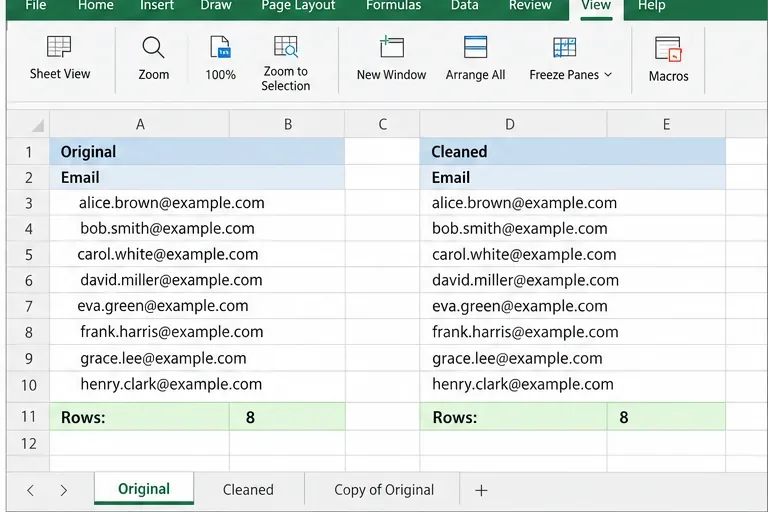
After the first run is correct, save the workbook so the macro remains available with the document according to the editor’s macro workflow. A macro stored in one workbook should not be assumed to appear automatically in every new file. For recurring imports, keep a clean template or a protected source copy, document the range the macro expects, and update it when the sheet layout changes. ONLYOFFICE macros are useful for deterministic cleanup rules; they cannot decide whether a value is factually correct or whether a change is appropriate for your dataset.
The reliable pattern is simple: preserve a source copy, target a known range, make one defined transformation, and compare the result before sharing or importing the data elsewhere.
Start the Enterprise Docker Compose stack, persist its license and data, configure JWT safely, and confirm the editors are ready to integrate.
Use an ONLYOFFICE JavaScript macro to remove nonprinting characters and trim extra spaces from a defined spreadsheet range, with a safe review workflow.
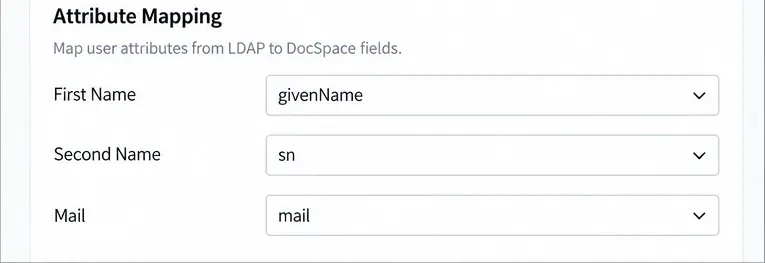
Connect ONLYOFFICE DocSpace to Active Directory or OpenLDAP, import users and groups safely, map account fields, and schedule reliable synchronization.
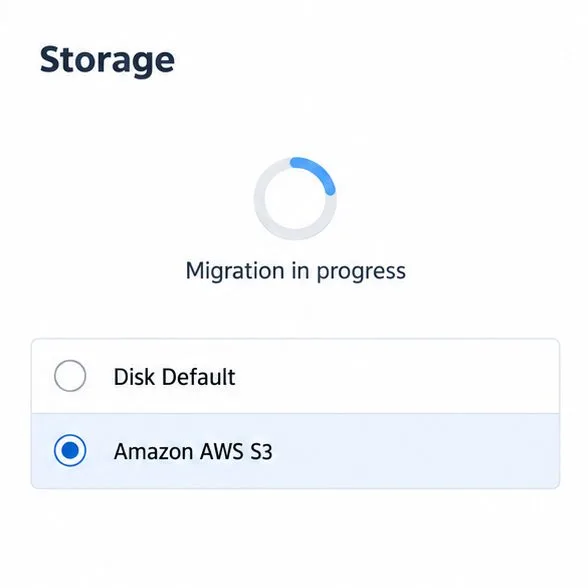
Move portal data from Disk Default to a supported cloud storage provider, or relocate Docker data safely by changing its host volume mapping.
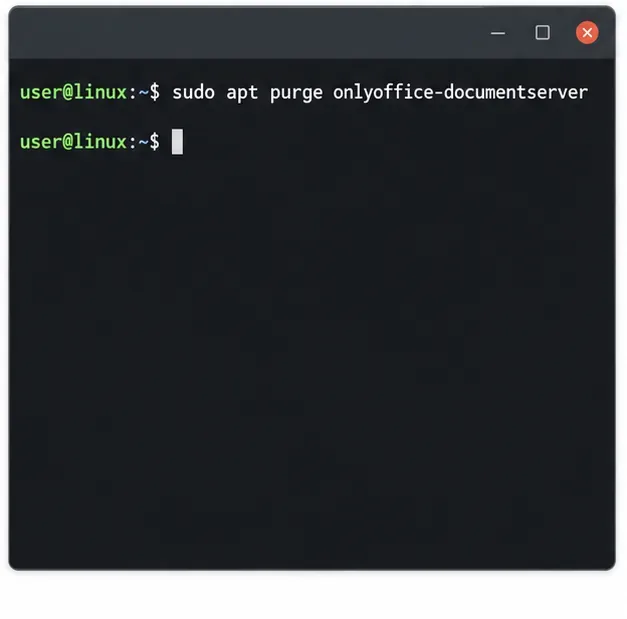
Identify whether Document Server uses a Linux package or Docker, remove only its components, and check remaining data without deleting shared services by mistake.
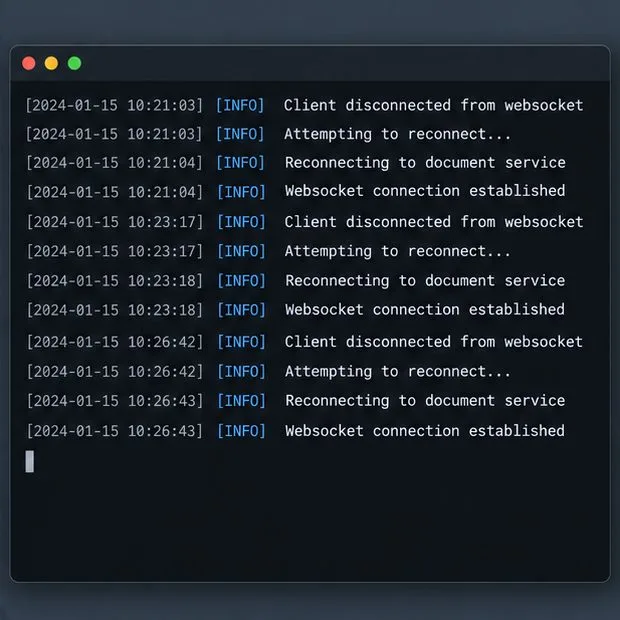
Trace slow collaborative editing to Docker resource pressure, proxy connections, or document load, then choose the fix that matches your measurements.
Install custom fonts in ONLYOFFICE Document Server, compare persistent Docker mounts with direct copies, rebuild the font list, and verify the result.
Choose where TLS should terminate, mount a trusted certificate and private key safely, and verify HTTPS access to a Dockerized ONLYOFFICE Docs server.
Embed the ONLYOFFICE editor in your PHP app, sign its configuration with JWT, and save edited files through a secure callback.
Set the proofing language for the whole document or selected text, confirm spell checking is active, and identify when a server dictionary is missing.