Deploy ONLYOFFICE Docs Enterprise with Its Official Compose File
Start the Enterprise Docker Compose stack, persist its license and data, configure JWT safely, and confirm the editors are ready to integrate.
For a single-host deployment, use ONLYOFFICE’s official docker-compose.enterprise.yml from the Docker-DocumentServer repository and start it with Docker Compose v2. Before bringing the stack online, replace example credentials, set a stable JWT secret for your integration, and mount the directory that will hold your Enterprise license and persistent data. A running container is only the first check: confirm the Compose health status and open the Docs welcome page before connecting a production platform.
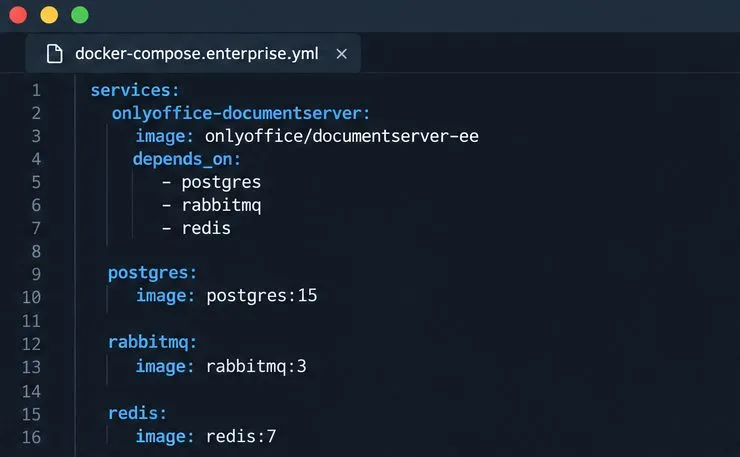
The official file defines the Document Server Enterprise service plus PostgreSQL, RabbitMQ, and Redis dependencies. It publishes the editor’s HTTP and HTTPS ports and includes a health check for the internal Docs information endpoint. Those dependencies make this Compose file convenient for a small, single-host installation; it does not by itself configure your platform connector, public DNS, or a production TLS certificate.
As checked on October 9, 2026, the official file uses PostgreSQL 15, RabbitMQ 3, and Redis 7. Repository files can change, so review the current Enterprise Compose file before deployment and upgrades.
ONLYOFFICE’s Enterprise Docker requirements list an amd64 Linux host with kernel 3.10 or later, Docker supported by its maintainers, at least 4 GB RAM, 40 GB free disk, and at least 4 GB swap. Its reference sizing also varies with concurrent open documents and document type, so use these figures as a starting point, not a capacity guarantee. A production portal with heavier workloads may need more resources.
Install Docker Engine and the Compose plugin from Docker’s official instructions for your Linux distribution. Confirm that both commands work before you clone the repository:
docker --version
docker compose version
If the host has an existing web server, confirm that ports 80 and 443 are available or plan a reverse proxy and a different host-side port mapping. The Compose file also starts the database, queue, and cache services; they should remain on the private Compose network rather than being published as public ports.
Clone ONLYOFFICE’s repository and move into its directory:
git clone https://github.com/ONLYOFFICE/Docker-DocumentServer
cd Docker-DocumentServer
Check that docker-compose.enterprise.yml is present. The repository README gives this command for the Enterprise Edition:
docker compose -f docker-compose.enterprise.yml up -d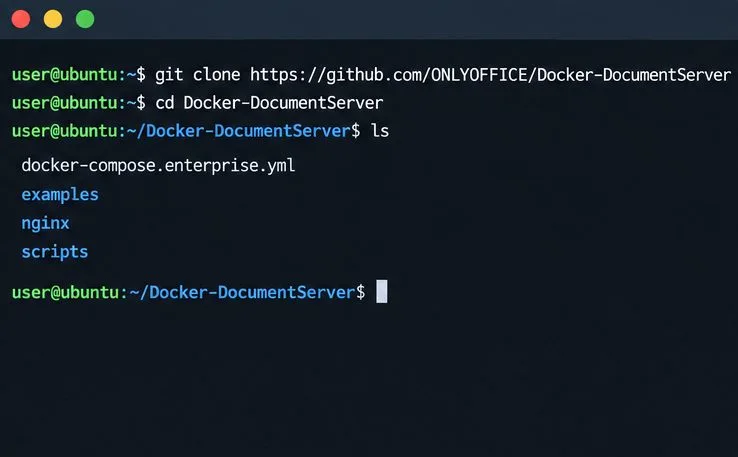
Do not launch the sample Compose configuration unchanged on an Internet-facing host. The published file contains example database credentials and comments out explicit JWT values. Replace the PostgreSQL password in both the database service and the Document Server’s DB_PWD setting with the same strong value. Keep database, RabbitMQ, and Redis ports private.
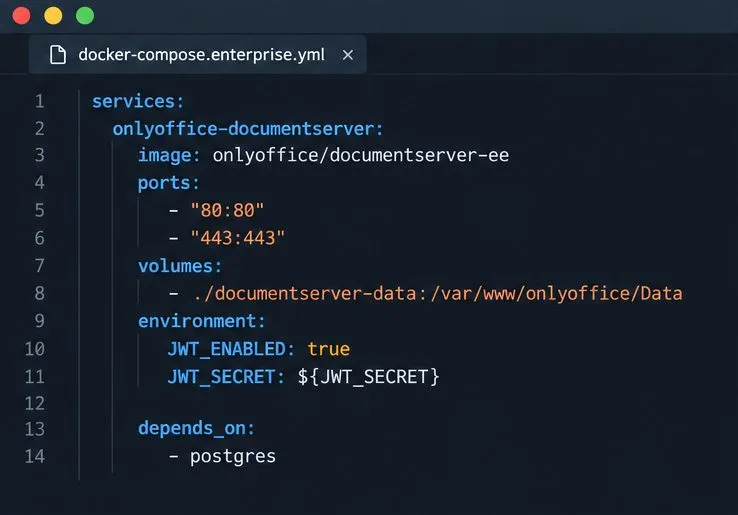
For an integration, set one stable JWT secret in the Document Server service and configure the same secret in your platform’s ONLYOFFICE connector. A simple approach is to keep the value in a local .env file that you do not commit to Git, then use Compose variable substitution. Add these entries to the Document Server environment section, adapting the existing environment format as needed:
- JWT_ENABLED=true
- JWT_SECRET=${JWT_SECRET}
Put a long, unique value in .env as JWT_SECRET=.... Do not copy the literal placeholder into a live configuration. ONLYOFFICE documents JWT as enabled by default in Docs 7.2 and later with an automatically generated secret; specifying your own stable value avoids a mismatch when the container is recreated. See the JWT configuration guide.
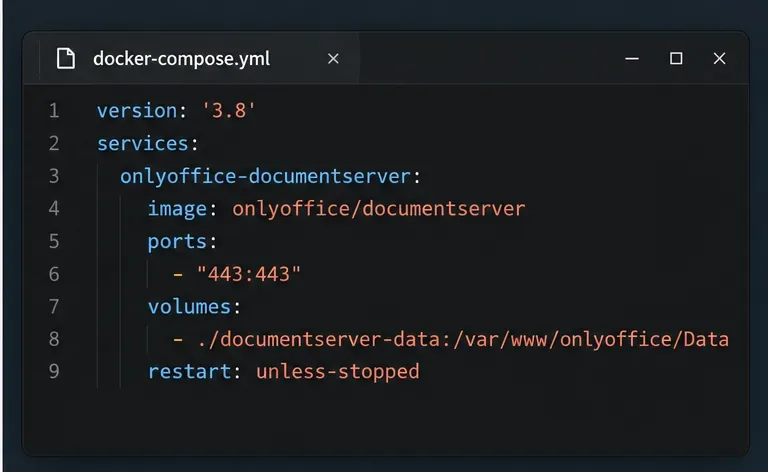
To register Enterprise with a purchased license.lic, bind-mount a host directory to /var/www/onlyoffice/Data in the Document Server service. For example, replace its anonymous data mount with ./documentserver-data:/var/www/onlyoffice/Data, create that host directory, and place license.lic inside it before startup. Preserve the file’s permissions and keep the directory in your backup plan. The Enterprise registration instructions confirm that the license file must be in a mounted folder for Docker.
From the repository directory, validate the Compose configuration quietly so expanded secrets are not printed, then start the services. Quiet validation checks the Compose model; it does not prove the containers will start. Docker documents this option in its Compose config reference:
docker compose -f docker-compose.enterprise.yml config --quiet
docker compose -f docker-compose.enterprise.yml up -d
The first start may take longer while images are built or downloaded and dependencies initialize. If configuration validation reports an unset variable, check your .env file and the variable names in the Compose file. Do not add quotation marks around secrets unless they are part of the intended value.
Check the services and health status:
docker compose -f docker-compose.enterprise.yml psWait for the Document Server health check to pass. The official Compose file checks http://localhost:8000/info/info.json from inside the container, with a 60-second start period. If the service stays unhealthy, inspect its logs and the dependency status:
docker compose -f docker-compose.enterprise.yml logs --tail=100 onlyoffice-documentserverThen open http://localhost on the host, or the mapped URL from a browser that can reach the server. ONLYOFFICE’s Compose instructions use the welcome page as an initial installation check. For remote production use, expose the service through HTTPS on your domain rather than leaving editor traffic on plain HTTP. Consult the Enterprise Docker port guide and Docker installation guide when configuring network access and TLS.
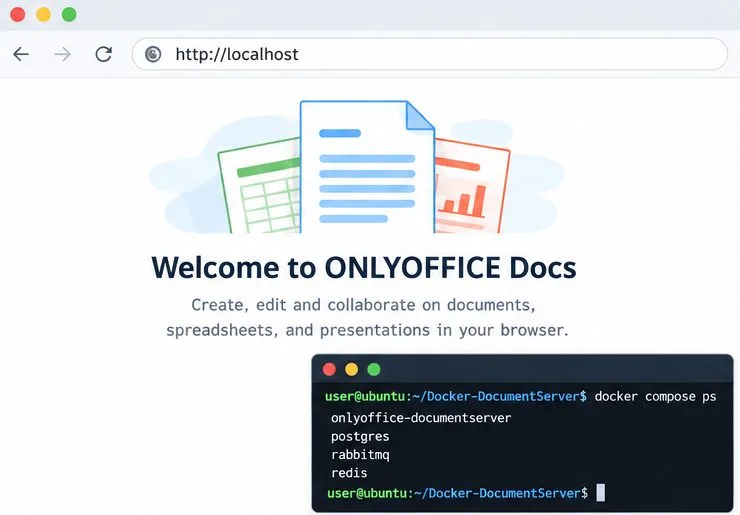
Finally, configure your platform’s Document Server URL and matching JWT secret, then open, edit, and save a test document through that integration. The welcome page alone does not prove that the connector, reverse proxy, JWT, or callback URL is configured correctly. If the services are healthy but the editor cannot open from the platform, check that the platform can reach the Docs URL and that both sides use the same JWT secret and header. For a multi-host or high-availability deployment, treat this Compose stack as a starting point and review ONLYOFFICE’s deployment guidance rather than assuming one Compose host provides clustering.
Start the Enterprise Docker Compose stack, persist its license and data, configure JWT safely, and confirm the editors are ready to integrate.
Use an ONLYOFFICE JavaScript macro to remove nonprinting characters and trim extra spaces from a defined spreadsheet range, with a safe review workflow.
Connect ONLYOFFICE DocSpace to Active Directory or OpenLDAP, import users and groups safely, map account fields, and schedule reliable synchronization.
Move portal data from Disk Default to a supported cloud storage provider, or relocate Docker data safely by changing its host volume mapping.
Identify whether Document Server uses a Linux package or Docker, remove only its components, and check remaining data without deleting shared services by mistake.
Trace slow collaborative editing to Docker resource pressure, proxy connections, or document load, then choose the fix that matches your measurements.
Install custom fonts in ONLYOFFICE Document Server, compare persistent Docker mounts with direct copies, rebuild the font list, and verify the result.
Choose where TLS should terminate, mount a trusted certificate and private key safely, and verify HTTPS access to a Dockerized ONLYOFFICE Docs server.
Embed the ONLYOFFICE editor in your PHP app, sign its configuration with JWT, and save edited files through a secure callback.
Set the proofing language for the whole document or selected text, confirm spell checking is active, and identify when a server dictionary is missing.