1GB Equals How Much MB And How Long Can It Be Used For?
Discover how many MB is 1GB and understand the data consumption for various activities to optimize your internet usage.
Have you ever set the time in your computer, controlling the time not only helps you optimize your work as well as control the effective work experience. However, Windows 10 shutdown timer not everyone knows how to do it. So WebTech360 will introduce you to the most effective and easiest ways to schedule shutdown in Windows 10.
Windows 10 shutdown timer with Windows + R key combination is one of the simplest ways to shutdown. With this trick, you don't need to install or download any software or applications at all, just enter a few simple commands to time the shutdown. Please refer to the following steps:
Step 1: You need to use the key combination Window + R to open the Run dialog box , then proceed to enter the command Shutdown -s -t number (where number is the time that you want the computer to work before shutting down, time in seconds).
For example: You want the computer to work within 30 minutes, the command to be entered will be: Shutdown -s -t 1800 (30 minutes = 1800 seconds).

Enter the shutdown timer command
Step 2: After entering the command, you just need to click “ OK ” or press “ Enter ”, then immediately, the computer will automatically display a message about the remaining operating time of the computer before shutting down because you just installed.
In addition, to cancel the Windows 10 shutdown timer mode, you just need to enter the Shutdown -a command in the Run dialog box .
One of the ways that many people use when shutting down Windows 10 is to shutdown via Command Prompt . Similar to the above method, this is also a simple way to shutdown when you just need to perform command input operations on your computer without downloading any software.
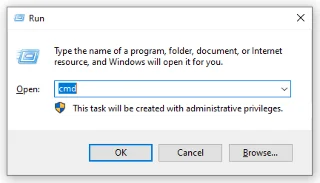
Step 1: To open Command Prompt , you need to use the Windows + R key combination . Then the Run dialog box will appear. Similar to the above, you need to enter the command " cmd ", then you just need to " Enter " to complete the first step.

Timer shutdown via Command Prompt
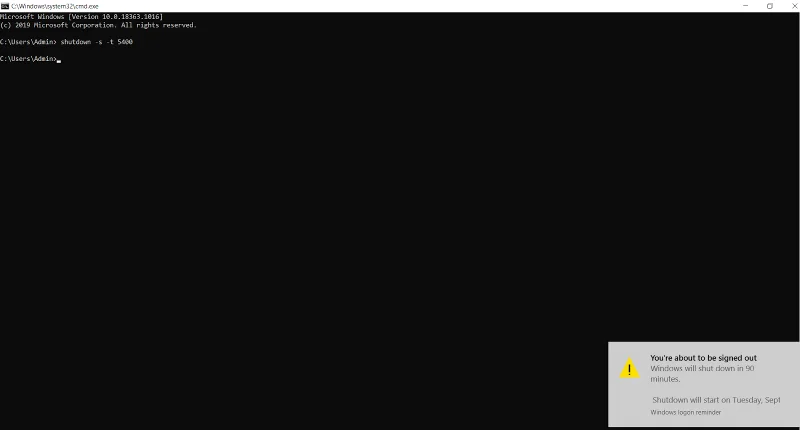
Step 2: Still similar to method 1, you just need to enter the command Shutdown -s -t number , where number is still the time you want to install in seconds. Next, you press “ Enter ” and a message about the shutdown timer will be displayed on the screen.
For example: You want the computer to work only for 1 hour and 30 minutes, the command you need to enter is Shutdown -s -t 5400 .

Enter the shutdown timer command via Command Prompt
The above 02 ways are tips to schedule shutdown in 01 day. With the next way, we will reveal to you the Windows 10 shutdown timer trick that repeats day after day in just 1 setup. Although it is more complicated than the above two methods, this is the way that gives you more advantages because it saves you setup time, in case you forget to set up when there is something important.
Here's how to schedule shutdown in Windows 10:
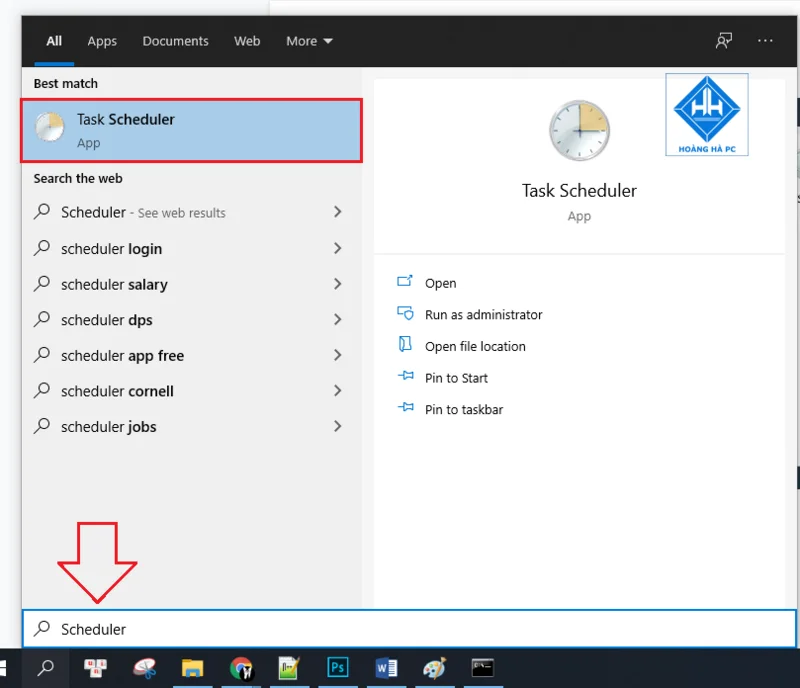
Step 1: In the Start section , enter the keyword Scheduler in the search bar to activate the Task Scheduler .

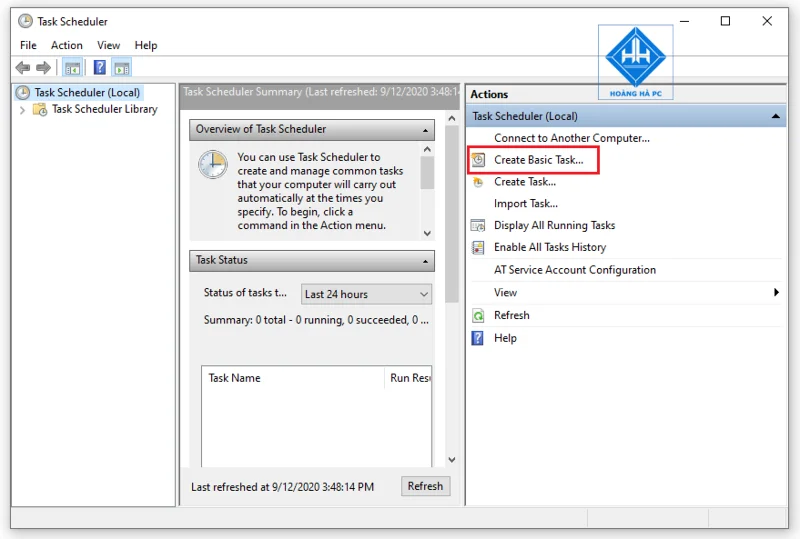
Step 2: Click on “ Create Basic Task ”.

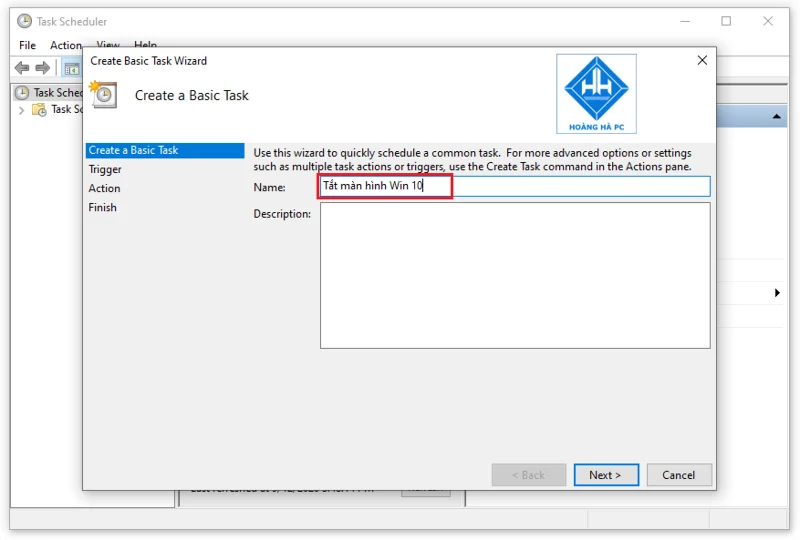
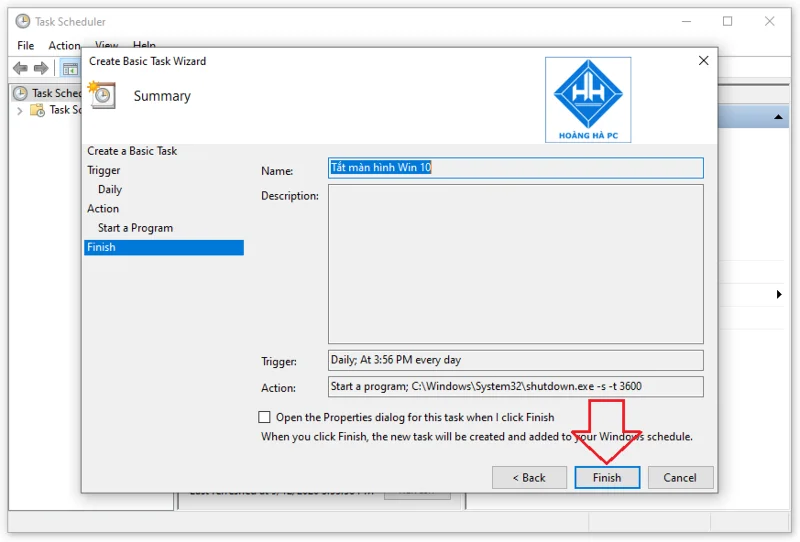
Step 3: Name the command you want to create. Such as “ Turn off the Windows 10 screen ”.

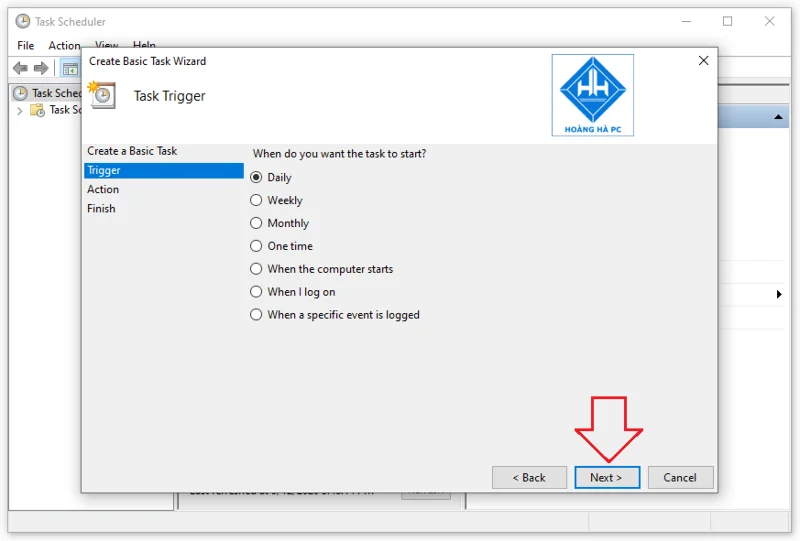
Step 4: This is the step where you choose the time to turn off the computer and this time can be repeated or not. Specifically, Daily - daily, weekly - weekly, monthly - monthly, one time - 01 time, when the computer starts - when the computer has just started, when I log on - when you log in and finally when a specific event is logged - when a specific event is logged.

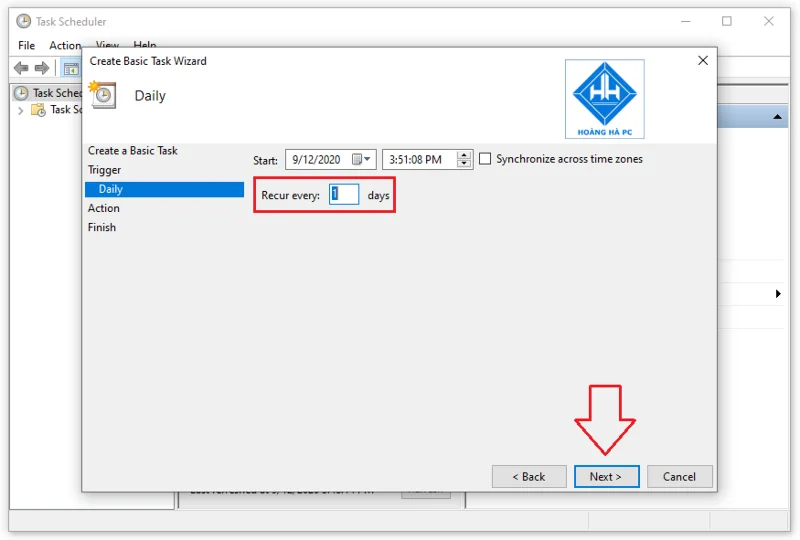
Step 5: For this step, you need to set the time the computer starts executing the timer command you are creating. “ Recur every ” is the periodic shutdown time. In order for the computer to shut down every day, you should enter “ 1 ” in this field. Then you click on “ Next ”.

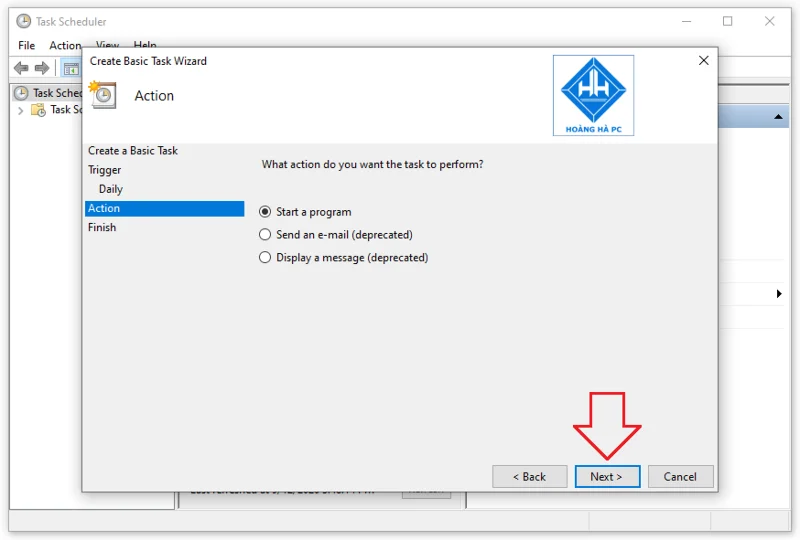
Step 6: Click " Start a program " to start the program. Then you click on “ Next ”.

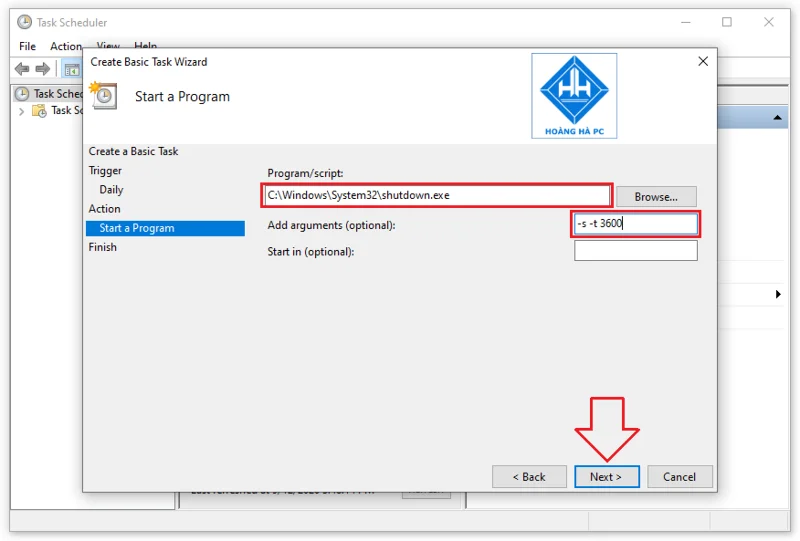
Step 7: Click Browse and select the shutdown.exe file ( C:\Windows\System32\shutdown.exe ). To set the time the computer needs to work, enter the command -s -t number in the " Add arguments " field (where the time is in seconds).

Step 8: To complete this Windows 10 shutdown timer setup, simply click “ Finish ”.

And those are the three most popular and widely applied ways to schedule shutdown of Windows 10 that WebTech360 has learned and summed up for you. Hope you will have the best experience, help you control the time you use your device better.
Discover how many MB is 1GB and understand the data consumption for various activities to optimize your internet usage.
The function of thermal paste, types of thermal paste and notes when using will be shared by WebTech360 through the article below.
Computer wallpaper is boring, want to find a more aesthetic and beautiful computer image. WebTech360 will show you how to set your desktop wallpaper for Windows 7 and 10!
How to find the IP address and change the computer IP? Join WebTech360 to learn about IP addresses and very simple ways to change computer IPs.
How to adjust screen brightness Win 7 makes it easier for you to adjust the brightness according to your wishes. Let's find out with WebTech360 now!
Windows 10 is the most developed operating system with nearly 10 versions. Which version of Windows 10 should be installed is light and best for the computer and suitable for the job.
Sleep mode is a useful tool for those who have to regularly use the computer. Let's refer to the simple ways to turn off Sleep mode in Windows 10 below!
With the problem that the computer does not turn off during use, WebTech360 will guide you through simple ways to handle the error.
The operating system failed to find the computer in the LAN. WebTech360 shares how to fix Win 10 operating system that cannot connect to LAN.
Clock runs fast or slow wrong time on the computer. WebTech360 shares the reason why the clock in the computer is running wrong and the simplest way to fix it.
WebTech360 introduces computer power consumption measurement software to help calculate the effective and accurate power consumption that you can refer to.
WebTech360 - Share your perfect desktop wallpaper. Our wallpapers come in all sizes, shapes and colors, and they're all free to download.
Struggling with Microsoft Edge microphone and camera permissions not working? Discover quick, step-by-step fixes to restore access in the latest Edge version. No tech skills needed!
Struggling with Microsoft Edge "Audio Interface" ASIO Driver crashes, no sound, or latency? Discover proven, step-by-step fixes to restore smooth audio playback and eliminate errors fast. Works on latest Windows updates!
Tired of "Connection Lost" ruining your Valorant Console Beta 2026 matches? Discover proven fixes for PS5 & Xbox, from quick restarts to advanced network tweaks. Stable connection starts here!
Frustrated with sluggish Microsoft Edge on your slow PC? Unlock lightning-fast browsing with our expert guide on how to speed up Microsoft Edge performance. Simple, effective tips for instant results!
Struggling with leftover clutter after uninstalling Microsoft Edge? Learn proven steps to clean up Microsoft Edge leftover files, free up disk space, and optimize your PC performance effortlessly. Step-by-step guide for Windows users.
Tired of Microsoft Edge Winaero Tweaker settings fix issues? Get permanent fixes for settings that won't stick, resets, and tweaks failing in the latest Edge versions. Step-by-step guide with screenshots for quick resolution.
Tired of frustrating delays? Learn how to fix Microsoft Edge "Google Search Lag" Error 2026 with proven, step-by-step guides. Restore smooth Google searches instantly – updated for 2026!
Discover the best offline browsing features in Microsoft Edge 2026 that keep you productive anywhere. From advanced caching to AI summaries, explore how Edge dominates offline web access.
Tired of Microsoft Edge crashing with Status_Access_Violation? Follow our step-by-step troubleshooting guide for quick, reliable fixes to restore smooth browsing. Works on latest Edge versions!
Struggling with Microsoft Edge? Discover the easiest way to uninstall Microsoft Edge via Command Prompt (CMD). Step-by-step CMD guide for Windows 11/10, complete removal without reinstalls. Works on latest updates!
Master how to update Microsoft Edge to the latest 2026 version with easy steps for Windows, Mac, Android & iOS. Boost speed, security & features instantly!
Struggling with Microsoft Edge crashes or errors after Winaero Tweaker tweaks? Get the ultimate guide on How to Fix Microsoft Edge "Winaero Tweaker" Fix 2026. Step-by-step solutions for smooth browsing in the latest updates. Quick, reliable fixes!
Discover proven ways to fix the Microsoft Edge Laptop Battery Threshold issue. Extend your battery life with step-by-step instructions, quick tweaks, and advanced tips for optimal performance on Windows laptops. Say goodbye to unexpected drain!
Struggling with unwanted Microsoft Edge WebView2 on Mac? Discover how to permanently delete Microsoft Edge WebView2 on Mac with our foolproof guide. Free up space, boost privacy, and reclaim your Mac effortlessly. Latest methods included!
Struggling with Microsoft Edge hogging integrated graphics memory? Discover step-by-step troubleshooting for Microsoft Edge "Integrated Graphics" Memory issues, boost performance, and reclaim your GPU resources today.