Windows accounts are divided into Administrator and Standard accounts. Standard accounts can make changes but only affect computers like making changes in personal preferences or software settings, but you need an admin account to change the clock, access the System files, more users and more.
Perhaps you try to access somewhere and be told that you do not have administrator rights. If you need administrator privileges but have lost your admin account or forgot your password, the following article will guide you to get this account.
Make sure you have administrator rights
It sounds obvious, but maybe you don't have administrator rights on the computer because the person who manages it doesn't want you to have it. On a corporate computer, or a parent's or friend's computer, you might have been limited to your Standard account so you can't make big changes.
If you need admin access on someone's computer, ask them to create a new account with admin rights for yourself. The advice in the following article is not used to hack into computers, but to restore admin access if you are lost.
User Account Control: Know your rights
Windows uses the green and yellow User Account Control (UAC) shield to indicate computer functions that require administrative rights. If you try to take action, you will see two different reminders depending on whether you are an administrator or not.
Admin simply click on Yes when asked if they want to allow a program to change or not. Standard account must enter administrator password to proceed. This allows you to perform administrative functions without having to log in to a smart account management strategy. As long as you know an admin password, you can get it through UAC prompts anytime.
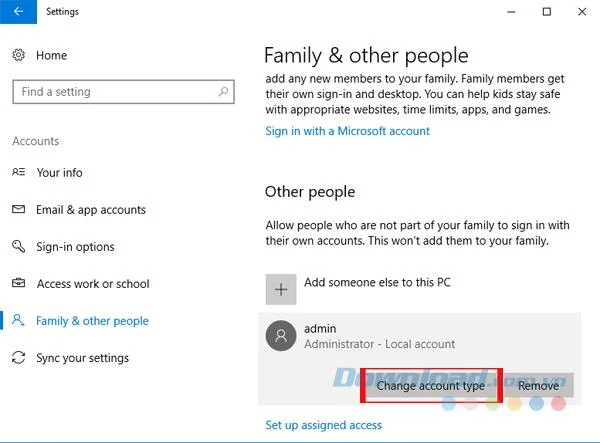
If you want to upgrade a standard account to an admin account, first log into another admin account and open Settings . Click Accounts and click on the Family & other people tab . Then, select your account under Other People and click on Change account type . Change it from Standard User to Administrator and you will have full administrative rights.

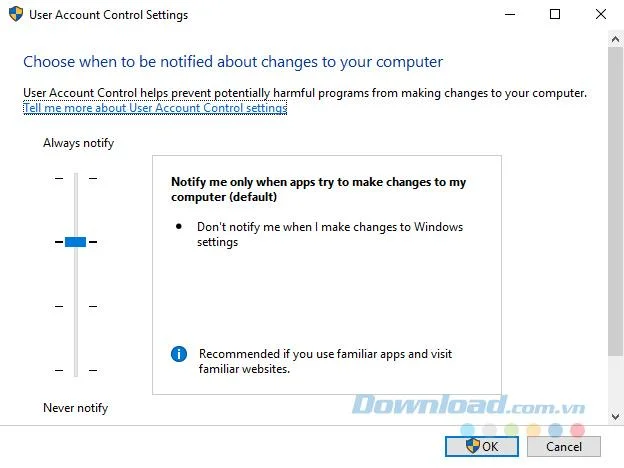
Please ensure that you do not turn off UAC, as doing so will prevent the Standard account from seeing UAC prompts, so attempting to perform an administrative action will fail without notice. You type UAC into the Start Menu and click Change User Account Control settings . Make sure the slider is not set to the Never Notify option . The second option from above is the default and works fine.
If you lost your account password
Another case where you cannot log in to the admin account occurs when you lose your password. Download.com.vn introduced how to reset the Windows administrator password. If you use a Microsoft account for an administrator account, you can reset your password through the Microsoft portal. Local accounts have some other methods for resetting passwords, but the process is the same. When you recover your account password, you will return to full administrator rights, just like before.
See more:
>>> How to reset the Administrator password in Windows 7 when forgotten
>>> Instructions to reset your Windows 10 / Microsoft account password
Temporarily access Windows administrator account
Since Windows Vista and the advent of UAC, Windows has come with an available admin account. This protects your computer, because the default admin account can perform any action on your computer without boundaries. Needless to say, malware acquiring this would be disastrous.

You can access a few utilities to allow an administrator to access your own account again, but none of them will work if you are not an administrator. Depending on your exact issue of administrative rights (maybe you accept UAC prompts but don't access other users' files), you can still enable built-in administrator accounts.
Try it by typing cmd in the Start Menu , then right-clicking on it and selecting Run as administrator . Enter the following to enable the existing Admin account.
net user administrator / active: yes
Now, you just need to log out your account and you will see the Administrator option . It has no password, so you are free to log in and perform any function you want.
Correct your own account errors
After logging in with an administrator account, you can use Windows tools to fix problems in your own Admin account. Start by visiting the account page just like before in Settings to make sure your account is really an administrator. Then go to Settings> Accounts> Family & other people . Click on your account name under Other People and click the Change account type button . Convert Standard User to Administrator.
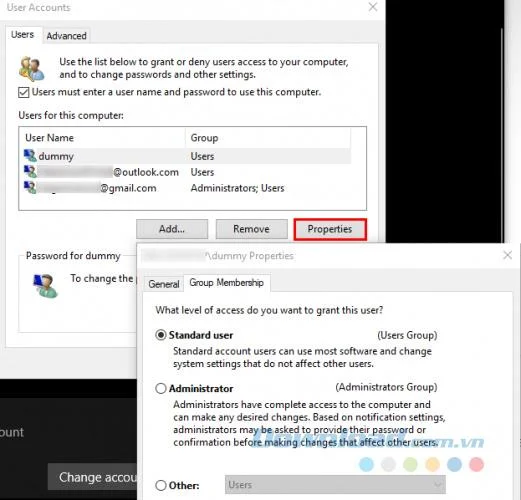
Another way to do this is through the User Accounts page . Type netplwiz into the Start Menu to access it. Here, you will see a list of every user on your device. Select an account and click the Properties button , then select the Group Membership tab . You can change an account from Standard to Administrator. The Other option contains a lot of other types of accounts that are not common in the business side.
There is another place that you should check to make sure you don't lack any rights. Open a File Explorer window for This PC (using the keyboard shortcut Windows + E ). In Devices and drives , right-click on the main hard drive and select Properties .
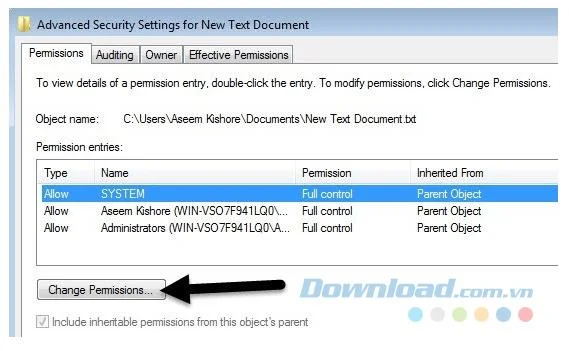
In this window, switch to the Security tab . Next, click the Advanced button near the bottom. You will see a complete list of permissions for each user group on your computer.

Make sure that the Administrators group has Full Control access . If not, it will prevent you from viewing the files. You click Change Permissions to change, then double-click a group to modify it. Finally, check the Full control box in the Administrators group . Always remember that you should not change anything here if you are not sure.
The above article mentioned the most common solutions to gain admin rights. Whether you have disabled UAC, forgot your password, or are subject to strange file settings, these methods allow you to restore administration and control over your computer again.