The Amazon Fire TV Stick is a great way to get all of the streaming content you want straight to your TV. It can connect you to streaming services like HBO, Netflix, Hulu, and Disney+, as well as live TV, and Amazon’s huge catalogue of films and television shows.
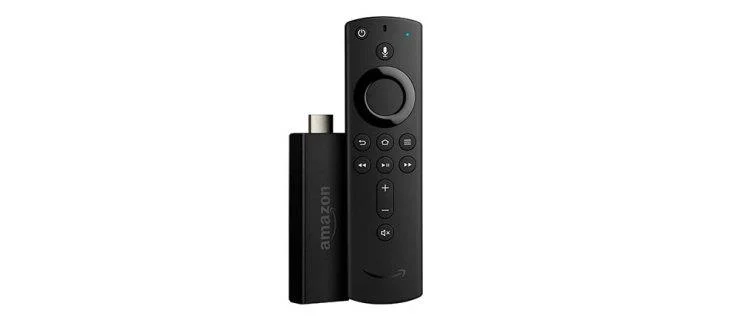
However, like any modern, internet-enabled device, it will often require time out for an automatic update. Normally, it’s not possible to turn this function off, as there isn’t an inbuilt option to do so in the settings menu. But there is a work around – if a pretty complex one. That’s why we’ve put together this guide to walk you through how it’s done.
Step 1: Enable Android Debug Bridge
Android Debugging Bridge, or ADB, is a command line level program that enables you to make developer-level changes to your Fire Stick’s operating system. You’ll need to enable it in order to make the modifications necessary to turn off the auto-updating feature on your Fire Stick.

Enable ADB on the Newer Fire Stick Interface
First, you need to enable your Fire TV Stick to make connections to ADB via the settings menu. Here are the steps you’ll need to take:
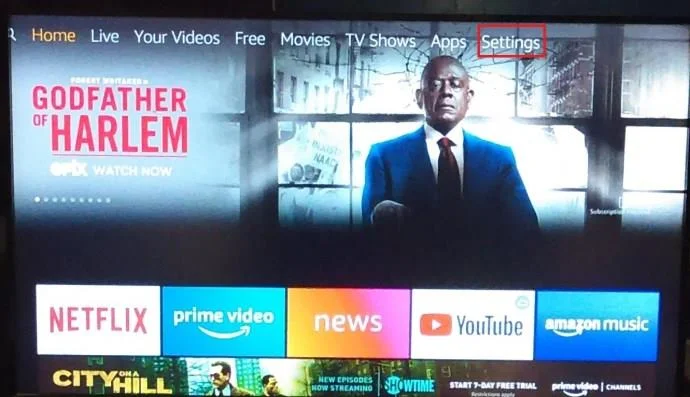
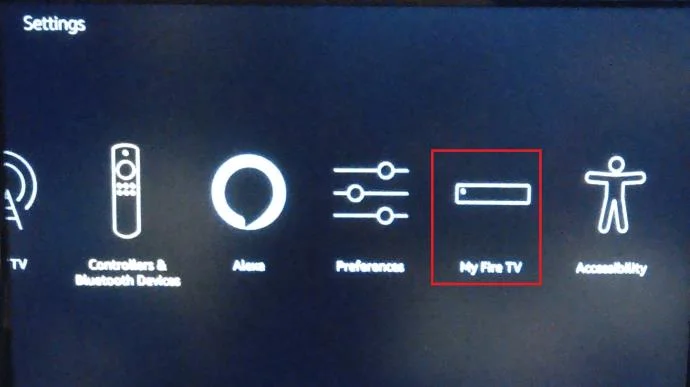
- Go to the Fire TV Stick’s home screen and select Settings.

- Scroll to the right and select My Fire TV (it might be Device or System on Fire Sticks running an older version of the interface).

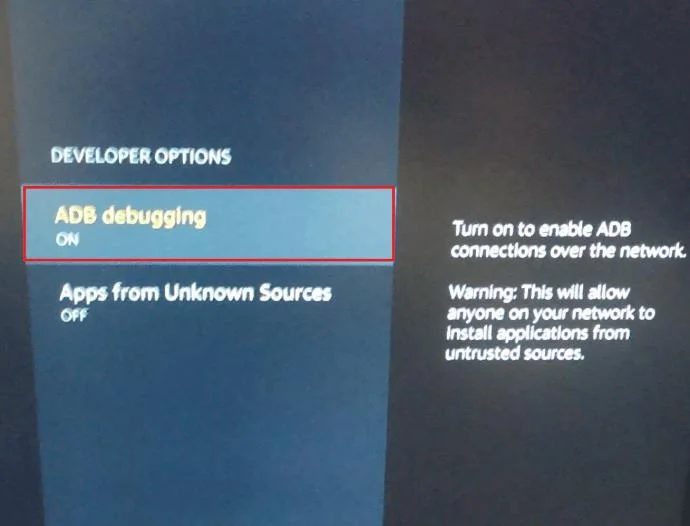
- Scroll down to Developer options and select ADB debugging to turn it ON.

Step 2: Find Your Fire Stick’s IP Address
Next, you need to determine the IP address assigned to your Fire TV Stick by your Wi-Fi network, in order to connect it to your TV. Here’s how it’s done:
- As before, go to the Fire TV Stick’s home screen and select Settings.
- Scroll to the right and select My Fire TV (it might be Device or System on Fire Sticks running an older version of the interface).
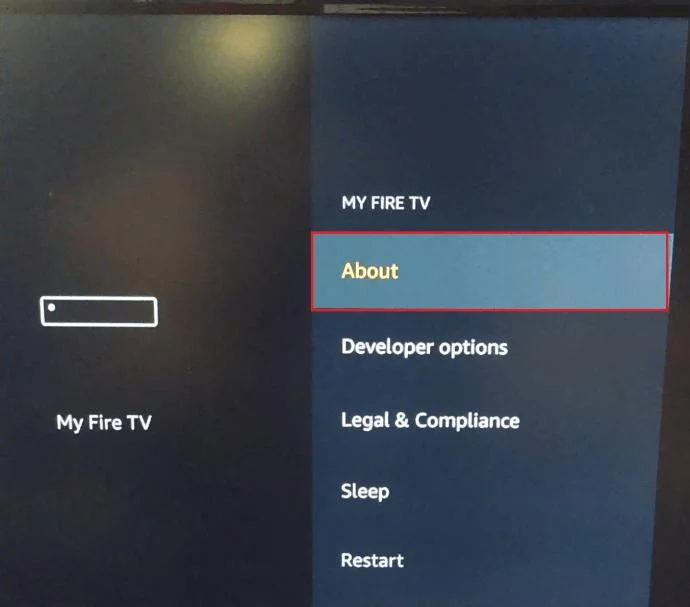
- Next, select About.

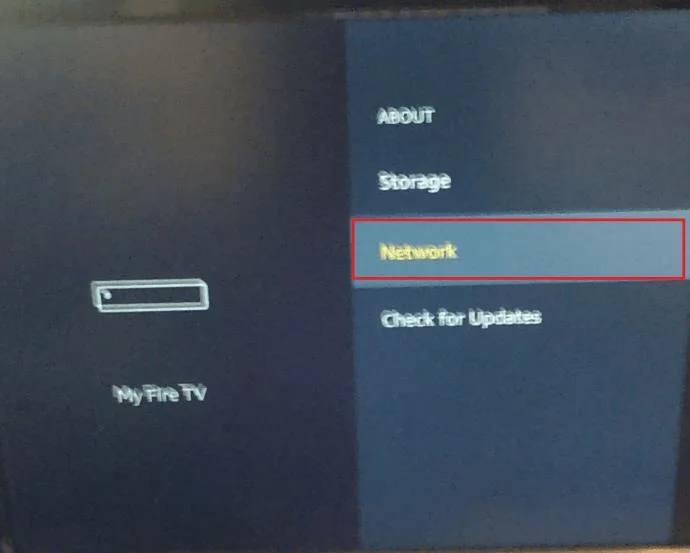
- Now, scroll down to Network.

- The IP address of your Fire Stick will be shown on the right of the screen. In most cases, it will be something like 192.168.1.XX (where XX is the number assigned to the Fire Stick). Make a note of the entire string of numbers, as they are all needed later.
Step 3: Install ADB on Your Computer
The next step is to make sure you have the Android DebugBridge installed on your computer if you don’t already have it. Below are the steps necessary to install it on both Windows and Mac computers.
Install ADB on Windows
- Open a web browser, and download the ADB Installer from this link: ADB Installer (Windows).
- Open the installer once it has finished downloading.
- The installer will ask Do you want to install ADB and Fastboot? Type “Y“, and hit Enter.
- Next, it will ask Install ADB system-wide? Type “Y“, and hit Enter.
- Finally, it will ask Do you want to install device drivers? Type “N“, and hit Enter.
Install ADB on Mac
- Open your Mac’s web browser, and download ADB from this link: ADB Installer (Mac)
- Extract the installer’s zip file by double clicking on it.
- Once it has finished extracting, double click on the new unzipped folder.
- Open the Terminal application by going to Applications > Utilities, or by pressing ⌘ + space and typing “Terminal” into Spotlight.
- Drag the file titled ADB-Install-Mac.sh to the Terminal window.
- Click on the Terminal window, and press enter. Enter your password if requested.
Step 4: Launch ADB on Your Computer
Now you’ve installed ADB, you’ll need to start it up. Here’s how to do it:
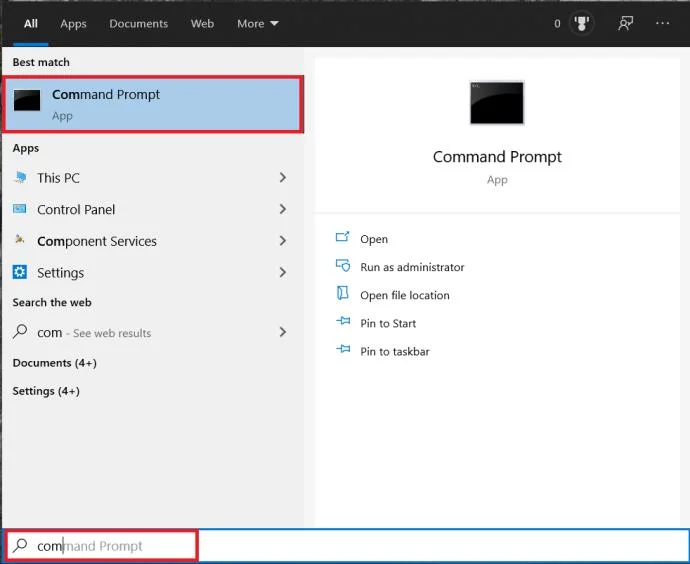
- Open the Start menu, start typing “command prompt” into the Search bar and click on Command Prompt. On Mac, open Terminal the same way you did previously.

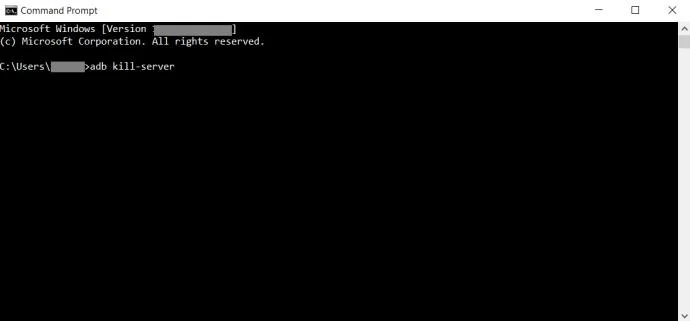
- Type in “adb kill-server” (without the quote marks) then hit Enter.

- Type in “adb start-server” then hit Enter.

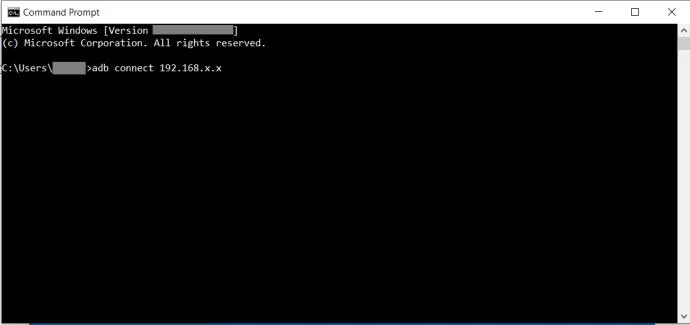
- Type in “adb connect [IP address]” (use the IP address for your Fire Stick that you found earlier and don’t include the brackets) and then hit Enter.

Step 5: Disable Auto Updates Using ADB
The final step is fairly simple, now you’ve got everything set up. You just need to run a specific command to tell the Fire Stick to stop auto-updating. Here’s what to do:
- With the Command Prompt window still open and connected to your device from the steps above, type “su” and hit Enter. This command will give you admin level access to your Fire TV Stick.
- For Fire TV Stick’s with OS3, type in “adb shell pm disable com.amazon.dcp” and hit Enter.
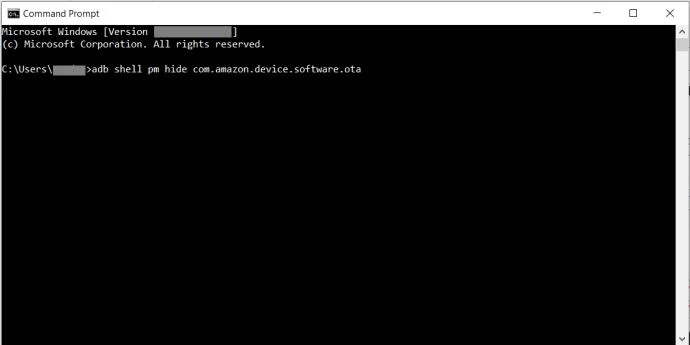
 If your Fire TV has OS5 or greater, type in “adb shell pm hide com.amazon.device.software.ota” and hit Enter.
  Try the commands without typing the “adb shell” part at the beginning if you have issues.
If you ever want to re-enable auto-updating on your Fire TV Stick, you can either perform a factory reset or follow this final stage again, replacing the word hide with unhide.

No More Auto Updates
Using this somewhat lengthy process, you can persuade your Fire TV Stick to no longer automatically download and install updates. If you’ve found a better or easier method to manage this, then we’d love to hear about it in the comments section below.

 If your Fire TV has OS5 or greater, type in “adb shell pm hide com.amazon.device.software.ota” and hit Enter.
  Try the commands without typing the “adb shell” part at the beginning if you have issues.