Podcasting Trends You Need to Know in 2026: A Beginner’s Roadmap

New to podcasting? Learn the 2026 trends shaping video, discovery, transcripts, AI, analytics, monetization, and a practical launch plan.
Even though viewing messages on Discord is relatively straightforward, several options have been added to expand messaging functionality. Knowing how to take advantage of these options would be a great help to any intrepid community manager.

In this article, we’ll show you the ins and outs of how to view Discord messages, and gives you a heads up on maximizing its utility.
Discord Messaging
The Discord messaging platform shares a lot of similarities to other popular message apps. You type a message in the text box, press enter, and the message appears on the window.
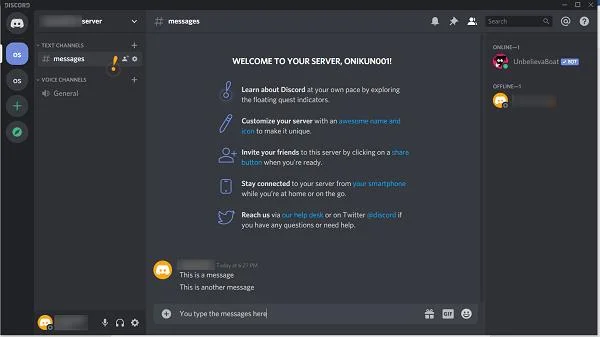
Members of the channel can do the same unless you’ve restricted their ability to send messages.
You can delete any message you’ve sent by hovering over the text until the editing icons appear.

The first icon allows you to add an emoticon. The second gives you the ability to edit the message you just typed. The last offers several more functions as shown in the image below:
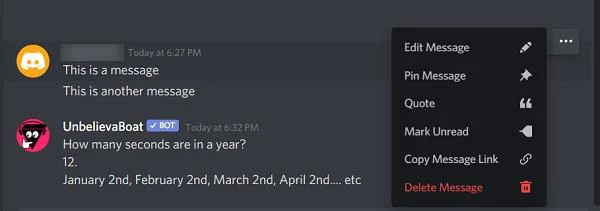
The functions of each option are as follows:
Direct Messages
There’s another message type that discord offers called DM’s or Direct Messages. These are private messages sent from one user directly to another. Direct messages don’t show up on the server chat, and can instead be accessed on its separate window.
To access the DM window, Click the Home icon, which is your portrait on the upper left. This will show you a list of your friends, and the direct messages that you currently have.
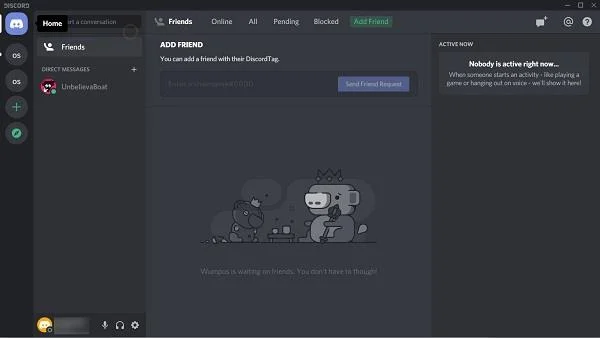
Clicking on the portrait of a friend will open the Direct Message window. From here you can proceed to have a private conversation with that person.
Do note though that direct messaging may be blocked by other users. If another user or even a friend has prevented DM’s then you can’t send them a direct message.
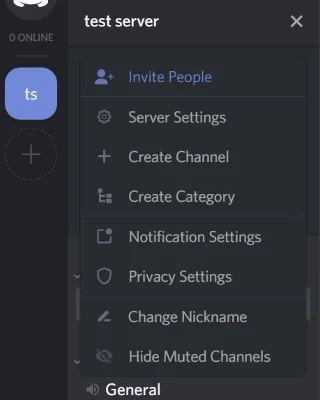
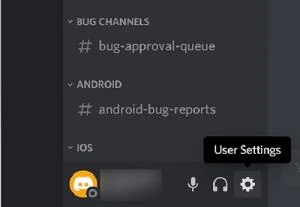
To do this yourself, follow these steps:
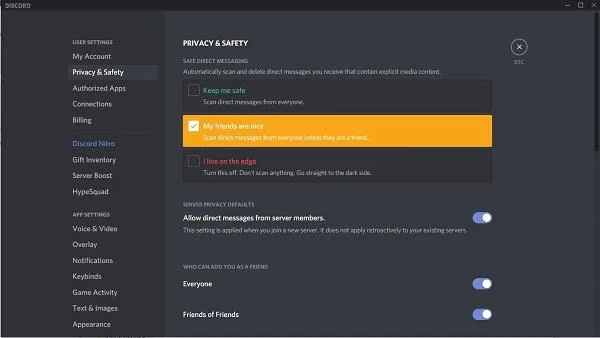
Choose which setting you want.
Discord scans content for potentially unsafe work content. The Keep me safe option will scan all messages that you receive. The My friends is a nice option that will scan any message that doesn’t come from your listed friends. The I live on the edge option doesn’t scan anything and will allow all messages through.
Clicking on the Allow direct messages from server members under the Server privacy defaults menu will either block or allow DM’s from others.
Mark Messages as Read
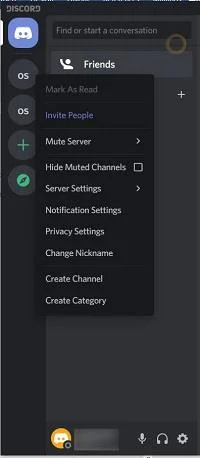
Sometimes you may find yourself with too many messages that reading them each individually would be inconvenient. Discord provides a solution by allowing users to mark entire servers as read. Here’s how:
You can do this for all servers that have messages unread. If a server has no new messages, the option will be grayed out.
Mentions
Discord has another type of message alert called the Mentions. When typing a message, you can alert another person that you’re referring to them specifically or want to bring their attention to your message. To do this, input the @ symbol followed by the name of the person you’re mentioning.
Typing @ in the input box gives you a list of people that you can mention:
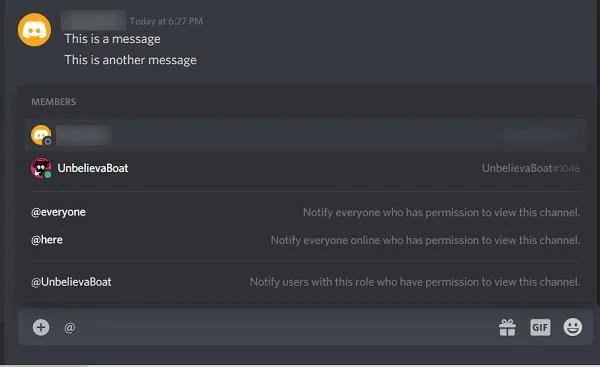
As shown, @everyone will notify all members of the channel, @here will notify all members that are currently online, and @ followed by a username will notify that specific user.
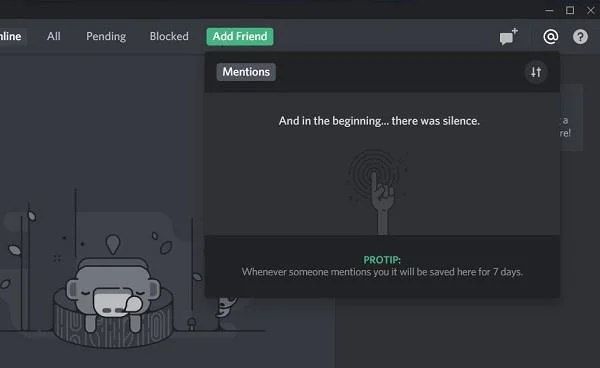
You can access any messages that you’ve been mentioned in by clicking Discord’s mention tab. This is the @ symbol at the upper left corner of the Discord window. Any messages you’re mentioned in will stay in that window for up to seven days, after which they will be deleted.
A Versatile Communication Tool
The Discord app has proven itself to be a versatile, dependable communication tool for thousands of online groups. Knowing how to navigate the messaging options helps both server members and administrators manage their communities effectively.
Do you know other ways to view Discord messages? Do you have opinions on the messaging system that you’d like to share? Let us know in the comments section below.
New to podcasting? Learn the 2026 trends shaping video, discovery, transcripts, AI, analytics, monetization, and a practical launch plan.
A practical UGC masterclass for sourcing, permissioning, briefing, publishing, and measuring customer and creator content without losing authenticity.
Community building can deepen trust, retention, feedback, and advocacy, but it is not a replacement for every marketing channel. Compare the tradeoffs and choose the right model.
Learn what major social platforms have actually confirmed about ranking changes in 2026, what depends on context, and how to adapt without chasing myths.
Learn how to make brand storytelling feel credible, human, and specific—using proof, real tension, ethical customer stories, and a practical authenticity check.
Build a smarter Q4 email strategy by balancing reach, frequency, discounts, automation, deliverability, and measurement for profitable holiday growth.
Learn how to create short-form video that converts by balancing hooks, format, authenticity, CTA, platform fit, and testing across TikTok, Reels, and Shorts.
Why are brands testing KOCs instead of relying only on influencers? Learn what KOCs are, why social commerce favors them, common myths, and how to run a measurable pilot.
Learn a practical TikTok SEO workflow for 2026: find real search demand, match search intent, optimize each video, and measure what improves visibility.
Prepare your e-commerce store for Black Friday with a practical checklist for offers, site speed, checkout, inventory, fulfillment, analytics, security, and support.