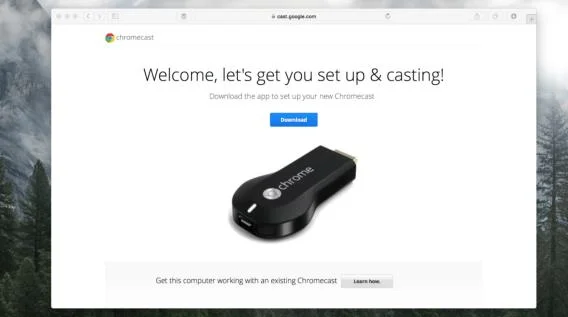
The Google Chromecast, growing in popularity, is one of the more useful streaming devices available to users worldwide today. You can use this elaborate device to stream content, show off your home videos on a bigger screen, and share presentations.
The device is simple enough, but it does take some work to get it set up and working correctly. This article will teach you how to start using your Google Chromecast and provide some helpful tips along the way.
How to Set Up Google Chromecast
The process may seem a bit confusing because the Chromecast device is so simple. You have an HDMI port on one end, and the other plugs into the wall for power. Unlike cable boxes and gaming consoles, there aren’t any other buttons, instructions, or ports.
Fortunately, the process really is as simple as the device. Before we get into the instructions, let’s ensure you have everything you will need to complete the setup process.
What You Need
You’ll need the Chromecast device. You can purchase one at a low price on Amazon using this link or pick one up at most large retailers. The device will run you about $30 on average, but it’s free to use and definitely worth the investment.

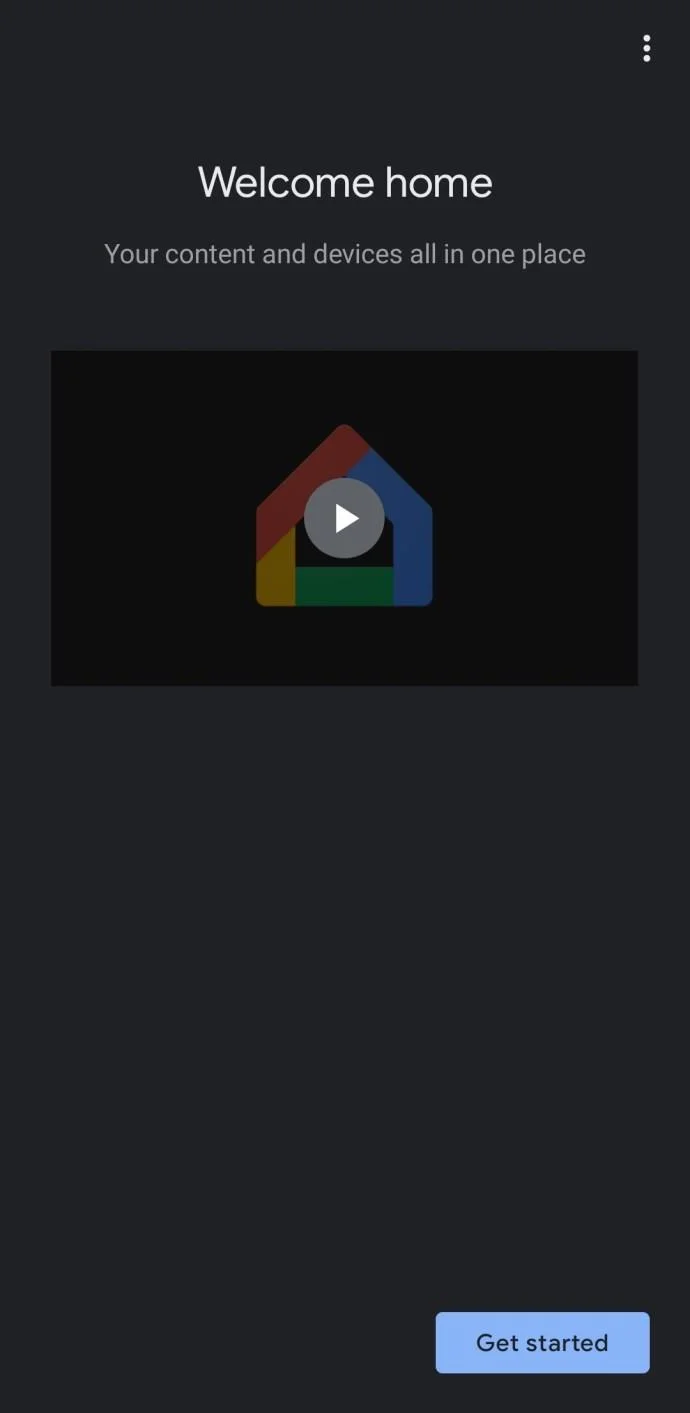
Next, you’ll need the Google Home app on your smartphone or tablet. You can download the app from the Google Play Store here, and iOS users can get it here. Since the Chromecast is a basic device, you’ll need this application to control the Chromecast and to get started.
You will also need a Google account you can access. When you first install the Google Home app on your smartphone or tablet, a prompt will appear asking you to sign in to your account. You can create a free Google account here if you don’t already have one.
An internet connection is also on our list of things that we need to complete the setup process. You can use a 2.4ghz or a 5ghz frequency (excluding the first generation Chromecast); just be sure that your smartphone is connected to the network you want to use.
Lastly, you’ll need a monitor or TV with HDMI ports. Most newer devices already have this, so it shouldn’t be a problem.
How to Set Up a Chromecast Device
Now that we’ve gathered everything we need to complete the setup, it’s time to get started. As mentioned previously, it’s quite easy to complete the process. Here’s how:
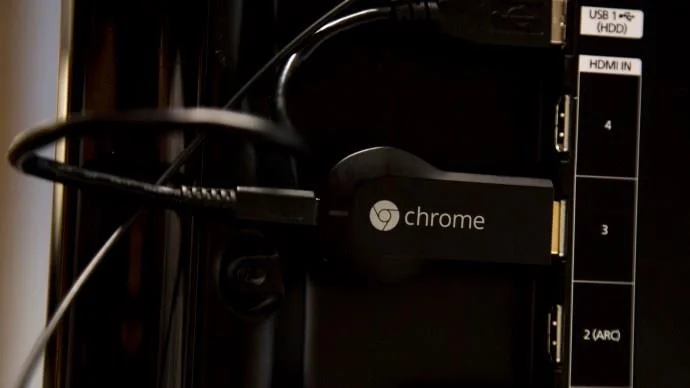
- Plug your Chromecast into your TV’s HDMI port. Then, plug the power cable into a wall outlet.

- Use the Input Button to switch your TV to the HDMI port where you plugged your Chromecast device into.
- If you have the Chromecast with remote, your Chromecast remote should begin to pair automatically. If it doesn’t, select Start Pairing to proceed. Then, hold the Back button and Home button so that the LED light indicator appears on the remote.
- Once paired, select which language you want to use.
- Open the Google Home app on your smartphone. Sign in to your Google account if you haven’t already.

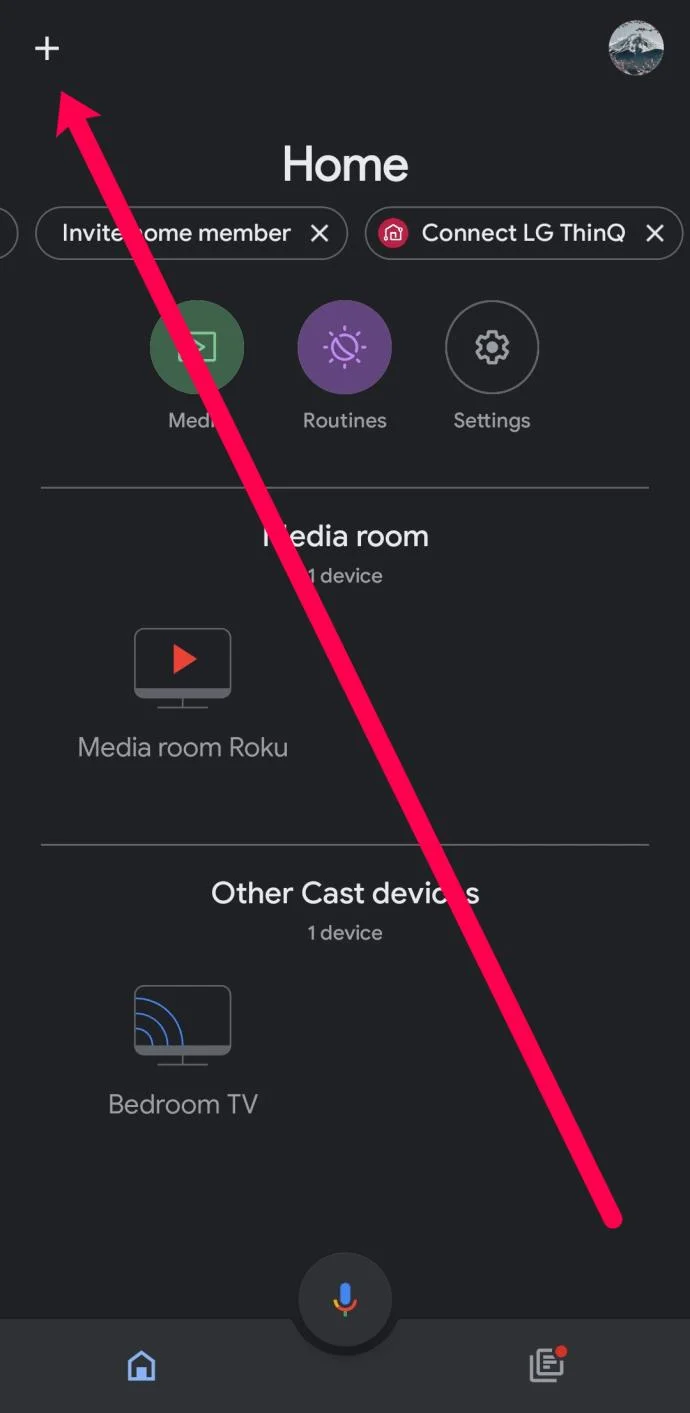
- Tap on Setup Chromecast. Or, tap on the ‘+’ icon in the upper left-hand corner. Then, tap on Setup Chromecast.

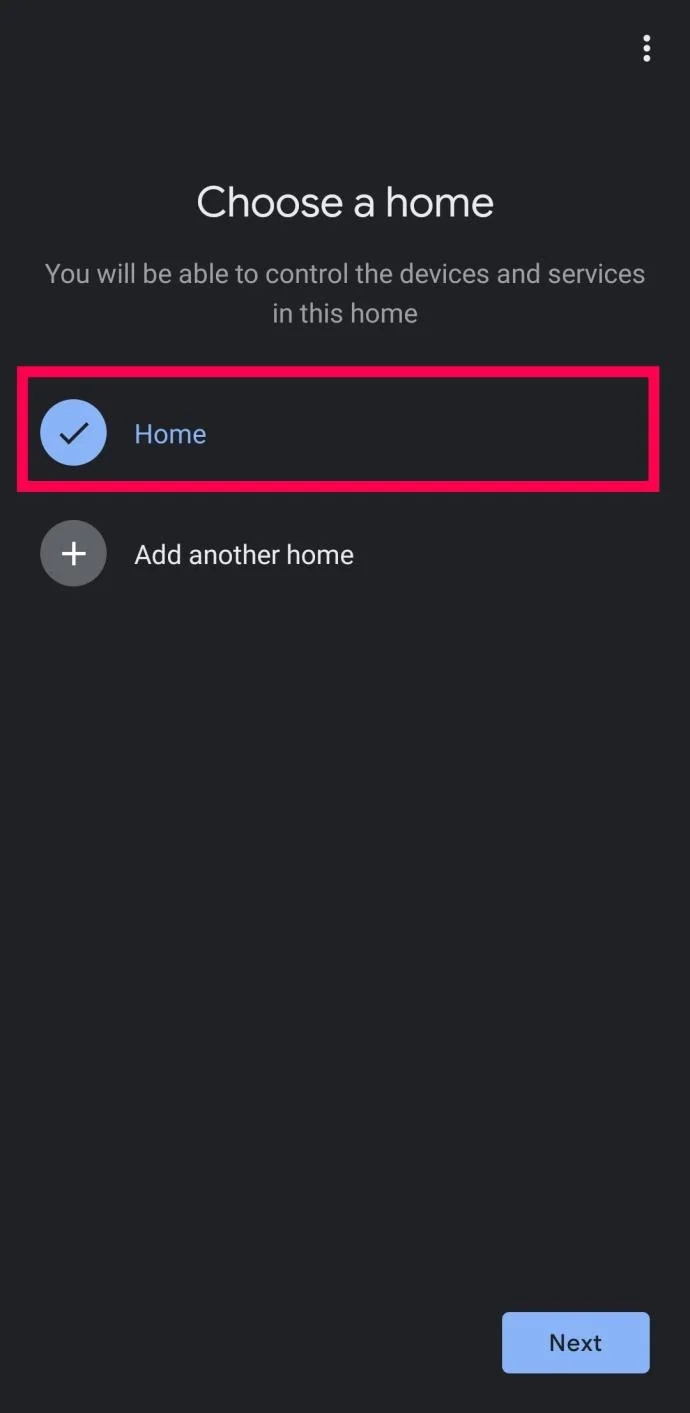
- Choose the group you’d like to add this Chromecast device to (in this case: ‘Home’).

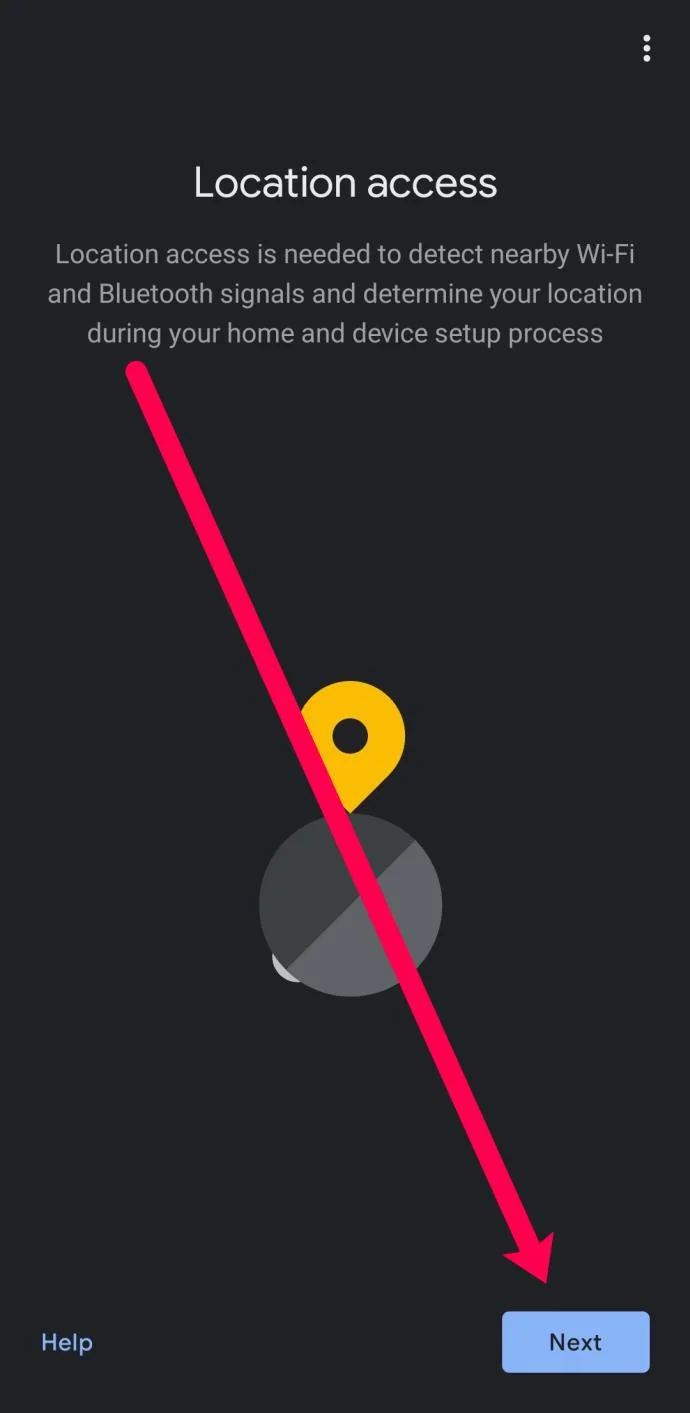
- The preceeding pages will ask for location permissions and the acceptance of terms and conditions. Enable location access and tap Next.

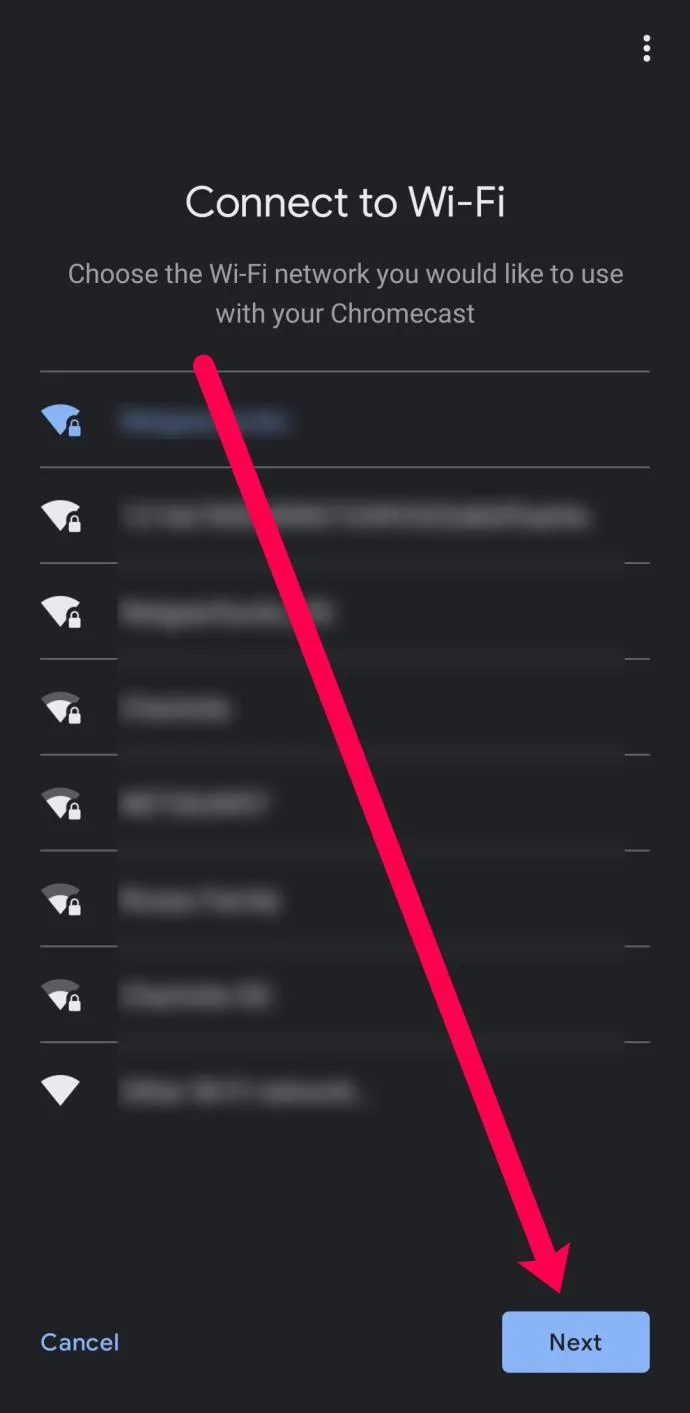
- Select the WiFi network that you’d like your Chromecast to use. Then, tap Next.

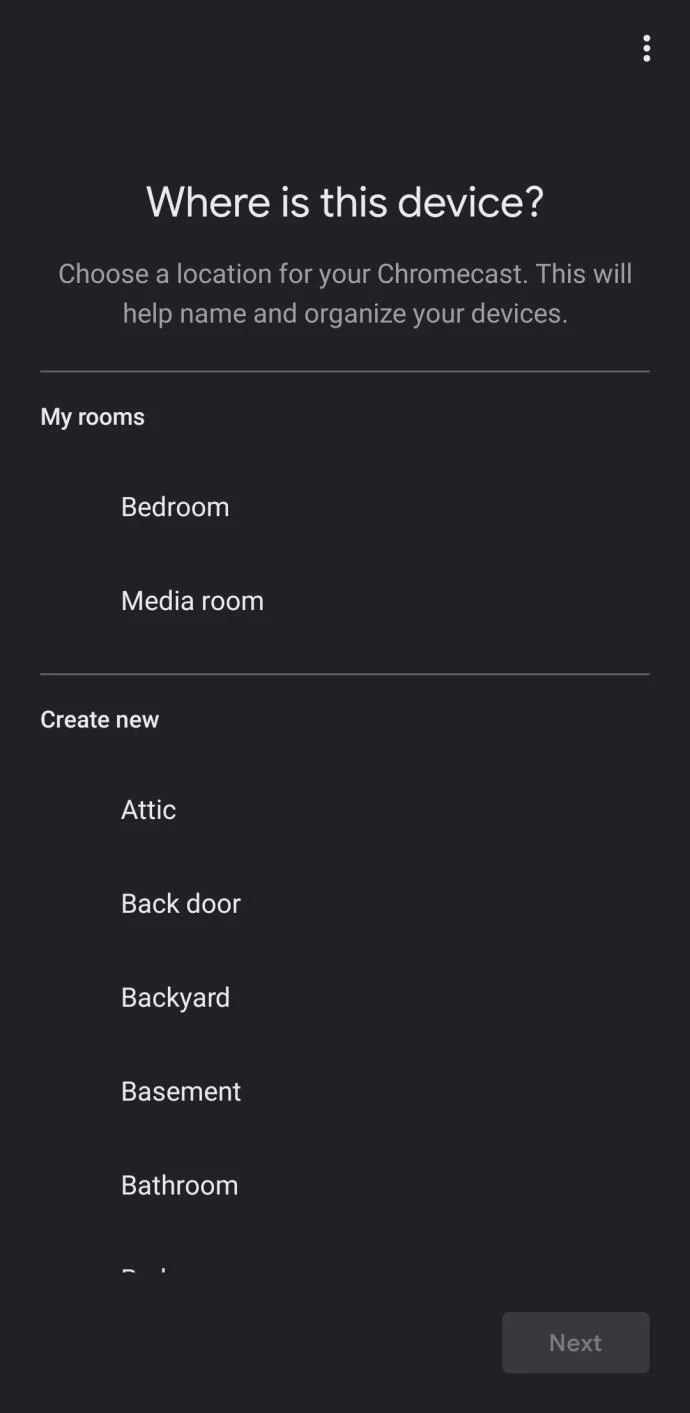
- Select the location in your home to easily identify which device you’d like to cast to in the future.

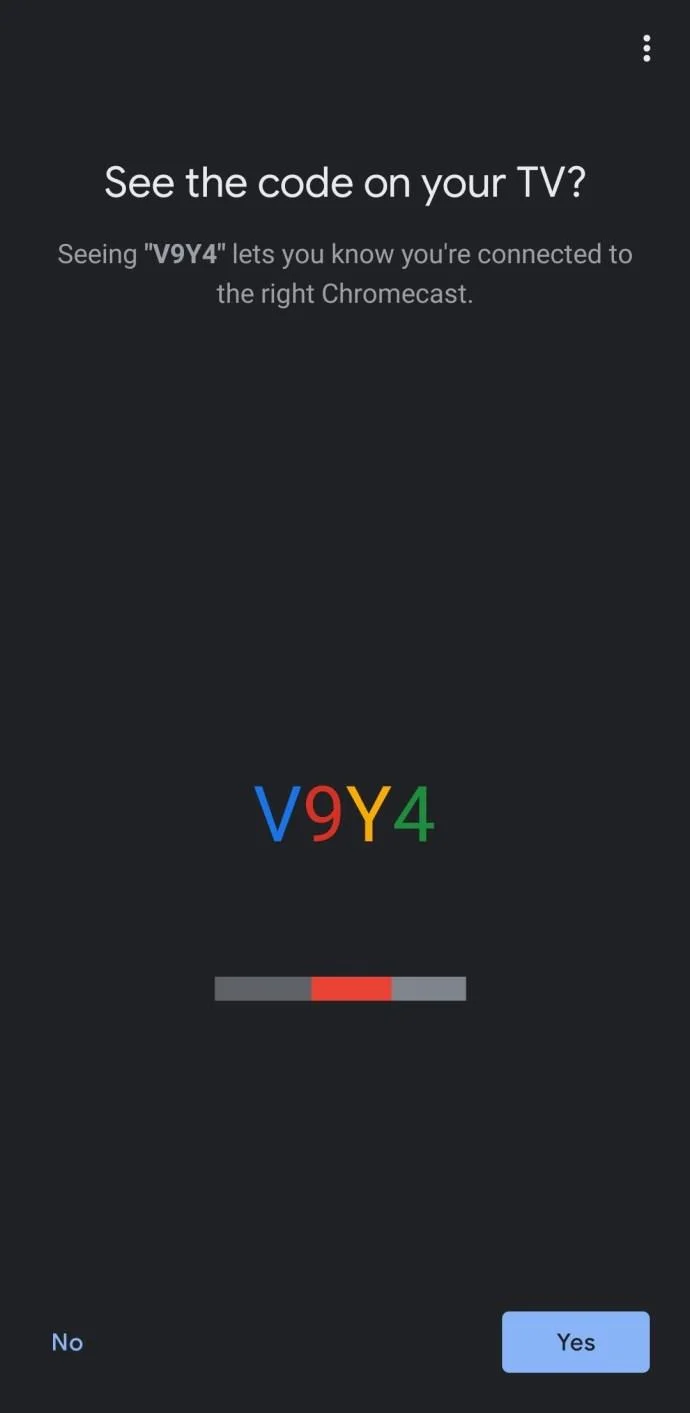
- After a moment, your TV will display a four-digit alpha-numeric code. Wait for that code to appear on the Google Home app too. Then tap Yes if it matches.

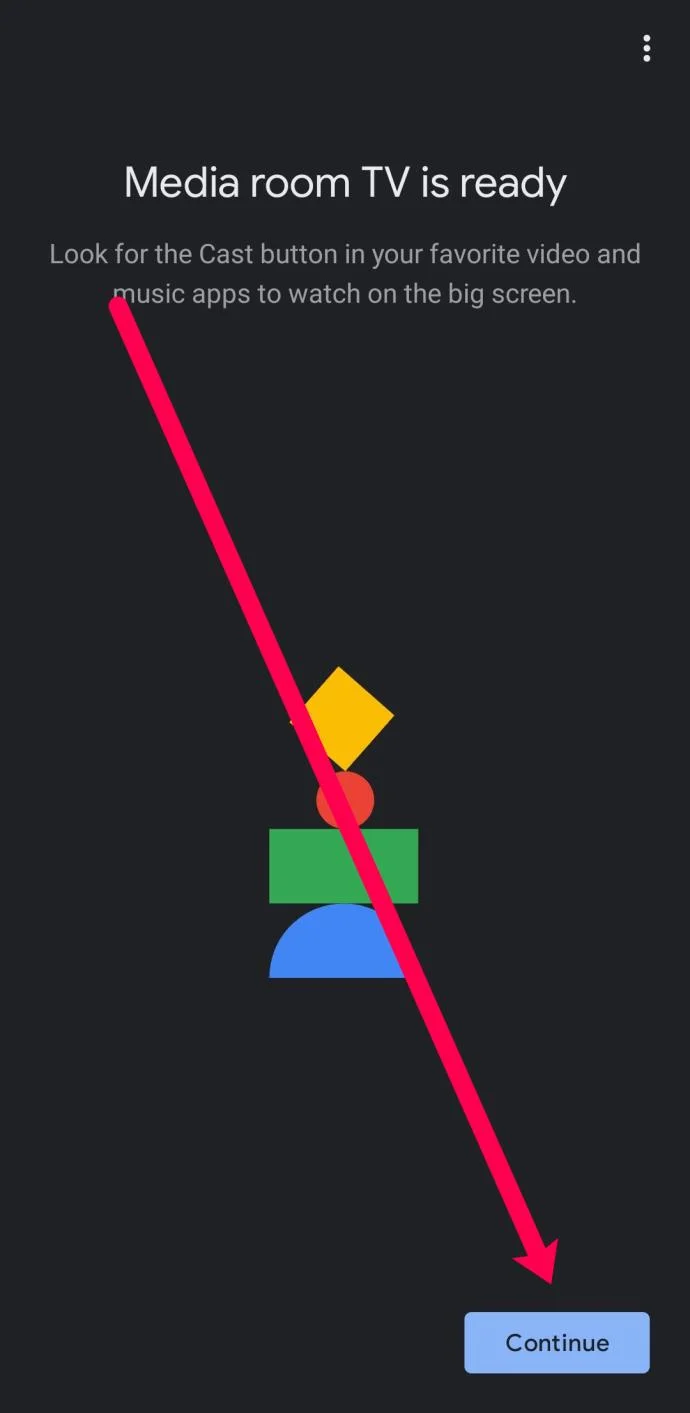
- Upon acceptance of the terms and conditions, you will see that your Chromecast is now setup. Click Continue when prompted.

- The Google Home app will offer to take you through a tutorial where you can cast your screen to your monitor or television. You can also tap Skip in the lower left-hand corner if you’d like to bypass this step.

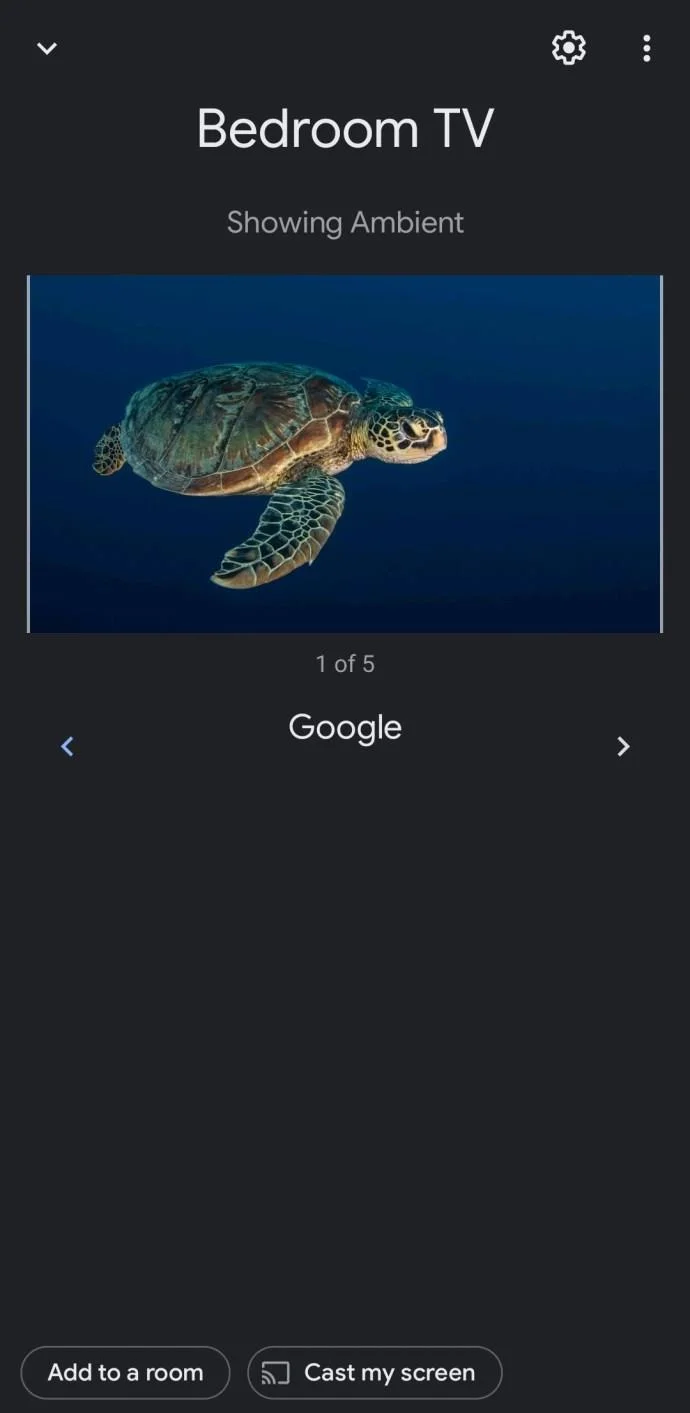
Now that your Chromecast is set up, you can start casting content directly from your phone or computer.
Frequently Asked Questions
Here are some more answers to your questions about the Google Chromecast setup process.
What devices are compatible with my Chromecast?
Chromecast works with Android, iOS, Mac OS X, Windows, and Chrome OS. You can also run it on an Ubuntu PC, but you’ll need to use Chrome or Chromium to access it.
Can I set up a VPN with my Chromecast device?
Absolutely! We have a full tutorial that will teach you how to use a VPN with your Chromecast here. You will need a VPN-enabled router or a computer to set up a virtual router to stream content securely with a VPN.