How does the “Sign-In with Google” option work?

In today's digital world, we all have countless online accounts for various services - email, social media, shopping, banking, etc. Remembering passwords for all of these accounts can be a challenge. That's where "Sign-In with Google" comes in handy. This feature allows you to use your Google account to log in to other websites and apps with ease. Let's break down how this feature works in simple terms.

When you use “Sign-In with Google” to access a website or app, one of the key benefits is that Google never shares your password with the website or app. Here’s a closer look at how this process works and the web technologies involved.

Table of Contents

What is Sign-In with Google?

“Sign-In with Google” is a service provided by Google that allows you to use your Google account to sign in to other websites and apps. Instead of creating a new username and password for each website, you can use your Google credentials. This makes signing in faster and more secure.
How does the “Sign-In with Google” option work?

How does this feature work?

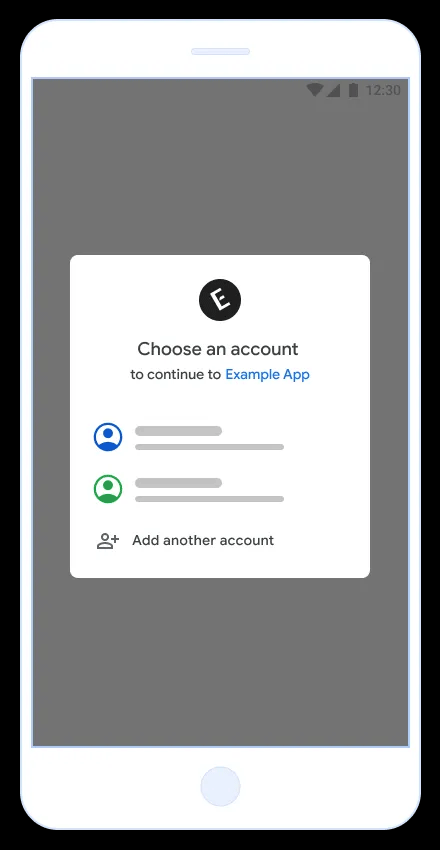
  1. Select Sign-In with Google : When you visit a website or open an app that supports the option to sign in with Google, you'll usually see a button that says "Sign-In with Google." Click this button to start the process.
  2. Google Authenticator : After clicking this button, you will be redirected to the Google login page (if you are not already logged in). Here, you will enter your Google email address and password.
  3. Grant permissions : After you sign in, Google will ask if you want to give the site or app permission to access some of your Google account information, such as your email address and profile picture. This step is important for privacy and security, as it ensures you know what data you're sharing.
  4. Redirect back : After you grant permission, Google sends a token (security code) back to the website or app. This token tells the website or app that you are the right account owner.
  5. Access granted : The website or app receives the token and signs you in with your Google account information. Now you can use the service without having to remember a new password!

What happens to your password?

When you sign in with Google:

  • Secure authentication : You enter your Google account credentials (email and password) on Google's secure sign-in page.
  • Don't share your password : Google verifies your identity and never passes your password on to third-party websites or apps. Instead, Google uses secure methods to confirm your identity.

What is the web technology behind "Sign-In with Google"?

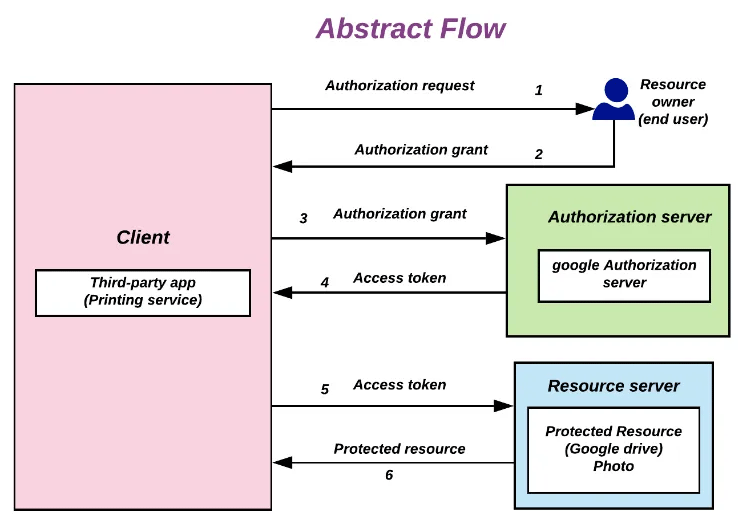
The technology that makes “Sign-In with Google” possible is called OAuth 2.0. Here's a simple explanation of how it works:
1. OAuth 2.0 Protocol

  • OAuth 2.0 is an open standard for authorization. It allows users to grant websites or applications limited access to their information without revealing their passwords.
  • OAuth 2.0, short for "Open Authorization," is a standard designed to allow a website or application to access resources hosted by other web applications on behalf of a user. It replaced OAuth 1.0 in 2012 and is now the de facto industry standard for online authorization. OAuth 2.0 provides consented access and limits the actions a client application can perform on resources on behalf of a user without ever sharing their credentials.

2. Information flow

  • Request : When you click "Sign-In with Google," the website or app sends a request to Google.
  • User authentication : You will be redirected to Google's login page, where you enter your login credentials.
  • Authorization : Google asks for your permission to share specific data (for example, your email and profile information) with the requesting website or app.
  • Issue token : If you grant permission, Google sends an authorization code or access token back to the website or app. This token is a temporary, secure code that the website uses to request the necessary information from Google.

3. Access Token

  • Use : Token allows a website or app to access certain data from your Google account (according to the permissions granted) without seeing your password.
  • Security : Tokens are designed to be short-lived and specific to a website or application, reducing the risk of misuse.
How does the “Sign-In with Google” option work?

Why sign in with Google?

  • Convenience : No need to create and remember multiple usernames and passwords.
  • Speed : Login is much faster as you can skip the registration process.
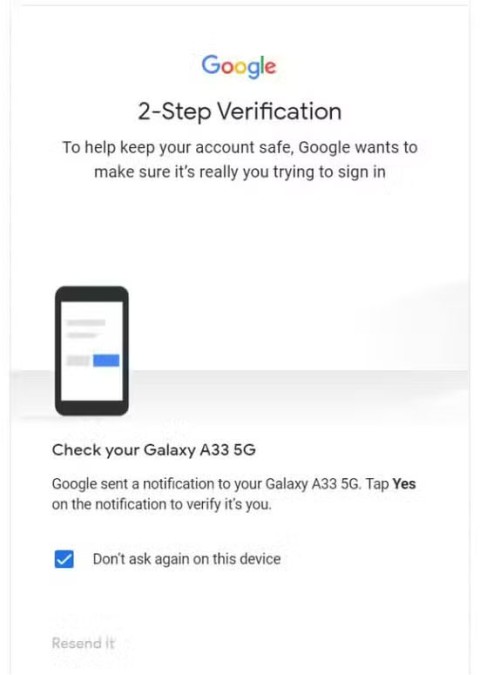
  • Security : Google has strong security measures in place, like two-factor authentication, to keep your account safe. Using Sign in with Google means you benefit from these protections.
  • Fewer passwords : Managing fewer passwords reduces the risk of forgetting passwords or using weak passwords.

Is this method safe?

Signing in with Google is secure, but there are a few things to keep in mind:

  • Use a strong password : Make sure your Google account has a strong, unique password.
  • Turn on two-factor authentication : Add an extra layer of security by turning on two-factor authentication for your Google account.
  • Review permissions : Always review the permissions you grant to each site or app. Only share information you feel comfortable with.

Sign-In with Google simplifies the sign-in process, making it faster and more secure. By using your Google account to sign in to multiple services, you save time and reduce the hassle of managing multiple passwords. Remember to keep your Google account secure and you'll have a smoother, safer online experience. Happy browsing!

Leave a Comment

Solving Microsoft Teams Shortcut Error Not Opening

Solving Microsoft Teams Shortcut Error Not Opening

Tired of Microsoft Teams shortcut error preventing you from opening the app? Follow our expert, step-by-step guide with the latest fixes for instant resolution. Works on Windows, Mac & web – no tech skills needed!

Solving Microsoft Teams Task Management Sync Error

Solving Microsoft Teams Task Management Sync Error

Tired of Microsoft Teams Task Management Sync Error halting your workflow? Follow our proven, step-by-step fixes to resolve sync issues fast and restore seamless task collaboration. No tech expertise needed!

Troubleshooting Microsoft Teams Wiki Error Formatting

Troubleshooting Microsoft Teams Wiki Error Formatting

Struggling with Microsoft Teams Wiki Error Formatting? This step-by-step guide reveals proven fixes for common wiki tab issues, ensuring smooth editing and collaboration in Teams. Get back to productive wikis fast!

How to Fix Microsoft Teams Installation Error for Linux

How to Fix Microsoft Teams Installation Error for Linux

Struggling with Microsoft Teams installation error on Linux? Discover step-by-step fixes for Ubuntu, Fedora & more. Resolve dependency issues, crashes, and errors quickly with our ultimate guide. Get Teams running smoothly today!

Solving Microsoft Teams Error Page Not Loading

Solving Microsoft Teams Error Page Not Loading

Struggling with Microsoft Teams "Error Page" not loading? Get step-by-step fixes for desktop, web, and mobile. Solve Microsoft Teams Error Page issues quickly and resume seamless teamwork today.

Solving Microsoft Teams Error Screenshot Issues

Solving Microsoft Teams Error Screenshot Issues

Tired of Microsoft Teams "Error Screenshot" blocking your workflow? Get proven, step-by-step solutions to resolve screenshot errors in Teams instantly and boost productivity. No tech skills needed!

How to Fix Microsoft Teams Error U User

How to Fix Microsoft Teams Error U User

Tired of Microsoft Teams "Error U" User blocking your chats? Get proven, step-by-step fixes to clear cache, reset, and restore seamless collaboration instantly.

Where are Microsoft Teams Registry Keys Located on Windows 11?

Where are Microsoft Teams Registry Keys Located on Windows 11?

Unlock the precise locations of Microsoft Teams registry keys on Windows 11. Step-by-step guide to find, access, and safely tweak them for optimal performance and troubleshooting. Essential for IT pros and Teams enthusiasts.

How to Fix Microsoft Teams Training Error Video Lag

How to Fix Microsoft Teams Training Error Video Lag

Tired of Microsoft Teams "Training Error" Video Lag ruining your meetings? Follow our step-by-step guide with the latest fixes for smooth video calls—no more frustration!

How to Fix Microsoft Teams Error occurred During Sign-In

How to Fix Microsoft Teams Error occurred During Sign-In

Frustrated by Microsoft Teams "Error occurred" during sign-in? Discover proven, step-by-step fixes to get back online fast. Clear cache, reset app, and more for seamless login. Works on Windows, Mac & web.

Troubleshooting Microsoft Teams Call Error Disconnecting

Troubleshooting Microsoft Teams Call Error Disconnecting

Struggling with Microsoft Teams "Call Error" Disconnecting? Discover proven, step-by-step fixes for call drops, network issues, and more. Get back to seamless meetings fast with our expert troubleshooting guide.

How to Fix Microsoft Teams Error 2603: Login Loop Fix

How to Fix Microsoft Teams Error 2603: Login Loop Fix

Stuck in Microsoft Teams Error 2603 login loop? Get proven step-by-step fixes to resolve the issue fast and restore seamless teamwork. Clear cache, reset, reinstall – all covered!

How to Fix Microsoft Teams Voice Call Error

How to Fix Microsoft Teams Voice Call Error

Tired of Microsoft Teams voice call errors? Follow our step-by-step guide to troubleshoot no audio, echo, or call drops. Proven fixes for crystal-clear calls every time.

How to Fix Microsoft Teams Workflows Error Power Automate

How to Fix Microsoft Teams Workflows Error Power Automate

Struggling with Microsoft Teams "Workflows Error" in Power Automate? Discover proven, step-by-step fixes to resolve connection issues, permissions, and more. Get your workflows running smoothly today!

How to Fix Microsoft Teams Reddit Popular Error Fixes

How to Fix Microsoft Teams Reddit Popular Error Fixes

Tired of Microsoft Teams crashes, black screens, and sign-in loops? Unlock Reddit's most popular, proven fixes to resolve common Microsoft Teams errors quickly and get back to productive meetings. Step-by-step guides inside!