How to Use Windows 11 Quick Assist for Help
Discover how to use Windows 11 Quick Assist for seamless remote support. Learn step-by-step setup, troubleshooting, and tips to help friends or family with tech issues instantly.
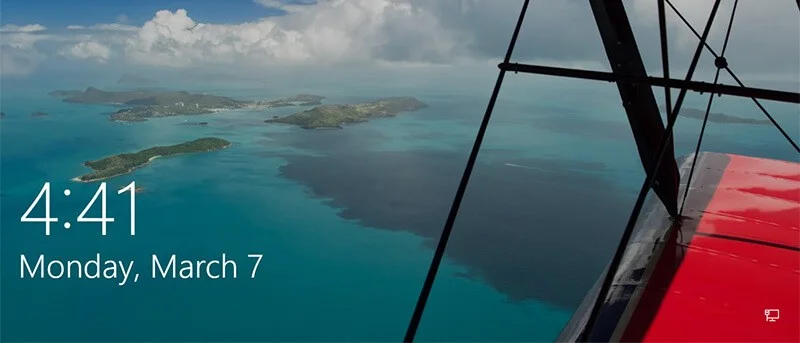
Windows Spotlight is a new feature on Windows 10, allowing users to download and use featured photos of the day from Bing Images to use as a lock screen, besides you can vote and comment on the photos.
In the upper right corner of the screen, you can show your liking by swiping up (like) or down on the image that is currently displayed. If you don't like it, it will disappear. If you like it, a similar image will appear next time.
This feature is quite cool, allowing you to change your lock screen wallpaper regularly and automatically, with the best pictures.
While using Spotlight, if you like some images and you want to use them on other computers, you can download and save them by doing the following.

How to download images that appear on the Windows 10 lock screen
Find and Save Windows Spotlight Background Images Using PowerShell Script
1. Download the PowerShell script Find_Windows_Spotlight_images.ps1 .
Code:
$WindowsSpotlightFolder = "$env:USERPROFILE\AppData\Local\Packages\Microsoft.Windows.ContentDeliveryManager_cw5n1h2txyewy\LocalState\Assets"
$WindowsSpotlightImages = "$env:USERPROFILE\Desktop\SpotlightImages\"
if (Test-Path $WindowsSpotlightImages) {
$FolderTimestamp = Get-Date (Get-Item $WindowsSpotlightImages).LastWriteTime -Format "yyyyMMdd.HHmmss"
Rename-Item -Path $WindowsSpotlightImages -NewName ('SpotlightImages-' + $FolderTimestamp) -Force
Remove-Variable FolderTimestamp # Cleanup
}
New-Item -Path $WindowsSpotlightImages -ItemType Directory | Out-Null
Add-Type -AssemblyName System.Drawing
$ImagesToCopy = @()
$(Get-ChildItem -Path $WindowsSpotlightFolder).FullName | ForEach-Object {
$Image = [System.Drawing.Image]::Fromfile($_)
$Dimensions = "$($Image.Width)x$($Image.Height)"
If ($Dimensions -eq "1920x1080") {
$ImagesToCopy += $_
}
$Image.Dispose()
}
$ImagesToCopy | Copy-Item -Destination $WindowsSpotlightImages
$FileNumber = 0
Get-ChildItem -Path $WindowsSpotlightImages | Sort-Object LastWriteTime |
foreach {
$FileNumber += 1
Rename-Item -Path $_.FullName -NewName ("1920x1080_" + $FileNumber.ToString("000") + '.jpg')
}
# Report
$NewSpotlgihtImages = Get-ChildItem -Path $WindowsSpotlightImages
if ($NewSpotlgihtImages) {
Write-Host
($NewSpotlgihtImages).Name
Write-Host `n($NewSpotlgihtImages).Count "new images were copied into $WindowsSpotlightImages`n" -ForegroundColor Green
}
else {
Write-Host "`nNo new images were copied.`n" -ForegroundColor Red
Remove-Item $WindowsSpotlightImages -Force
}
# Cleanup
Remove-Variable WindowsSpotlightFolder, WindowsSpotlightImages, ImagesToCopy, Image, Dimensions, FileNumber, NewSpotlgihtImages
2. Save the .ps1 file to the desktop.
3. Unblock .ps1 file.
4. Right-click or press and hold on the .ps1 file and click Run with PowerShell .
5. You will now have a SpotlightImages folder on your desktop with 1920 x 1080 Windows Spotlight images saved in it.
Find and manually save Windows Spotlight background images
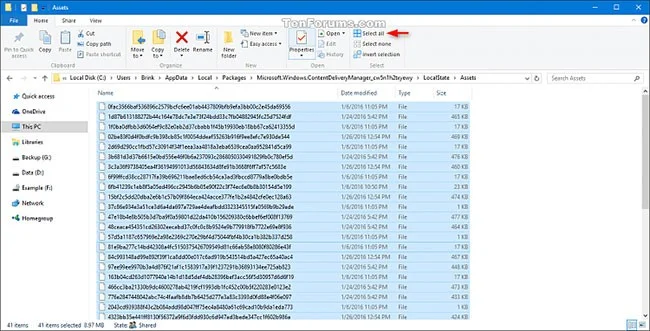
1. Copy and paste the folder location below into the File Explorer address bar and tap Enterto open the Assets folder .
Note : The location of the folder below is revealed in the LandscapeAssetPath string value of the registry key below.
HKEY_CURRENT_USER\SOFTWARE\Microsoft\Windows\CurrentVersion\Lock Screen\Creative
%LocalAppData%\Packages\Microsoft.Windows.ContentDeliveryManager_cw5n1h2txyewy\LocalState\Assets
2. Select all the items in the Assets folder and copy them all to another folder (e.g. %UserProfile%\Pictures ) of your choice.
If you prefer, you can also right-click a file, click Open with , and select Windows Photo Viewer to see the Windows Spotlight images listed.
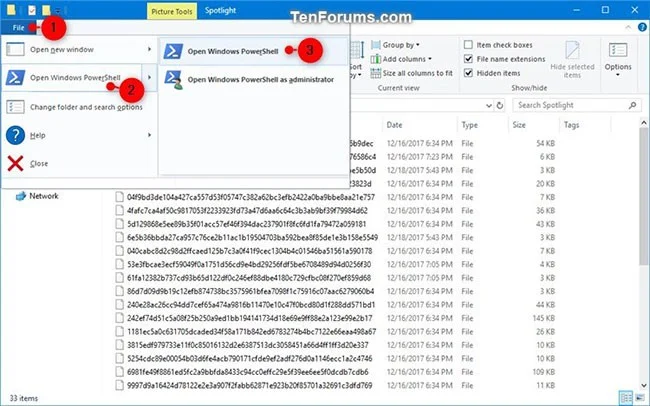
3. Open the folder (for example, %UserProfile%\Pictures ) where you saved the items, click the File tab, click Open Windows PowerShell , and select Open Windows PowerShell again.
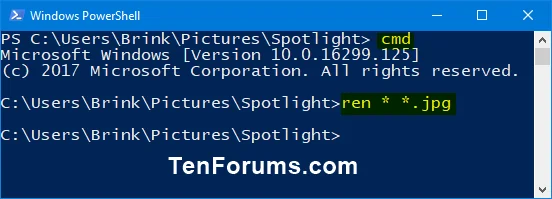
4. Type each of the following commands into PowerShell , pressing enter Enterafter each command and closing PowerShell when finished. This will rename all the items in the folder and add the .jpg file extension.
cmd
ren * * .jpg
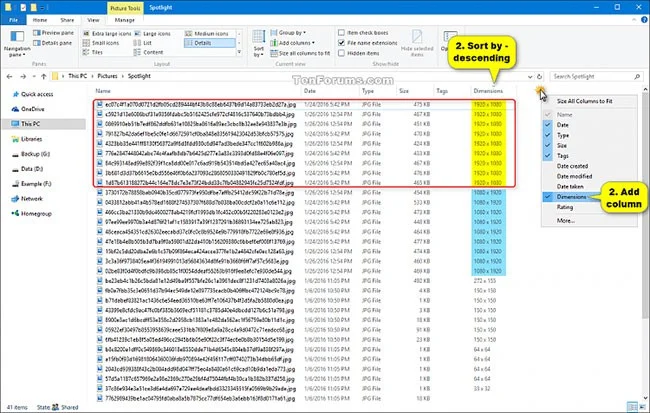
5. Add the Dimensions column to the folder (e.g. %UserProfile%\Pictures ) you saved the items to. Change the folder view to sort by Dimensions details in descending order.
6. You will notice that the Windows Spotlight images will be different sizes for PC and mobile devices. You can delete the ones you don't want to save.
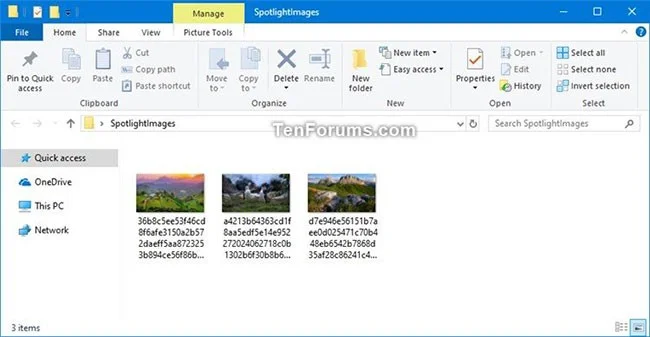
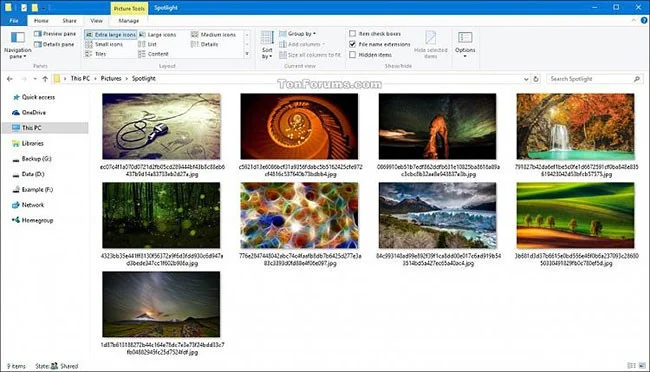
7. This is a 1920 x 1080 Windows Spotlight PC image displayed in extra large icon view.
If you don't want to use PowerShell, you can download any Rename Utility like Bulk Renaming Utility and install it.
After installation is complete, open the application, navigate to the folder, select all the files and then add the extension ".jpg".
If you are lazy to download manually, you can download the full Windows Spotlight package here.
See more articles below:
Good luck!
Discover how to use Windows 11 Quick Assist for seamless remote support. Learn step-by-step setup, troubleshooting, and tips to help friends or family with tech issues instantly.
Struggling with dual monitor lag on Windows 11? Discover proven troubleshooting fixes to eliminate stuttering, delays, and performance issues for seamless multi-monitor setups. Step-by-step guide inside.
Struggling with the frustrating Windows 11 "Startup Settings" blank error? Discover proven, step-by-step fixes to restore your boot options quickly and get your PC running smoothly again. No tech expertise needed!
Discover how to activate Windows 11 Enterprise using KMS effortlessly. This comprehensive guide covers everything from requirements to troubleshooting, ensuring seamless activation for your business needs.
Struggling with the dreaded KMODE EXCEPTION NOT HANDLED error on Windows 11? Discover proven, step-by-step fixes to resolve this blue screen nightmare quickly and get your PC running smoothly again. No tech expertise needed!
Struggling with Windows 11 "Motherboard" Driver Error? Discover proven troubleshooting steps to fix it fast and get your PC running smoothly again. Easy, step-by-step guide for beginners.
Struggling with ping spikes on Windows 11 over Wi-Fi? Discover proven fixes to stabilize your connection, reduce lag, and enjoy smooth gaming or streaming. Step-by-step solutions for instant results.
Accidentally deleted precious photos? Discover proven methods to recover deleted photos in Windows 11 effortlessly. Step-by-step guides, tools, and tips to restore your images safely.
Discover how to use Windows 11 Terminal instead of CMD for a modern, efficient command-line interface. Learn installation, setup, and tips to boost your productivity with tabs, themes, and more.
Discover safe, legitimate ways to activate Windows 11 Pro without a product key. Learn step-by-step methods using built-in tools and official Microsoft options to get your OS up and running smoothly. No risks, no hassle – just pure productivity.