Home
» Today
»
How to Use BOM Weather Forecasts, Radar, and Warnings in Australia
How to Use BOM Weather Forecasts, Radar, and Warnings in Australia
If the BOM forecast shows a chance of rain while the radar looks clear, you are not necessarily seeing a contradiction. A forecast describes what may happen; radar shows recent precipitation echoes; a warning highlights a hazardous situation that needs attention. The Australian Bureau of Meteorology (BOM) website and BOM Weather app put these tools together, but they answer different questions. Use the sequence below to check your exact location, understand what the numbers mean, and know when to rely on a warning rather than a general forecast.
1. Start with the right location
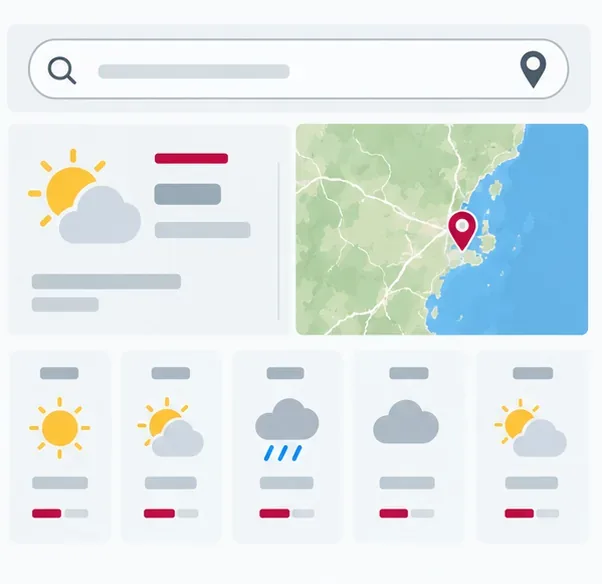
Go to bom.gov.au and search for your suburb, town, or postcode. Choose the place you actually need rather than a nearby city if local showers, hills, or coastal weather could affect the result. The BOM website also lets you find a place by selecting it on the map, and you can save frequently used locations as favorites. In the app, select a favorite location before reading its forecast or setting notifications.
This matters when you are planning a commute, hike, or outdoor job: weather can vary across a short distance. Confirm the location name at the top of the page before you interpret the forecast. If you are traveling, add or select the destination as well as home so you do not keep checking yesterday’s place.
Illustrative weather-page layout with a location search, map pin, and daily forecast cards; it is not a live BOM reading.
2. Read the forecast as a range of possibilities
On the location page, compare the short summary with the hourly view and the daily outlook. Check temperature, wind, rain chance, and possible rainfall amount for the hours that matter to your plans. The BOM explains that its chance of rain refers to the likelihood of measurable rain—more than 0.2 millimeters—at that location during the forecast period. It does not mean rain will cover that percentage of the region or last that percentage of the day.
When a rainfall range is shown, treat it as a set of likely possibilities, not a guaranteed total. A higher chance with a small range may call for a different plan than a lower chance of a much larger amount. A forecast can change as new observations are collected and weather systems move; the Bureau’s rainfall forecast guide explains why probabilities and ranges are used.
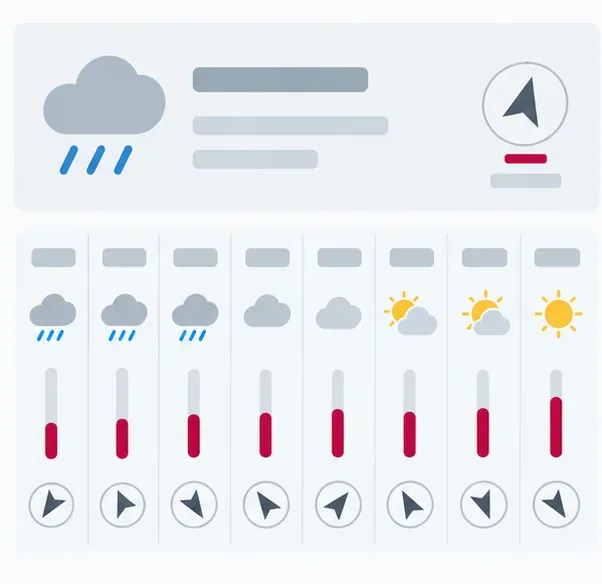
For a decision that depends on timing, use the hourly forecast and check again closer to the activity. A daily icon is a quick summary, not a promise that every hour will have the same conditions.
Illustrative hourly-forecast layout with weather icons and wind symbols; check BOM for current values.
3. Use radar to check what is happening nearby
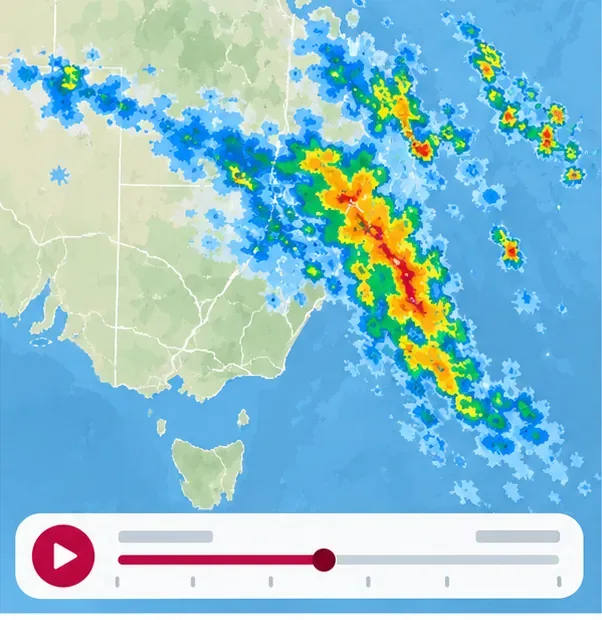
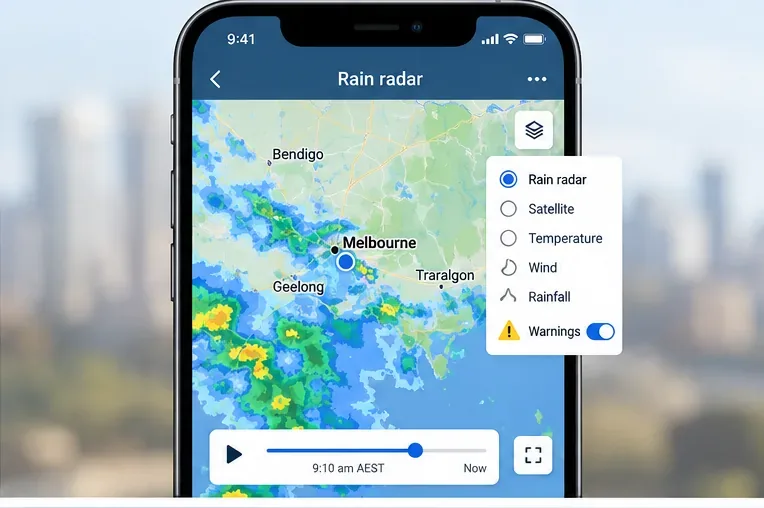
Open Rain radar and weather maps, search for your place, and start the radar loop. Follow the most recent frames to see whether rain echoes are moving toward, away from, or across your area. Check the timestamp and map legend before interpreting the colors. BOM says new radar images are produced every five minutes, so the display is a recent observation rather than a live camera view.
Radar is useful for short-term situational awareness, but it is not a guarantee about what will reach your street. The beam’s optimal range is about 5 to 200 kilometers. Far from a radar, the beam rises above the ground and can miss low precipitation; rain may also weaken before reaching the surface. The Bureau describes these limits in its weather radar guide. If your location is outside good coverage, use the forecast, nearby observations, and warnings together rather than treating a blank map as proof that no rain is coming.
Also distinguish the radar loop from forecast layers on the map. A loop of radar echoes shows observations from recent scans; a rainfall forecast layer estimates future conditions. Check the layer name and time control so you know which one you are viewing.
Illustrative radar-style map with precipitation echoes and a playback control; use BOM’s live legend and timestamp.
4. Check warnings and set alerts for places you care about
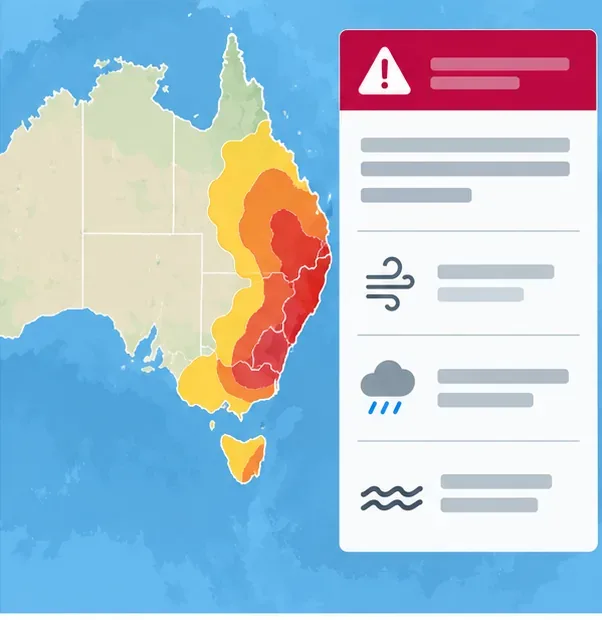
Open BOM’s Warnings and alerts page or use its warning filters to select a location and warning type. Open the warning itself, then read the affected areas, hazard, expected timing, issue or update time, and the recommended action. A warning can cover a broad area; being nearby does not automatically mean your street is inside it, so check the map and place list.
In the BOM Weather app, you can choose warning notifications for saved locations. BOM lists notifications for weather hazards such as severe thunderstorms, severe weather, floods, tropical cyclones, coastal hazards, and fire weather; availability depends on location. The app’s help page says rain and warning notifications can be set for up to three locations around Australia. Review the settings and allow phone notifications if you want alerts to arrive outside the app. Alerts are a useful backup, but they do not replace checking an active warning when conditions change.
For a bushfire or other local emergency, use the relevant state or territory emergency service for incident updates, road closures, and evacuation instructions. A BOM forecast or fire-weather warning is weather information; it is not a substitute for directions from emergency responders.
Illustrative warning-map layout with a shaded area and hazard summary; read the live BOM notice for affected places, timing, and advice.
Quick self-check before you act
Location: Does the page show the exact suburb, town, or destination you care about?
Time: Are you looking at the right forecast hour, and is the radar’s latest scan recent? If you compare notices across states, read the time-zone label; Australia has multiple time zones and daylight-saving rules vary.
Tool: Is this a forecast, a radar observation, or a warning? They answer different questions.
Action: If a warning applies to your area, follow its advice and check your local emergency service for urgent instructions.
If the forecast and radar do not match, first verify the location, layer, and update time. Then check the forecast again and read any warning that covers the area. This combination gives you a clearer picture than relying on a single icon, map frame, or notification.