Home
» Today
»
Self-Checkout Explained: How It Works and How to Fix Common Problems
Self-Checkout Explained: How It Works and How to Fix Common Problems
Self-checkout lets you scan, bag, and pay for groceries at a customer-operated register. Scan each item’s barcode, follow the kiosk’s prompts for loose produce or other items without barcodes, check the running total, and complete payment. If the machine pauses, read its message and ask a team member before scanning the same item again; repeating a scan can put the same product on your receipt twice.
The exact equipment and screen prompts vary by supermarket. Some lanes weigh items in the bagging area, while other systems use different checks. An alert usually means the machine needs a step or staff approval, not that you did something wrong.
How does a self-checkout work?
A typical checkout is connected to the store’s point-of-sale system. Scanning a barcode adds the matching product and price to the transaction. The screen updates the item list and total, and the checkout may check bagging, loyalty discounts, or restricted items before it accepts payment. The payment terminal confirms the transaction, then the machine offers a receipt.
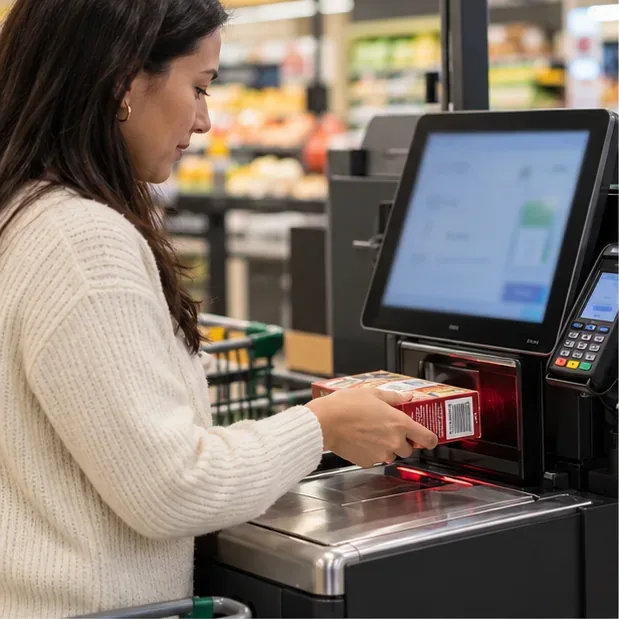
A shopper scans a packaged grocery item at a self-checkout register.
Some retailers also offer “scan as you shop,” which is different from scanning every product at a checkout. For example, Woolworths says its Scan&Go Trolley service is available in selected stores; shoppers can weigh certain produce and scan the code displayed by the trolley, then complete payment at a self-serve checkout. The method and availability are retailer-specific, so follow the instructions shown for the system you are using.
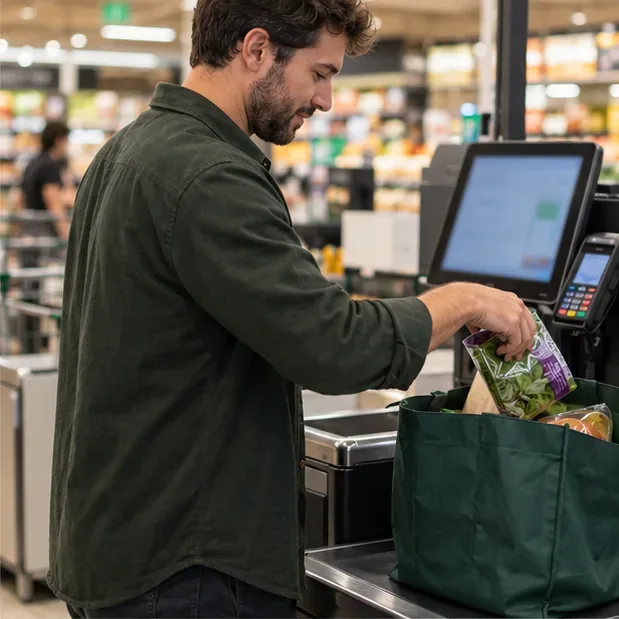
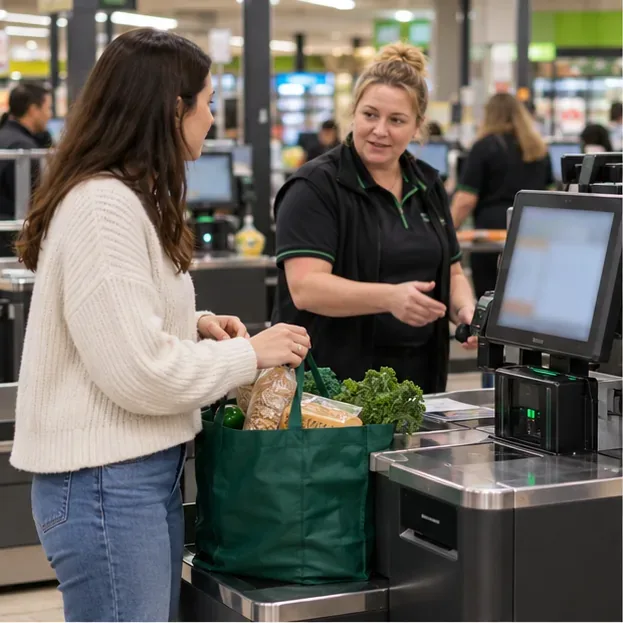
A shopper moves a scanned item into a reusable bag on the checkout platform.
For a standard lane, these steps keep the transaction organized:
Start the checkout. Choose the on-screen option to begin. If you brought your own bag, use the kiosk’s own-bag prompt before placing it on a scale, if that option appears.
Scan one item at a time. Turn the barcode toward the scanner and wait for the beep or on-screen confirmation before moving to the next product.
Bag only after the scan registers. Put the item where the screen directs. If the machine says the bagging area is unexpected, pause and follow the prompt instead of rushing to rescan.
Use the produce flow for loose items. Select the correct fruit or vegetable, weigh it if asked, and check that the displayed item and quantity look right before adding it.
Review and pay. Check your item list and total, apply any loyalty or payment prompts, then follow the payment terminal. Take the receipt or confirm the digital receipt before leaving.
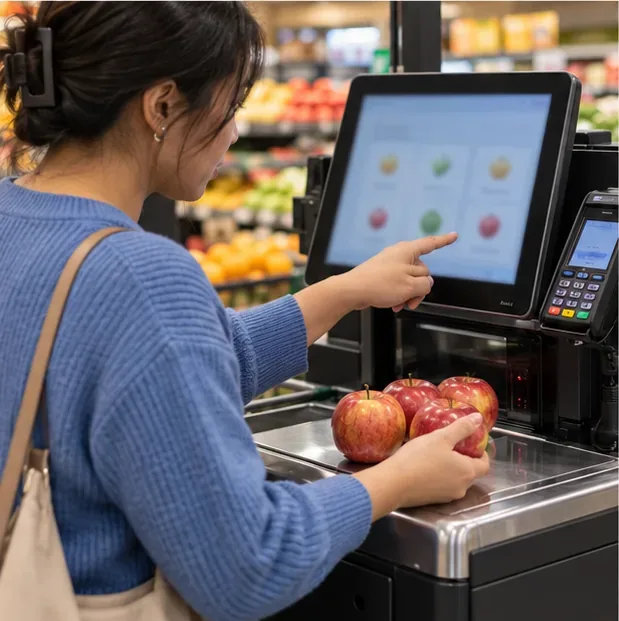
A shopper identifies loose apples using the produce options at checkout.
How do I fix common self-checkout problems?
The barcode will not scan
Rotate the package and try the barcode again, holding it flat and steady over the scanner. Check that the label is not folded, torn, or covered by glare. If the kiosk offers a manual barcode or item lookup option, use it; otherwise, ask a team member to identify the product. For a heavy item in the cart, use a pull-out scanner if the lane has one rather than lifting it onto the counter.
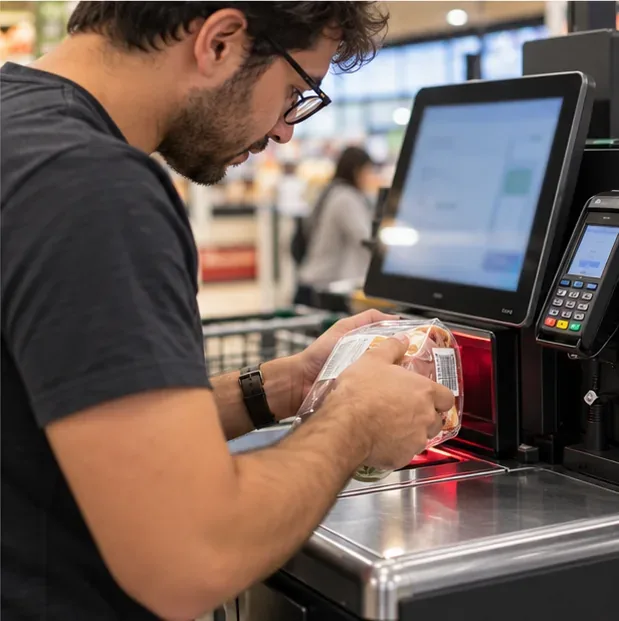
A shopper turns a package to present its barcode more clearly to the scanner.
The screen says “unexpected item” or asks me to place an item in the bagging area
First check the item list: the scan may not have registered, or the machine may be waiting for a product to move to the bagging area. If you put a handbag, reusable bag, or another unscanned item on a scale, remove it only if the prompt tells you to. If the alert stays on, press the help button or signal an employee. Do not keep scanning the item while the transaction is paused.
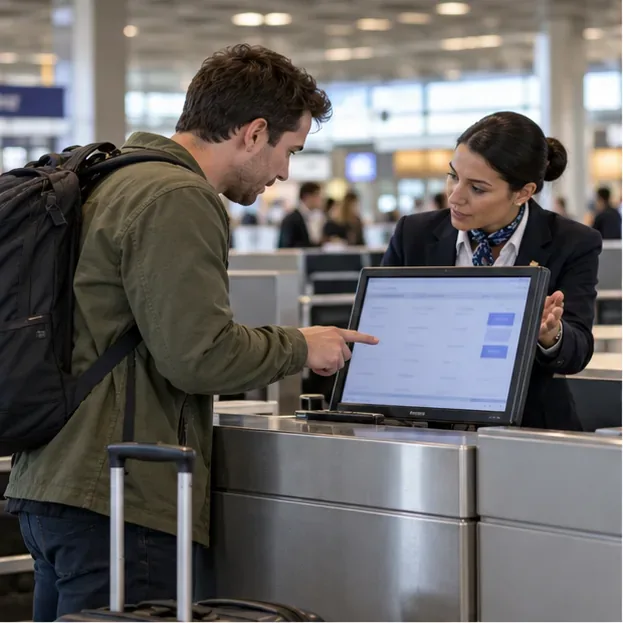
A store employee helps a shopper resolve a self-checkout prompt.
I cannot find the right produce, or the price looks wrong
Use the exact produce name and variety shown on the shelf or produce label. Some systems distinguish items sold by weight from items sold by quantity, so choose the correct method. If the product is missing from the menu or the printed code will not scan, ask staff rather than selecting a similar item. Woolworths’ current Scan&Go instructions, for example, separate produce sold by weight, produce sold by quantity, and packaged items.
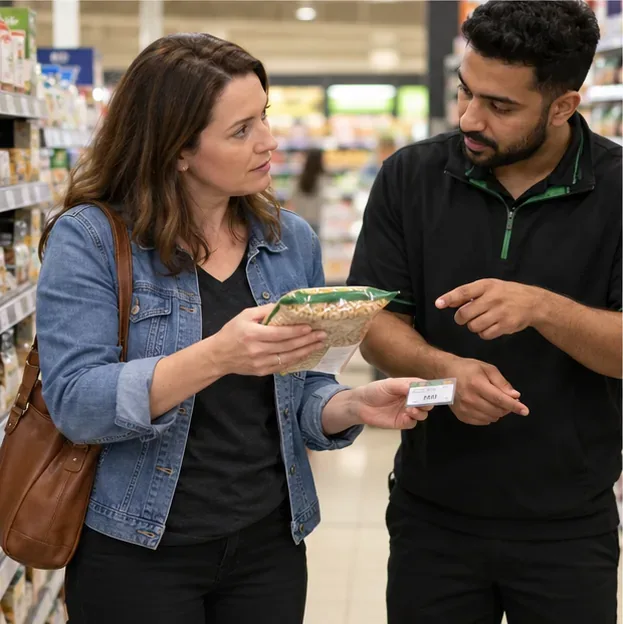
If the checkout total differs from the shelf or displayed price, ask an employee to check it before paying. The ACCC says that when the checkout price does not match the displayed or advertised price, the business must sell the product at the lower price or stop selling it until the price is corrected. Keep the shelf label or take a photo if you need to explain the mismatch.
A shopper asks an employee to check a product’s shelf price.
The machine asks for an age check or employee approval
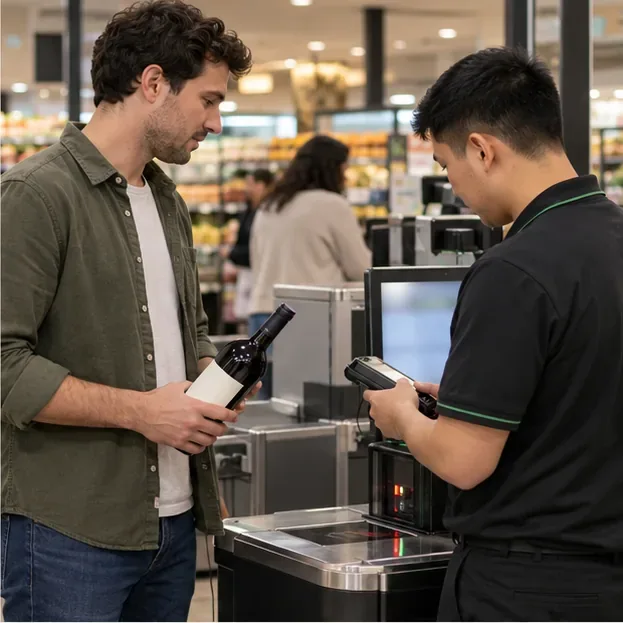
Leave the item in place and wait for an employee to approve it. Some products require an age or other eligibility check, and the kiosk cannot complete that step on its own. Have acceptable identification ready if the employee asks for it. If nobody arrives, use the help button again or move to a staffed register with the employee’s guidance.
A team member checks an age-restricted purchase at a self-checkout.
My discount is missing, or the card terminal does not respond
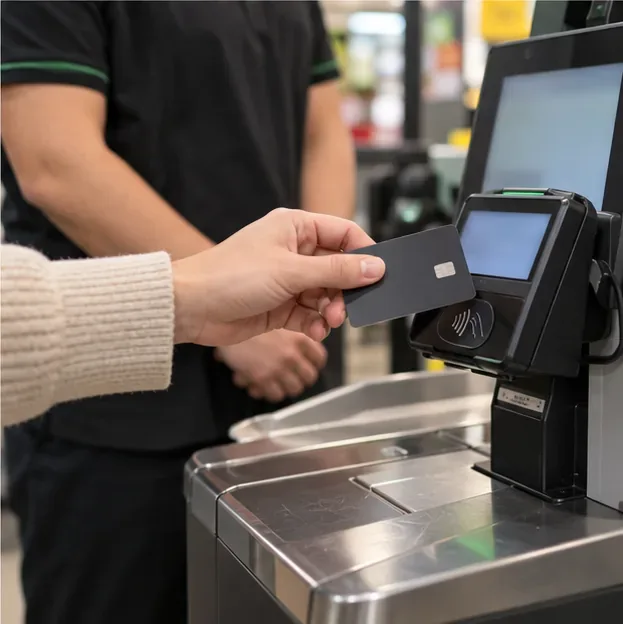
For a missing discount, check that you selected the correct product size, quantity, and loyalty offer, then ask staff to review the price before payment. For a slow or declined card payment, wait for the terminal’s message and ask an employee to confirm whether the sale went through before tapping again. If the payment was declined, follow the terminal’s instructions or try another accepted method. This helps avoid duplicate attempts when the first transaction is still processing.
A shopper taps a payment card on the checkout terminal.
When should I switch to a staffed checkout?
Ask for help if an item has no readable barcode, the machine keeps repeating an alert, the price or discount cannot be corrected, or a payment appears stuck. A staffed register can also be easier for a large cart, delicate items, or a purchase that needs several approvals. If a machine has charged you incorrectly, keep the receipt and contact the store’s customer service desk. The ACCC says businesses must provide a receipt for purchases over A$75 and, on request, for purchases under A$75.
Before you walk away, make a quick check: the item list matches what you bought, the final total is correct, payment is complete, and you have your receipt. If anything is unclear, pause and ask a team member while the transaction is still on screen.