How To Enable JavaScript In Google Chrome, Firefox, Microsoft Edge, And Safari

JavaScript is one of the most powerful dynamos behind the interactive web. This programming language lets web pages respond to your actions in real time. It’s why you can play videos, fill out forms, and engage in the myriad activities that make the World Wide Web so versatile and interactive.

How To Enable JavaScript In Google Chrome, Firefox, Microsoft Edge, And Safari

If JavaScript is turned off in your browser, you’re not just missing out on flashy animations or convenient auto-fill forms; you’re opting out of the full, rich functionality modern web developers work so hard to create.

How to Enable JavaScript

Each web browser will be slightly different regarding how to enable JavaScript. However, there are many common threads that will be similar no matter which browser you use.

Google Chrome

If Google Chrome is your default browser, its important that you enable JavaScript on it for the best browsing experience. 

  1. Click the Menu icon in Chrome.
    How To Enable JavaScript In Google Chrome, Firefox, Microsoft Edge, And Safari
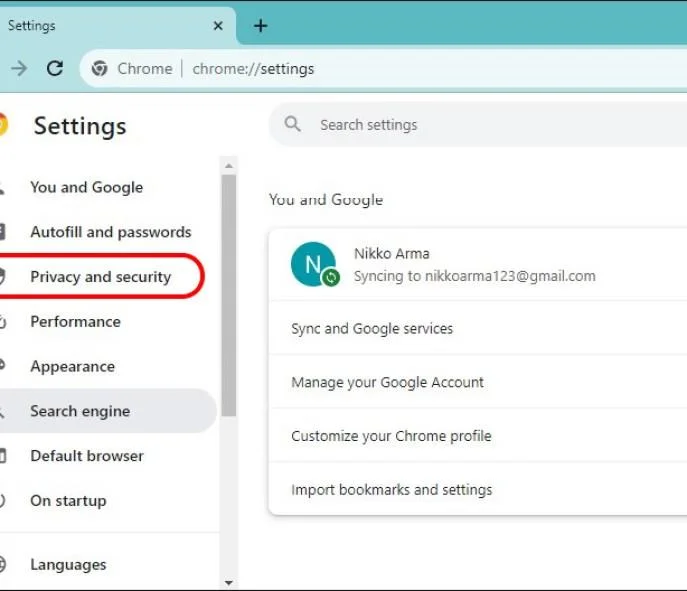
  2. Select Settings, then go to Privacy and Security.
    How To Enable JavaScript In Google Chrome, Firefox, Microsoft Edge, And Safari
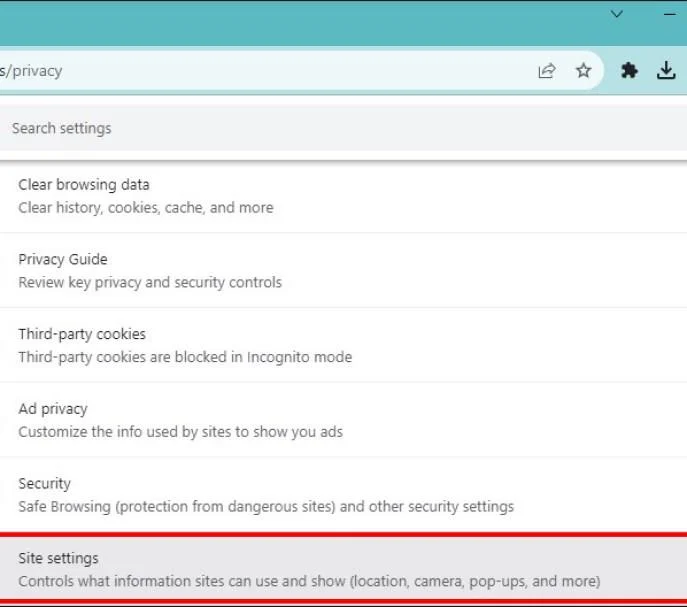
  3. Find Site Settings.
    How To Enable JavaScript In Google Chrome, Firefox, Microsoft Edge, And Safari
  4. Scroll down and click on JavaScript, then click Sites can use JavaScript to enable.
    How To Enable JavaScript In Google Chrome, Firefox, Microsoft Edge, And Safari

Mozilla Firefox

Enabling JavaScript support in Firefox is also easy. 

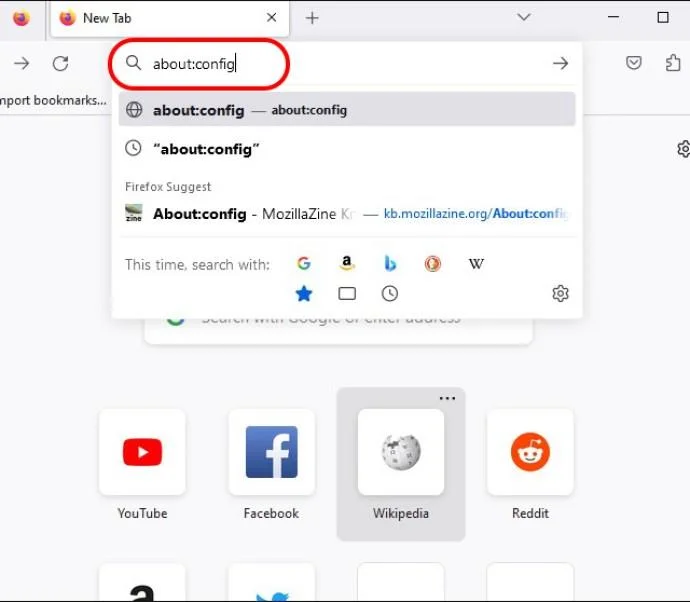
  1. Input about:config in the Firefox address bar.
    How To Enable JavaScript In Google Chrome, Firefox, Microsoft Edge, And Safari
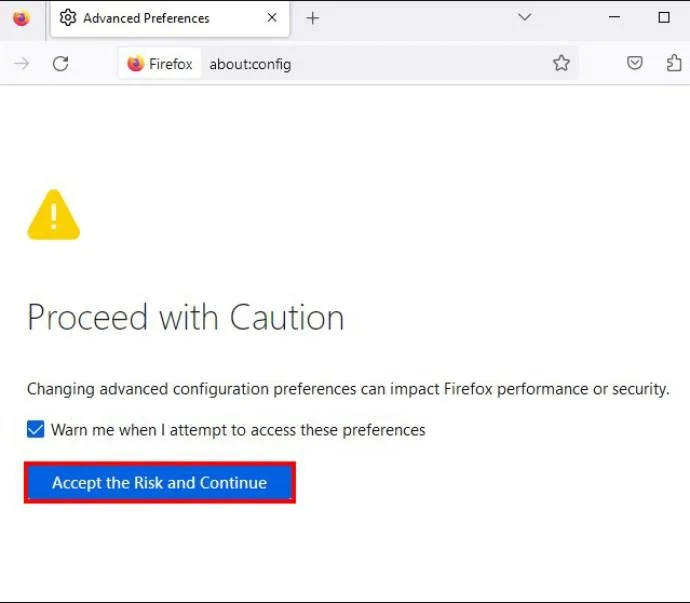
  2. Click Accept the Risk
    How To Enable JavaScript In Google Chrome, Firefox, Microsoft Edge, And Safari
  3. The search for javascript.enabled.
  4. Toggle the setting to true to enable JavaScript.
    How To Enable JavaScript In Google Chrome, Firefox, Microsoft Edge, And Safari

Remember that incognito tabs in Firefox have JavaScript enabled by default.

Microsoft Edge

JavaScript is enabled by default in Microsoft Edge. You can still verify this by following the below steps.

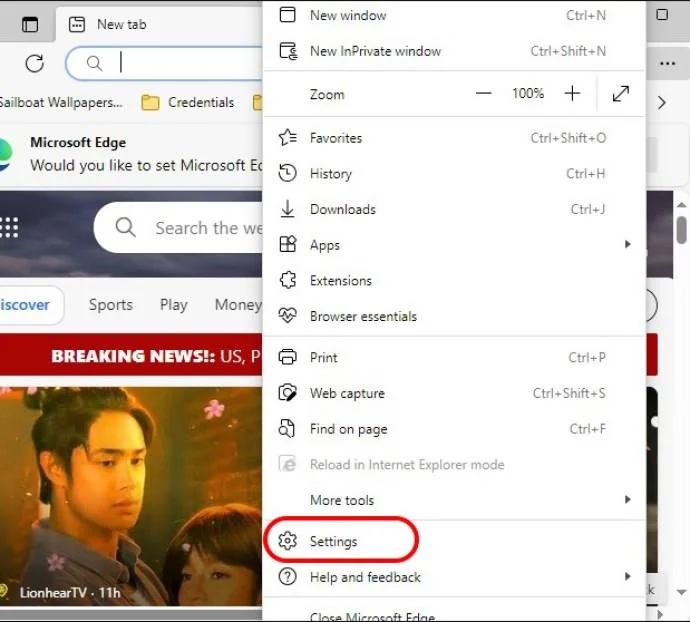
  1. Click on the Menu icon in Edge and go to Settings.
    How To Enable JavaScript In Google Chrome, Firefox, Microsoft Edge, And Safari
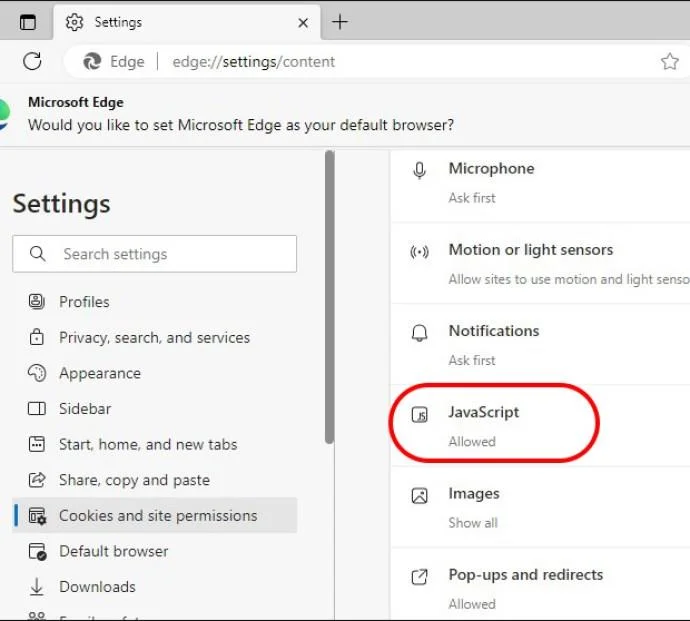
  2. Select Cookies and site permissions and JavaScript.
    How To Enable JavaScript In Google Chrome, Firefox, Microsoft Edge, And Safari
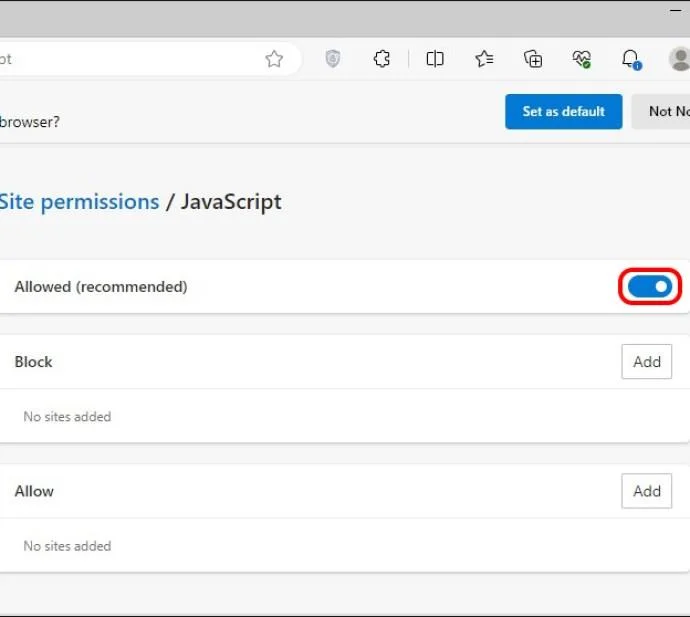
  3. Switch the toggle to On.
    How To Enable JavaScript In Google Chrome, Firefox, Microsoft Edge, And Safari

While JavaScript can enhance a webpage, it can also be the cause of its unresponsiveness. 

Safari (macOS)

Enabling JavaScript in Safari on macOS requires jumping into its Preferences menu. 

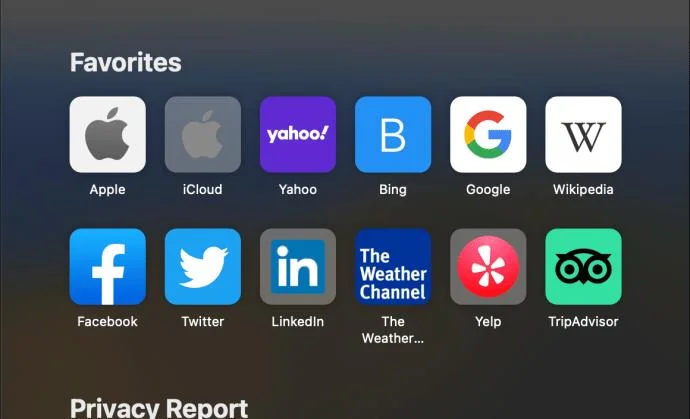
  1. Open Safari on your Mac, and click Safari in the menu.
    How To Enable JavaScript In Google Chrome, Firefox, Microsoft Edge, And Safari
  2. Choose Preferences and then Security.
    How To Enable JavaScript In Google Chrome, Firefox, Microsoft Edge, And Safari
  3. Check the Enable JavaScript box.
    How To Enable JavaScript In Google Chrome, Firefox, Microsoft Edge, And Safari

Safari (iOS/iPadOS)

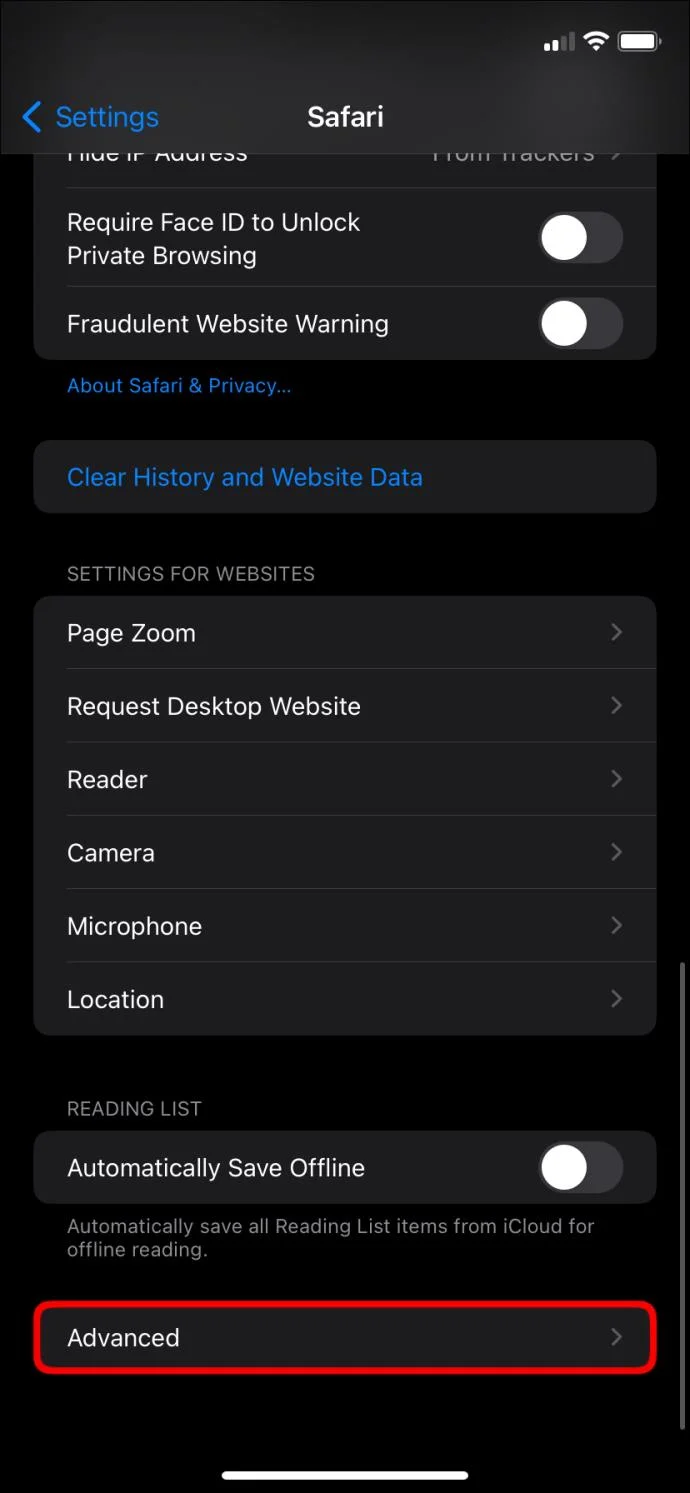
  1. Go to Settings on your iPhone or iPad and scroll down to Safari.
  2. Tap Advanced.
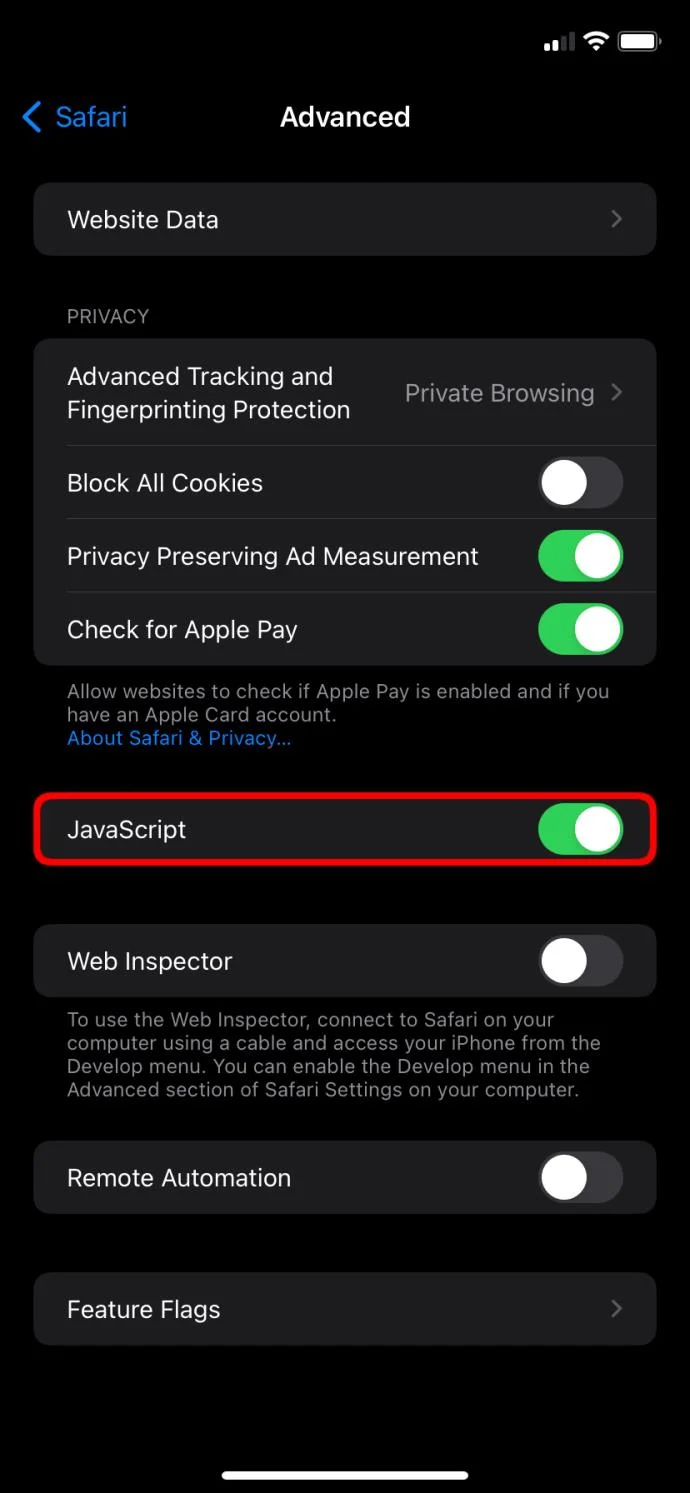
    How To Enable JavaScript In Google Chrome, Firefox, Microsoft Edge, And Safari
  3. Toggle JavaScript to On in this menu.
    How To Enable JavaScript In Google Chrome, Firefox, Microsoft Edge, And Safari

Opera

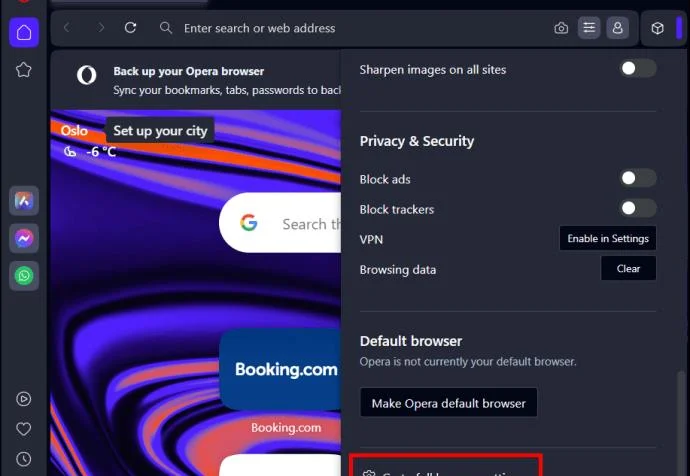
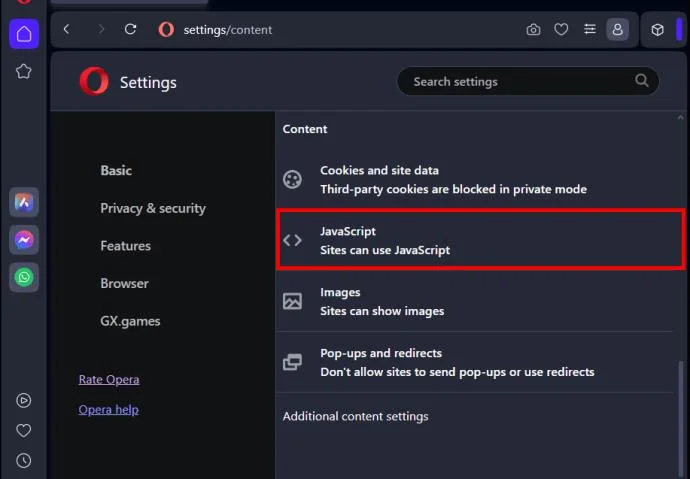
Opera’s JavaScript settings are tucked under Privacy & security section. 

  1. Click the Opera menu and select Settings.
    How To Enable JavaScript In Google Chrome, Firefox, Microsoft Edge, And Safari
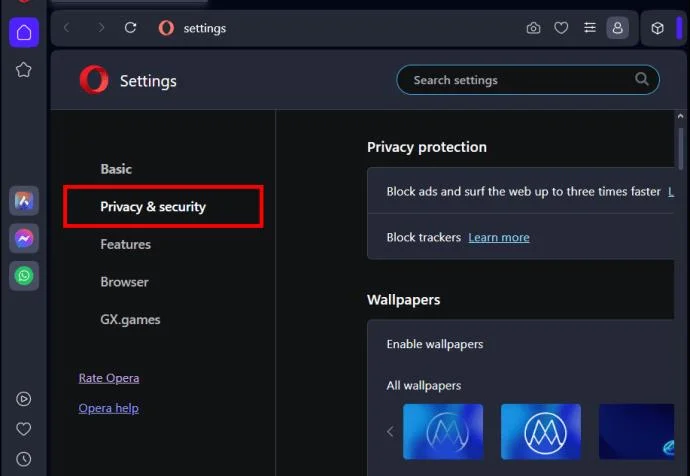
  2. Pick Privacy and security and go to Site Settings.
    How To Enable JavaScript In Google Chrome, Firefox, Microsoft Edge, And Safari
    How To Enable JavaScript In Google Chrome, Firefox, Microsoft Edge, And Safari
  3. Click JavaScript and choose Sites can use JavaSript.
    How To Enable JavaScript In Google Chrome, Firefox, Microsoft Edge, And Safari

Enable the True Internet

Enabling JavaScript is easy on every web browser and unlocks the web’s real potential. It’s a tiny change with a significant impact: enjoying the web’s full interactive features. So don’t keep it off, even if there are some security concerns. Just stay vigilant and use it in places you trust.

You might also want to learn how to block a website on Chrome for additional security.

FAQs
Leave a Comment

How to Fix Microsoft Edge Cant Read and Write to Data Directory

How to Fix Microsoft Edge Cant Read and Write to Data Directory

Frustrated by Microsoft Edge "Can't Read and Write to Data Directory" error? Get step-by-step fixes, from quick resets to advanced troubleshooting, to restore your browser fast. Works on latest versions!

How to Fix Microsoft Edge Windows Update Catalog Error

How to Fix Microsoft Edge Windows Update Catalog Error

Tired of the frustrating Microsoft Edge "Windows Update Catalog" Error blocking your updates? Discover proven, step-by-step fixes that work on the latest Windows versions. Get back online in minutes!

How to Fix Microsoft Edge OBS Studio Black Screen

How to Fix Microsoft Edge OBS Studio Black Screen

Struggling with Microsoft Edge black screen in OBS Studio? Discover step-by-step fixes for hardware acceleration issues, capture settings, and more. Get your stream crystal clear today!

How to Link Your Microsoft Edge Account to Your Phone

How to Link Your Microsoft Edge Account to Your Phone

Master how to link your Microsoft Edge account to your phone for seamless syncing of tabs, passwords, and bookmarks. Step-by-step guide for Android and iOS with troubleshooting tips.

How to Fix Microsoft Edge System Sounds Missing Fix

How to Fix Microsoft Edge System Sounds Missing Fix

Struggling with Microsoft Edge "System Sounds" missing? Our ultimate guide provides step-by-step fixes to restore notifications, alerts, and browser sounds quickly and easily. Works flawlessly on the latest versions.

How to Fix Microsoft Edge DNS Probe Finished No Internet

How to Fix Microsoft Edge DNS Probe Finished No Internet

Struggling with Microsoft Edge "DNS Probe Finished No Internet" error? Discover step-by-step fixes to restore your browsing instantly. Flush DNS, change servers, and more – no tech skills needed!

Troubleshooting Microsoft Edge Profile is Already in Use

Troubleshooting Microsoft Edge Profile is Already in Use

Tired of the frustrating Microsoft Edge "Profile is Already in Use" error blocking your browsing? Follow our proven, step-by-step troubleshooting fixes to resolve it quickly and regain smooth performance. Works on latest versions!

Troubleshooting Microsoft Edge Stream Deck App Not Opening

Troubleshooting Microsoft Edge Stream Deck App Not Opening

Facing Microsoft Edge "Stream Deck" app not opening? Discover proven troubleshooting steps, quick fixes, and expert tips to resolve crashes, freezes, and launch issues fast. Get back to streaming seamlessly.

How to Fix Microsoft Edge Error 0x8004210b During Update

How to Fix Microsoft Edge Error 0x8004210b During Update

Tired of Microsoft Edge Error 0x8004210b blocking your updates? Follow our expert, step-by-step guide with quick fixes to resolve it fast. No tech skills needed – get Edge running smoothly again!

Troubleshooting Microsoft Edge Laptop Battery Drain Fix

Troubleshooting Microsoft Edge Laptop Battery Drain Fix

Tired of Microsoft Edge draining your laptop battery fast? Get instant fixes with this step-by-step troubleshooting guide for Microsoft Edge laptop battery drain fix. Boost battery life now!