Internet connection is always flickering, unstable, making it difficult for users to surf the web, play games, read online newspapers. How to improve the speed of Internet access? How to reduce lag, lag when gaming? A question many people are looking for answers.
Rest assured cFosSpeed will be an effective solution for you at the moment! This is a software that speeds up Internet connection very effectively thanks to Traffic Shaping technology. This technology controls network traffic, reducing latency during data transmission, helping to speed up the network at least 3 times. This software is especially useful for those who often play games, watch movies, listen to music online.
Previously Download.com.vn ever guide you to use CCleaner to speed up your computer, Wise Game Booster to accelerate gaming, Free Download Manager to download acceleration, and with this article you can speed up access Internet access makes web surfing smoother than ever:
Instructions for installing software to speed up Internet connection cFosSpeed
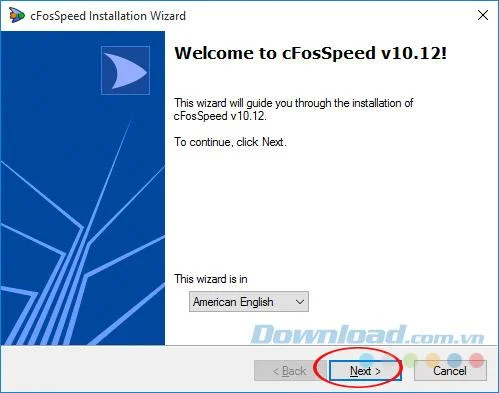
Step 1: Double click the installation file, the installation window appears. At This wizard is in, click on the drop-down button to select the installation language. After selecting a language, click Next to continue.
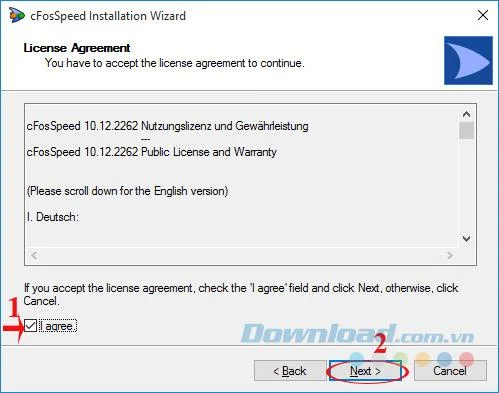
Step 2: Tick the box I agree to agree with the terms that the manufacturer offers. Then click Next to continue the installation.

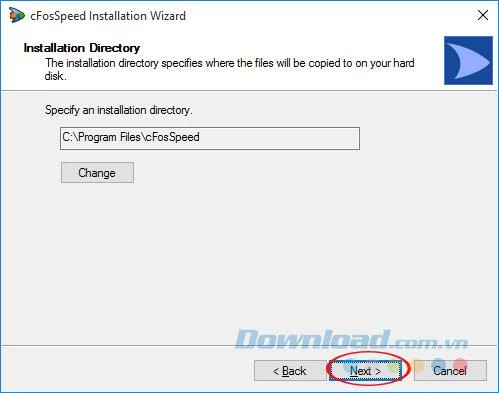
Step 3: Click Next to continue. If you want to change the storage directory, click Change and choose again as you like.

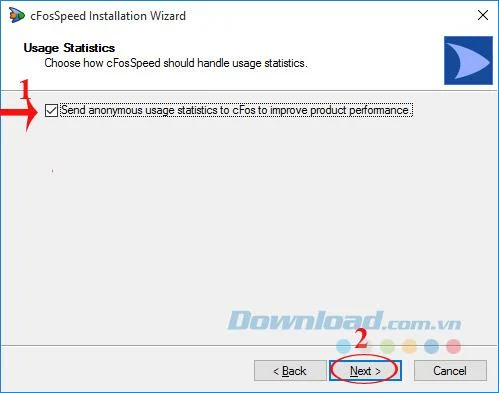
Step 4: A new window appears, tick the box Send anonymous usage statistics to cFos to improve product performance to send error information, comments, suggestions to help manufacturers improve product performance (if you do not want to then you can remove the check mark).
Then click Next to continue.

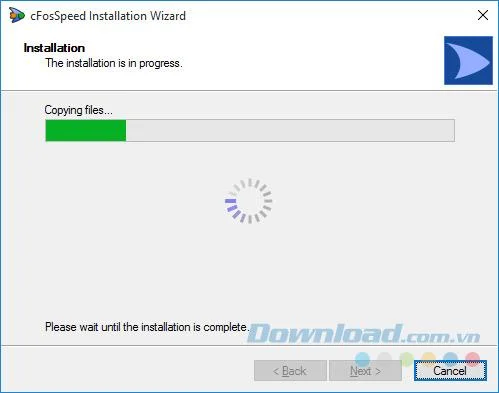
Step 5: The installation process takes place, please wait a few minutes to complete the installation, the speed of how fast or slow depends on your computer configuration.

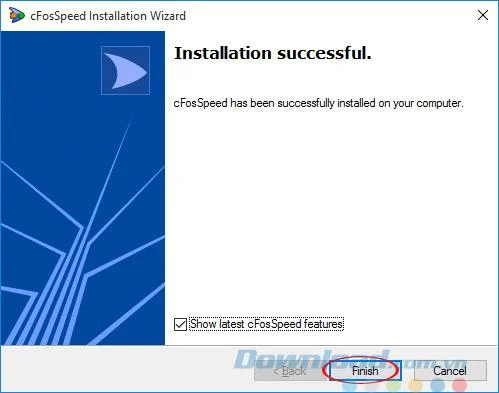
Step 6: Click Finish to finish the installation process.

Then you will see cFosSpeed appear at the bottom right of the screen (above the Taskbar). Two " blue " waves indicate the status of optimal download / upload speed. When browsing the web, the cam column is still running, which means the software is working well.
Manual cFosSpeed to speed up the Internet
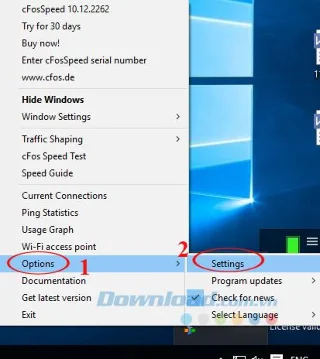
Step 1 : Right-click the cFosSpeed icon in the system tray, select Options / Settings.

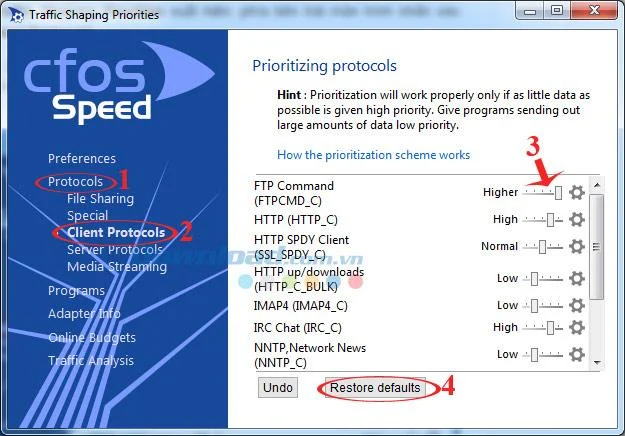
Step 2: Traffic Shaping Priorities window appears, on the left side of the screen, click Protocols , select Client Protocols.
Then look to the right of the screen and drag the slider at the line FTP Command (FTPCMD_C) to the highest level. Click the Restore defaults button if you want to restore the original defaults.

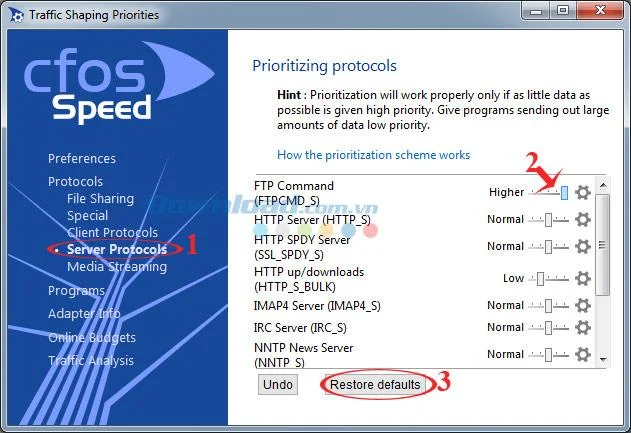
Continue to click on Server Protocols. Then look to the right of the screen and drag the slider at the line FTP Command (FTPCMD_S) to the highest level. Click the Restore defaults button if you want to restore the original defaults.

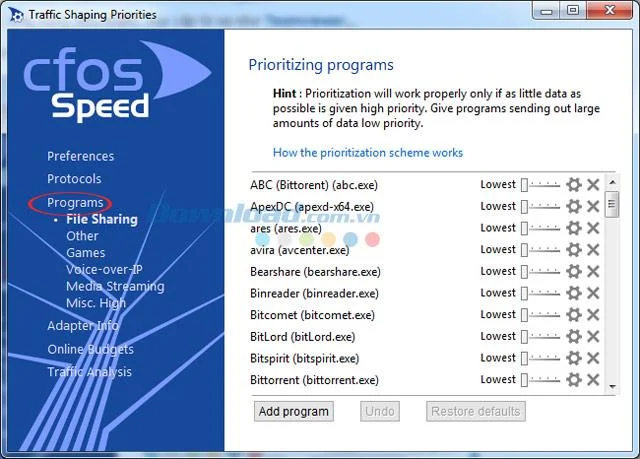
Step 3: Next, click Programs, there are 6 items for you to choose:
- File Sharing: File sharing application, download support such as Orbit Downloader , FlashGet ...
- Other: Some other applications such as: Garena Plus , Hamachi ...
- Games: Games. For example: Age of Empires , Counter-Strike ...
- Voice-over-IP: Chat and online calling applications such as Skype , Viber , Zalo ...
- Media Streaming: Applications that listen to music, watch TV online such as: Media Player Classic , VLC Media Player , Windows Media Player ...
- Misc. High: Control application, remote access like Teamviewer ...
If you want to give priority to any program or game, just drag the slider to the end.

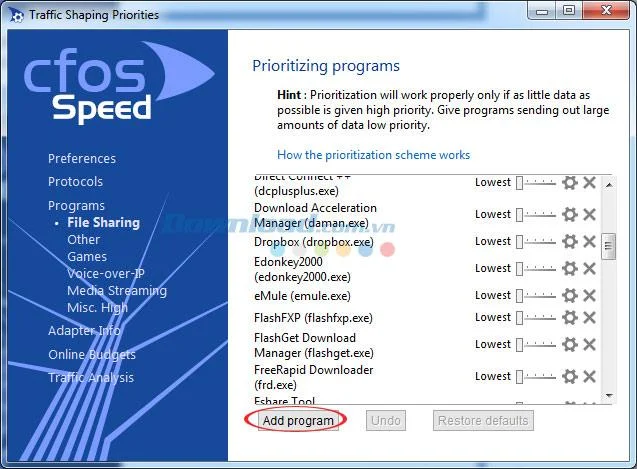
Step 4: If the program or game you want to prioritize is not in the list, click the Add program button at the bottom.

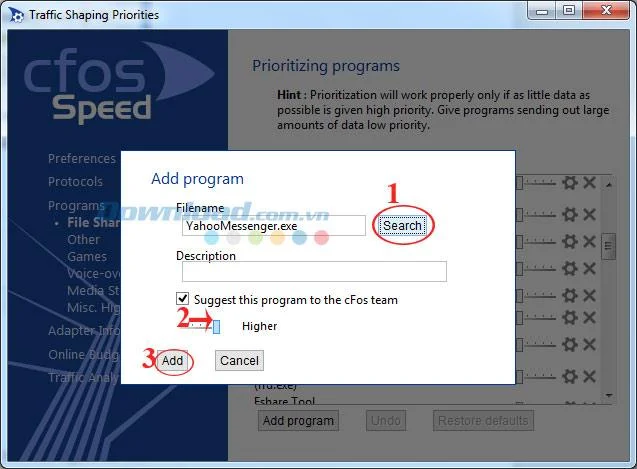
Step 5: Then, click Search to find the executable file (.exe). Drag the slider all the way up then click Add to add it.

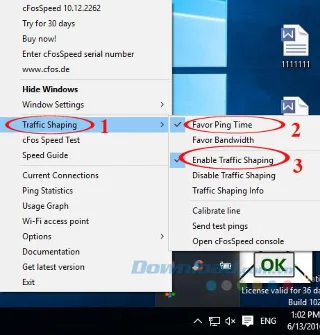
In addition, to reduce ping and optimize bandwidth, right-click the cFosSpeed icon in the system tray, hover over Traffic Shaping , and select:
- Favor Ping Time: To reduce ping.
- Enable Traffic Shaping: Enable bandwidth optimization.

How to create a Wifi hotspot with cFosSpeed
In the new version of cFosSpeed, it adds the function of creating a Wi-Fi access point, using a laptop to broadcast Wifi to other computers and mobile phones. This feature is expected by many people, today we will show you how to do the following:
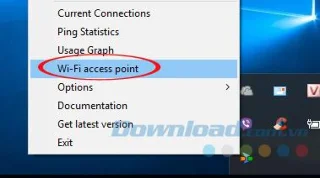
Step 1: Right-click the cFosSpeed icon in the system tray, select Wi-Fi access point to create a Wifi access point .

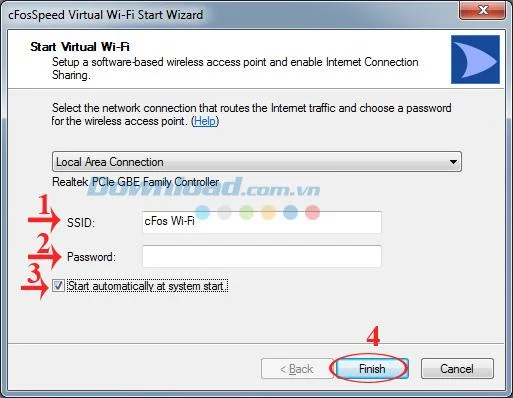
Step 2: The CFosSpeed Virtual Wi-Fi Start Wizard window appears, enter the Wifi name in the SSID box and wifi password in the Password box . If you want to automatically start the Wifi access point when starting the computer, select the Start automatically at system start box. Then click Finish to complete.

Video tutorial on using cFosSpeed to speed up Internet connection
So now you are free to access Wifi on many other devices. cFosSpeed is amazing, isn't it? Now, we can easily create Wifi hotspot, just speed up the Internet significantly.
I wish you successful implementation!