Home
» Today
»
Netflix New Releases: How to Find the Best New Movies and Shows
Netflix New Releases: How to Find the Best New Movies and Shows
If you open Netflix looking for something new and end up scrolling through rows of titles, use this quick routine: check the service’s new-release rows, search for a genre or mood, save interesting picks, and confirm the title is available on your profile before you settle in. Netflix’s catalog and app layout change by region, device, and over time, so a single “new releases” list is only a starting point.
This practical reference focuses on Netflix in the United States. The interface notes below were checked against Netflix Help Center information on September 27, 2026. Exact labels and placement can differ across TVs, phones, tablets, browsers, and app versions.
Quick reference: where to look
What you need
Where to start
Best use
Recently added titles
New & Popular, Latest, New & Hot, or New on Netflix
Scan fresh arrivals and currently highlighted titles
A particular kind of movie or show
Search by genre, mood, actor, language, or title
Turn a vague idea into a shorter list
Upcoming releases
Coming Soon and Remind Me
Track a title that is not available yet
A personal watch queue
My List
Keep possibilities for later and check new seasons
Popular picks
Top 10 and Everyone’s Watching
See what is attracting attention, then judge fit for yourself
1. Start with Netflix’s new-release rows
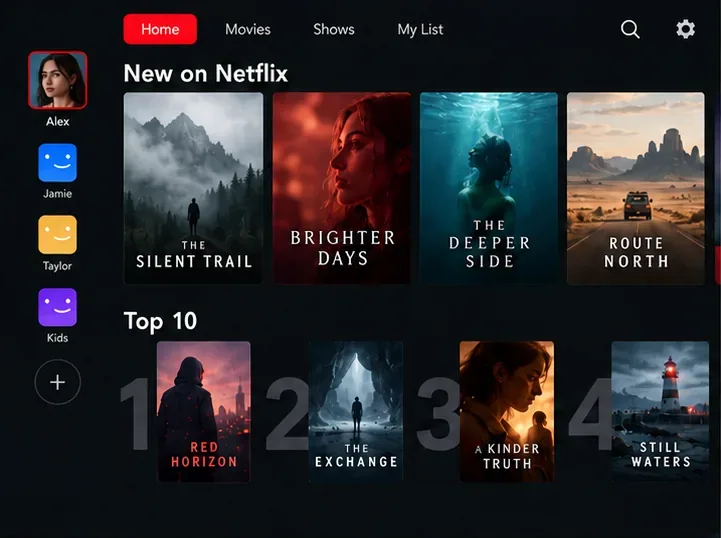
On the home screen, look for shortcuts such as New & Popular, Latest, or New & Hot, or scroll for a New on Netflix row. Netflix says these labels and sections vary by device. Its current mobile-app help page also describes New & Hot as a place for Coming Soon titles, titles people are watching, and Top 10 selections; on the refreshed app, you may need to swipe through the shortcuts at the top to find it. A TV interface may arrange navigation differently.
Illustrative home-screen layout showing new-release and Top 10 rows. The title cards are fictional, and Netflix’s actual labels and layout can vary by device.
Treat “new” and “popular” as two different signals. A new row helps you discover recent additions; a Top 10 row reflects popularity, not a promise that a title matches your taste. Open a title’s details page before pressing play to check its description, format, maturity rating, languages, and whether it is a movie or a series.
2. Search with a useful clue
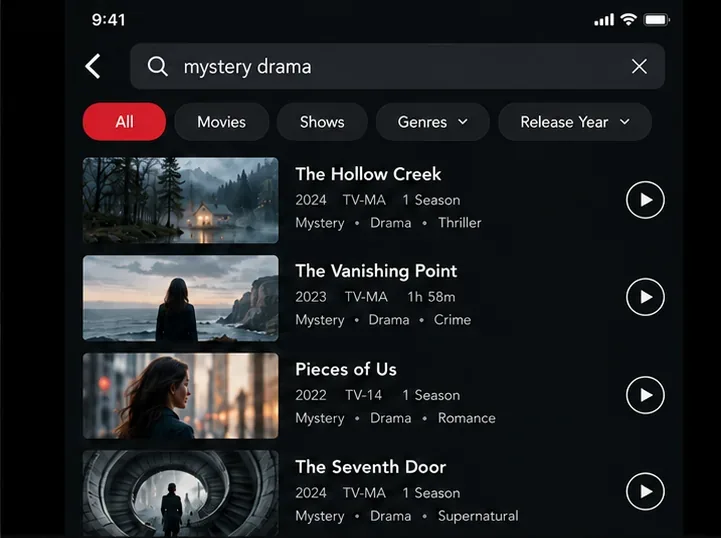
Search works well when you know more about the viewing experience you want than the exact title. Try a genre (“mystery”), a combination (“mystery drama”), an actor, a show or movie name, or an audio-language phrase such as “Spanish movies.” Netflix’s search guidance lists genres, names, titles, and audio or original-language descriptions among the supported query types. On the web, Netflix also provides a Browse by Languages page for specific subtitle, audio, or original-language discovery.
Illustrative search results for “mystery drama”; all titles shown are fictional examples, not current Netflix catalog listings.
If the first results are too broad, add one constraint at a time: “short comedy,” “true crime documentary,” “Korean thriller,” or the name of a performer. Then use the title details to confirm the runtime or episode count, release year, maturity rating, and available audio or subtitles. Search is a discovery tool, not a guarantee that every result is newly released.
3. Separate “coming soon” from “available now”
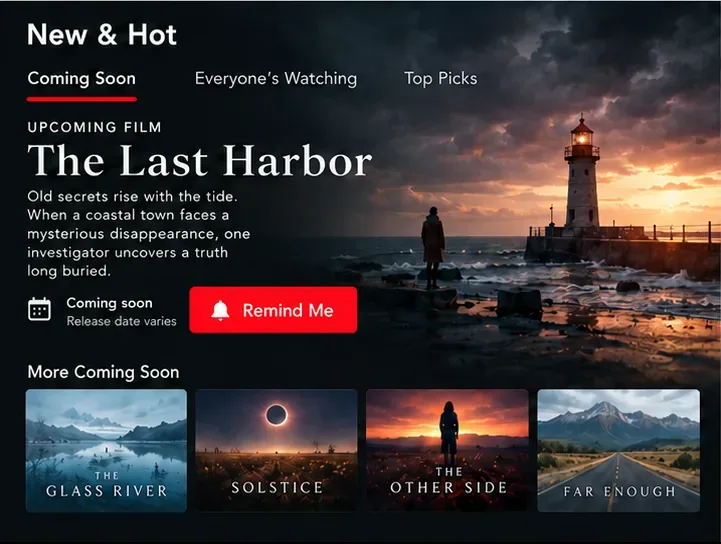
A title shown in a future-release area is not ready to stream yet. If Netflix offers Remind Me, select it; reminders can appear in the Reminders You’ve Set row on supported TV or mobile views. When a title becomes available, Netflix says it may send an in-app notification or email, and the title may appear in My List. Release dates can move, so revisit the title page if a date changes.
Illustrative upcoming-title screen with a Remind Me control; the title and date treatment are examples, not an announced Netflix release.
Netflix Originals are typically released globally at 12:00 a.m. Pacific Time, but weekly episodes and titles tied to an original broadcast can follow a different schedule. Some titles are Netflix Originals in one country but not another, which can also affect timing. For a specific launch, rely on the time shown in Netflix’s Coming Soon area or on that title’s details page rather than assuming every release appears at the same hour.
4. Build a short list before you choose
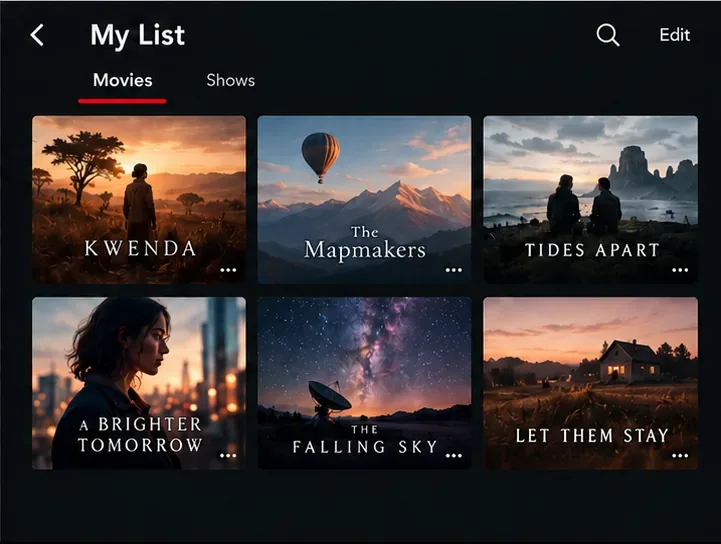
Add promising titles to My List while you browse. This is useful when you are choosing with someone else or saving a movie for the weekend. Netflix says My List can surface new seasons and titles that are leaving soon; its ordering can prioritize titles it considers relevant, and on mobile you can filter by movies or shows and sort options such as date added or release date. A saved title can disappear from view if it leaves Netflix or is unavailable in the region you are currently using.
Illustrative My List screen with saved movie and show categories; the cards are fictional and the real interface may differ.
A practical shortlist has three or four choices, not twenty. Save one easy, familiar pick, one option that fits the group’s mood, and one wildcard. When deciding, compare the details page’s premise, length, rating, and language options against what everyone actually wants to watch. “Best” is the title that fits tonight’s constraints, not necessarily the one with the highest rank.
How to judge a new release quickly
Check the premise: Read the official Netflix synopsis and watch a trailer only if the basic idea appeals to you.
Check the commitment: A movie has a fixed runtime; a series may require several episodes. Look at season and episode information before starting.
Check the fit: Confirm the maturity rating and audio or subtitle choices on the title page, especially when watching with children or language learners.
Use popularity as context: Top 10 can reveal what is widely watched, but it does not tell you whether the subject, tone, or pacing will suit you.
Let recommendations learn: Netflix says recommendations use signals such as viewing history, ratings, recent activity, language preferences, and title characteristics. Profiles can therefore see different rows. Use your own profile and rate titles when you want recommendations to better reflect your preferences.
If a release is missing
First search for the exact title, then check its release date and details page. If it is scheduled for today, refresh the Netflix app or browser; Netflix notes that a restart may be needed. Confirm that you are viewing from the expected country and profile. Catalogs differ by region because licensing rights and regional availability differ, and profile maturity settings can filter what appears. If a series seems incomplete, episodes may arrive weekly or follow another broadcast schedule.
Travel can change what is available, so a title on My List is not proof that it streams everywhere. If a release date has passed but the title still is not playable, check Netflix’s help guidance for that specific availability issue rather than relying on an old social post or third-party calendar.
Five-minute viewing checklist
Open the Netflix profile you actually use.
Check New & Popular, Latest, New & Hot, or the New on Netflix row that appears on your device.
Search one genre, mood, actor, or language if the new rows do not surface a fit.
Save a few options to My List, and use Remind Me for a future title.
Before watching, verify availability, format, rating, runtime or episode count, and language options.
These steps keep discovery quick while accounting for the two things that cause the most confusion: Netflix’s interface can look different across devices, and the catalog changes by date and region. Check Netflix directly for the final availability decision.