Instructions for installing iSpring - E-learning writing software

The task of the tool to support the development of E-learning lectures is to develop and digitalize online materials as simple and convenient as possible. These tools will help teachers create E-learning lessons with all the necessary features instead of building knowledge for the entire learning process.

Choosing a tool to support building E-learning lessons is also an important step to help teachers use it easily and best suit their needs. Most current E-learning teaching support tools allow teachers to package and export lectures in standard SCORM or AICC format, usually in the form of a compressed .zip file. And almost every LMS today will also be equipped to manage online lectures in this format, so lectures can reach learners more easily and conveniently.

First, let's take a look at some criteria of E-learning lectures.

1. Criteria of an E-learning lecture

1.1. Technological properties

  • Built on tools to support packaging products to the web according to HTML5 standards, running on both computers and mobile phones.
  • There is a recording of the teacher's lecture (make sure the volume is even, there is no background noise, can dub background music) and show a picture or video of the teacher when necessary.
  • The lecture must be synchronized with the text or images in the lesson.
  • The system of interactive exercises is rich, diverse, uniform in color with the content of the whole lesson, with appropriate images and sounds inserted.
  • Use Font Arial or Unicode encoding.

1.2. content

  • Ensure accurate, scientific content and knowledge.
  • Creativity, reality, science and innovation.
  • Completeness, completeness.
  • Clarity in citation of documents and reference materials.

1.3. Pedagogy and method of communication:

  • Meet the self-study needs of learners.
  • Lectures (voice) and explanations (texts) are easy to understand
  • Create a learning situation.
  • The questions guide learners to think and learn in an active way.
  • Interactive and engaging.
  • Contains test and evaluation content.

1.4. General assessment

  • Effectiveness can be brought to learners.
  • Attractiveness.
  • Can be widely applied and popularized in practice.

2. Support tools and software

  • Using Adobe Presenter software 7, 9, 10, 11
  • Using software Ispring Suiter 7.0, 8.1, 8.7, 9.0…
  • Use Camtasia Studio 8 software to edit videos.
  • Use Total Video Converter software to change the movie extension.
  • Use Violet software to create interactive games.
  • Use Mindmap 8 software to draw mind maps

3. Instructions for installing iSpring software

In this article, the teaching manual will guide teachers to install the software to support e-learning e-learning iSpring Suite 9. iSpring is actually an expensive Powerpoint add-in. Like many other educational software, iSpring also supports a free version for education during the peak period of the Covid 19 pandemic, used for 60 days without watermark (different from the trial version ), but now this support package is no longer available. again. Teachers can still use the method below to install and use it for a long time.

Step 1: Download iSpring software

Teachers can download the software at the link iSpring Software

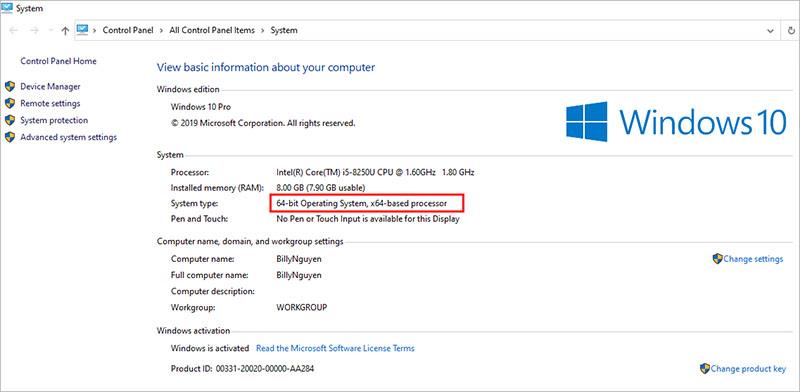
Step 2 : Check whether the operating system is 32 bit or 64 bit

Teachers right-click on the My Computer icon, select Properties to check if the Windows version of the computer is 32 bit or 64 bit
Instructions for installing iSpring - E-learning writing software

Step 3 . Proceed with the installation

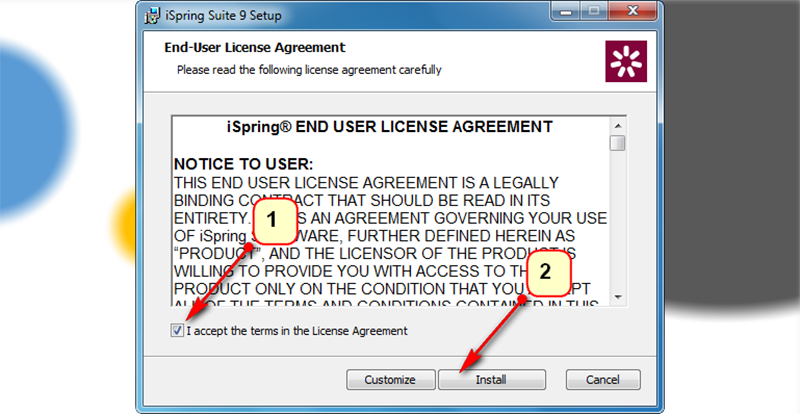
After checking the operating system, teachers proceed to select the corresponding folder to install (Ispring Suite 9.7 only installs and runs stably on Powerpoint from 2007 and up) . Double click to install, if yes/No (or Run), then click Yes (or Run). In the next window, click I accept the items in the License Agreement and then click Install ( If a Yes/No message appears, select Yes ).
Instructions for installing iSpring - E-learning writing software

Wait a moment the installation is in progress
Instructions for installing iSpring - E-learning writing software

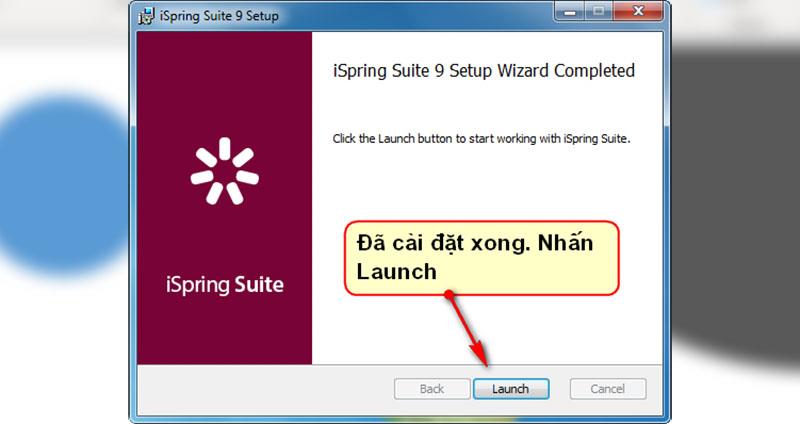
When the Launch button appears, click to finish.
Instructions for installing iSpring - E-learning writing software

Step 4 . Proceed to crack the software.

This is a fee-based software, so for long-term use (trial is 15 days with watermark), teachers should crack the software.

Before proceeding with Crack, please turn off Antivirus and Disconnect internet applications so that the crack process is 100% successful.

The teacher opens the folder that has not been authorized for 32 bit (or 64 bit ) win in the folder containing the installer that the teacher has downloaded. Find and run the file (If Yes/No appears , select Yes ), then click on the icon and wait for about 5 seconds, then turn it off, relaunch the Powerpoint program.Instructions for installing iSpring - E-learning writing software

Instructions for installing iSpring - E-learning writing software

That's how the teacher has installed and Cracked successfully. Wish teachers have good lectures with iSpring.

See more: Instructions for building E-learning lessons using iSpring

Leave a Comment

How to Fix Microsoft Edge Error Code SBOX_FATAL_MEMORY_EXCEEDED

How to Fix Microsoft Edge Error Code SBOX_FATAL_MEMORY_EXCEEDED

Tired of Microsoft Edge crashing with Error Code SBOX_FATAL_MEMORY_EXCEEDED? Discover proven, step-by-step fixes for this sandbox memory issue. Restore smooth browsing in minutes—no tech expertise needed!

How to Fix Microsoft Edge Cant Connect to the Proxy Server

How to Fix Microsoft Edge Cant Connect to the Proxy Server

Tired of Microsoft Edge "Can't Connect to the Proxy Server" error blocking your browsing? Discover proven, step-by-step fixes to resolve it quickly—no tech skills needed. Latest solutions for seamless surfing!

How to Use Microsoft Edge Group Tabs to Stay Organized

How to Use Microsoft Edge Group Tabs to Stay Organized

Master Microsoft Edge Group Tabs with this step-by-step guide. Learn to create, manage, and customize groups for ultimate tab organization and productivity boost.

How to Fix Microsoft Edge Error Code RESULT_CODE_KILLED_BAD_MESSAGE

How to Fix Microsoft Edge Error Code RESULT_CODE_KILLED_BAD_MESSAGE

Struggling with Microsoft Edge Error Code RESULT_CODE_KILLED_BAD_MESSAGE? Discover proven, step-by-step fixes to stop crashes and get back to browsing smoothly. Updated with the latest solutions for optimal performance.

How to Enable Sleeping Tabs in Microsoft Edge to Save RAM

How to Enable Sleeping Tabs in Microsoft Edge to Save RAM

Discover how to enable Sleeping Tabs in Microsoft Edge to dramatically save RAM and boost performance. Step-by-step guide, tips, and tweaks for maximum efficiency.

How to Fix Microsoft Edge Secure Network Encountered an Error

How to Fix Microsoft Edge Secure Network Encountered an Error

Tired of the frustrating Microsoft Edge Secure Network Error blocking your browsing? Follow our proven, step-by-step guide to fix it quickly—no tech expertise required. Get back online fast with the latest solutions.

How to Fix Microsoft Edge Wallpaper Engine Conflict Fix

How to Fix Microsoft Edge Wallpaper Engine Conflict Fix

Tired of Microsoft Edge crashing with Wallpaper Engine? Follow our step-by-step guide to fix the Microsoft Edge Wallpaper Engine conflict quickly. Proven methods for smooth browsing and stunning wallpapers.

Troubleshooting Microsoft Edge PDF Preview Handler Errors

Troubleshooting Microsoft Edge PDF Preview Handler Errors

Stuck with Microsoft Edge PDF preview handler errors? Discover proven fixes for thumbnail issues, blank previews, and more. Step-by-step guide to restore smooth PDF previews in Edge.

How to Set Microsoft Edge as Your Default PDF Viewer

How to Set Microsoft Edge as Your Default PDF Viewer

Master how to set Microsoft Edge as your default PDF viewer in minutes. Say goodbye to slow apps and hello to lightning-fast reading on Windows – step-by-step guide with tips for seamless setup.

How to Restore Previous Microsoft Edge Sessions After a Crash

How to Restore Previous Microsoft Edge Sessions After a Crash

Frustrated by Microsoft Edge crashes wiping your tabs? Discover proven steps to restore previous sessions effortlessly. Quick fixes for the latest Edge versions—no tab loss forever!

How to Fix Microsoft Edge Result_Code_Killed_Bad_Message

How to Fix Microsoft Edge Result_Code_Killed_Bad_Message

Tired of Microsoft Edge crashing with "Result_Code_Killed_Bad_Message"? Discover proven, step-by-step fixes to resolve this error quickly and restore smooth browsing. Updated for the latest Edge versions!

How to Disable Microsoft Edge Game Assist on Windows 11

How to Disable Microsoft Edge Game Assist on Windows 11

Struggling with Microsoft Edge Game Assist interrupting your games? Learn how to disable Microsoft Edge Game Assist on Windows 11 step-by-step. Simple, effective methods for gamers. Boost your performance now!

Troubleshooting Microsoft Edge Mica Effect Not Working

Troubleshooting Microsoft Edge Mica Effect Not Working

Troubleshooting Microsoft Edge "Mica Effect" not working? Discover step-by-step fixes to enable beautiful Mica transparency in Edge on Windows 11. Quick, easy solutions that work!

Troubleshooting Microsoft Edge Extensions Not Working

Troubleshooting Microsoft Edge Extensions Not Working

Microsoft Edge extensions not working? Discover proven troubleshooting steps to fix crashes, loading issues, and more. Get your browser extensions running smoothly today with our expert guide.

How to Disable Microsoft Edge Sidebar and Notifications

How to Disable Microsoft Edge Sidebar and Notifications

Struggling with annoying Microsoft Edge sidebar and notifications? Discover simple, step-by-step methods to disable Microsoft Edge sidebar and notifications for good. Enjoy a cleaner, faster browsing experience today!