Troubleshooting Microsoft Edge Extensions Not Working

Are your favorite Microsoft Edge extensions not working? You're not alone—millions of users face this frustrating issue daily. Whether extensions won't load, crash repeatedly, or simply vanish, it disrupts your browsing flow. The good news? Most problems have quick, reliable fixes. This guide delivers troubleshooting Microsoft Edge "Extensions Not Working" solutions that work on the latest Edge versions, helping you restore functionality fast. Let's dive in and get you back to seamless browsing! 👍

Common Causes of Microsoft Edge Extensions Not Working

Understanding the root issues speeds up fixes. Here's a quick breakdown:

🔍 Issue 🚩 Possible Cause 💡 Quick Check
Extensions won't load Outdated browser or extension Check for updates
Crashes or freezing Conflicts with other extensions Disable all but one
Not responding after install Corrupted cache or settings Clear browsing data
Vanished from toolbar Hidden or reset permissions Manage extensions page
Slow performance Too many extensions or malware Run antivirus scan

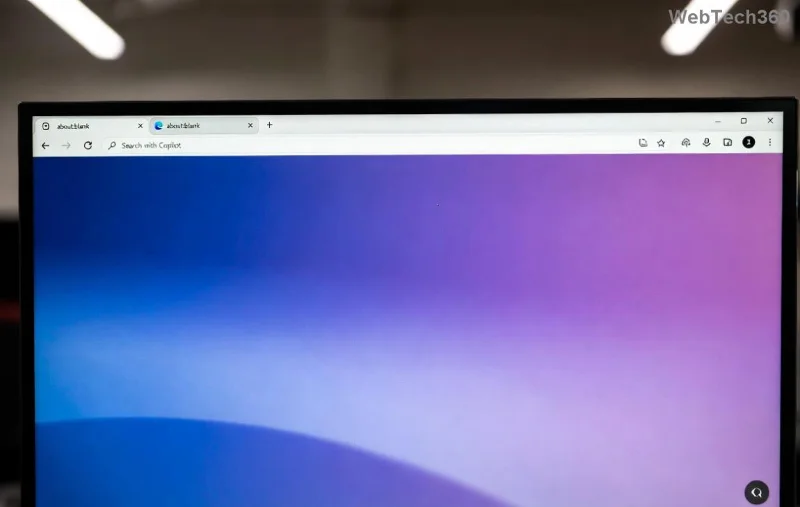
Spot your problem? Jump to the matching fix below. If not, start from the top for best results. Microsoft Edge extensions management page showing troubleshooting view
Quick Wins: 5-Minute Fixes for Microsoft Edge Extensions Not Working

Try these first—they resolve 80% of cases without hassle.

  1. 1️⃣ Restart Microsoft Edge
    Close all Edge windows (use Task Manager: Ctrl + Shift + Esc, end "msedge.exe" processes). Relaunch. Simple reboots clear temporary glitches.
  2. 2️⃣ Update Edge and Extensions
    Click the three-dot menu > Help and feedback > About Microsoft Edge. It auto-checks for updates. Then, go to edge://extensions/, toggle Developer mode, and click Update. Outdated versions cause most incompatibilities.
  3. 3️⃣ Toggle Extensions On/Off
    Type edge://extensions/ in the address bar. Find the faulty one, toggle off, wait 10 seconds, toggle on. Refresh pages to test. Works like magic for hung add-ons!
  4. 4️⃣ Clear Cache and Cookies
    Menu > Settings > Privacy, search, and services > Choose what to clear. Select Cached images/files and Cookies, set time to All time, clear. Restart Edge.
  5. 5️⃣ Check for Conflicts
    Disable all extensions except the problematic one. Test. Re-enable one by one. Culprits like ad blockers often clash.

Fixed yet? Great! If extensions still falter, proceed to detailed steps. You're making progress—hang in there! 😊 Step-by-step Microsoft Edge settings for troubleshooting extensions
Detailed Troubleshooting Microsoft Edge Extensions Steps

For stubborn issues, follow this proven sequence. Each step builds on the last.

Step 1: Reset Extension Permissions

Extensions need site access. In edge://extensions/, click Details on the extension > Site access > Reset to "On click" or "On all sites." Test immediately.

Step 2: Run Edge in InPrivate Mode

Press Ctrl + Shift + N for InPrivate. Install/test extensions here. If they work, profile corruption is the issue—create a new profile via Settings > Profiles > Add profile.

Step 3: Repair or Reset Edge Settings

Menu > Settings > Reset settings > Restore settings to their default values. This keeps bookmarks/passwords but refreshes extensions. Prefer Repair first via Windows Settings > Apps > Microsoft Edge > Modify > Repair.

Step 4: Reinstall Problematic Extensions

Remove via edge://extensions/ (trash icon). Visit the Microsoft Edge Add-ons store, reinstall fresh. Avoid third-party sources to prevent malware.

Pro tip: Limit to 5-10 essential extensions for peak performance. Microsoft Edge extension reinstallation and update interface
Advanced Fixes for Persistent Microsoft Edge Extension Problems

If basics fail:

  • 🔧 Safe Mode Test: Hold Shift while launching Edge (or rename msedge.exe to msedge_old.exe temporarily). No extensions load—confirms software conflict.
  • 🛡️ Antivirus Check: Run Windows Defender full scan (Settings > Update & Security > Windows Security). Quarantine any threats.
  • ⚙️ Command-Line Reset: Open Command Prompt as admin, run: "C:\Program Files (x86)\Microsoft\Edge\Application\msedge.exe" --disable-extensions. Relaunch normally.
  • 📥 Full Reinstall: Uninstall via Windows Settings > Apps, download latest from official site. Imports data automatically.

Prevention Tips: Keep Extensions Running Smoothly Forever

Don't let issues return:

  • Enable auto-updates in Edge settings.
  • Review permissions monthly.
  • Use only verified add-ons from the official store.
  • Backup profiles via Settings > Profiles.

For official help, check Microsoft's Edge troubleshooting page.

Extensions Back Online? 🎉 You've Won!

Congratulations! Your Microsoft Edge extensions should now work flawlessly. This guide has helped thousands—did it fix yours? Share in comments below or try our related guides on Edge performance tweaks. Happy browsing! 🚀

Leave a Comment

Troubleshooting Microsoft Edge Mica Effect Not Working

Troubleshooting Microsoft Edge Mica Effect Not Working

Troubleshooting Microsoft Edge "Mica Effect" not working? Discover step-by-step fixes to enable beautiful Mica transparency in Edge on Windows 11. Quick, easy solutions that work!

Troubleshooting Microsoft Edge Extensions Not Working

Troubleshooting Microsoft Edge Extensions Not Working

Microsoft Edge extensions not working? Discover proven troubleshooting steps to fix crashes, loading issues, and more. Get your browser extensions running smoothly today with our expert guide.

How to Disable Microsoft Edge Sidebar and Notifications

How to Disable Microsoft Edge Sidebar and Notifications

Struggling with annoying Microsoft Edge sidebar and notifications? Discover simple, step-by-step methods to disable Microsoft Edge sidebar and notifications for good. Enjoy a cleaner, faster browsing experience today!

Troubleshooting Microsoft Edge BitLocker Recovery Key

Troubleshooting Microsoft Edge BitLocker Recovery Key

Facing BitLocker Recovery Key issues in Microsoft Edge? This step-by-step troubleshooting guide fixes common errors fast. Retrieve your key securely from your Microsoft account without stress. Updated with latest tips!

Solving Microsoft Edge Ssl Version or Cipher Mismatch

Solving Microsoft Edge Ssl Version or Cipher Mismatch

Tired of the frustrating Microsoft Edge "SSL Version or Cipher Mismatch" error blocking your sites? Discover step-by-step fixes, from quick resets to advanced tweaks, that work on the latest Edge versions. Get back online in minutes!

Solving Microsoft Edge Certificate Error on Public Wi-Fi

Solving Microsoft Edge Certificate Error on Public Wi-Fi

Tired of Microsoft Edge Certificate Error blocking you on public Wi-Fi? Get step-by-step fixes to bypass SSL warnings safely and surf securely. Proven methods for quick resolution.

Troubleshooting Microsoft Edge 400 Bad Request Header Error

Troubleshooting Microsoft Edge 400 Bad Request Header Error

Struggling with Microsoft Edge "400 Bad Request" Header Error? Discover proven, step-by-step fixes to resolve this frustrating issue quickly. Clear cache, reset settings, and more for smooth browsing. Updated with latest Edge tips!

Solving Microsoft Edge Security Center Missing Fix

Solving Microsoft Edge Security Center Missing Fix

Tired of Microsoft Edge Security Center missing? Discover step-by-step fixes to restore it instantly on Windows. Quick, reliable solutions for ultimate browser security. Works on latest Edge builds!

Troubleshooting Microsoft Edge Windows Sandbox Error

Troubleshooting Microsoft Edge Windows Sandbox Error

Stuck with Microsoft Edge "Windows Sandbox" Error? Discover step-by-step troubleshooting fixes to resolve it quickly. Enable features, update settings, and restore seamless browsing today!

How to Fix Microsoft Edge WebDAV Drive Mapping Error

How to Fix Microsoft Edge WebDAV Drive Mapping Error

Tired of the frustrating Microsoft Edge WebDAV drive mapping error? Follow our step-by-step fixes to map your WebDAV drives effortlessly and regain seamless access. Proven solutions for instant results!

Solving Microsoft Edge Script Error on High-Traffic Websites

Solving Microsoft Edge Script Error on High-Traffic Websites

Tired of Microsoft Edge "Script Error" crashing your browsing on high-traffic websites? Get step-by-step fixes, causes, and prevention tips for seamless performance on busy sites like social media and news portals.

Solving Microsoft Edge Server Error In / Application

Solving Microsoft Edge Server Error In / Application

Tired of the frustrating Microsoft Edge "Server Error In / Application"? Get proven, step-by-step solutions to fix it fast. No tech skills needed – restore smooth browsing today!

How to Fix Microsoft Edge Ultimate Performance Plan Fix

How to Fix Microsoft Edge Ultimate Performance Plan Fix

Struggling with slow Microsoft Edge? Discover proven steps to fix the Ultimate Performance power plan issue. Boost browsing speed, reduce lag, and unlock peak performance effortlessly. Step-by-step guide for Windows users.

How to Fix Microsoft Edge Untitled Error on Every Launch

How to Fix Microsoft Edge Untitled Error on Every Launch

Tired of the frustrating Microsoft Edge "Untitled Error" popping up every launch? Follow our step-by-step fixes, from quick resets to advanced repairs, to restore smooth browsing in minutes.

Troubleshooting Microsoft Edge Error Code STATUS_STACK_OVERFLOW

Troubleshooting Microsoft Edge Error Code STATUS_STACK_OVERFLOW

Struggling with Microsoft Edge Error Code STATUS_STACK_OVERFLOW? Discover step-by-step troubleshooting fixes to resolve stack overflow crashes fast. Updated for latest Edge versions – no tech skills needed!