Home
» Today
»
Santander Online Banking Not Working? How to Check Service Status and Secure Your Account
Santander Online Banking Not Working? How to Check Service Status and Secure Your Account
If Santander Online Banking or the Mobile Banking app suddenly stops working, do not start by resetting everything or clicking links from texts and emails. First determine whether you are dealing with a wider service problem, a device or app issue, or a problem specific to your account. That distinction matters because each situation needs a different response.
This guide focuses on Santander UK, because the recent disruption and the official support material checked for this article are from Santander UK. A widespread service problem was reported on September 25, 2026, affecting customers trying to use digital banking. Santander's public support pages do not provide a complete timestamped incident history that can be independently checked after the fact, so current availability should always be treated as time-sensitive. If you use Santander in another country, use that country's official Santander website and contact details instead of the UK information below.
Step 1: Is Santander down, or is the problem only on your device?
Start with the simplest test: try both the Mobile Banking app and Online Banking from the official Santander website. If both fail at roughly the same time, especially on more than one device or network, a service disruption becomes more likely. If the website works but the app does not, the problem is more likely to be app-specific.
Do not use a random search result, social-media reply, or link in a message to log in. Santander's own Online Banking terms say customers should access Online Banking through the bank's website and Mobile Banking through the official app, not from links in emails. The official starting point is Santander UK.
For live clues, you can also check Santander UK's official help presence and support pages. Santander's public website may display service-related notices when there is a known problem, and the bank's official support team may post updates on its verified channels. Community outage trackers can be useful as a secondary signal, but they are not proof that your own account is affected and should never be used as a place to enter banking credentials.
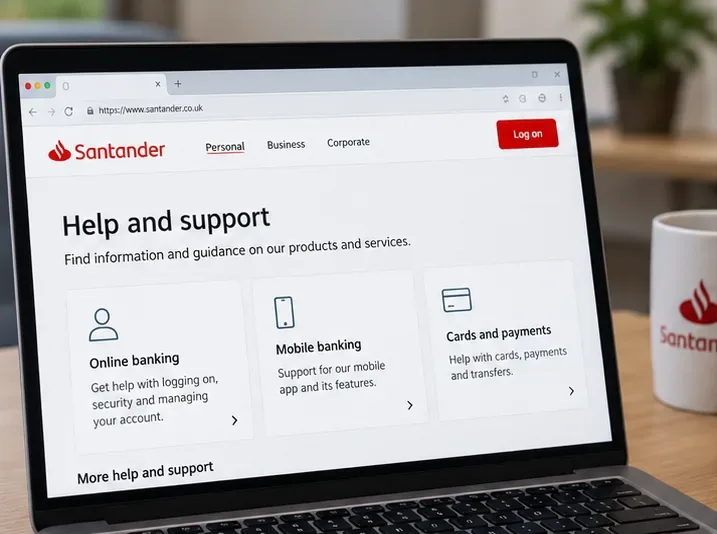
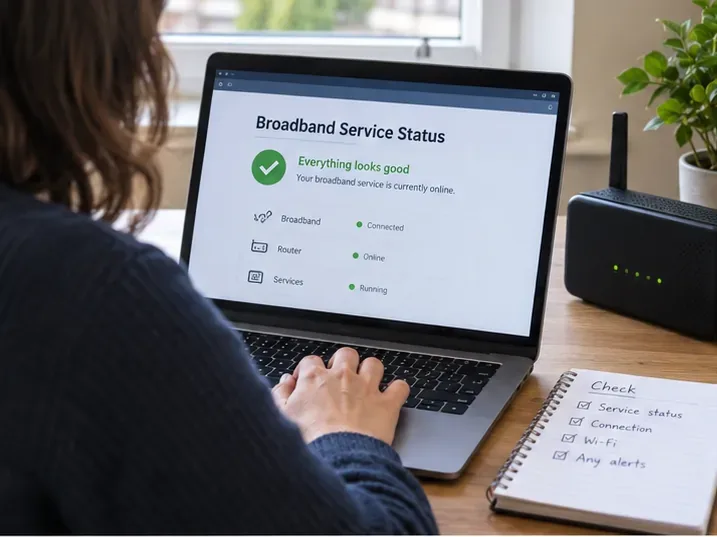
Start with Santander's official support pages. A bank-wide issue can look similar to an individual login problem, so check official information before changing credentials.
Step 2: What should you prepare before troubleshooting?
Before making changes, have a few things ready: the device you normally use for banking, access to the mobile number registered with Santander, your Personal ID if you know it, and a second internet connection if available. A Personal ID is the identifier Santander uses as part of Online and Mobile Banking sign-in. A One Time Passcode, or OTP, is a temporary code Santander sends to help verify that an action is really yours.
You should also make sure you are in a private place and using a trusted connection. Santander's Online Banking terms advise customers not to access their account using public Wi-Fi and to keep devices protected with current security software. If you are troubleshooting in an airport, café, hotel lobby, or other public setting, wait until you can use a trusted mobile connection or private network.
Step 3: If only the Santander app is failing, update and restart it
Santander's current app-support page recommends fully closing the app if it is showing an error, then reopening it. On Android, that can include using the system's Force Stop option. On iPhone, close the app from the app switcher and reopen it.
Next, check whether an update is available in the Apple App Store or Google Play. Santander says the current personal Mobile Banking app requires iOS 16 or later on iPhone or iPad and Android 10 or later on Android devices. According to Santander's support page, the iOS 16 requirement has applied since January 2025, while Android 10 or above has been required since October 2025.
If your phone cannot update to a supported operating system, repeatedly reinstalling the banking app may not solve the problem. Santander advises customers in that situation to use Online Banking with the same login details, or move to a supported device.
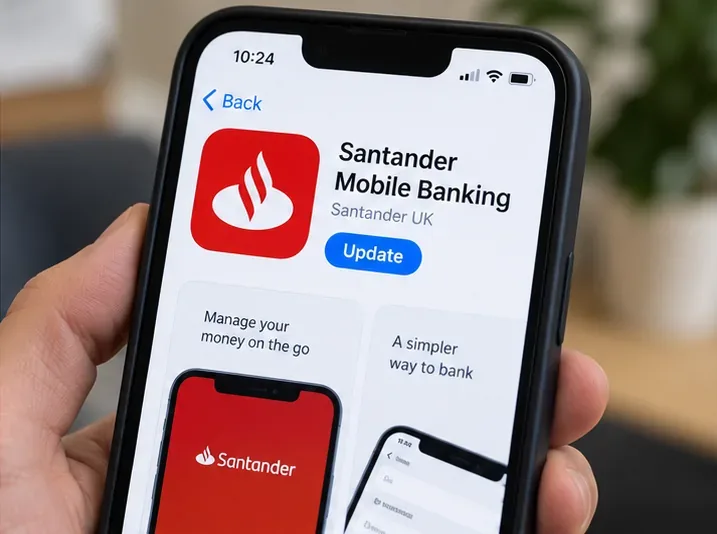
If the app fails but the website works, check the official app store for a Santander Mobile Banking update before resetting your login details.
Step 4: If the website will not load, test the connection before resetting your password
When Online Banking does not load at all, separate a network problem from an account problem. Try opening another reputable website. If nothing loads, the issue is probably your internet connection. If other sites work, switch between Wi-Fi and mobile data, then try Santander again by typing santander.co.uk directly into the browser.
If the website loads but sign-in fails, pay attention to the exact type of failure. A blank page or generic technical error is different from a message saying your credentials are incorrect or your access is restricted. Do not keep submitting the same password many times if the service is unstable; repeated attempts can make it harder to tell whether the original issue was an outage or an account-access problem.
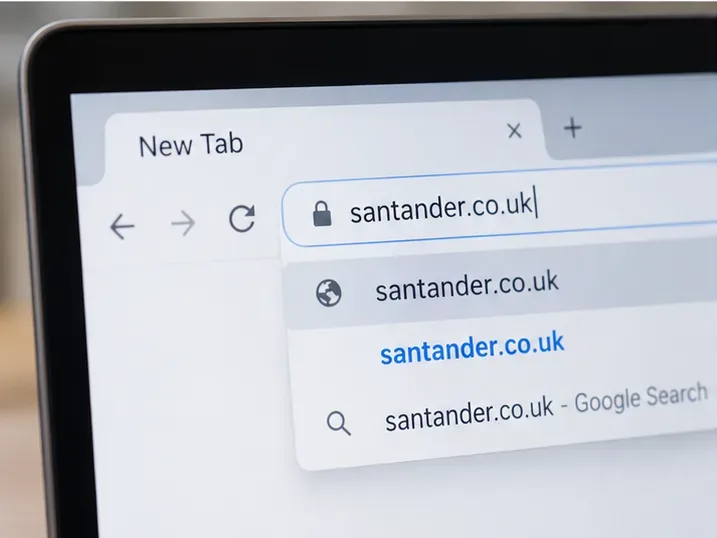
Type santander.co.uk directly into the browser instead of following a login link from an email, text, ad, or social-media post.
Step 5: What if you have forgotten your Personal ID or security number?
If Santander's service is available but you genuinely do not remember your details, use the bank's official recovery process. Santander says that customers who forget their Personal ID can recover it using a valid debit or credit card, or an account number and sort code from a statement.
If you forget your security number, Santander says you can reset it through its forgotten-details process or in the Mobile Banking app. You will need your Personal ID and the mobile number registered to the account so Santander can send an OTP.
Do not use account-recovery links sent unexpectedly by text or email. Santander says it will not ask you to log on to Online or Mobile Banking through a link in an email.
Step 6: How can you tell whether the outage message is actually a phishing attempt?
Phishing is a fraudulent email designed to trick you into revealing information or opening a malicious site. Smishing is the same idea delivered by text message, while vishing uses phone calls. Service outages create a useful opportunity for scammers because customers are already expecting explanations, support messages, and login problems.
Be especially cautious if a message says your account must be "re-verified," "unlocked," or "secured" because of an outage. Santander states that it will never ask for your PIN, full password, or OTP. It also warns that criminals can spoof caller ID, email addresses, and sender names so that a fraudulent contact appears genuine.
Santander's security guidance gives a particularly important rule: never move money to another account because someone says it is necessary to keep your money safe. The bank says requests to move money to a "safe account" are scams.
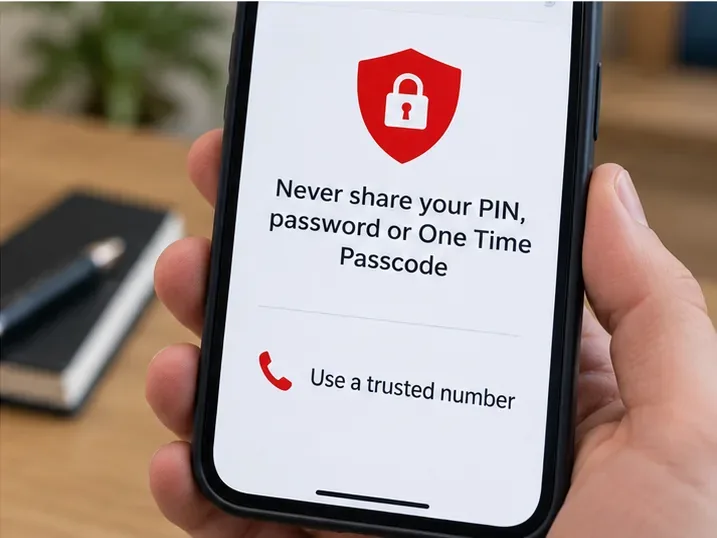
An outage does not change the security rules: never share your PIN, full password, or One Time Passcode, and use a trusted official number when contacting the bank.
Step 7: What should you do if you entered details on a suspicious site?
Treat that as an account-security problem, not a normal troubleshooting issue. Stop using the suspicious page. If you shared personal or security information after a suspicious call, text, or email, Santander says to contact the bank immediately so it can help protect your accounts.
Santander UK's fraud-reporting page currently lists 0330 9 123 123 and the freephone number 0800 313 4321 for customers who have shared security details or need urgent fraud support. Instead of trusting a number copied from a message, verify it on the bank's own website first. The current official instructions are available at Santander: How to report fraud.
Suspicious emails claiming to be from Santander can be forwarded to phishing@santander.co.uk. Santander also says suspicious texts can be forwarded to 7726 and emailed to smishing@santander.co.uk. The bank's page also points customers to the UK's national fraud-reporting channels.
Step 8: Should you change your password during an outage?
Not automatically. If the only evidence is that the app and website are temporarily unavailable, changing credentials may add confusion without solving the underlying service problem. Wait until Santander's service is responding normally unless you have a separate reason to believe your details are compromised.
Change or reset your security details if you know you forgot them, Santander instructs you through its official recovery flow, or you believe someone else may know them. Santander's terms say customers should contact the bank immediately if they think someone else knows their security details or those details may have been misused.
Step 9: What if you need to make a payment while Online Banking is unavailable?
If you have an urgent banking need, check whether another official Santander channel is available rather than repeatedly retrying the app. Santander supports Telephone Banking, although availability during a major outage can also be affected. The bank's current Online and Mobile Banking terms list 0330 9 123 123 in the UK and +44 1908 237 963 from abroad for Online or Mobile Banking support.
The official Telephone Banking page explains what can be done by phone. During a widespread incident, phone lines may be busier than usual, so avoid calling repeatedly unless your need is urgent or security-related.
What not to do when Santander appears to be down
Do not click a "restore access" link from an unexpected email or text.
Do not give anyone your OTP, PIN, full password, or security number.
Do not move money to a so-called safe account because a caller tells you to.
Do not install remote-access software for someone claiming they need to fix your banking.
Do not log in while another person has remote access or screen sharing enabled on your device.
Do not use public Wi-Fi for Online Banking.
Do not repeatedly reset login details if both the app and website appear to be suffering the same outage.
Do not assume a social-media account is genuine just because its logo and name look correct.
A quick decision table
What you see
Most useful next step
App and website both unavailable
Check official Santander support channels and wait before changing credentials
Website works, app fails
Fully close the app, update it, and check iOS/Android compatibility
Other websites also fail
Fix or change your internet connection first
Login page works, but you forgot details
Use Santander's official forgotten-details process
You receive an unexpected login or security link
Do not click it; go directly to santander.co.uk
You shared credentials or an OTP
Contact Santander's fraud team immediately using a verified official number
Someone tells you to move money to keep it safe
Stop; Santander says this is a scam pattern
Beginner checklist: from first error to a safe resolution
Confirm whether the problem affects only the app, only the website, or both.
Go directly to Santander's official website instead of using a link from a message.
Check whether the Mobile Banking app needs an update.
Confirm that your device runs a supported operating system.
Try a trusted alternative network if the website will not load.
Use the official recovery page only if your credentials are genuinely forgotten.
Watch for phishing messages that exploit outage confusion.
Never share an OTP, PIN, full password, or security details with a caller.
If you shared sensitive information, contact Santander immediately through verified channels.
The practical rule is simple: if Santander appears to be down, verify the problem through official channels before changing anything. If the issue is local, update the app, device, or connection method. If there is any sign that your credentials have been exposed, switch immediately from troubleshooting to account security and contact Santander using information you independently verify on its official website.