Device Links
All popular web browsers across all platforms come with a built-in pop-up blocker. They are typically smart enough to block unwanted pop-ups that would otherwise ruin your browsing experience. But in some cases, you might need to temporarily disable your browser’s pop-up blocker. If that’s the case, you have come to the right place.

Follow this guide to learn how to disable the pop-up blocker in Google Chrome, Microsoft Edge, Safari, and Firefox.
Note that you should also temporarily disable your ad blocker as it might affect the site’s functionality.
How to Disable Pop-Up Blockers in Google Chrome on Windows or Mac
If you’re using Chrome as your default browser, pop-ups are blocked by default. That means every time a pop-up tries to appear while browsing, Chrome prevents the pop-up window from opening. Usually, you’ll see a “Pop-up blocked” message appear in the address bar when this happens.
Thankfully, turning off pop-blocking in Google Chrome is easy.
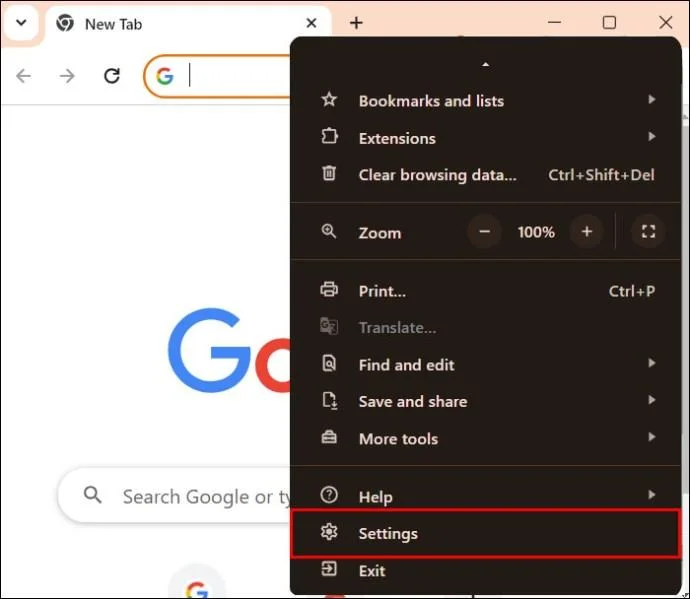
- Open Google Chrome and click the ellipses (three dots appearing in the upper right corner).
- Click Settings from the context menu.

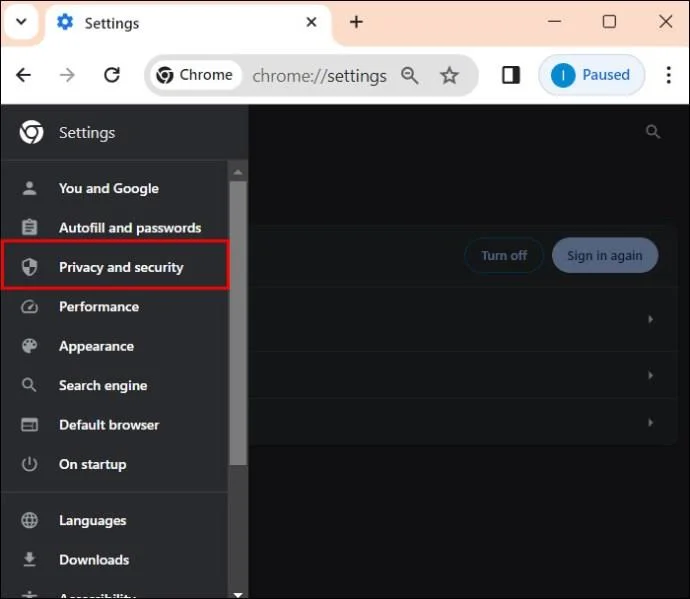
- Go to Privacy and Security.

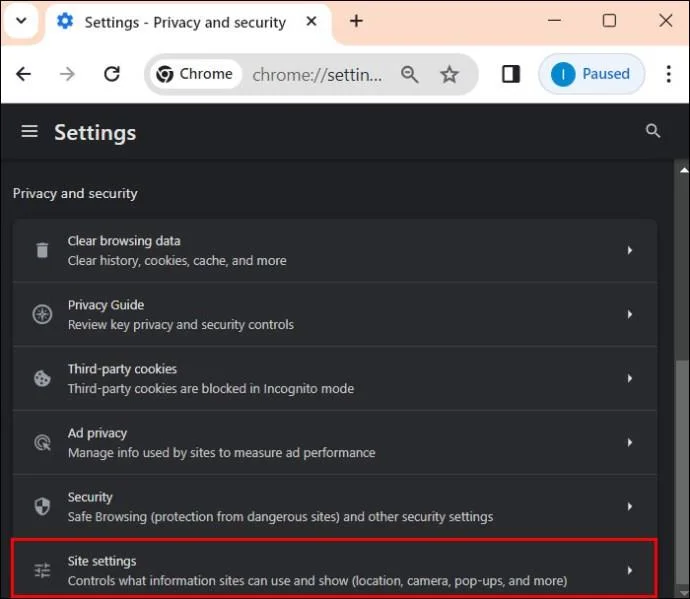
- Click the Site Settings option.

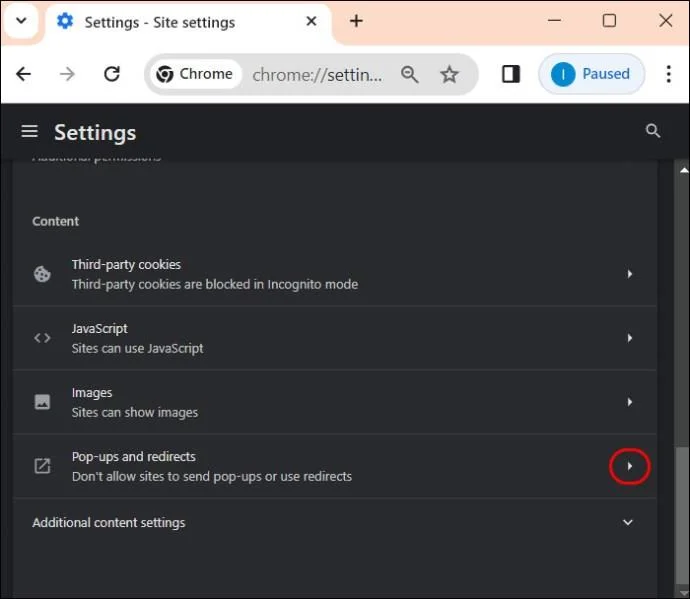
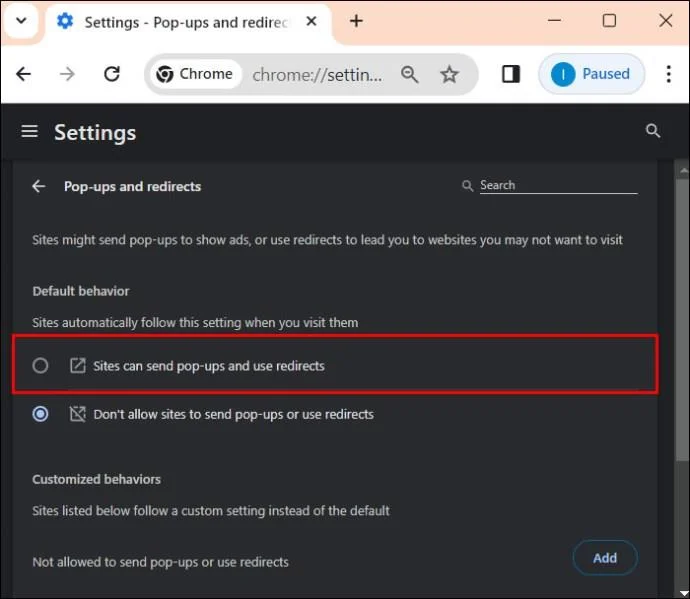
- Scroll down to Pop-ups and redirects, and click the arrow on the right to open the menu to set your preferences.

- Click the circle next to Sites can send pop-ups and use redirects. This will disable the pop-up blocker.

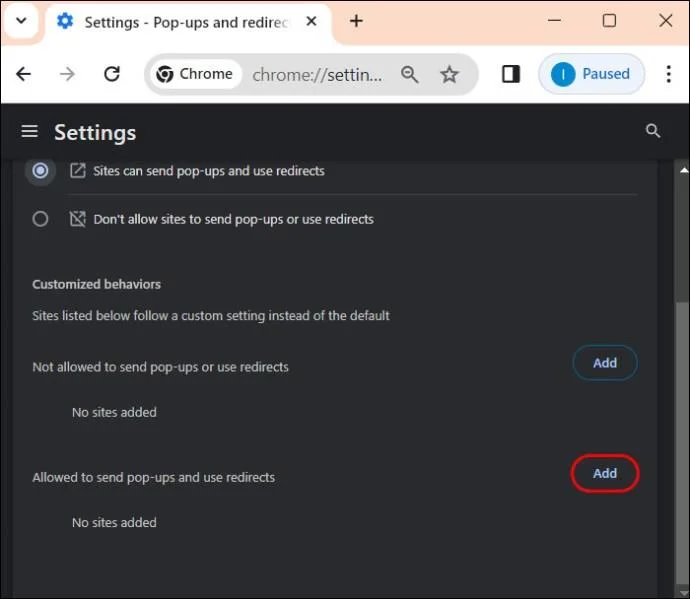
If you want to allow pop-ups for specific sites, follow the above steps, then scroll to Allowed to send pop-ups and use redirects.
- Click Add.

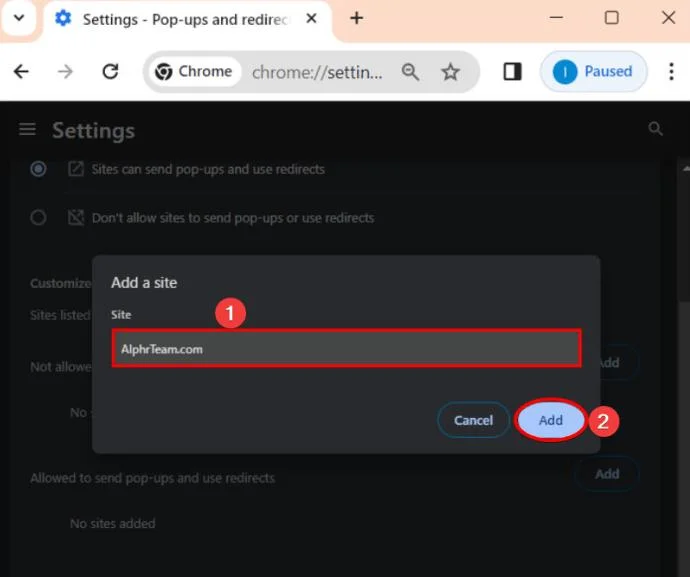
- Enter the website name in the text box of the Add a site window, then click the Add button to save.

Remember that if you uninstall and reinstall Chrome, you will have to reconfirm your pop-up blocker settings.
How to Disable Pop-up Blockers in Google Chrome on Android
You can disable the pop-up blocker in Chrome for Android as well. We do not recommend doing this as your browsing experience can take a negative hit. Still, if you want to, follow the below steps. Note that, unlike the desktop version, you cannot allow pop-ups for specific sites.
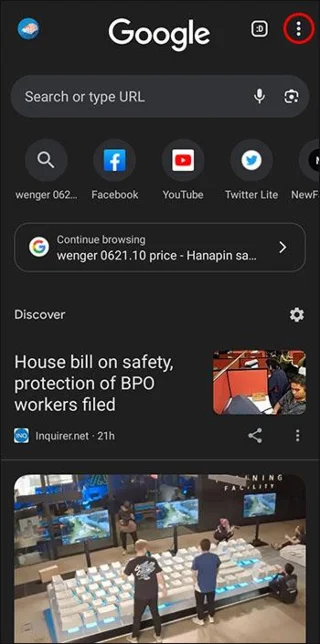
- Open Google Chrome on your Android phone.
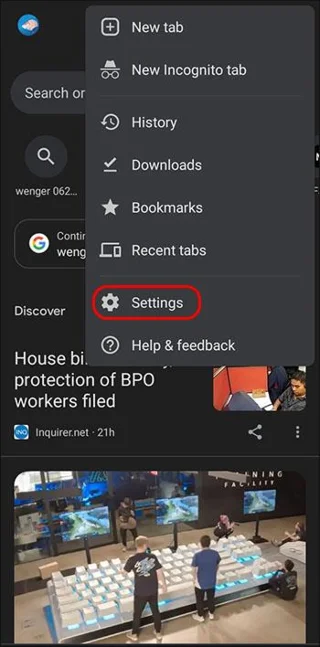
- Tap the three dots appearing on the top right of your device’s screen.

- Scroll down and tap the Settings option.

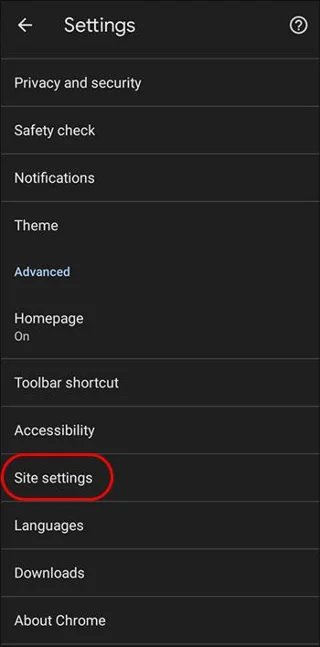
- Scroll down and tap Site settings.

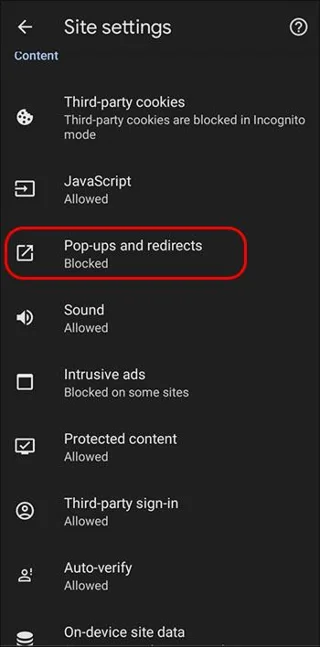
- Tap the Pop-ups and redirects option.

- Toggle off the Pop-ups and redirects option.

Remember that disabling Chrome’s pop-up blocker will not stop pop-up ads from appearing on your Android phone.
How to Disable Pop-up Blockers in Safari on Mac
Unfortunately, like Chrome, Safari also blocks pop-ups by default, too. But you can adjust this setting to your preference.
- Open Safari on your Mac.
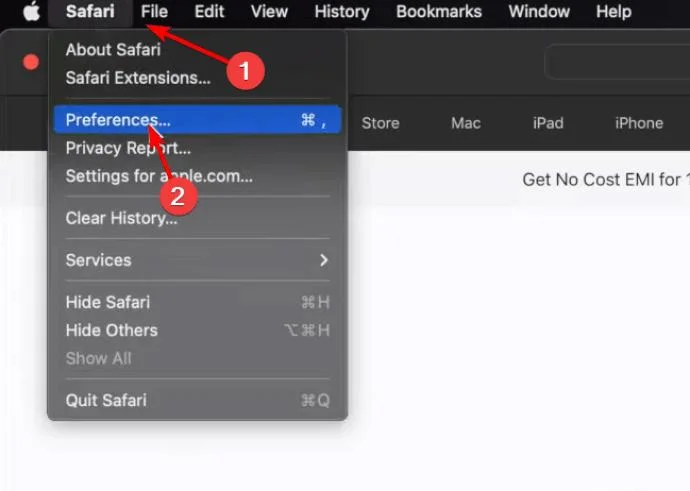
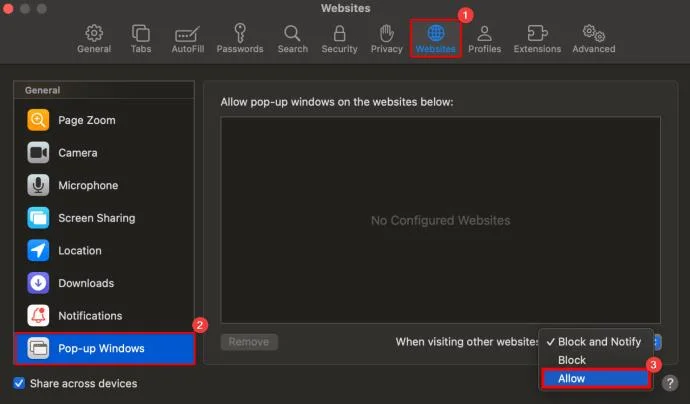
- On the top left corner, select Safari and click Preferences.

- Select Websites.

- Click on Pop-up Windows in the left navigation pane.

- Locate the When Visiting Other Sites dropdown and the drop-down menu to reveal more options.
- Select Allow to allow pop-ups for all websites.

Like we did with Chrome, you can also choose which websites you want to allow pop-ups. Only make sure that you’re on the relevant website. Here’s what you need to do:
- Open the website on your Safari browser for which you want to allow pop-ups.
- Go to Preferences.
- Select Websites, and click Pop-up windows (The website you’re currently on will automatically appear on a list of currently opened web pages).
- Click on the drop-down menu and select Allow to enable pop-ups on that website.

How to Disable Pop-up Blocker in Safari on iPhone
Disabling Safari’s pop-up blocker on iPhone might be necessary for certain websites. While the pop-up blocker provides security from intrusive ads, you must understand how to manage these settings for a smooth browsing experience.
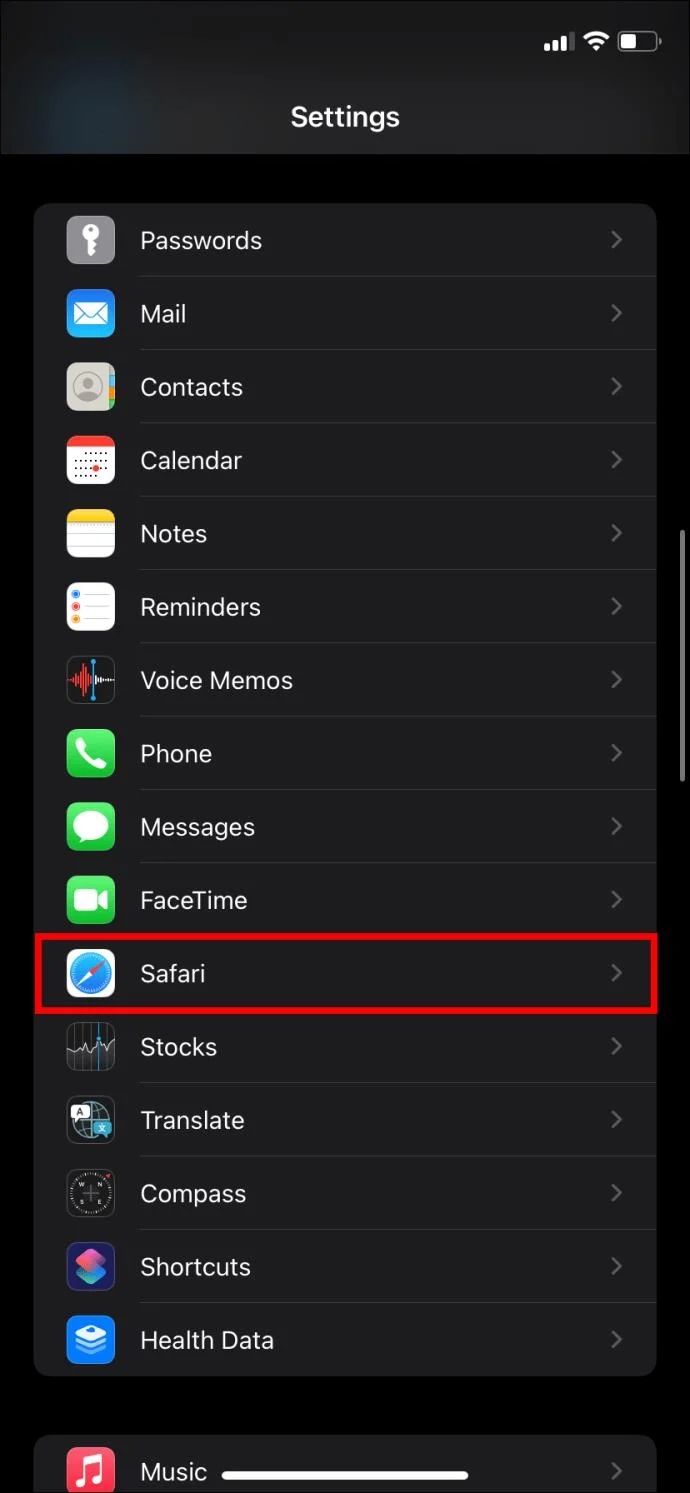
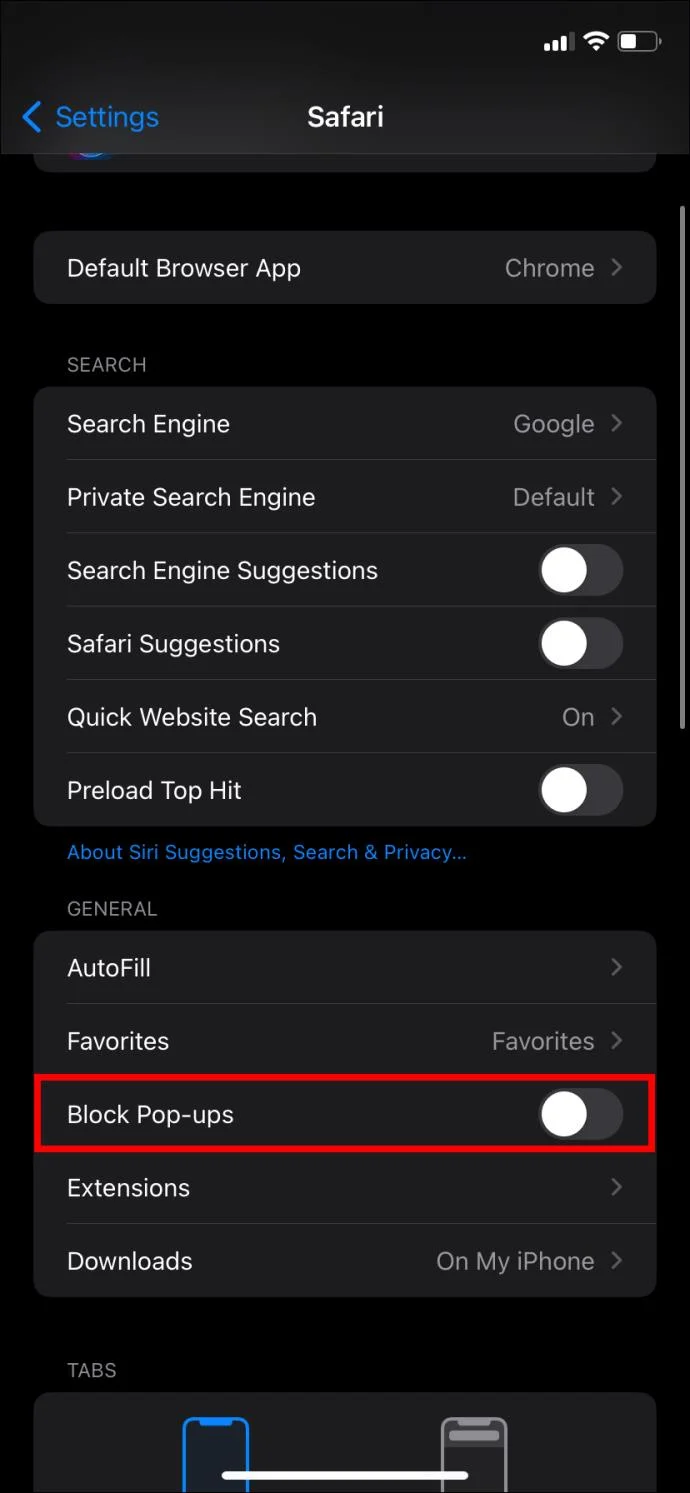
- Open the Settings menu on your iPhone.
- Scroll down and tap Safari.

- At the bottom of the General section, toggle off Block Pop-ups.

Unlike Safari on Mac, you cannot allow pop-ups for individual sites in Safari on iPhone.
How to Disable Pop-up Blockers in Firefox on Desktop
By default, Mozilla Firefox blocks any pop-up on websites you open. But you can still disable them on a Mac, Windows, Linux, or Chromebook. Note that the steps are the same irrespective of which desktop version of the browser you use.
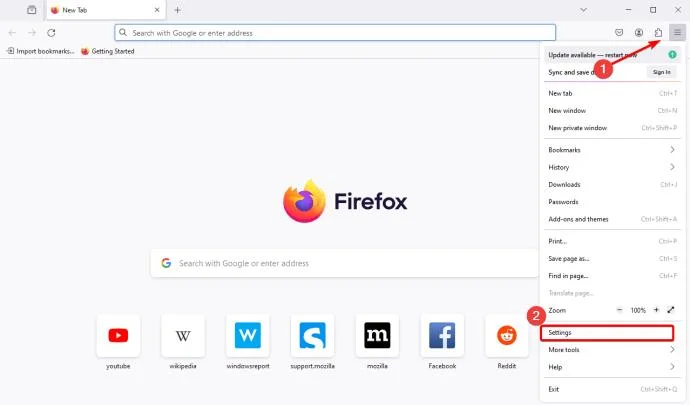
- Open Firefox on your desktop.
- Click the three horizontal lines on the top right of your screen and Select Settings.

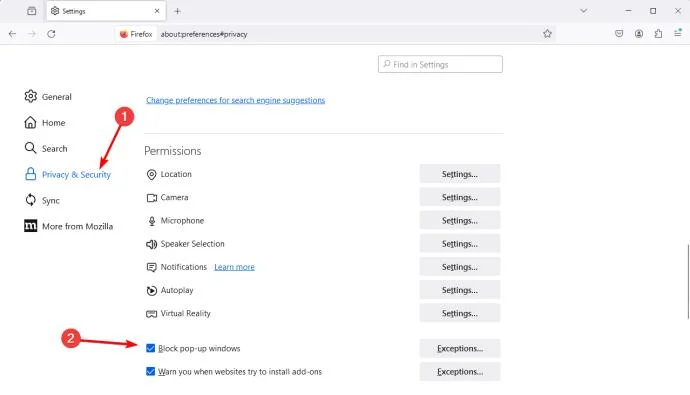
- Click Privacy & Security on the left sidebar.
- From the right pane, scroll down to Permissions and uncheck Block pop-up windows.

Like with the desktop version of Safari and Google Chrome, you may allow pop-ups from specific sites in Safari.
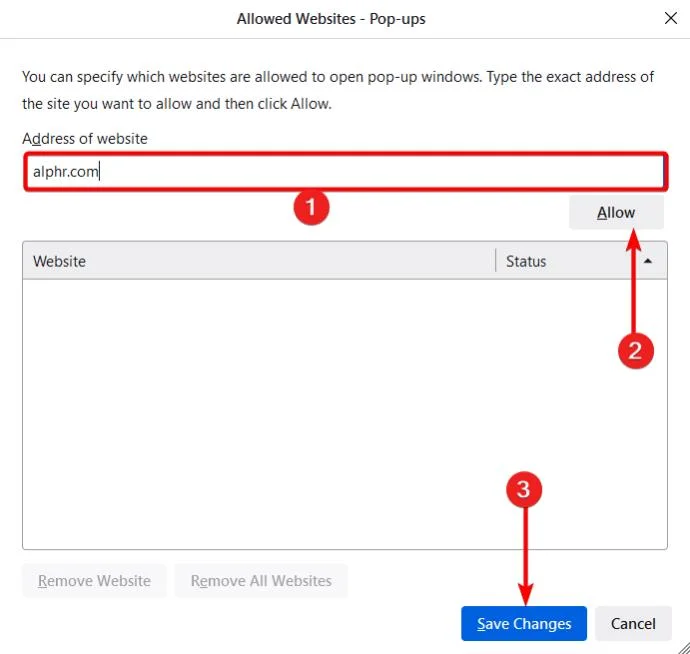
- Check the Block pop-up windows option, then click on Exceptions.
- Input the website URL, click Allow, then click Save Changes.

How to Disable Pop-up Blocker in Firefox on iPhone
If you’re having trouble accessing certain content or website features while using Firefox on your iPhone, you might need to turn off the pop-up blocker temporarily. Note that unlike it is with the desktop version, you can not allow pop-ups for a specific site.
- Open Firefox on your iPhone.
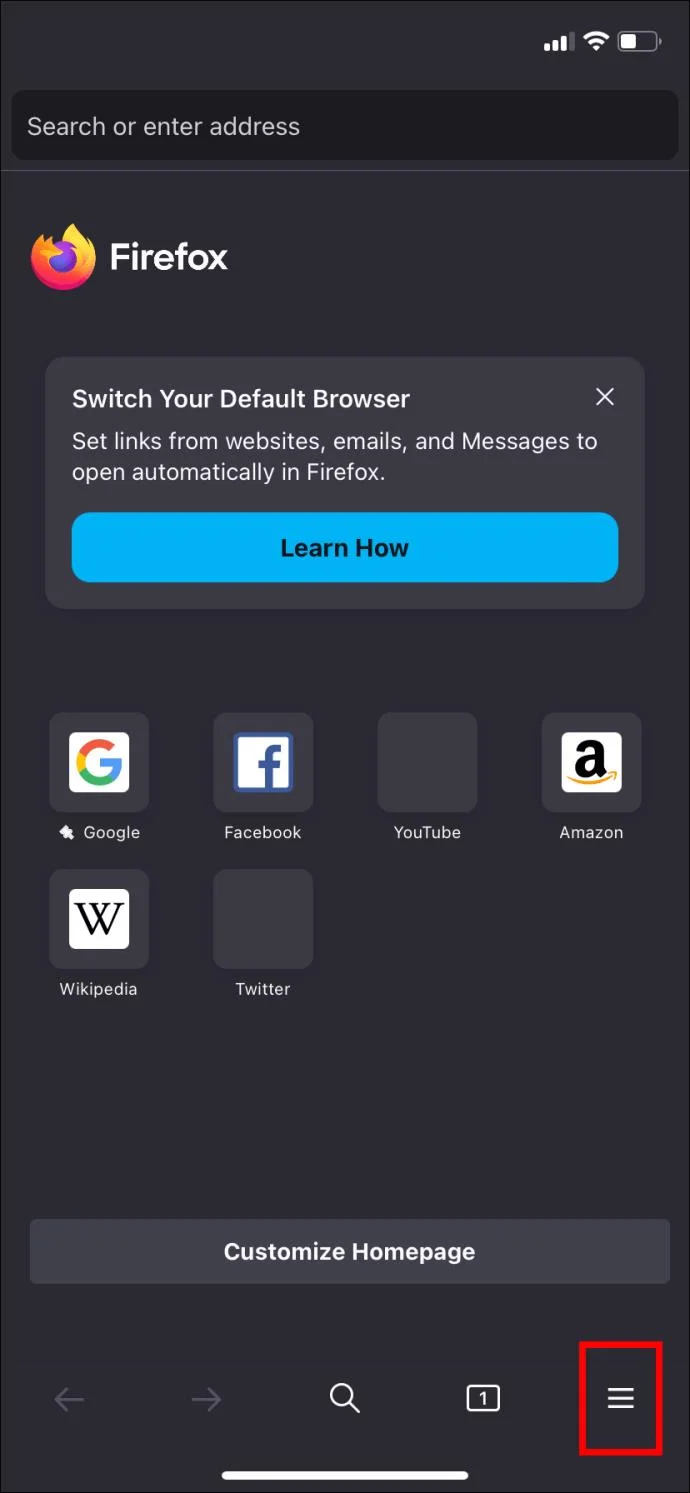
- Tap the three horizontal lines on your screen.

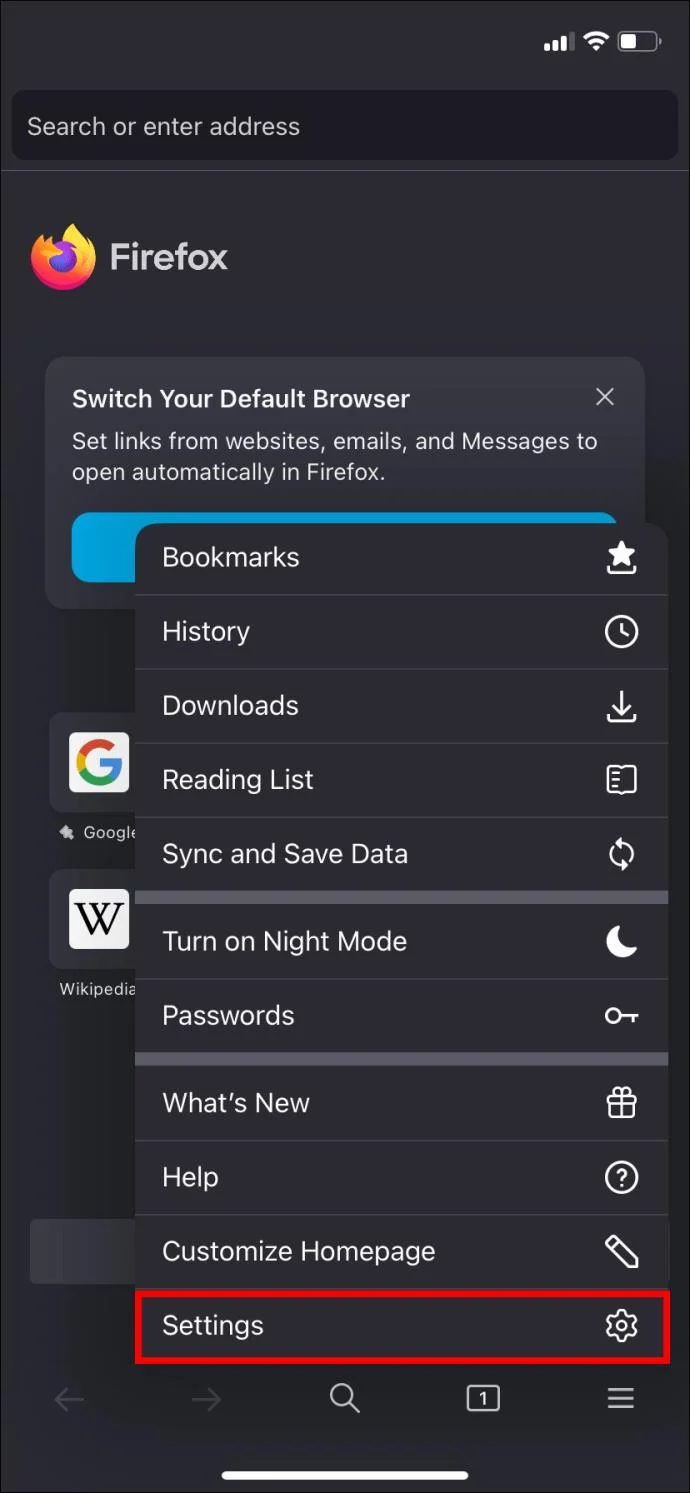
- Select Settings.

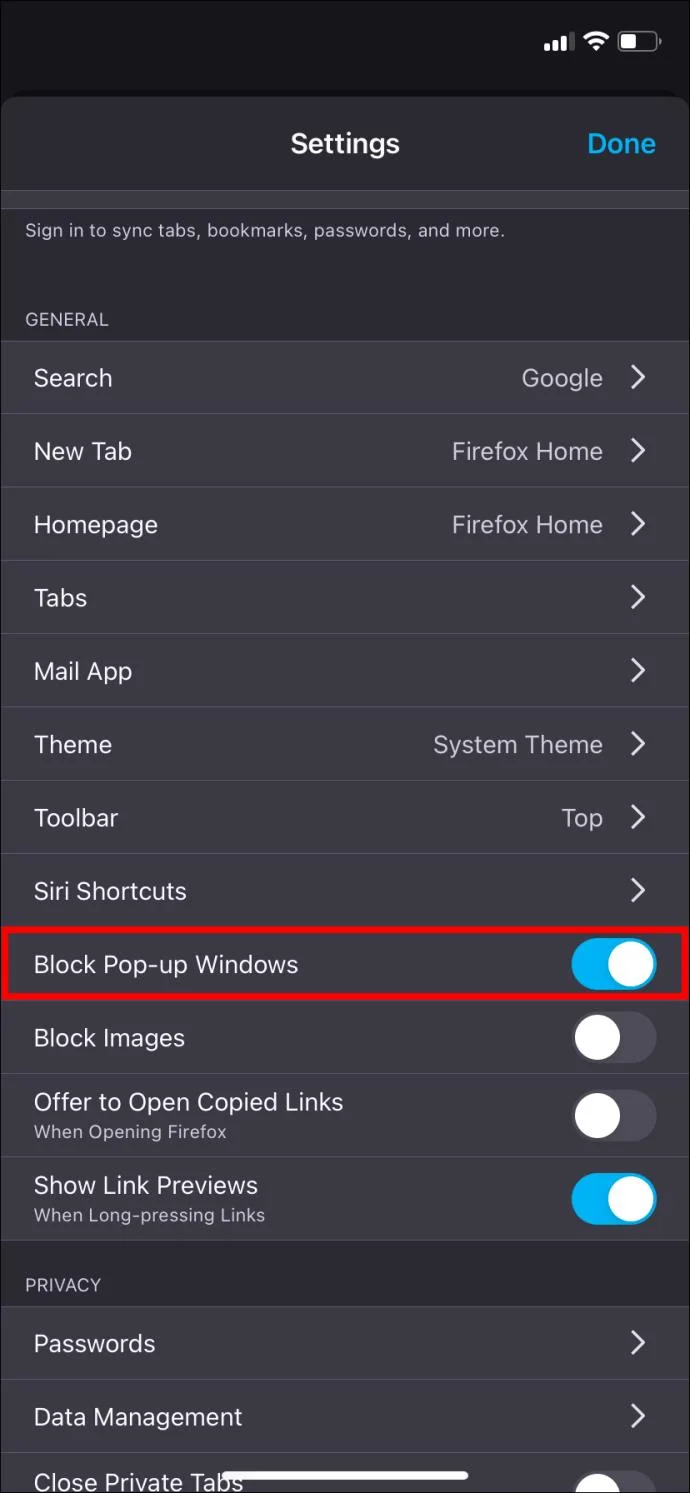
- Scroll down and toggle off Block pop-up windows.

And you’re all set to browse your favorite websites that work best with pop-ups.
How to Disable Pop-up Blocker in Microsoft Edge
Disabling the pop-up blocker in Microsoft Edge isn’t as difficult as you think. You follow the steps we outline below.
- Open Edge on your computer
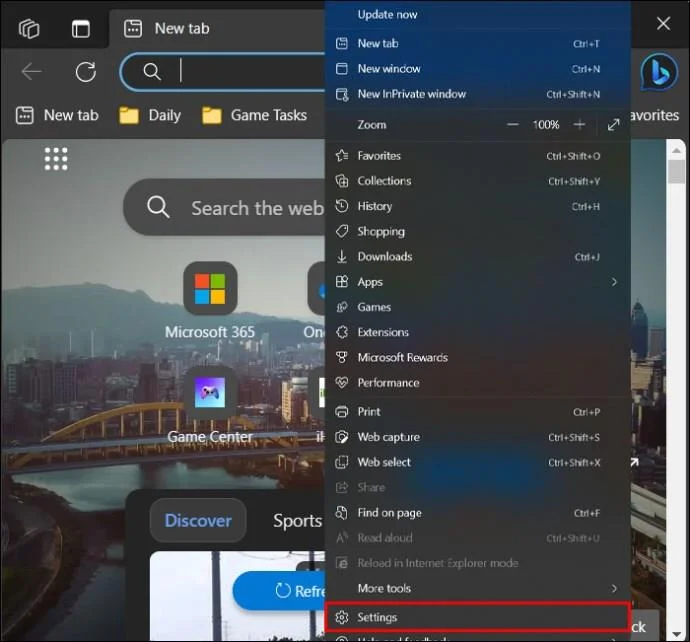
- Click the three dots at the top of your browser.
- Select Settings.

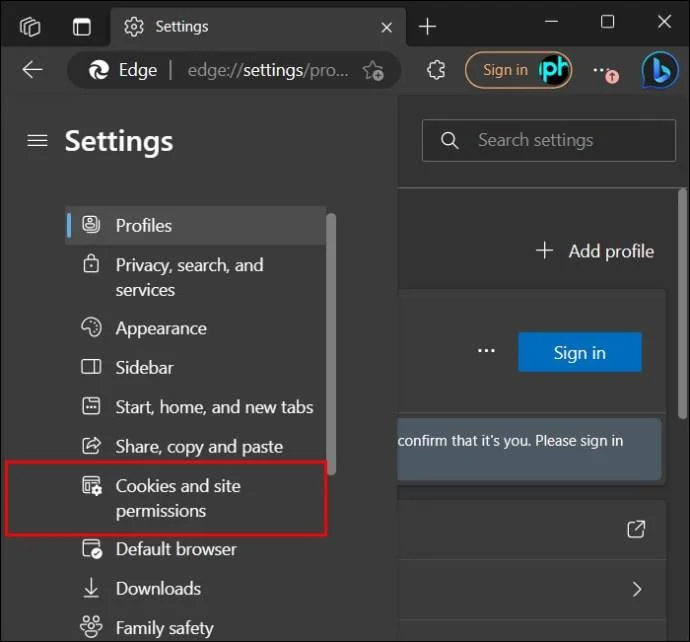
- Click on Cookies and site permissions.

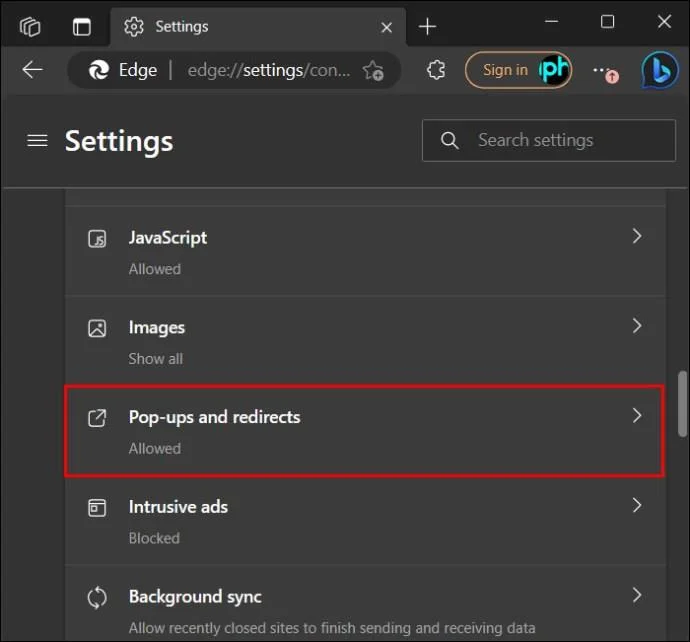
- Under All Permissions, select Pop-ups and redirects.

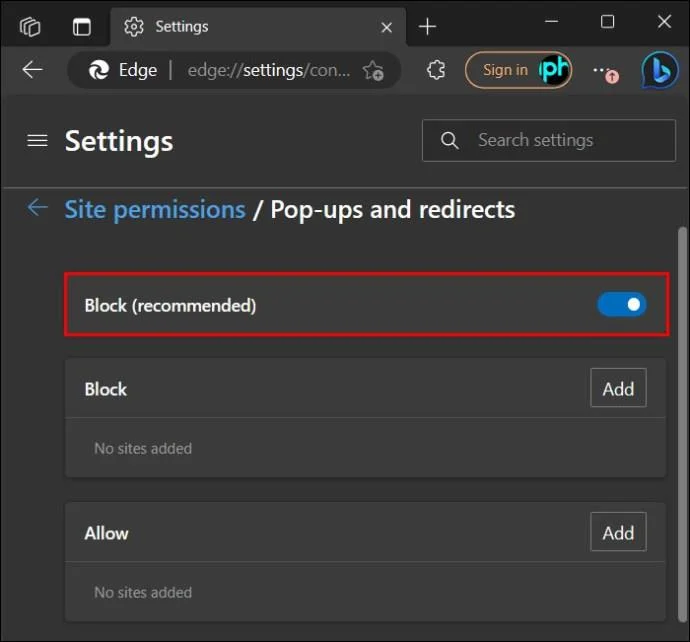
- Turn off the Block (recommended).

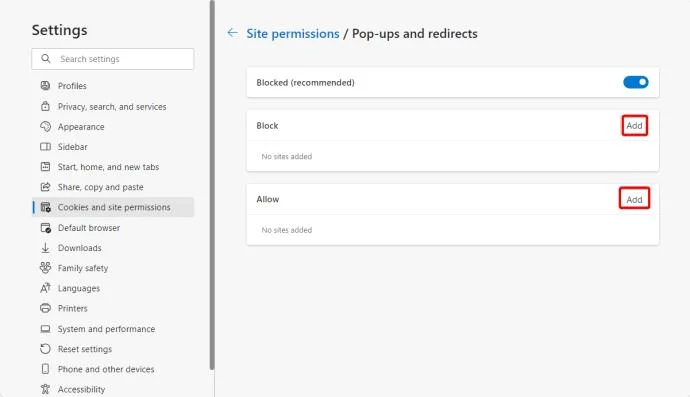
- Optionally, you may add exceptions to the block list by clicking the Allow or Block Add buttons and adding your URLs to allow or disallow pop-ups for specific sites.

Why Should You Turn Off Pop-Up Blockers?
We know that pop-ups can be annoying, but they still have their uses. Here are some reasons why you should turn off your pop-up blockers.
- Some websites need pop-ups to enable features like login windows, payment gateways, or other interactive elements. Disabling the pop-up blocker on your device allows you to access and use these features easily.
- Some web apps rely on pop-ups to send alerts and notifications. Turning off your web browser’s pop-up blocker can help these apps to function correctly.
Pop-Ups Can Be Annoying, But They’re Still Useful!
Pop-ups can be annoying, especially when they show up every time you’re surfing your favorite sites. But they are essential tools that help websites like those managed by banks operate properly. Enabling pop-ups on your browsers can be challenging if you’ve never done it before. However, it isn’t difficult once you know how.
Next, you might want to learn how to go incognito in Google Chrome, Firefox, and Safari for a more private browsing experience.
FAQs
What is a pop-up notification?
A pop-up notification is a message that often appears on a user’s browser or desktop. Think of a pop-up as a message designed to attract your attention and engage you in some ways while browsing. Pop-up notifications are visually appealing and are often used to engage internet users, create brand awareness, and improve the browsing experience.
What is the difference between pop-up and notification?
Pop-up notifications are messages that often appear on your screen when browsing. On the other hand, notifications are alerts sent to your device. Notifications keep you informed of important updates, messages, or promotions.