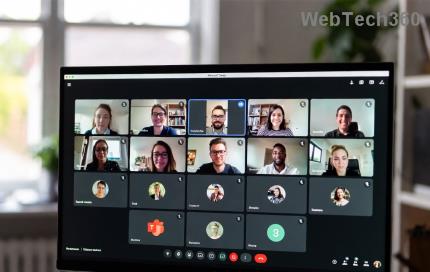
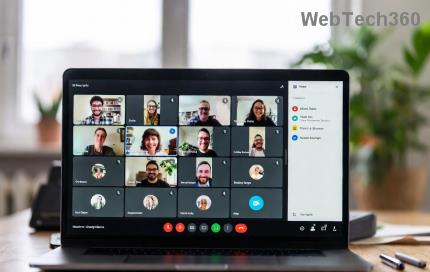
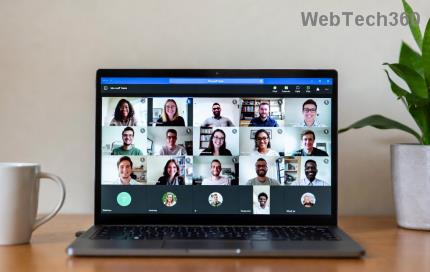
Frustrated because Microsoft Teams login error on Chromebook is blocking your meetings and chats? 😩 You're not alone—many users face this on Chrome OS due to cache glitches, outdated software, or network hiccups. But don't worry! This troubleshooting Microsoft Teams Chromebook guide is your one-stop solution. We'll walk you through simple, effective steps to fix it quickly. Follow along, and you'll be back in action before your next call. Let's dive in! 🔧
🔍 Common Causes of Teams Login Error on Chromebook
Understanding the root issues speeds up fixes. Here's a quick overview:
| Error Symptom | Likely Cause | Quick Fix Preview |
|---|---|---|
| "Something went wrong" or infinite loading | Browser cache/cookies buildup | Clear cache (Step 1) |
| Account locked or MFA prompt fails | Network/VPN interference | Check connection (Step 2) |
| App crashes on login | Outdated Chrome OS or Teams PWA | Update everything (Step 3) |
| "Invalid credentials" despite correct password | Extensions or sync issues | Disable extensions (Step 4) |
1️⃣ Step-by-Step Troubleshooting Microsoft Teams Login Error on Chromebook
Start with the basics and escalate. Most users fix it by Step 2. Ready? You've got this! 💪
Step 1: Clear Browser Cache and Cookies
The #1 culprit for Teams login error Chromebook. Stale data confuses the login process.
- Open Chrome (default on Chromebook).
- Press Ctrl + Shift + Delete.
- Select "All time" and check "Cookies and other site data" + "Cached images and files."
- Click Clear data.
- Restart Chrome and try logging into teams.microsoft.com.
✅ Pro tip: Use Incognito mode (Ctrl + Shift + N) for a clean test—extensions stay off!
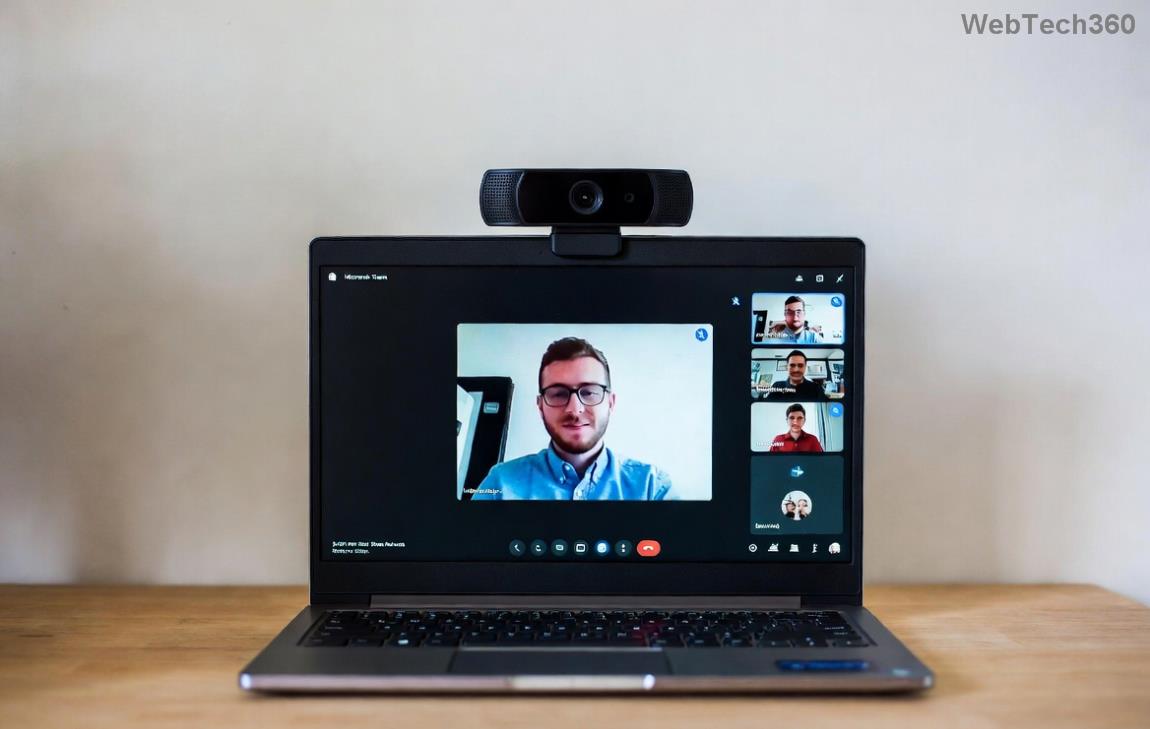
Step 2: Verify Internet and Network Settings
Unstable Wi-Fi or VPNs block Teams' secure login. Test here:
- Run Chrome's network diagnostic: chrome://net-internals/#dns → Clear host cache.
- Disable VPN/proxy if active (Settings > Network).
- Switch to mobile hotspot briefly to rule out router issues.
If you're on a work network, ask IT about firewall blocks for Teams domains.
Step 3: Update Chrome OS and Teams App
Outdated software causes compatibility snags. Here's how:
- Go to Settings (time icon) > About Chrome OS > Check for updates.
- Install any available updates and restart.
- For Teams: Launch from Launcher or install as PWA—Menu > Install Microsoft Teams.
- Or use Android app from Play Store: Search "Teams," update if installed.

Bonus: Refresh Teams PWA—right-click icon > Reload.
Step 4: Disable Chrome Extensions and Reset Sync
Ad blockers or sync glitches interfere. Quick disable:
- Go to chrome://extensions/.
- Toggle off all extensions.
- Test login, then re-enable one by one.
For sync: Settings > You and Google > Turn off Sync > Restart > Re-enable.
Step 5: Account and Advanced Fixes
If basics fail:
- Reset password or verify MFA at account.microsoft.com.
- Uninstall/reinstall Teams PWA: chrome://apps/ > Remove > Reinstall.
- Powerwash Chromebook (backup first!): Settings > Advanced > Reset settings > Powerwash.
Still stuck? Check Microsoft's status: status.teams.microsoft.com. 👆
⭐ Quick Wins Table for Teams Login Error Chromebook
| Fix | Time | Success Rate |
|---|---|---|
| Clear Cache | 2 mins | 70% |
| Update Software | 5 mins | 85% |
| Disable Extensions | 3 mins | 60% |
❓ FAQ: Troubleshooting Microsoft Teams on Chromebook
Q: Does Teams work natively on Chromebook?
A: Yes, via web, PWA, or Android app—best via PWA for seamless login.
Q: Why won't the Android Teams app login?
A: Clear app cache: Settings > Apps > Teams > Storage > Clear cache.
Q: Is this fix safe for work accounts?
A: Absolutely—these are official-recommended steps from Microsoft Support.
🎉 You're Set! Stay Connected
Fixed your Microsoft Teams login error on Chromebook? Great job! 👍 Bookmark this for future reference, and share with a colleague. If issues persist, reply in the comments—we're here to help. Now, jump back into those productive chats! 🚀