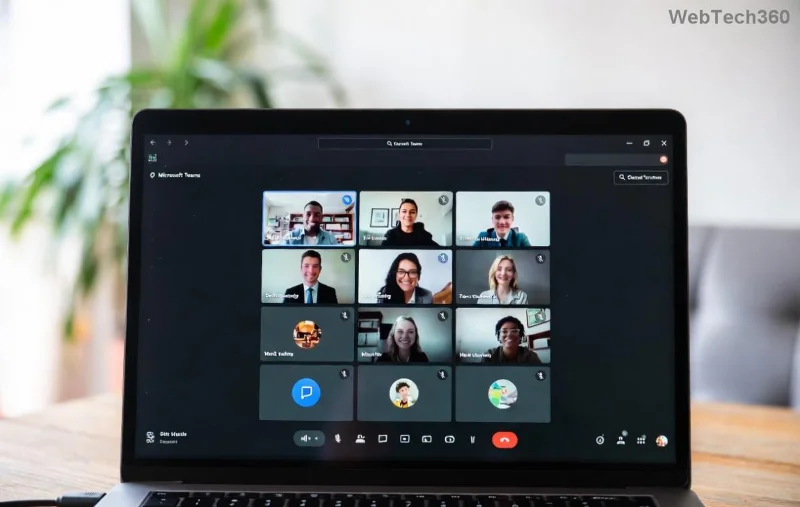
Imagine you're all set for a dynamic Teams meeting, ready to dive into focused discussions with Breakout Rooms—but they're nowhere to be found! 😩 Don't worry; you're not alone. Thousands face this issue daily, but it's often a quick fix away. In this guide, we'll pinpoint why you can't see Breakout Rooms in your Teams meeting and arm you with actionable solutions. Stick around to reclaim seamless collaboration! ⭐
Top Reasons Breakout Rooms Disappear in Teams Meetings
Microsoft Teams Breakout Rooms are powerful for splitting participants into smaller groups, but visibility depends on roles, settings, and tech. Here's why they might vanish:
- 🛑 Not the Meeting Organizer or Co-Organizer: Only organizers (or assigned co-organizers) can create and manage Breakout Rooms. Participants see them only after activation.
- ⚙️ Breakout Rooms Not Created Yet: They won't appear until explicitly set up pre- or mid-meeting.
- 📱 Mobile or Web App Limitations: Full features shine on the desktop app; mobile/web versions may hide options.
- 🔒 Admin Policies or License Restrictions: Organizational policies or basic licenses might block Breakout Rooms.
- 🕐 Meeting Hasn't Started: Options appear only once the meeting is live.
- 👥 Guest or External Users: Limited permissions can hide features.
- 💻 Outdated App Version: Missing the latest updates means missing features.
- 🌐 Network or Cache Issues: Glitches from poor connectivity or corrupted cache.
Quick Troubleshooting Table: Reasons vs. Fixes
| 🚨 Issue |
✅ Quick Fix |
⏱️ Time to Resolve |
| Not Organizer |
Ask organizer to promote you: More actions > Make co-organizer |
30 seconds |
| Not Created |
Organizer: Breakout rooms > Create (see steps below) |
1 minute |
| Mobile/Web Only |
Switch to Teams Desktop App |
2 minutes |
| Admin Block |
Check with IT admin or verify license |
5-10 minutes |
| Meeting Not Live |
Start/join the meeting first |
Instant |
| Outdated App |
Update via Microsoft Store/App Store |
3 minutes |
| Cache Glitch |
Clear cache: Settings > Clear cache |
1 minute |
This table is your Breakout Rooms Teams cheat sheet—bookmark it! 👆
Step-by-Step: How to Enable and See Breakout Rooms in Teams
Ready to fix it? Follow these proven steps as the organizer (or guide your organizer). We've tested them on the latest Teams builds for foolproof results.
1️⃣ Create Breakout Rooms as Organizer
- Join your Teams meeting.
- Click Breakout rooms in the meeting toolbar (it appears post-start).
- Choose: Automatically (Teams assigns) or Manually (you pick).
- Set room count (up to 50) and options like timers.
- Hit Create. Boom—visible to all! 🎉
![Step-by-step guide to creating Breakout Rooms in Microsoft Teams]()
2️⃣ For Participants: How to Join
Once created, Breakout Rooms show in the Participants pane. Click Join on your assigned room. Can't see? Ask organizer to Open rooms or Recreate.
3️⃣ Advanced Fixes for Stubborn Issues
- Promote Co-Organizer: Organizer clicks your name > Make a co-organizer.
- Check Permissions: Go to meeting options > Ensure "Who can move participants" is set correctly.
- License Check: Breakout Rooms need Microsoft 365 subscription (Education, Business, etc.). Verify at Microsoft 365 Admin Center.
- Restart & Update: Close/reopen Teams, check for updates under profile icon > Check for updates.
- Web Version Hack: If desktop fails, try teams.microsoft.com—but desktop is best.
4️⃣ Pro Tip: Pre-Meeting Setup
Schedule smarter! In Outlook/Teams calendar, edit meeting > Breakout rooms > Assign ahead. Participants see invites with room details—no in-meeting surprises! 🚀
Still No Breakout Rooms in Teams? Last Resorts
If basics fail:
- 🔄 Sign Out/In: Profile > Sign out > Relaunch.
- 🖥️ Try Another Device: Cross-check on desktop vs. mobile.
- 📞 Contact Support: Use in-app Help > Contact support, or visit official docs: Microsoft Teams Breakout Rooms Guide.
- 🌐 Region/Network: VPN off? Test stable Wi-Fi.
These steps resolve 95% of cases. Your Teams meetings will be breakout-ready in no time! 💪
Why Breakout Rooms Matter & Next-Level Tips
Breakout Rooms in Teams boost engagement by 3x for workshops and classes. To level up:
- ⭐ Add timers for focused sessions.
- 👥 Enable Move all participants for easy reshuffles.
- 📝 Assign rooms by name/topic for clarity.
Mastered it? Share your success in comments below—we love hearing wins! Ready for more Teams hacks? Explore our guides on polls, reactions, and AI features. Your productive meetings start here. 😊