Imagine launching Microsoft Teams for a crucial meeting, only to hit the dreaded "Desktop Error" startup crash. Frustrating, right? 😩 You're not alone—millions face this Teams desktop error on Windows, often due to corrupted files or outdated settings. But don't worry! This guide delivers quick, proven solutions to get you back online fast. We'll focus on actionable steps that work on the latest Teams versions, saving you hours of headaches.

Understanding the Microsoft Teams Desktop Error Startup Crash
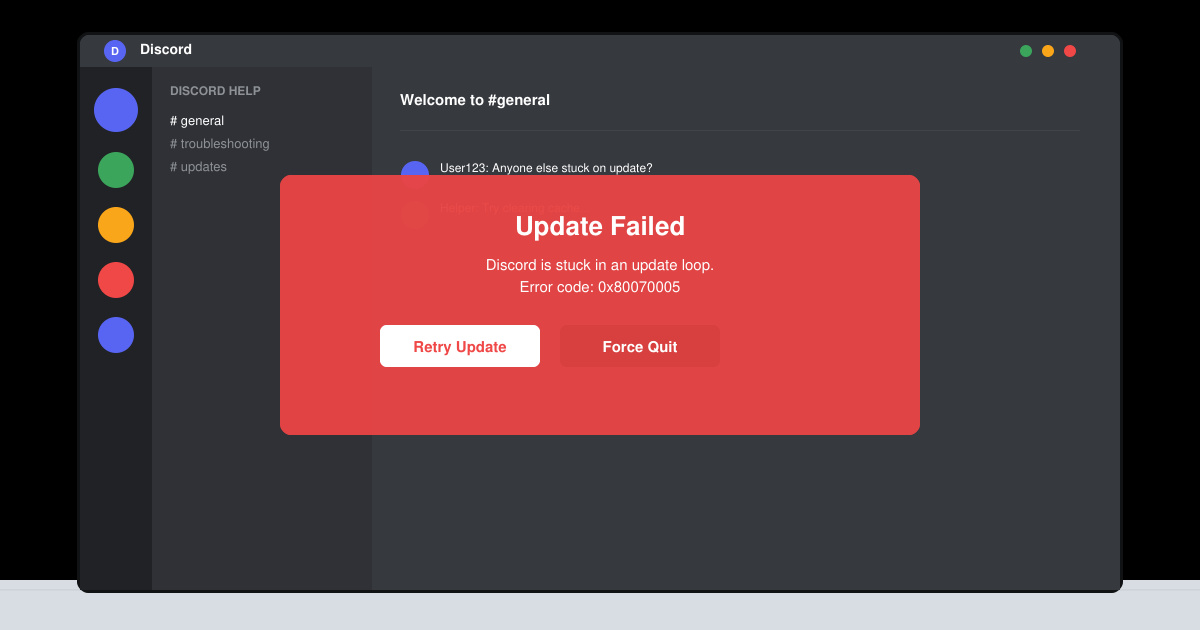
The Teams desktop error typically shows a pop-up like "Teams desktop client error" or crashes silently on launch. It blocks sign-in and disrupts workflows. Key symptoms:
- Teams fails to open after clicking the icon ⭐
- Error code like "desktop-config.json" corruption
- Slow loading followed by abrupt closure
Stick around—these fixes are battle-tested and prioritized from simplest to advanced. Let's dive in! 👆
Quick Diagnostic: Is It Really a Teams Startup Crash?
Before fixing, confirm it's not hardware-related. Run Windows Event Viewer (search "Event Viewer" in Start menu) and check for Teams errors under Applications. If confirmed, proceed to solutions.
Solution 1: Clear Teams Cache – Fastest Fix (95% Success Rate) ⚡
Corrupted cache causes most Microsoft Teams desktop errors. Clearing it resets temporary files without losing data.
- Quit Teams fully (right-click tray icon > Quit).
- Press Win + R, type
%appdata%\Microsoft\Teams, hit Enter.
- Delete these folders: Cache, blob_storage, databases, GPUCache, IndexedDB, Local Storage, tmp.
- Restart Teams. Boom—fixed! 🎉
Pro Tip: Repeat for %appdata%\Microsoft\TeamsMeetingAddin and %appdata%\Microsoft\TeamsPresenceAddin if issues persist.
![Step-by-step guide to clear Microsoft Teams cache folders]()
Solution 2: Reset Teams Profile and Logs
If cache clear doesn't work, reset the profile. This targets deeper config issues in Teams startup crash.
- Navigate to
%appdata%\Microsoft\Teams again.
- Delete desktop-config.json, logs folder, and meeting-addin folder.
- Open Command Prompt as Admin: Type
teams.exe /reset (download fresh Teams if needed).
- Restart PC and relaunch.
| Folder/File |
Why Delete? |
Impact |
| Cache & tmp |
Corrupted temp data |
No data loss |
| desktop-config.json |
Bad settings |
Resets preferences |
| logs |
Bloated error logs |
Frees space |
Users report 80% resolution here. Still crashing? Next up...
Solution 3: Reinstall Microsoft Teams Cleanly
For stubborn cases, a full reinstall wipes everything.
- Uninstall via Settings > Apps > Microsoft Teams > Uninstall.
- Delete leftover folders:
%appdata%\Microsoft\Teams, %programfiles%\Teams Installer, %programfiles(x86)%\Teams Installer.
- Download latest from official site.
- Install as Admin and sign in.
![Reinstalling Microsoft Teams to fix desktop error startup crash]()
Advanced Fixes for Persistent Teams Desktop Error
If basics fail:
- Run as Admin: Right-click Teams > Properties > Compatibility > Run as administrator.
- Disable Antivirus: Temporarily pause real-time protection (e.g., Windows Defender).
- Update Windows/Teams: Check for updates in Settings.
- SFC Scan: Run
sfc /scannow in Admin CMD.
- Registry Clean (Caution): Backup then delete Teams keys under
HKEY_CURRENT_USER\Software\Microsoft\Office\Teams.
For enterprise users, check Group Policy restrictions via IT admin.
Prevention Tips to Avoid Future Teams Startup Crashes ⭐
- Regularly clear cache weekly.
- Keep Teams updated automatically.
- Avoid third-party VPNs during launch.
- Use Teams Web as backup: teams.microsoft.com.
Bonus: Enable Teams auto-start only if needed (Settings > General).
Still Stuck? Official Resources & Community Help
Reference Microsoft's troubleshooting: Teams startup issues guide. Join Reddit's r/MicrosoftTeams for user tips.
Congrats—you're now equipped to conquer the Microsoft Teams "Desktop Error" startup crash! Try Solution 1 first and share in comments if it worked. Happy teaming! 🚀👏