Home
» How to
»
How To Add Subtitles In VLC Media Player
How To Add Subtitles In VLC Media Player
When it comes to watching videos or listening to music on your computer or over an internet stream, there is no better option than VLC, the open-source video platform that makes it easy to playback any file type you might have saved on your device.
VLC works on almost every platform imaginable, from Windows and Mac, Android to iOS, and even support for Linux distros like Ubuntu. Even better than the OS-compatibility is VLC’s wide-ranging library of support codecs and file types. As a multimedia player and platform, VLC is able to read almost any video or audio file, and can even playback content from DVDs, CDs, and online streaming platforms with a compatible URL.
Subtitles are useful for many things including understanding foreign language movies, adding clarity to muffled speech or for adding dramatic or comedic effect. Adding them to VLC media player is simple, follow along in this article to learn how it’s done.
Add Subtitles in VLC Media Player
You may not be aware, but it’s actually really easy to add subtitles to any video in VLC just by downloading a file online. So if you happen to have a file laying around that contains a movie or an episode of television, you’ll likely be able to find them online. Let’s take a look at how to do it.
Download Subtitles and use Them in VLC Media Player
If you watch foreign language movies or TV shows, not all versions will have subtitles available. Fortunately, third party websites offer downloadable subtitle files that you can add into VLC. Two I know of are Subscene and Opensubtitle. There are others as well.
Visit your subtitle website of choice and download the movie or TV file you need.
Move or save it in the same file as the video.
Now, you can either open VLC or right-click the video file and select ‘Open with…’.
VLC should pick up the subtitle file and add it to playback automatically. If it doesn’t initially understand the filename or something doesn’t work as it should, you can manually add the file.
If it isn’t already, open the video file within VLC.
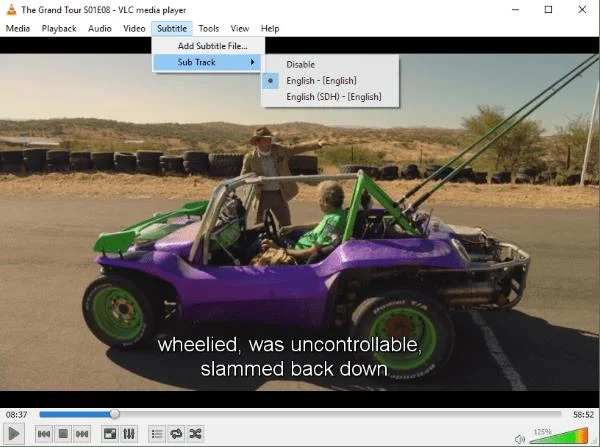
Now, select Subtitle > Sub Track and then the appropriate file within the listing.
4. VLC should now display subtitles along with the video. If it doesn’t see the subtitle file, select Add Subtitle File from the Subtitle menu and manually select your downloaded file. VLC should pick it up and play it.
If your subtitles aren’t playing correctly, either ahead or behind the actual video, you can adjust the playback delay for your subtitles by using the G and H keys on your keyboard to toggle between 50ms delays.
Add Subtitles to Your Own Movies
Now that pretty much everyone has an HD video camera (in the form of their smartphone), making a home movie is easier than ever. Even better, if you create your own movies and want to add subtitles, you can. You can either use a text editor or specific subtitle creator app.
You can use any text editor you like as long as you save it as an .srt file, the standard for subtitle tracks. Notepad++ is my go-to text editor as it automatically saves whatever you type into memory, which is handy for creating larger files.
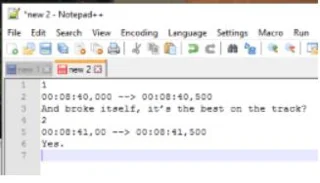
When creating your subtitle track, use the following format:
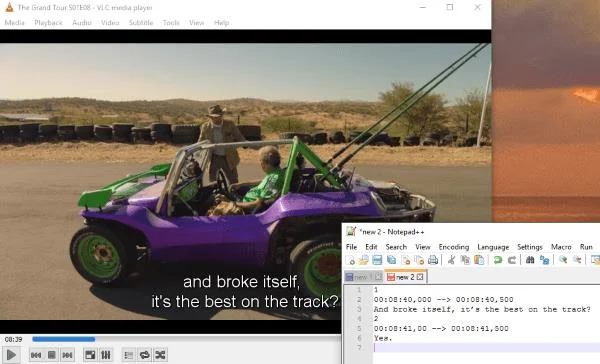
This is a universal SRT format that most media players should be able to understand, it definitely works in VLC. The number on its own is the play order for the titles. The timestamp is in minutes, seconds and milliseconds. This controls when and for how long the subtitle is displayed. The first time is when it appears and the second time is when it disappears from the screen. The third line is the text you want to display.
To create your own subtitle track:
Open Notepad++ or your favorite text editor.
Paste the above format into a new file and save as .srt.
Play your video and add the subtitles matching the timestamp in the player.
Add a new line, new timestamp and new subtitle for each individual caption you want to appear on screen.
Rinse and repeat until you’re at the end of where you want subtitles to appear.
You can also use HTML within an .srt file if you like to add effects to the subtitles. If you know your HTML, a lot of fun can be had! Otherwise, the subtitles will appear as plain white text on the screen.
Creating your own subtitles manually is laborious but is necessary if you make your own movies and want to add captions to them. Even if you use a subtitle app, you will still need to manually input the captions but you view and write within the same window. There are a few decent free caption programs out there and Google is your friend for that one.
VLC and Subtitles
Adding subtitles to VLC media player is a simple process that takes a matter of seconds, not counting the download time. If your file isn’t loading correctly or automatically, start by checking that it’s in the same folder as the movie or episode and that it’s named the same, not counting the file type.
Share your thoughts and experiences on using subtitles with VLC media player in the comments below.