20 Easy College Halloween Costumes You Can Make from Your Closet

Need a last-minute college Halloween costume? Try 20 easy, budget-friendly looks built from closet staples, plus quick styling and safety tips.
If Windows 11 shows Wi-Fi connected but no internet, first establish whether the problem affects one app, your PC, or the whole network. Then inspect the IP configuration and test DNS before changing anything. A Wi-Fi connection establishes a local wireless link; it does not prove that your router, internet service, DNS, and browser are all working.
This guide uses Windows 11 settings and current Microsoft Edge terminology. Start with the checks below and stop when normal access returns. There is no need to change every setting or run a bundle of reset commands.
Save open work and record any manual IP addresses, DNS servers, proxy details, and VPN settings. Have your Wi-Fi password available before reconnecting or removing a saved network. Reading settings and running the diagnostic commands below do not erase documents or browser data; some repairs can interrupt the connection.
On a work or school device, keep organization-provided settings and involve IT before changing them. Use a local session rather than a remote connection for actions that disconnect the network. Administrator permission may be needed for repairs, although the initial read-only commands normally work without elevation.
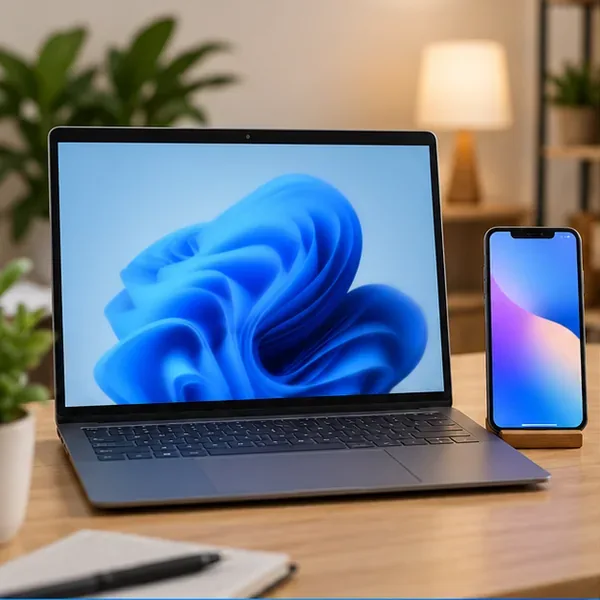
Open two unrelated, familiar websites and try another internet-dependent app. On a phone or second computer, test the same Wi-Fi network. Temporarily turn off the phone’s cellular data during this comparison, then restore it afterward so a mobile connection does not hide the Wi-Fi problem.
| What you observe | Where to focus next |
|---|---|
| Several devices fail on the same Wi-Fi. | Check the router, modem, network sign-in requirements, or internet provider before editing this PC. |
| Only this PC fails. | Continue with its IP, DNS, VPN, and proxy configuration. |
| Only Edge or one website fails. | Investigate that browser or service; a Windows network reset is premature. |
| Websites and apps work, but Windows still says “No internet.” | The connectivity indicator may be misclassifying the connection. |
Microsoft explains that its Network Connectivity Status Indicator uses probes to assess access. A blocked probe can produce a warning even when some internet traffic works. Keep the actual application results as evidence rather than trying to fix the icon by disabling connectivity checks.
On hotel or public Wi-Fi, use the network’s sign-in notification or its official instructions to complete the access portal. Do not bypass certificate warnings or enter credentials into an unfamiliar page. If every device fails at home, check the provider’s outage information using another connection.
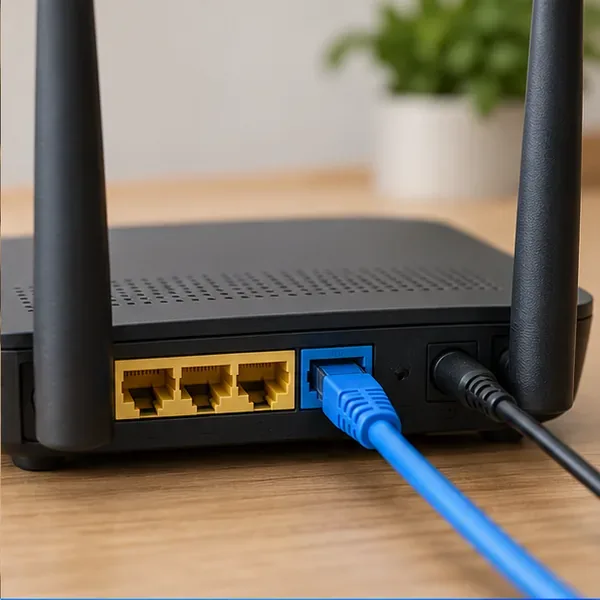
A normal router restart briefly disconnects everyone using it. Use the manufacturer’s restart procedure when appropriate; the recessed factory-reset button can erase configuration and is a different operation.
Search Start for Command Prompt, open it, and run:
ipconfig /all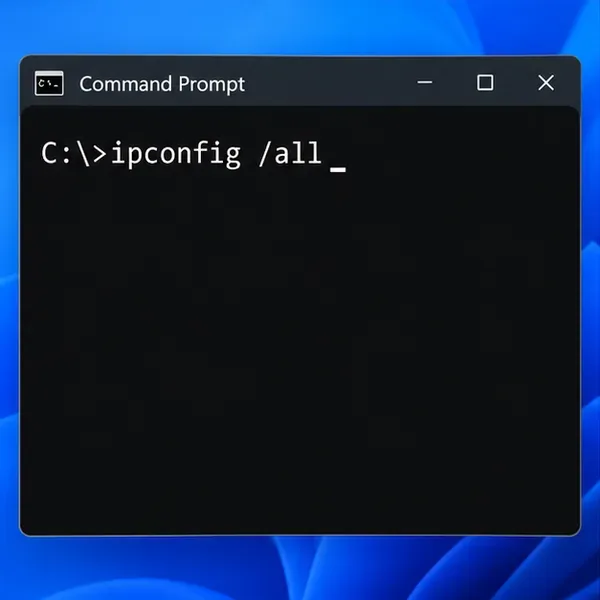
In the active Wireless LAN adapter Wi-Fi section, or the equivalent named Wi-Fi adapter, note the IP addresses, Default Gateway, DHCP Enabled, and DNS Servers. Ignore disconnected adapters. VPN and virtual adapters can have separate entries. Microsoft’s ipconfig reference documents this read-only configuration display.
Optionally type ping, a space, and the gateway address shown for your actual connection. Replies show that this local endpoint answers ICMP; they do not prove internet access. A timeout is inconclusive because some devices or firewalls do not answer ping. Keep the firewall enabled.
DNS, the Domain Name System, translates names such as www.microsoft.com into network addresses. Run this read-only lookup in Command Prompt:
nslookup www.microsoft.com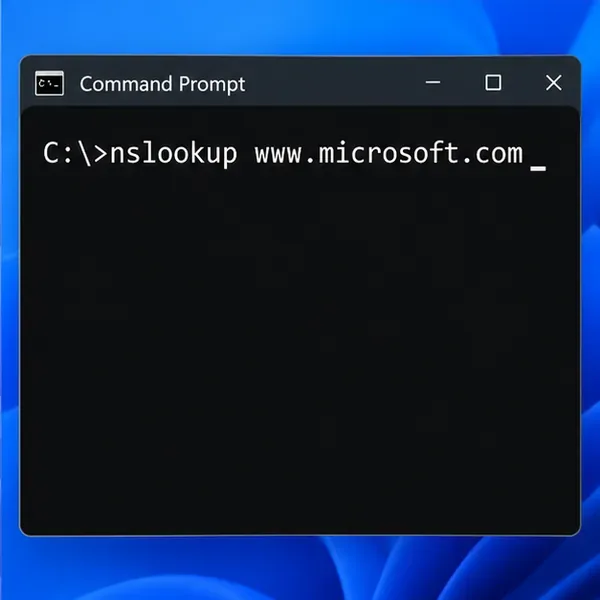
Then repeat the lookup using the hostname of a failing site, without https:// or a page path. According to Microsoft’s nslookup documentation, omitting a second server argument uses the default DNS server.
| Result | Meaning and next action |
|---|---|
| The response includes addresses for the requested name. | That lookup worked. If the browser still fails, check its DNS behavior, proxy, VPN, or the destination service. |
| Repeated timeouts for multiple familiar names. | The DNS server or the path to it needs investigation. This does not identify the cause by itself. |
| Only one name fails or returns “Nonexistent domain.” | Check spelling and that domain’s availability or filtering before replacing system-wide settings. |
Microsoft’s DNS-client troubleshooting guide notes that nslookup bypasses the Windows DNS client cache. If direct lookups succeed but an app may be using an old cached answer, open Command Prompt with Run as administrator and run:
ipconfig /flushdnsWindows should confirm that it flushed the resolver cache. Close and reopen the affected app, then retest. This clears temporary DNS records; it does not delete cookies, passwords, documents, Wi-Fi profiles, or your configured DNS servers. It also cannot repair an unreachable router or DNS server.
On an ordinary home network, DHCP normally supplies the addressing information. A stale manual DNS entry left by an old configuration can interfere with access. Preserve intentional settings for business networks, filtering services, or specialist equipment.
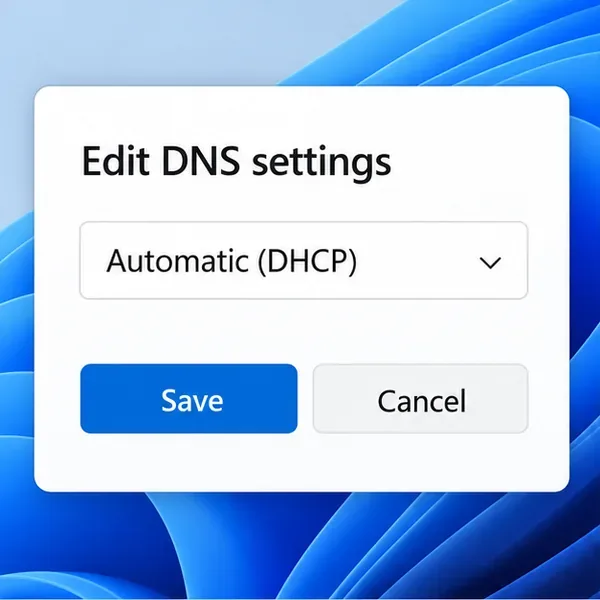
If Windows reports that DNS settings for all Wi-Fi networks override the individual network, inspect Wi-Fi > Hardware properties as well. Record any adapter-wide setting before changing it.
Check IP assignment separately. Change it to Automatic only if the network is supposed to use DHCP and a manual IP configuration is incorrect. Doing so replaces the static address, gateway, and related settings and can interrupt access. Restore your recorded values to undo the change.
Microsoft’s TCP/IP settings guidance recommends DHCP where supported. Windows 11 also exposes DNS-over-HTTPS options for supported configurations; Microsoft notes that those Settings controls are unavailable in Windows 10. Preserve an intentional encrypted-DNS policy rather than switching encryption off as a general repair.
Open Settings > Network & internet > Proxy. Look for a manual proxy or setup script you recognize. Microsoft’s proxy guidance explains that organizations may require these settings.
On a personal PC, if an obsolete manual proxy is the suspected cause, record its address and port, turn that specific setting off, and retest. Restore it if the test does not help. Do not remove an organization’s script or required proxy.
If you use a personal VPN, a brief comparison while disconnected can help, provided policy permits it. Disconnecting changes traffic routing and removes the VPN’s tunnel protection; internal resources may stop working. Some VPNs intentionally block traffic with a kill switch. Reconnect afterward and use the VPN provider’s guidance if the problem follows that connection.
Current Edge documentation places Use secure DNS under Settings > Privacy, search, and services > Security. Inspect whether you previously selected a custom provider. Restore the previous working or current-provider configuration if that custom choice is the issue; record the original choice first.
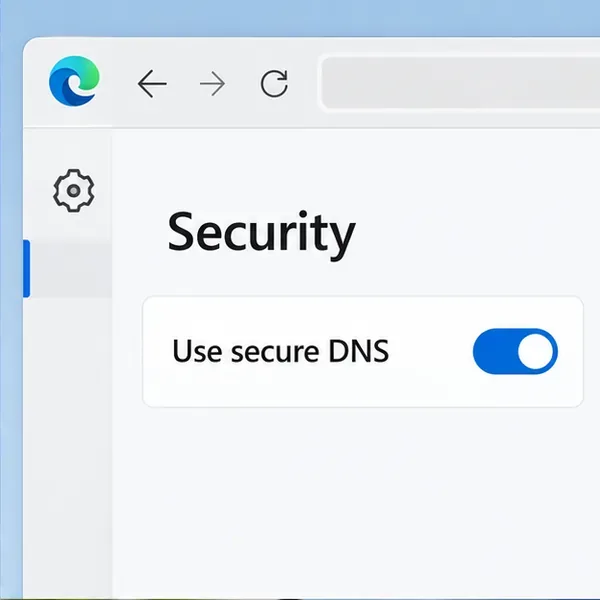
Microsoft’s Edge privacy documentation explains that a specifically selected secure-DNS provider does not fall back to ordinary DNS when its secure lookup fails. Edge can therefore behave differently from nslookup. InPrivate uses the originating profile’s secure-DNS configuration, so an InPrivate test does not isolate that setting. Managed settings should be handled by your administrator.
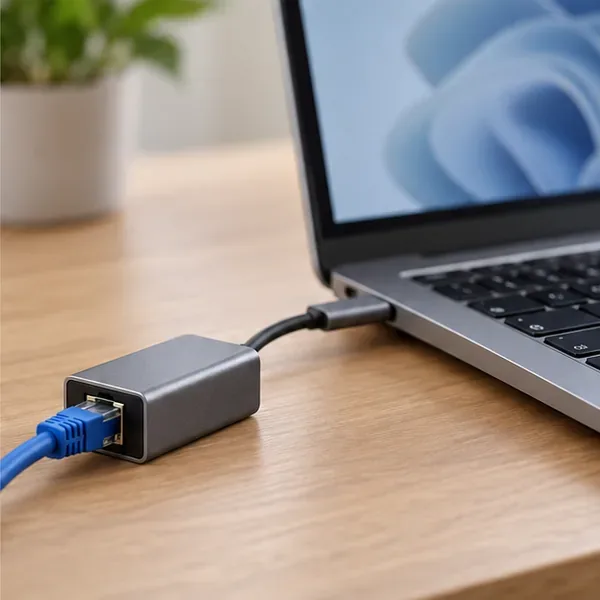
After recording the diagnostic results, save your work and try reconnecting Wi-Fi or restarting the PC. If available, compare with Ethernet or another trusted network. Ethernet success points toward the wireless path or its configuration, but it is not a conclusive hardware diagnosis.
Microsoft directs Windows 11 users to the Network and Internet troubleshooter in Get Help. Its Wi-Fi troubleshooting guide treats Network reset as a final option.
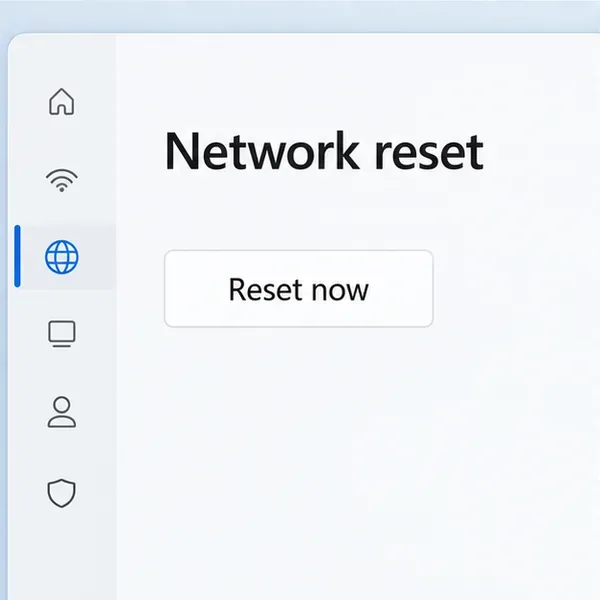
Before resetting, retain configuration details and any VPN setup materials. Network reset removes and reinstalls adapters and resets their settings. You may need to reinstall or reconfigure VPN clients and virtual switches; network profiles may become Public.
For Windows 11, use Settings > Network & internet > Advanced network settings > Network reset > Reset now, confirm, and allow the restart. Windows 10 uses the older Network & Internet > Status > Network reset route.
If the problem persists, give your ISP or IT support the Windows build, Wi-Fi adapter model, time of failure, affected apps, comparison-device results, and DNS error wording. Microsoft’s advanced wireless guidance emphasizes preserving evidence before resets and driver changes. Share network details privately with support rather than posting complete configuration output publicly.
The practical success check is that multiple sites and the affected app work after reconnecting, with required VPN and security settings restored. A DNS lookup, a changed icon, or one successful page load alone is a narrower result.
Need a last-minute college Halloween costume? Try 20 easy, budget-friendly looks built from closet staples, plus quick styling and safety tips.
Learn what the Teal Pumpkin Project means in 2026, how hosts can offer separate non-food treats, and how families can plan routes and review candy safely.
See what the latest 2026 Halloween survey says about trick-or-treating, community events, and practical ways to plan a safer neighborhood outing.
Plan a thoughtful Halloween moon party with optional reflection, simple stargazing, accurate 2026 sky notes, respectful spiritual framing, and safe lighting.
Build a comfortable cottagecore witch costume with beginner-friendly layers, thrifted pieces, simple makeup, practical accessories, and Halloween safety checks.
Explore BookTok-inspired horror books and Halloween decor, comparing gothic, cozy, and slasher styles with practical tips for a safe reading nook.
See the biggest Halloween 2026 trends in costumes, décor, shopping, pets, and party planning—with survey data, dates, and practical ways to choose.
Host an affordable Halloween party with a clear spending cap, DIY decorations, simple food, free games, and practical safety tips.
Choose Halloween party games by group size, experience, and mood, with simple ways to make tarot and mahjong welcoming for every guest.
Compare 2026 dog Halloween costume trends by search interest, fit, comfort, and mobility—from hot dog and shark looks to simple bandanas.