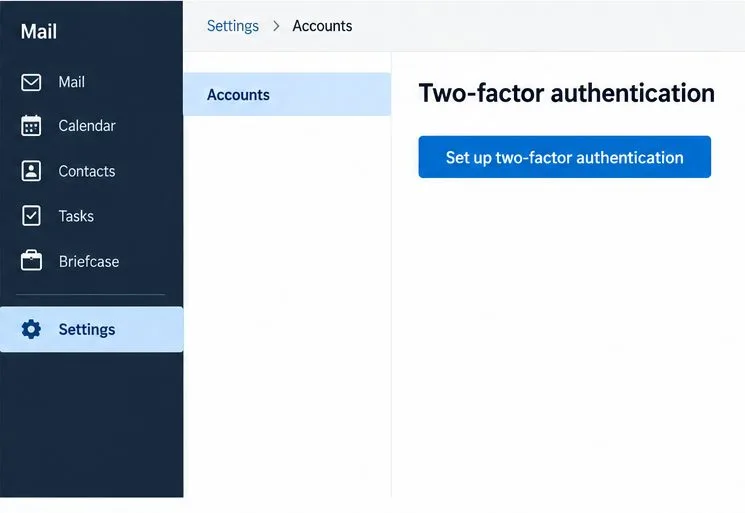
Protect Zimbra Admin Console Logins With Account 2FA
Enable Zimbra two-factor authentication for administrator accounts, choose an enrollment policy, and verify Web Client setup before relying on the second factor.
A user enters the correct password but Zimbra responds with “Account is locked out.” Stop repeated sign-in attempts, check the account's actual status and failed-login activity, and allow a timed lockout to expire when possible. If access is urgent, a Zimbra administrator can restore an eligible account to active after addressing the failed-login source; simply unlocking it while an old password keeps retrying may cause an immediate repeat lockout.
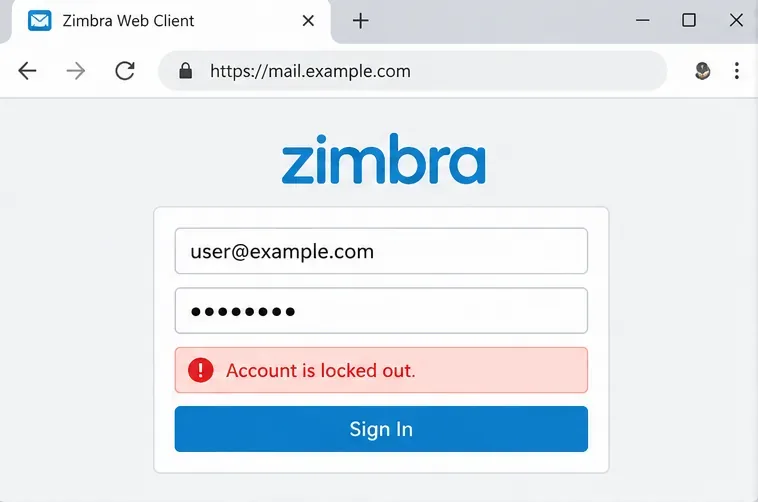
Zimbra distinguishes lockout, typically triggered by a failed-password threshold, from locked, a state administrators can apply to prevent sign-ins. This distinction matters: a manually locked account may be intentionally restricted because of a security incident or maintenance decision. Do not override that restriction without authorization.
An account with lockout generally remains able to receive mail but cannot sign in during the configured lockout period. Zimbra also documents that the status may continue to display as locked out after the timer has elapsed until a successful login occurs. In other words, an old status value does not necessarily prove that the waiting period is still active. See Zimbra's account status and password-lockout attributes and explanation of delayed status refresh after a lockout.
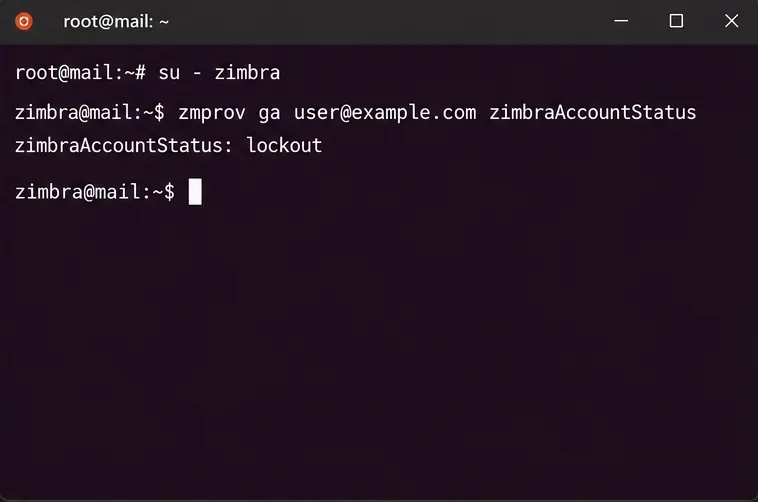
Sign in to the Zimbra server with an account authorized to administer it. In a conventional Linux installation, switch to the zimbra operating-system user and query only the affected mailbox:
su - zimbra
zmprov ga user@example.com zimbraAccountStatus zimbraPasswordLockoutLockedTime
Replace user@example.com with the actual address. The ga (get account) command reads attributes; it does not unlock the user. If the output shows zimbraAccountStatus: lockout, proceed with the failed-login investigation. If it shows locked, establish who applied the restriction first. If it is already active, investigate password, external authentication or IP-based throttling rather than changing account status blindly.
Check the account or its class of service (COS), which is the Zimbra policy group that supplies settings to accounts. Relevant attributes include zimbraPasswordLockoutEnabled, zimbraPasswordLockoutMaxFailures, zimbraPasswordLockoutDuration, and zimbraPasswordLockoutFailureLifetime. Account-level overrides may differ from COS settings. Do not assume historic schema default values match your deployment. A duration of 0 can require administrator intervention rather than automatic expiration.
Before resetting the status, inspect the recent authentication trail. Zimbra documents /opt/zimbra/log/audit.log as an authentication log and /opt/zimbra/log/mailbox.log as a mailbox application log. Use an authorized shell with permission to read these files:
grep -iF 'user@example.com' /opt/zimbra/log/audit.log | tail -n 20If needed, correlate the same account and time window in mailbox.log. Log wording and source-address fields vary by build, authentication path and deployment, so examine actual entries rather than assuming a particular message format. Also consider rotated logs if the relevant attempts occurred earlier. Zimbra's log-file reference lists the principal paths.
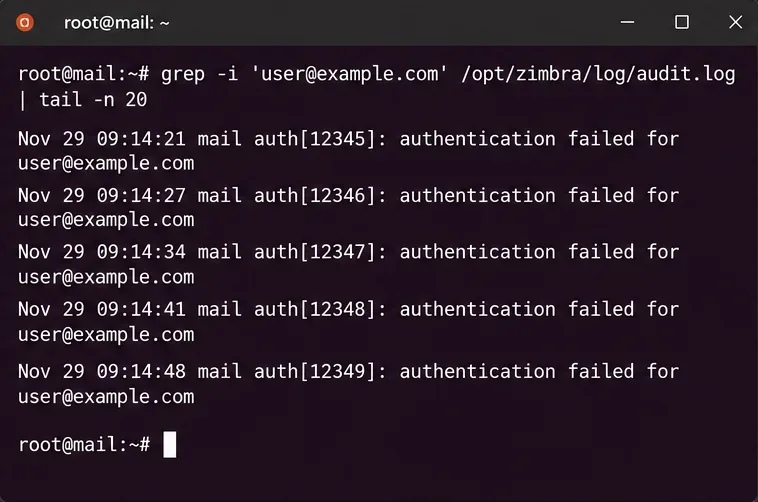
Common causes are a saved password in a mobile mail app, an old IMAP/SMTP profile, a desktop client polling in the background, or repeated unwanted login attempts. If several devices are configured for this mailbox, temporarily pause their synchronization and update saved credentials before unlocking. Unexpected attempts from unfamiliar addresses warrant a security investigation rather than automatic restoration.
For a normal timed lockout, the least disruptive option is to wait until the configured interval has elapsed, then make one login attempt with the verified password. Zimbra's documented behavior allows a successful login after the period to return the account to normal even if the attribute has not been updated in the meantime.
If the account must be restored sooner, the failed-login source is controlled, and an administrator has approved reactivation, run the following as the zimbra user:
zmprov ma user@example.com zimbraAccountStatus active
zmprov ga user@example.com zimbraAccountStatus
The ma (modify account) command sets the status to active; the second command confirms what Zimbra reports afterward. Use this only for the specific account. Do not bulk-unlock users or change global security thresholds to work around one mailbox. Zimbra's command reference documents ga and ma, and its account-status reference distinguishes administrator locks from login-failure lockouts.
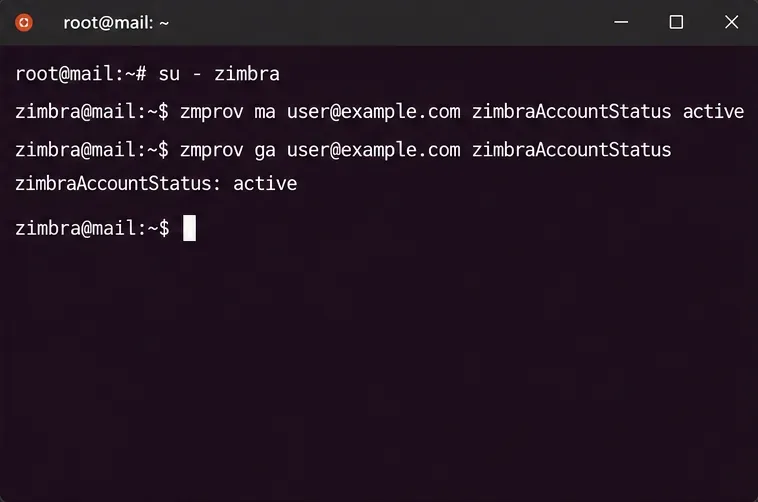
Update the password saved in every mail client, mobile device and other legitimate service using the affected mailbox. Ask the user to test a single browser session first; only then re-enable other clients one at a time. If the password is uncertain or compromise is suspected, use the authorized Zimbra Admin Console password-reset workflow and distribute the replacement securely. Zimbra also documents the zmprov sp password-reset command, but passing a plaintext password on a command line can expose it through terminal history or process visibility if handled carelessly. See the Zimbra password-reset guidance.
For accounts authenticated against Microsoft Active Directory or another external LDAP service, the external directory may be the actual lockout authority. Inspect the domain's authentication method and the directory's account status; do not assume that changing Zimbra's status will unlock an AD identity. Zimbra's external LDAP authentication notes describe directory lockout errors, including AD subcode 775.
If Zimbra says the account is active but sign-in still fails from one network, inspect IP-based denial-of-service or invalid-login throttling separately. Zimbra documents this as a different mechanism from account lockout. Do not disable throttling or broadly allowlist untrusted addresses to make a single login work; consult the DoS filter documentation and investigate the source first.
zmprov ga user@example.com zimbraAccountStatus and check for active, or complete a permitted post-timer login if the old lockout status has not yet refreshed.audit.log for fresh failed authentications while normal clients reconnect.This procedure follows Zimbra's documented command and account-state behavior; exact screen labels and policy inheritance can vary by installed version and configuration. The accompanying interface examples illustrate the investigation steps rather than representing a live-system test.
Enable Zimbra two-factor authentication for administrator accounts, choose an enrollment policy, and verify Web Client setup before relying on the second factor.
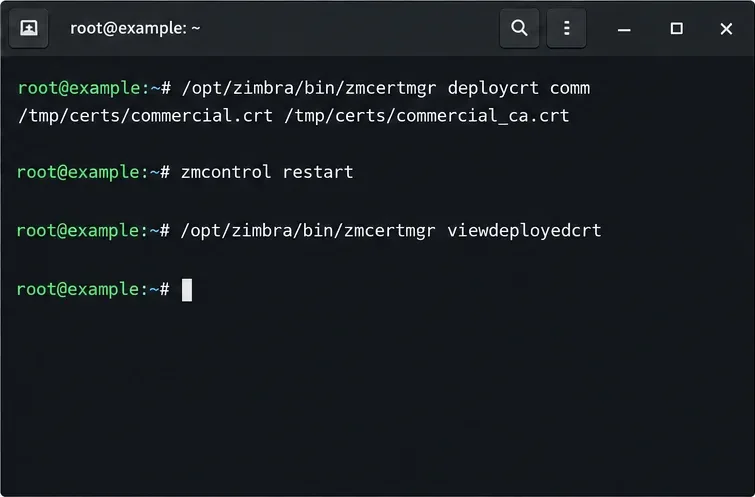
Prepare the matching key and CA chain, verify the certificate with zmcertmgr, and deploy it on Zimbra with a service and hostname check.
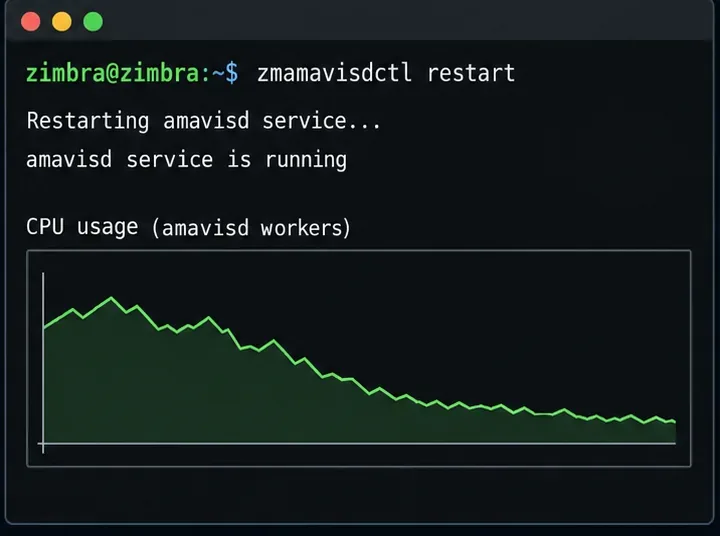
Trace high Amavis CPU to a stuck scan, inspect Zimbra logs and queues, and recover mail filtering safely with release-aware checks.
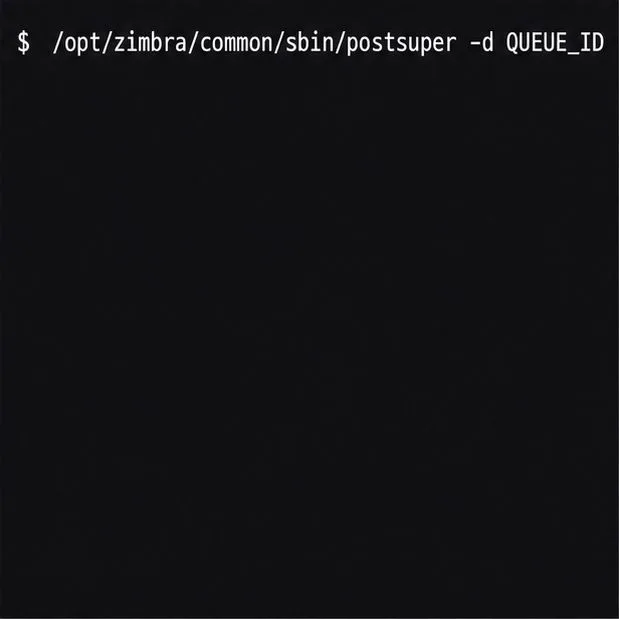
Inspect the Zimbra Postfix queue, fix the cause of delayed delivery, and safely request a retry. Learn when to remove a specific message and what never to purge blindly.
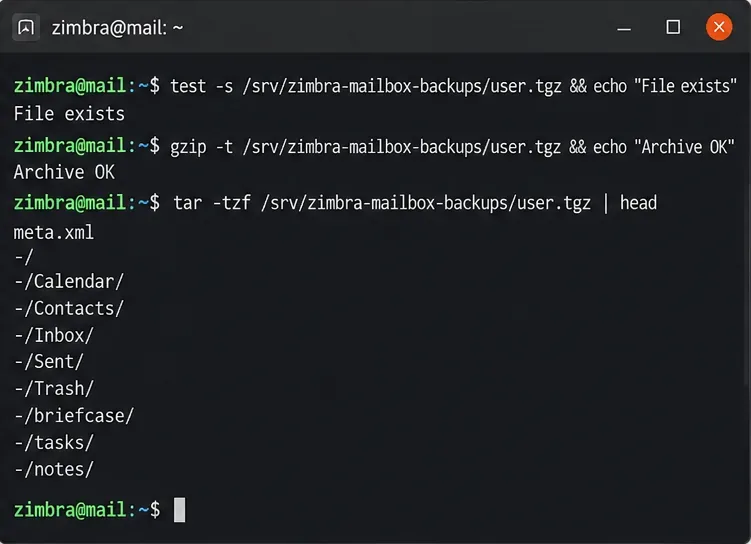
Export an individual Zimbra Community Edition mailbox, validate its TGZ backup, and restore missing items without overwriting existing mail.
Plan your Art Basel Miami visit with this 5-step guide to ticket prices, transit, and dining costs, calculating a realistic daily budget of $145 to $550.

Follow these 6 steps to navigate an American office holiday party with confidence, connect with coworkers, and leave a professional impression.
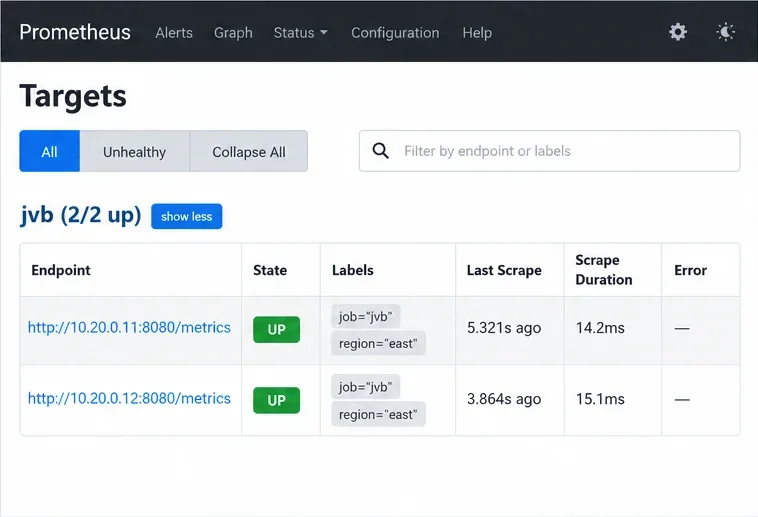
Scrape each JVB’s private metrics endpoint securely, confirm Prometheus targets are healthy, and build Grafana panels for bridge load and meeting traffic.
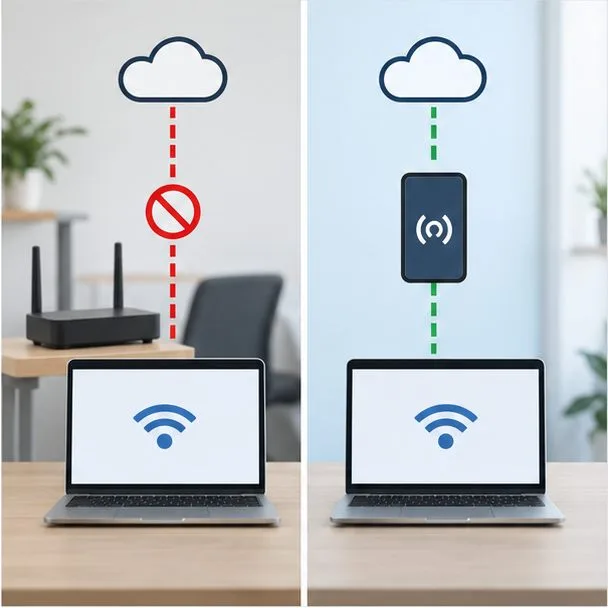
Trace webcam failures to browser permission, a restricted network, or the BigBlueButton server’s UDP and NAT setup, then verify the stream in a live meeting.