Home
» Wiki
»
How to check RAM and check RAM errors on your computer with the highest accuracy rate
How to check RAM and check RAM errors on your computer with the highest accuracy rate
As you know, RAM is a very important hardware part in a computer, acting as memory to process data and is the factor that determines the speed of a laptop or PC. In the article below, WebTech360 will introduce you to some ways to check for RAM errors using software on Windows.
See some more articles about RAM that might interest you:
Method 1: Use Windows Memory Diagnostic to check for RAM errors
Windows Memory Diagnostic (WMD) is a great free memory testing program. It is a comprehensive memory testing tool but is also very easy to use.
Your computer's BIOS will test your memory during POST, but this is an extremely basic test. To really determine if your RAM is malfunctioning, you'll need to perform an extensive memory test with a program like Windows Memory Diagnostic.
You should test your memory the first time with Memtest86 but always check it a second time with another memory testing tool to be sure. Windows Memory Diagnostic should be that second tool.
The main functions that Windows Memory Diagnostic can perform include:
Windows Memory Diagnostic has extended testing options but none of the options required for a standard memory test
Multiple tests are performed to identify hard-to-detect memory hardware issues.
The Windows Memory Diagnostic test will continue to loop until the PC is powered off.
No operating system required to run memory test
Windows Memory Diagnostic is included as part of the System Recovery Tools in Windows 7.
Advantage
The program is completely free for anyone to use.
Extremely small download size
Windows does not need to be active or installed to use the tool.
Easy enough for everyone to use
No user intervention required - fully automatic memory testing
Disadvantages
Creating boot disks and CD images adds additional steps
Will only test first 4GB of RAM
To do this, your computer must still boot into Windows normally. To run Windows Memory Diagnostic, you can apply 1 of the 2 ways below:
Go to Run and type mdsched.exe > Enter .
Go to Control Panel > All Control Panel Items > Administrative Tools . Run the Windows Memory Diagnostic utility here.
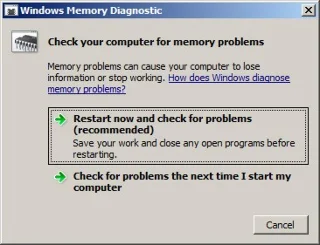
The main interface of Windows Memory Diagnostic will look like this:
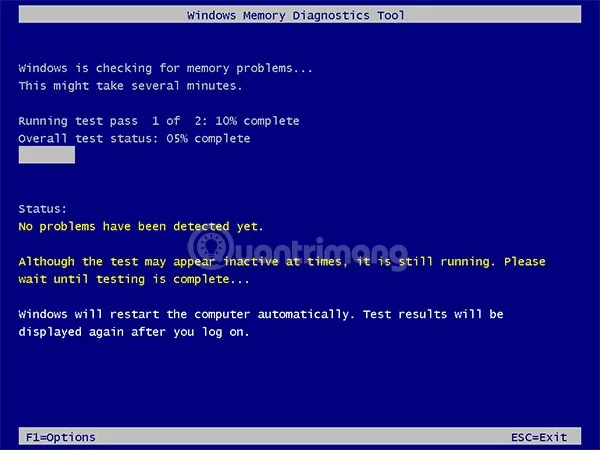
Whether you want it or not, what you need to do is restart your computer to enter the RAM error checking phase. The screen of the RAM testing process using Windows Memory Diagnostics Tool will look like this:
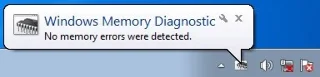
This process will take about 30 minutes to complete, after which the computer will boot straight into the Windows screen as before. If the RAM check process does not detect errors, the program will display a small message in the lower right corner of the screen like this:
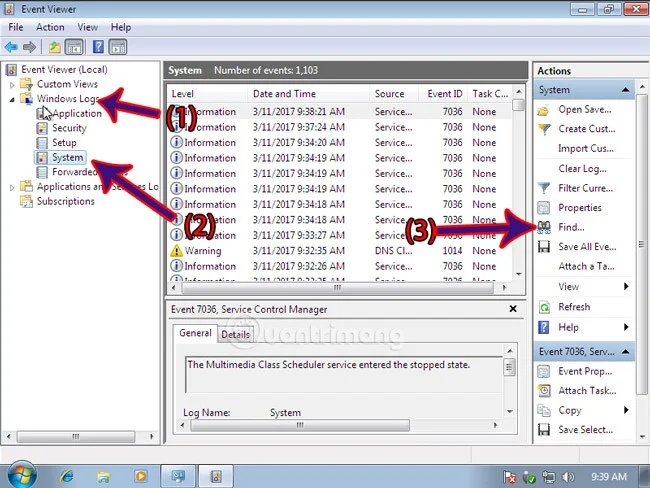
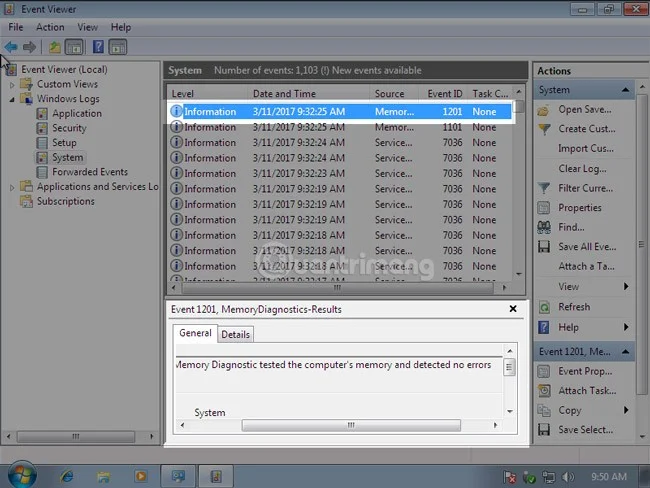
In case you want to see more information about this process, use the Event Viewer tool to see the entire Windows Logs . You can open Event Viewer in 2 ways:
Go to Run and type eventvwr.msc > Enter.
Go to Control Panel\All Control Panel Items\Administrative Tools > Event Viewer .
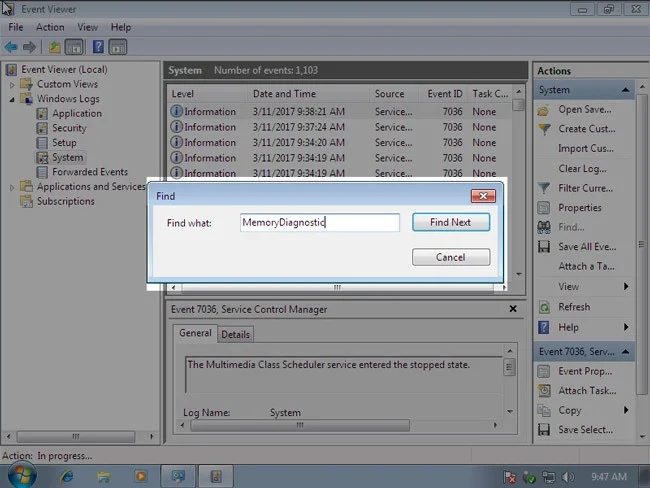
The Event Viewer window opens, select Windows Logs > System then select Find as shown:
Then search by name MemoryDiagnostic as follows:
This command will search for all MemoryDiagnostic related Events that have been recorded by Windows Logs. You just need to read carefully which log records the results.
Method 2: Use Memtest86 to check RAM
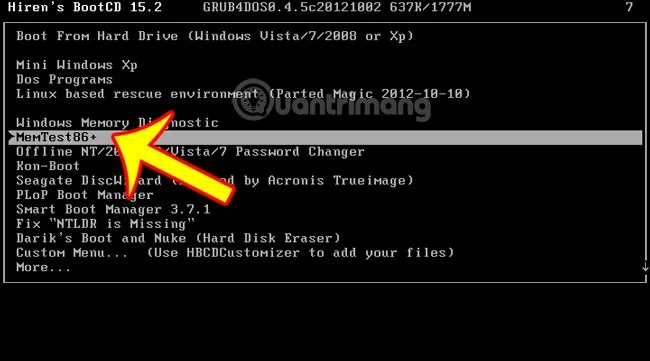
This is a tool created by an external developer for the purpose of checking for RAM errors. With Memtest86, we have 2 options, which are to use the installation version to extract Memtest86 into an external mobile device such as a USB Flash drive and then run it, or use a combination tool like HirenBoot which has Memtest86 available .
1. How to create an installation USB containing Memtest86:
To do this, download the Memtest86 installation file for USB at the link below:
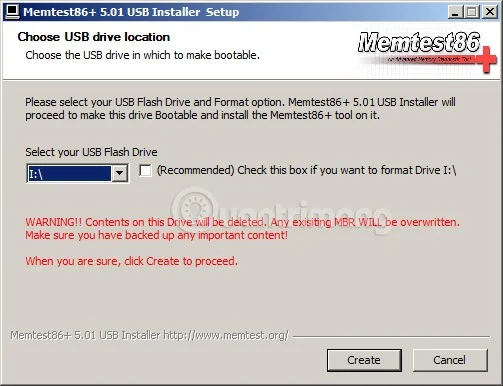
Connect USB to computer, run Memtest86 version 5.01 installation file as shown below:
Then click Create > Next > Finish . The process of creating a USB containing Memtest86 is complete.
After successfully creating the USB, plug the USB into the computer and select boot mode - boot from the USB drive:
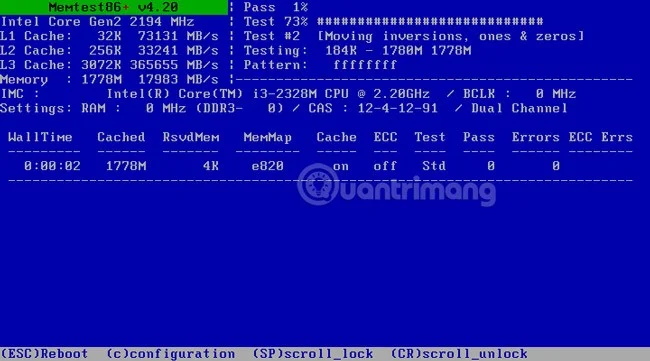
Memtest86 is running, the program will run and divide into many different stages, respectively Pass 1, then Pass 2, 3 ... Let the machine run for a while, about 20 minutes then stop to get the most accurate results:
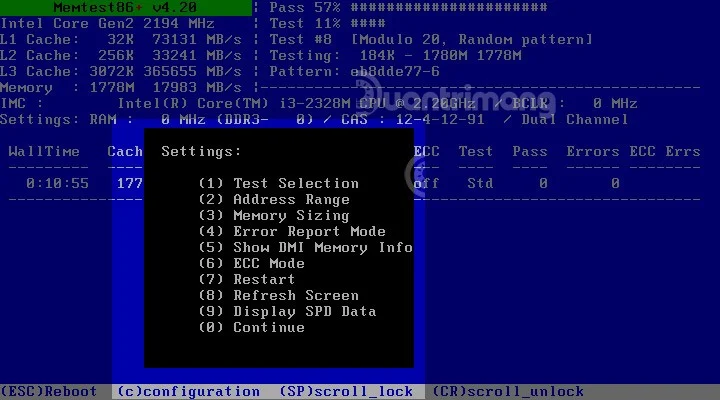
If you want to change options during the test, you can press the shortcut button C - Configuration to display the options numbered from 1 to 9 as shown, and to continue testing, press 0:
During this entire RAM error checking process, if Memtest86 detects any errors, it will display them in the Errors column.
Method 3: Use HCI MemTest to check RAM
HCI MemTest is a simple, yet rigorous RAM testing tool that you can leave running for a few hours, a day, or even several days. If your RAM is good, it should not detect any errors - no matter how long you leave it running.
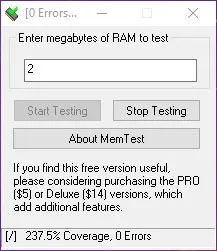
Select the RAM level you want to check
The tool is very simple to use. Just download it, unzip it, and open it. The only option is to manually set the amount of RAM you want to check. We recommend setting it somewhere between 2GB and 3.5GB, as it's unlikely your PC will use more RAM when idling.
HCI MemTest reports the number of detected errors.
This memory testing tool can put a bit of strain on your CPU and RAM, so you'll want to close all programs on your PC, make sure your computer is well ventilated, and then let the tool perform its RAM test for a few hours.
HCI MemTest is very straightforward in presenting information. If you get a “Memory error detected” message then you know you have a problem and need to look into the BIOS or even physically check the RAM sticks to make sure they are properly seated.
The longer you run HCI MemTest, the more accurate it will become. That said, if your RAM is performing poorly, the tool can find dozens of errors within an hour. Repeat the test to recheck the health of your RAM, but if this happens again, it may be time to replace the RAM (or stop overclocking it) on your Windows machine.
Test RAM physically
So how do you fix the errors that appear when you check the RAM status on your Windows machine? Replacing the RAM is obviously a very effective option, but first, you should also check to make sure that the RAM is properly installed in the PC.
Try removing each stick of RAM from your PC and running MemTest each time to see if the error goes away. That way, you can figure out which stick (or slot) of RAM is causing the problem.
If you find that the error appears every time a certain stick of RAM is installed, then that is the cause of the problem. If there is a problem every time a stick of RAM is placed in a certain slot, then that slot may be the problem, at which point you may want to consider replacing the motherboard.
Frequently Asked Questions
1. How to keep RAM healthy?
As with many components in your PC, the best way to keep RAM healthy is to keep it cool. RAM doesn't get as hot as a CPU or GPU, but it still generates heat and you need to make sure there's good air circulation through your case to cool the RAM. If necessary, you might even consider buying a dedicated RAM cooler.
2. Is it safe to overclock RAM?
If you're thinking about overclocking your RAM, you should know that the benefits are usually smaller than overclocking your CPU or GPU, and it can reduce the lifespan of your RAM. If you have an XMP profile in your BIOS, you should enable it instead.
3. Why test RAM?
Why check RAM if the computer is still working normally? Well, your laptop is still running smoothly does not mean that it is not faulty, it just means that it is not faulty or has not reached the time when the fault occurs.
Regularly checking the components of the computer is very important, like checking the temperature of the computer , cleaning the simple parts of the computer, they will help stabilize the "health" of the machine, increase the life of use. Some manifestations of the computer if the RAM memory is faulty include: