In this article, we’ll talk about adding friends on Snapchat- a zippy social media platform for sharing experiences and personal stories or organizing your friends into cliques and creating Group Stories. It’s a lovely layout, really, and what’s more- there are several ways you can add someone as a friend! Goes to show how dedicated these Snapchat folks are to expanding their community!

To be even more specific, we’ll talk about one particular way of adding friends — the Quick Add option.
What does Quick Add mean in Snapchat and how does it work?
Read on to find out.

How to Add Friends on Snapchat
As we mentioned earlier, Snapchat offers several ways to add new friends — four in total.
We’ll take a look at how you can use any of these methods to quickly find and add your friends on Snapchat.
1. Contact Book
First, you can add friends via your phone’s contact book.
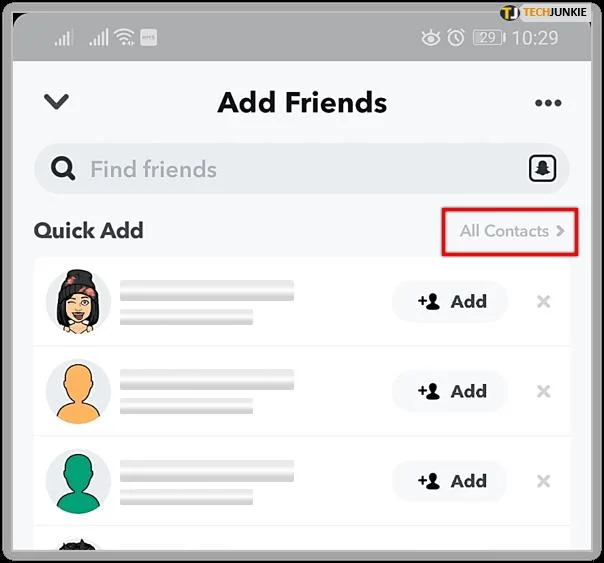
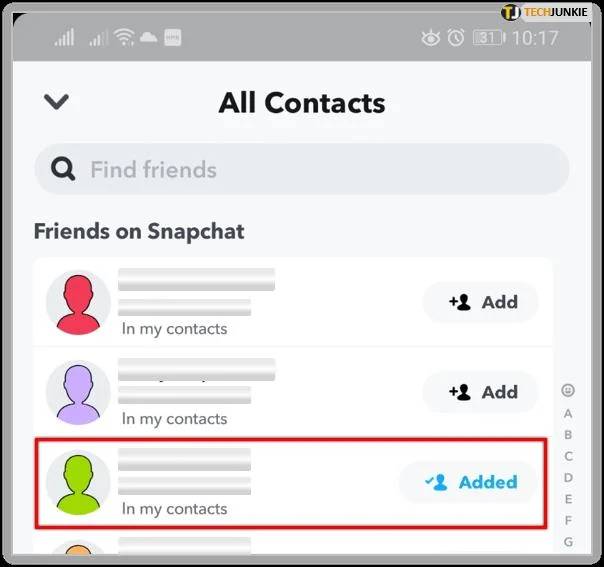
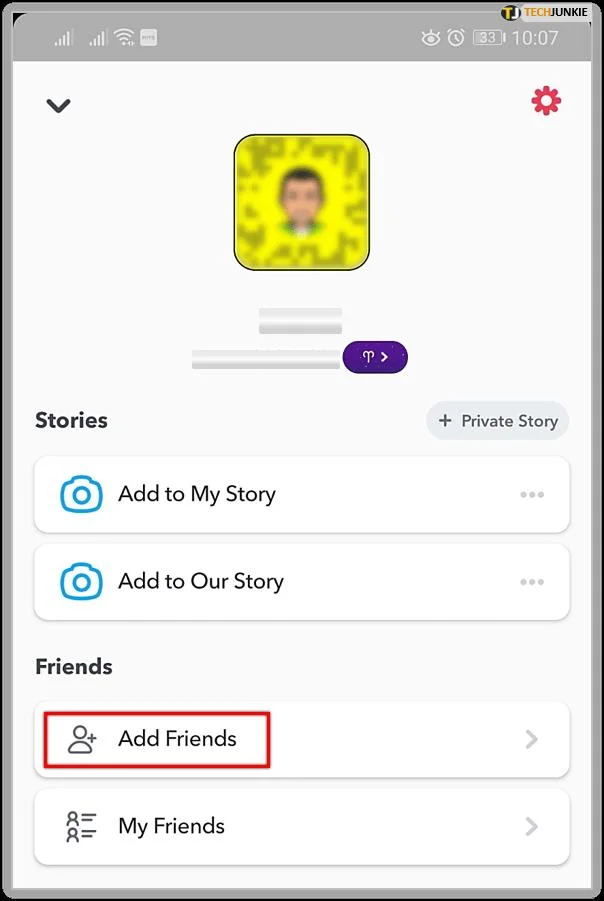
Tap the profile icon in the top-left corner of your screen. After that, tap ‘Add friends’, then click ‘All Contacts’. Hit ‘Continue’ when asked to sync your contacts.

Snapchat will then sort through your contacts and find friends based on their phone numbers.

Once Snapchat finds your friends, you can add them at your discretion.

2. Snapcode
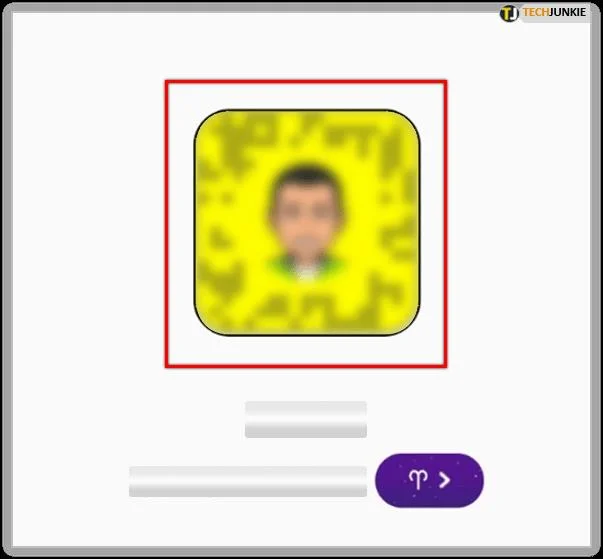
One of the interesting features of Snapchat is that each user gets their very own Snapcode – a personal code that’s unique to their profile and cannot be replicated by someone else.

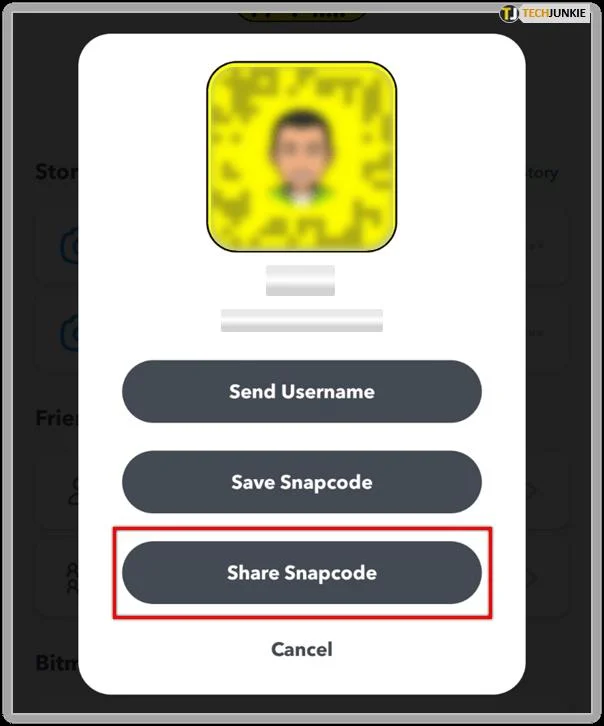
If your friend shares their Snapcode with you, you can scan that visual code with your camera and then add them as friends. There are two ways to do this.

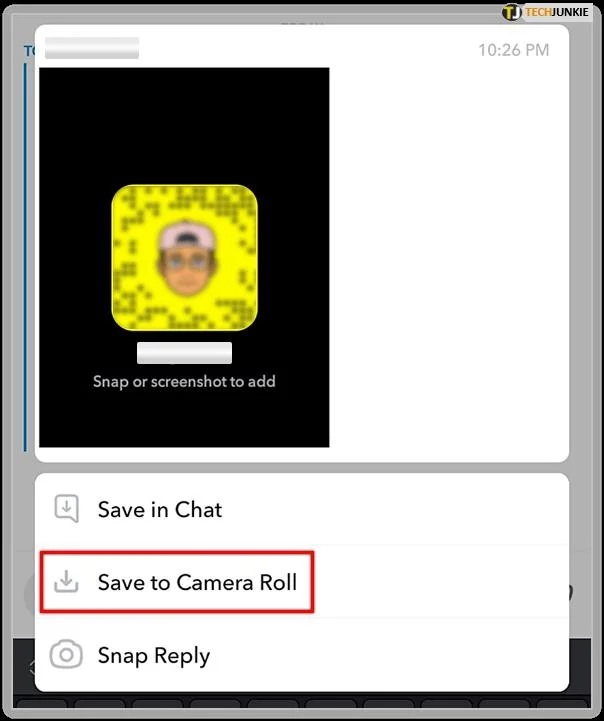
First, your friend can share a picture of their Snapcode with you. Once they do, open Snapchat, tap and hold the shared Snapcode, and in the pop-up menu, select ‘Save to Camera Roll’.

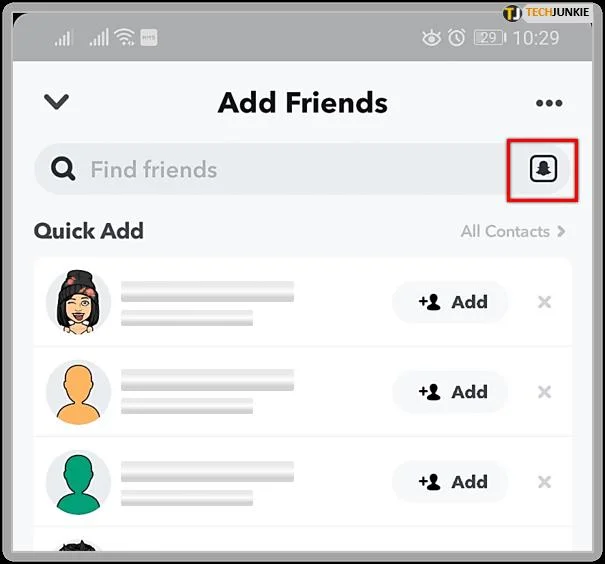
Open your profile icon and click ‘Add Friends’. Click the Snapcode icon on the top-right corner of the screen. This will open your camera roll where you can select your friend’s Snapcode.

Once you upload the picture of the Snapcode, Snapchat will scan it, find your friend, and ask you to confirm the friend request.

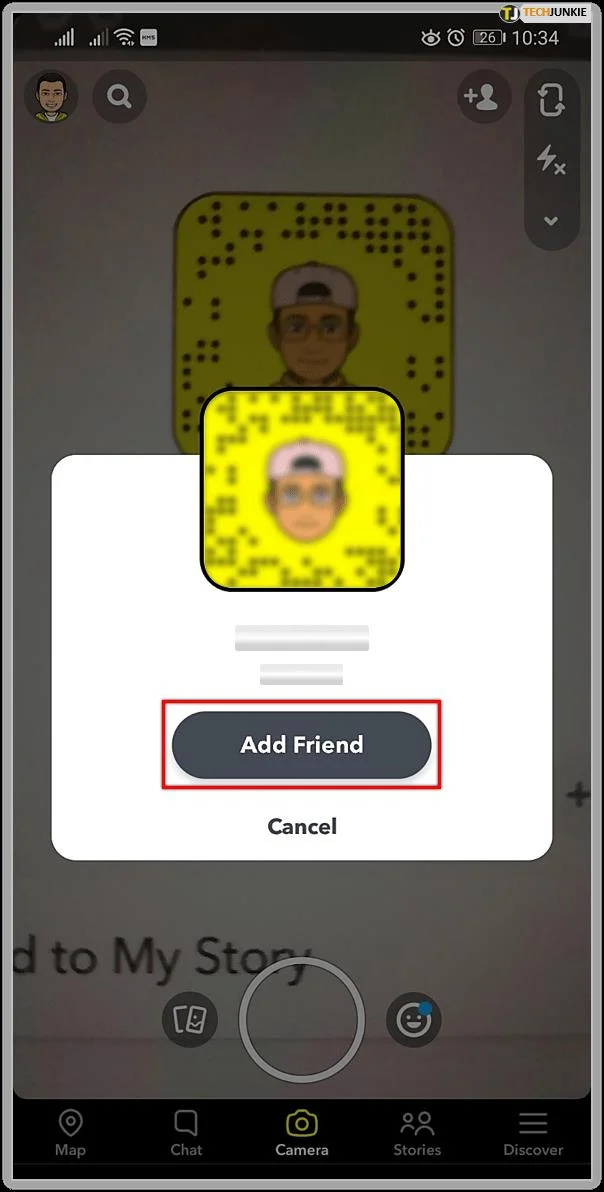
Alternatively, if you are with your friend in person, you can simply open the app and hold their Snapcode in front of your camera. Tap and hold your screen. Snapchat will scan the code and ask you if you want to add your friend. Just click ‘Add Friend’ and you’re good to go.

3. Username
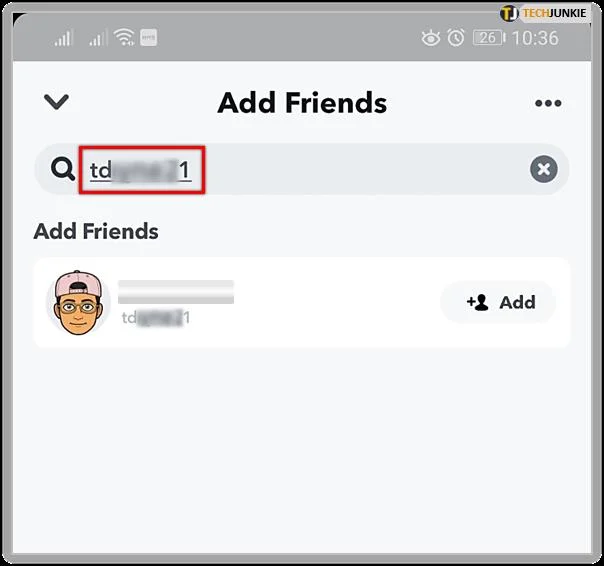
Next, to add friends by username, go to your profile and then tap ‘Add Friends.’

Now, instead of looking for someone by searching your ‘Contacts,’ enter their username in the search bar at the top of the screen.

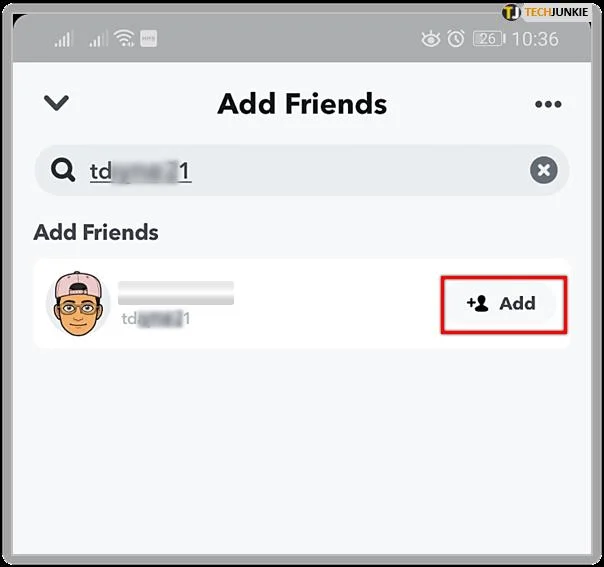
After you’ve done this, simply tap ‘Add’ to add the person to your friends list.

4. Quick Add
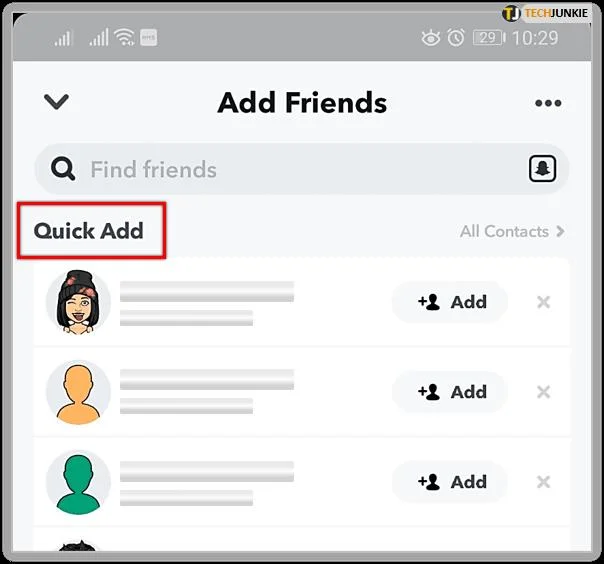
Last but not least, there’s the Quick Add option. Occasionally, Snapchat’s algorithm will automatically suggest some people to you, usually based on the number of common friends or similar metrics.

Now, if you happen to agree with Snapchat’s algorithm, simply tap ‘Add’ and a friend request will be sent.
The Bottom Line
So, there you have it, folks!
The Quick Add option is something like Snapchat’s version of Facebook’s ‘People You May Know’ feature, where they suggest to you some users based on your mutual friends, interests, or other metrics.
Hopefully, you found this article helpful and you’re able to use these tips to improve your Snapchat experience!