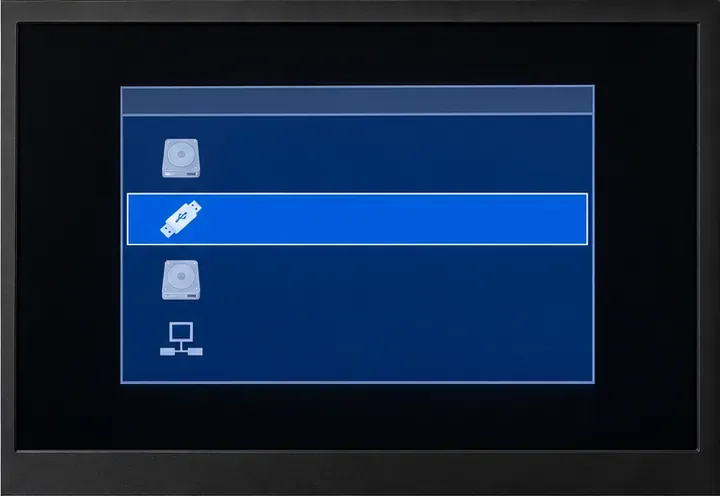
Dual Boot Pardus and Windows 11 Without Reformatting Windows
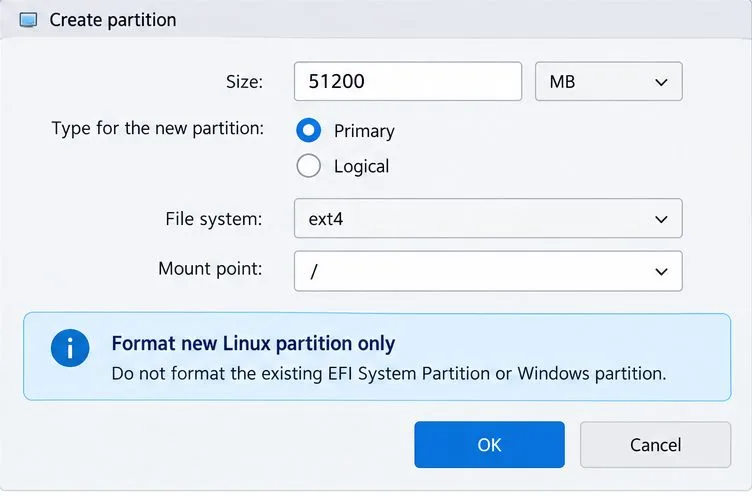
Install Pardus alongside Windows 11 by shrinking the Windows volume, using unallocated space, and preserving the existing EFI System Partition.
Updating to Windows 11 gives you a modern interface, improved security, and features like Snap Layouts and better multitasking. How to Update to Win 11 depends on your current hardware meeting Microsoft's strict requirements for TPM 2.0, Secure Boot, and a supported processor. This guide walks through the exact steps to check compatibility and complete the upgrade without data loss.
Microsoft requires specific hardware before allowing the upgrade. Open the PC Health Check app from the Microsoft website to scan your system. If the tool reports failures, note the exact issues such as missing TPM or an unsupported CPU before proceeding.
Download the app directly from support.microsoft.com if it is not already installed. Run the scan and review the detailed report on processor generation, RAM amount, and storage space.
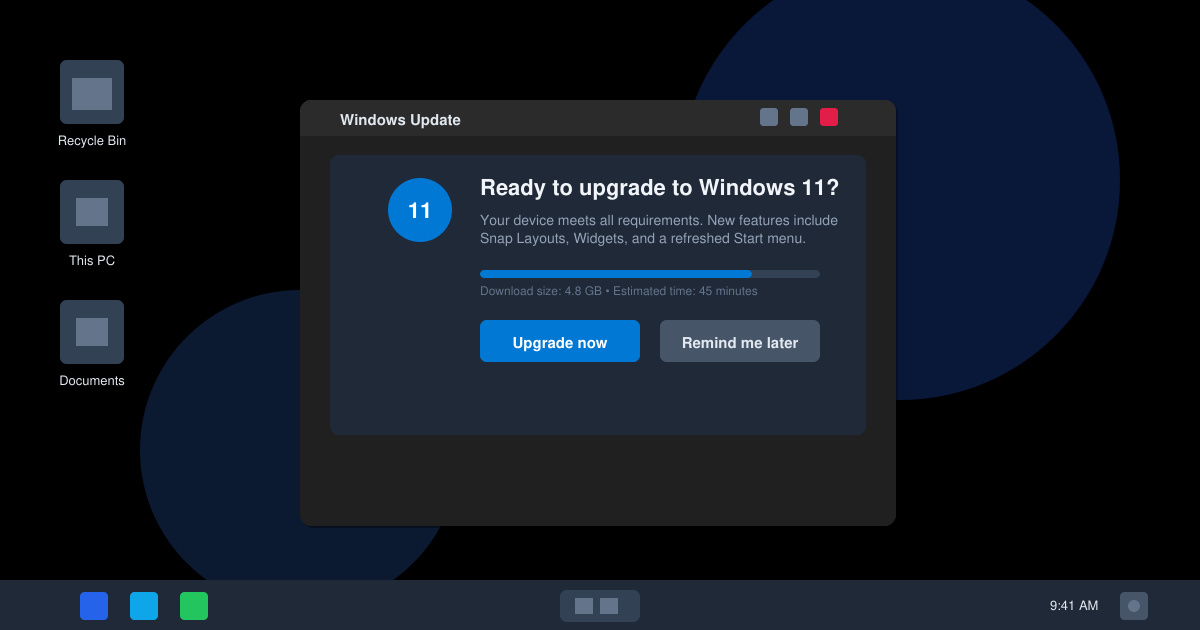
Open Settings by pressing Windows key + I, then click Update & Security followed by Windows Update. Click the Check for updates button and wait for the scan to finish. If Windows 11 appears, select Download and install to begin the process.
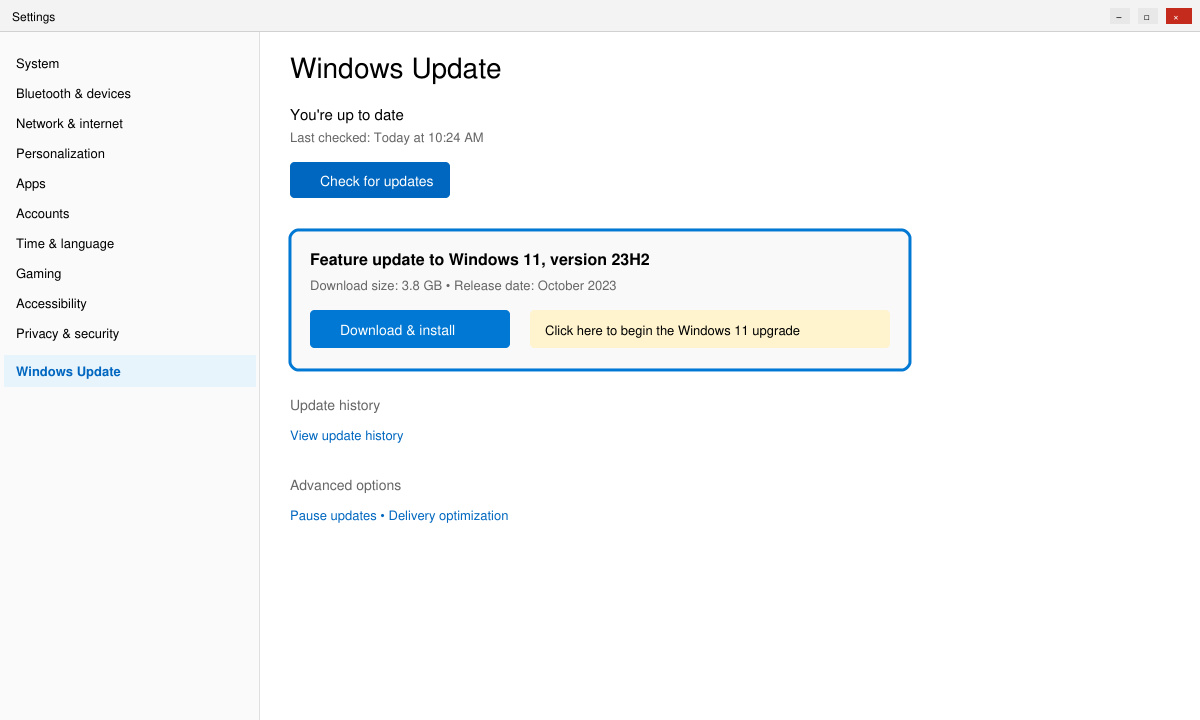
Review the license agreement that appears, then click Accept and install. The download starts automatically. Your PC will restart several times during the installation; keep it plugged in and connected to the internet.
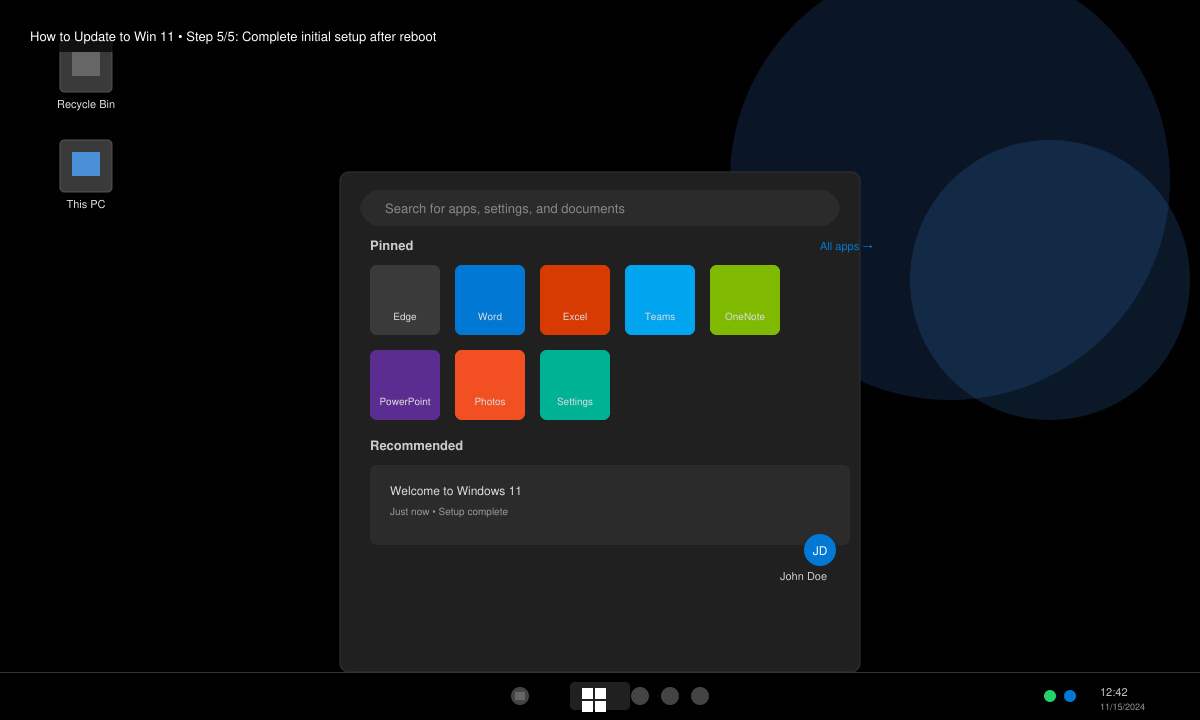
After the final restart, sign in with your Microsoft account. Follow the on-screen prompts to choose privacy settings and pin your taskbar. Verify that all your files remain in the same locations as before the upgrade.
If the update does not appear in Windows Update, download the Installation Assistant from microsoft.com/software-download/windows11. Run the executable and follow the prompts to check compatibility again and start the download. This method works well on systems that meet requirements but have not received the update through normal channels.
Microsoft blocks the upgrade on unsupported PCs through official channels. Workarounds exist but may leave the system without security updates.
The full process usually completes in 30 to 90 minutes depending on your internet speed and hardware performance.
Most Windows 10 apps continue to function. Check the publisher's site for any programs that require a Windows 11-specific update.
Following these steps ensures a smooth transition when you How to Update to Win 11 on a compatible device. Keep your system updated afterward to receive the latest security patches and features.
Install Pardus alongside Windows 11 by shrinking the Windows volume, using unallocated space, and preserving the existing EFI System Partition.
Identify the RTL8821CE, install Pardus-supported Realtek firmware, and verify the driver, Wi-Fi scan, and next troubleshooting step.
Use Pardus’s hardware-aware installer to enable the right NVIDIA driver, reboot safely, and verify the active kernel module.
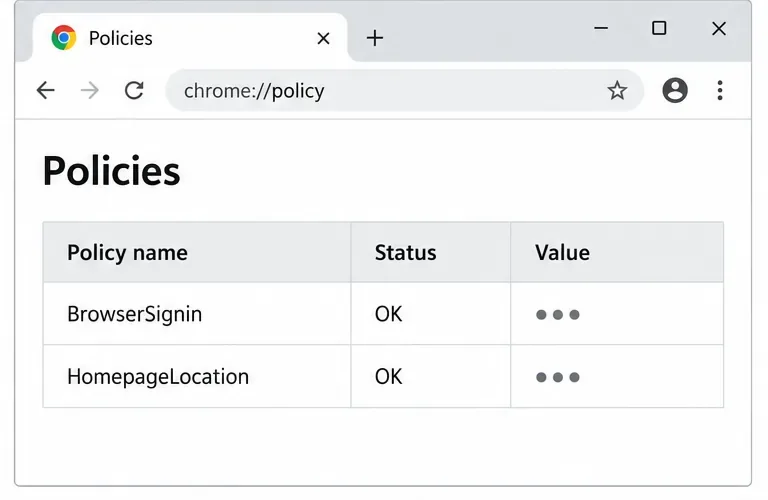
Install the official Chrome package safely on Gooroom OS, check compatibility, preserve device controls, and verify browser policies before use.
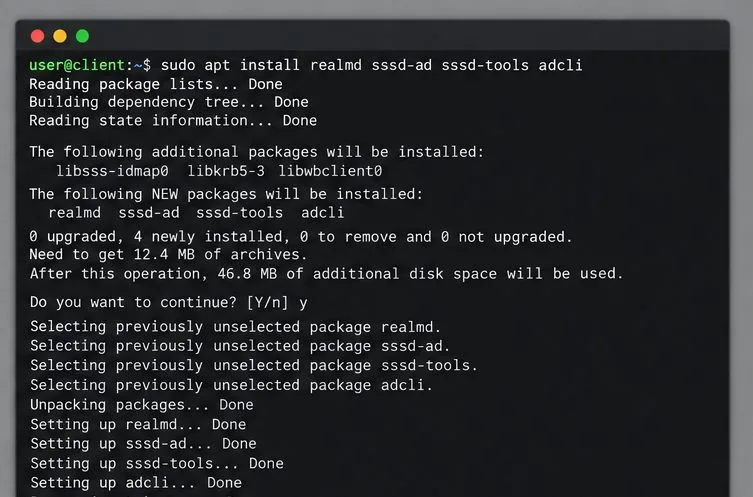
Prepare DNS and time, enroll Pardus with realmd and SSSD, and verify domain membership and user lookup before relying on AD sign-in.
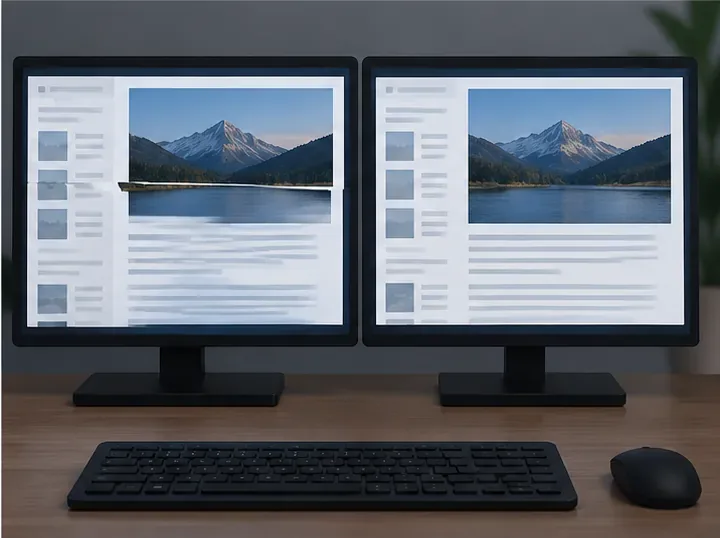
Reduce horizontal tearing in Pardus XFCE by checking your display session, enabling compositor synchronization, and applying Intel’s Xorg TearFree option only when the active driver supports it.
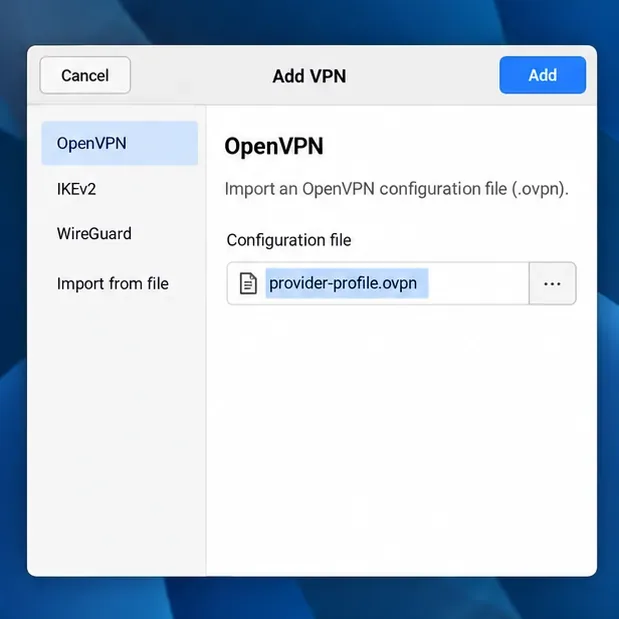
Add an OpenVPN profile to NetworkManager on Pardus, install the right plugin, protect credentials, and verify the VPN is active.
Prepare a bootable USB, check 64-bit hardware compatibility, and install Pardus 23 XFCE while protecting existing files and avoiding common legacy BIOS pitfalls.
Distribute a custom wallpaper to Pardus clients, configure Xfce or GNOME desktops, and apply Lider Ahenk user policies with safe pilot checks.
Fix a 1024 × 768 ceiling by checking SPICE, virtual video, the guest channel, and spice-vdagent—with safe checks when Pardus lacks a package candidate.