GIFs are Graphic Interchange Format files. These files are most widely-known as animated images used as comical anecdotes on social media. But there are a lot of other uses too.

Having the same motionless wallpaper on your Mac can get pretty boring pretty fast. But did you know that you can liven up your screen and set an animated GIF as your wallpaper? In this article, we’ll show you exactly how to do it.
Setting Animated GIFs as Wallpaper on Your Mac Computer
Your computer’s operating system (macOS) doesn’t have the software that supports setting animated GIFs as wallpaper or screensaver.
However, that doesn’t mean that you can’t install additional programs that can help you. There are a bunch of programs you can find online for this, but most are either full of bugs or don’t work at all.
Luckily, we have found two programs that are reliable and readily available to macOS devices. These programs are also constantly getting updated so that users can enjoy more features almost every month. On top of that, they are completely free.
Let’s go through both of them and let you decide which is best for you.
Before We Begin
Since the following tutorials will show you how to download, install, and use these programs, make sure you have already downloaded an animated GIF.
You can search for your desired GIF on websites like GIPHY and Tenor. Once you’ve found the GIF you like, right-click on it and choose Save As.
It is also a good idea to make your own animated GIFs. Plenty of online tools allow you to create animations just by adding your pictures. The Gif Maker is one of the tools you can use.
GIFPaper
GIFPaper is one of the first programs that allowed users to set animated GIFs as their wallpapers on Mac computers. In its initial versions, the GIFPaper software wasn’t exactly considered user-friendly. You needed to install and set up everything manually, which took quite some time.
On top of that, this program drained about 15% of the computer’s CPU power to display the animated GIF. You don’t need to be tech-savvy to know that 15% is too much.
However, the developers have fixed most of these issues, so the GIFPaper we have now runs quite well.
We will start by showing you how to download and install this software.
NOTE: Keep in mind that animations always use more RAM and CPU power than other formats. Thus, no matter the program you select, you will notice that your CPU is working overtime.
If your CPU isn’t that powerful or you own an older Mac computer, you should avoid setting animations as wallpaper. The animations will most likely be laggy, and you might end up damaging your CPU in the long run (although that’s quite hard).
Downloading, Installing, and Using GIFPaper
GIFPaper doesn’t have an official website. Therefore, the download link we’ll provide you in this article will be from a third-party website. Although downloading anything from a third-party website isn’t recommended for safety reasons, this link has our green light. If that link stops working, you can check its alternative.
Click on the link and download GIFPaper. Here’s what you need to do to install and use this software:
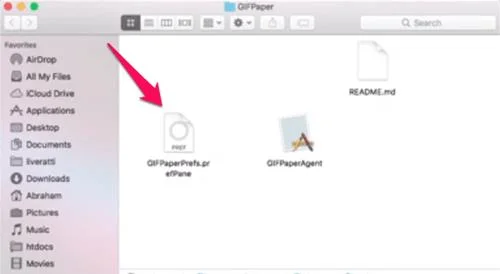
- Double-click on the installation file named GIFPaperPrefs.

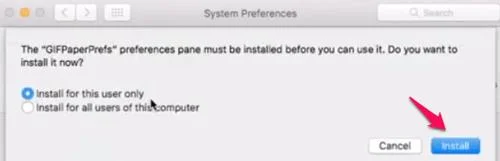
- A popup window will appear asking you whether you want to install the GifPaperPrefs preferences pane. Select the option you wish to (Install for this user only or Install for all users of this computer) and click on Install. The installation will complete in a few seconds.

- Open the installed GIFPaperPrefs program.
- Select Browse from its initial screen and select the GIF you want to set.
- Once you’ve selected your GIF, you can adjust its alignment, scaling, and background color.
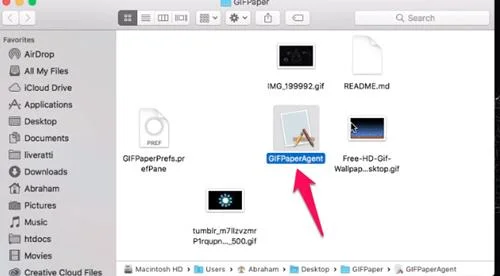
- Run the second file from the folder where you’ve downloaded GIFPaper. It is called GIFPaperAgent.

- Select Open, and your animated GIF wallpaper should be set.
AnimatedGIF
AnimatedGIF is a program developed for Mac OSX/macOS that allows users to play animated GIFs. Initially, this program worked as a screensaver. With its latest updates, AnimatedGIF can set animated GIF backgrounds on your Mac computer. The software is now relatively stable and doesn’t use as much RAM or CPU, but you should still be careful as it varies from computer to computer.
First, you need to download AnimatedGIF. You can download the program from here.
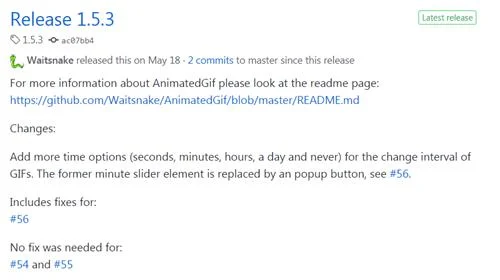
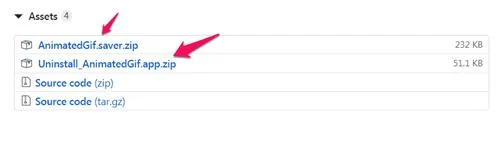
As you can see, the program is posted on GitHub, where you can even see its source code. To download AnimatedGIF, click on the release that you want. You should always choose the latest release (release 1.5.3 in this case) as it has all of the latest updates.

Scroll down to the Assets section and download both AnimatedGif.saver and Uninstall_AnimatedGif.app zip files. You can download the source code as well if you’d like, but it isn’t necessary.

Here’s how you can install and use AnimatedGIF on your Mac computer:
- Unzip the downloaded files.
- Double-click on the AnimatedGIF.saver file. macOS will then ask you if you want to install this program. Click on Install.
- Go to System Preferences.
- Select Desktop and Screensaver.
- From there, select AnimatedGIF Screensaver.
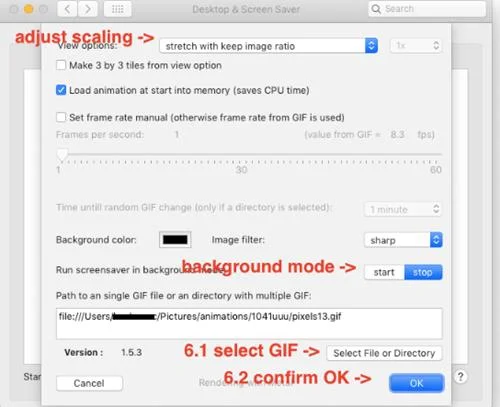
- Click on its Screen Saver Options.
- Select the GIF that you want to use. You will also be able to adjust a decent amount of settings from that window.

Frequently Asked Questions
It isn’t always easy to force OSX to do things it wasn’t built to do. However, there’s always a workaround if you’re willing to put the work into it. If we didn’t answer all your questions above, keep reading!
How do I download a GIF from GIPHY?
One of the more annoying aspects of GIF mining is how difficult it is to download them. If you found the perfect GIF on GIPHY, you’ll need to figure out a way to download it.
Fortunately, we have an article here that will teach you how to download animated GIFs.
How do I delete an animated GIF?
If your wallpaper is stuck on a GIF you no longer like, you can delete it. Follow the path above to go to your System Preferences and Desktop and screen saver. Right-click the GIF and click Delete in the dropdown menu.
Customize Your Mac Computer Wallpaper
GIFPaper and AnimatedGIF both allow you to customize your Mac’s wallpaper by setting animated GIFs rather than motionless background images. You now know what you need to do to install and use these programs. Choose the program that you find easier to use and have fun with it.
It is worth pointing out again that GIFs and other animations use more CPU power and RAM, so your computer could run slower.
Which of these two programs will you go for? Do you already have a perfect GIF in mind for your new wallpaper? Let us know in the comments below.