How to Check Purchase History on Apple App Store
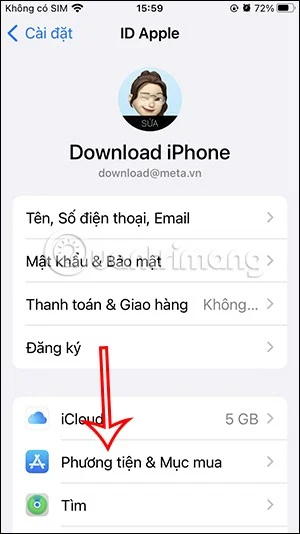
Through your purchase history on the App Store, you will know when you downloaded that app or game, and how much you paid for the paid app.
Nothing lasts forever, not even an iPhone. Did your iPhone freeze and now won’t turn off? Is it the only thing you can see on the lock screen? There’s no reason to get depressed yet. Sometimes just a few easy steps are all you need to take to get the issue fixed.

Mobile devices, in general, get stuck when there’s an app that’s taking up too much space or because the hardware is outdated. Nonetheless, in some cases, it’s an easy fix and you won’t have to pay for expensive repairs.
Go through this list of scenarios we have prepared for you and see if any of our easy fixes can help you when your iPhone is frozen.
iPhone Frozen and Won’t Turn Off
It can be a gut-wrenching feeling when your iPhone goes buggy for the first time. Seeing your phone start glitching can leave you dumbstruck. You might have never believed your shiny, new device would get old, but it did.
If your phone is starting to glitch, and you’ve had it for more than a couple of years, it may not be that big of a surprise. However, if you’ve got a new phone and this occurs, it may be time to use your warranty.
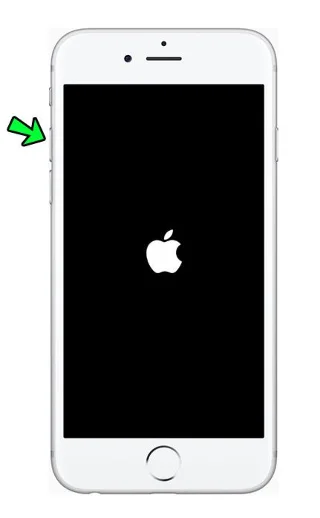
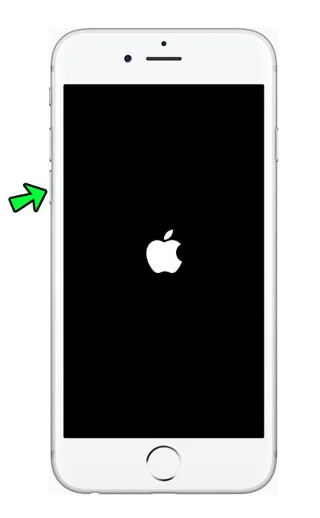
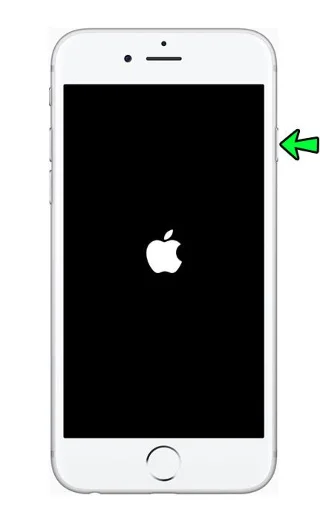
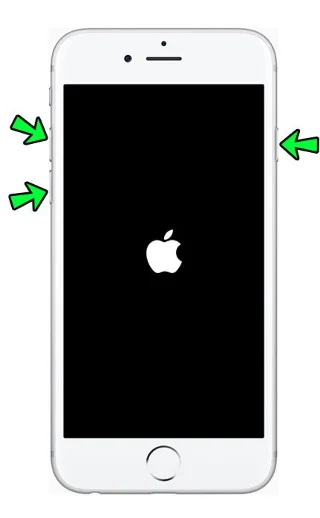
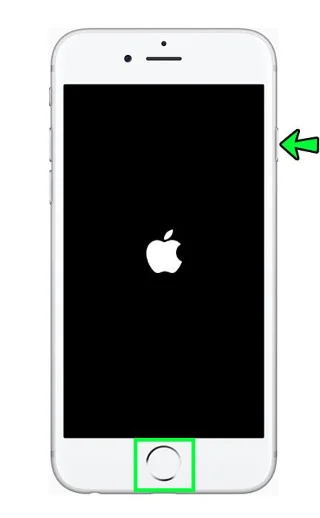
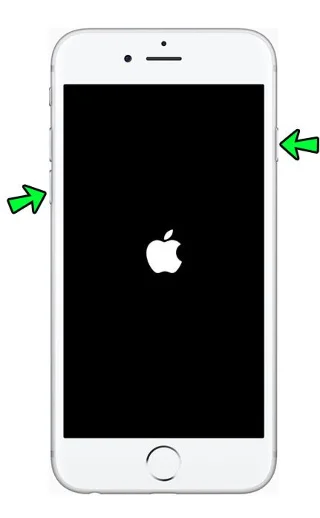
In the meantime, here’s what to do if your iPhone gets frozen and won’t turn off:
Note: The above instructions apply for an iPhone 12, iPhone 11, iPhone XS, iPhone XR, iPhone SE (2nd Gen.), iPhone X, or iPhone 8. Other models have a slightly different process:
iPhone Frozen on Apple Logo
This issue usually arises after a backup, or when you migrate your phone data from another device. The device will be stuck on the Apple logo screen for as long as an hour. Here’s what to do:
iPhone Frozen on Power-Off Screen
This is a rare issue, but if you’re experiencing it, it may be for one of these reasons:
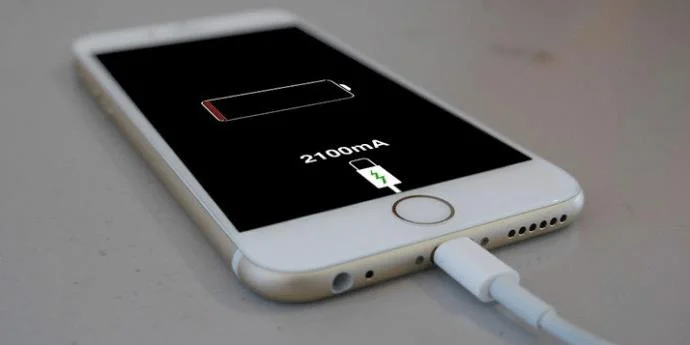
Here’s what you can do:
iPhone Frozen on Lock Screen
It’s important to keep in mind that, even though these bugs might seem unrelated, they are mostly caused by the same issues. If your phone is frozen on the Lock screen, here’s what you can do:
iPhone Frozen During Update
Today’s mobile devices depend on software updates. It’s the updates that keep your phone packed with all the latest features that keep your device running smoothly. However, your iOS device might freeze during this process and cause some frustration. It may arise as the result of a bad Wi-Fi connection or insufficient storage room on the phone.
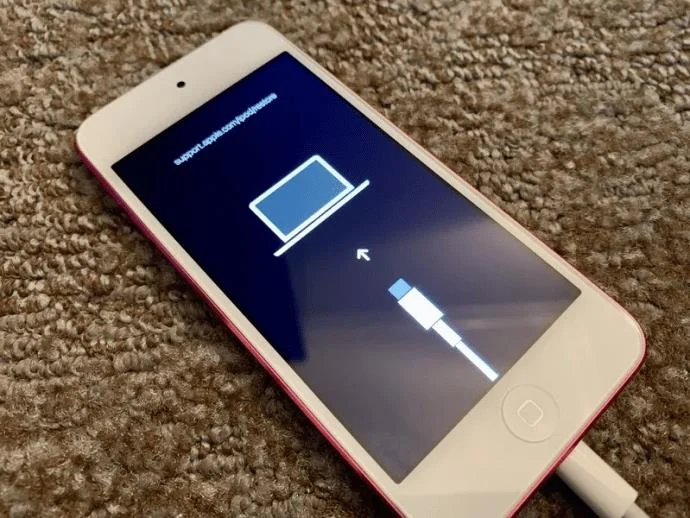
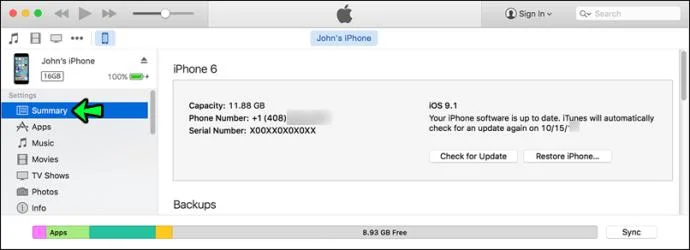
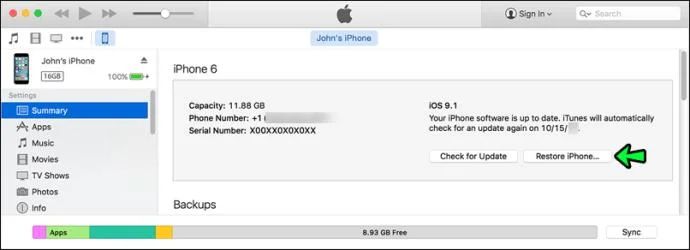
Here’s what to do in this case:
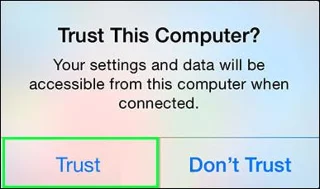
Note: The iTunes option resets your device back to factory settings, which means you will lose all your current data.
Avoid the Deep Freeze
We hope this article helped you get your iPhone back up and running after a freeze. We’ve all been there, but now you’ve got a few easy fixes if it happens again. Make sure to check your free storage, and always keep some space free. When updating, make sure you’ve got a stable Wi-Fi connection, and you should be fine.
Has this article helped you solve your issue? Do you have any easy fixes we’ve missed? Let us know in the comment section below.
Through your purchase history on the App Store, you will know when you downloaded that app or game, and how much you paid for the paid app.
Apple makes it easy to find out if a WiFi network is safe before you connect. You don't need any software or other tools to help, just use the built-in settings on your iPhone.
iPhone mutes iPhone from unknown callers and on iOS 26, iPhone automatically receives incoming calls from an unknown number and asks for the reason for the call. If you want to receive unknown calls on iPhone, follow the instructions below.
iPhone has a speaker volume limit setting to control the sound. However, in some situations you need to increase the volume on your iPhone to be able to hear the content.
ADB is a powerful set of tools that give you more control over your Android device. Although ADB is intended for Android developers, you don't need any programming knowledge to uninstall Android apps with it.
You might think you know how to get the most out of your phone time, but chances are you don't know how big a difference this common setting makes.
The Android System Key Verifier app comes pre-installed as a system app on Android devices running version 8.0 or later.
Despite Apple's tight ecosystem, some people have turned their Android phones into reliable remote controls for their Apple TV.
There are many reasons why your Android phone cannot connect to mobile data, such as incorrect configuration errors causing the problem. Here is a guide to fix mobile data connection errors on Android.
For years, Android gamers have dreamed of running PS3 titles on their phones – now it's a reality. aPS3e, the first PS3 emulator for Android, is now available on the Google Play Store.