How to edit videos posted on YouTube without losing views

You forgot to blur sensitive content in videos posted on YouTube . Don't worry, here's how to edit videos posted on YouTube without losing views .

How to edit videos posted on YouTube without losing views

You can edit videos posted on YouTube

Remove errors in YouTube videos

YouTube doesn't want creators to change too much of posted content, especially if it already has views. That's why uploading a new video will replace the old clip even though the attributes remain the same, which can mislead viewers and YouTube's algorithm.

However, YouTube also understands that it is difficult to avoid small mistakes. Therefore, this famous video social network has allowed users to cut out the desired scenes without resetting the video specifications.

How to cut the beginning or end of a YouTube video

How to edit videos posted on YouTube without losing views

Trim the beginning and end of YouTube videos

First, you must log in to your YouTube Studio account to edit the clip. Then, follow the simple instructions below:

  1. Go to Channel Dashboard , click Content in the left menu.
  2. You'll see all posted videos on the Channel content page . Click on the video avatar you want to edit.
  3. You will now see the Video details page . Select Editor from the left panel.
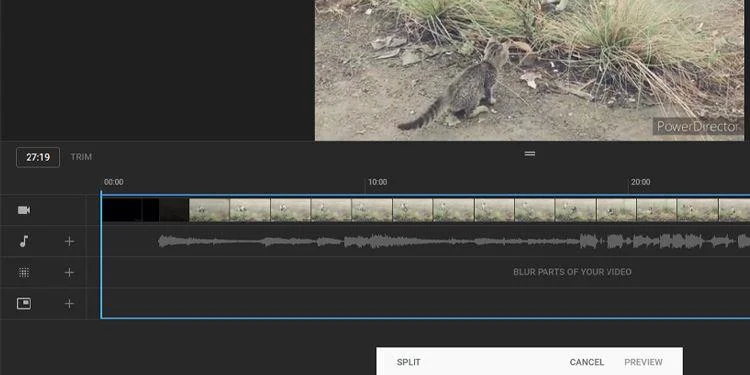
  4. Access the Video editor window . Here, click Trim and a blue box will appear in the timeline part of this window.
  5. Drag both ends of the blue box to cut out the beginning or end of the video - only the clip inside the box is kept in the posted video.
  6. Once you're satisfied with the result, click Preview at the bottom of the screen to see what the final edited video will look like.

To confirm the changes made, click Save in the upper right corner of the video preview window.

How to cut part of a YouTube video

How to edit videos posted on YouTube without losing views

Cut parts of YouTube videos

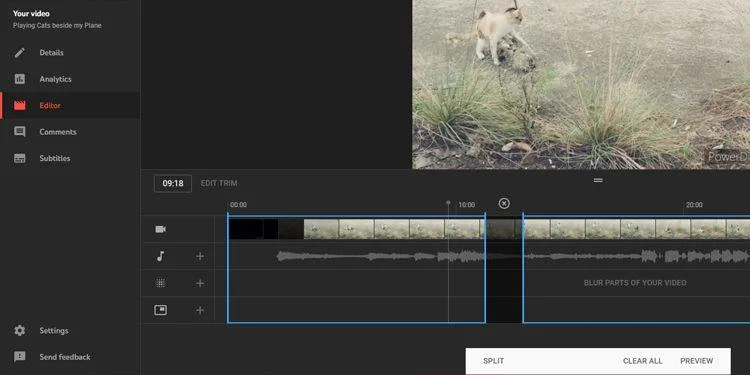
If you want to remove the middle part of the video, the process is similar. Below are the step-by-step details:

  1. First, click Trim . A blue box will appear in the timeline of the window.
  2. Now, instead of dragging the endpoints of that box, click on the beginning you want to delete in the timeline.
  3. Additionally, you can scroll the mouse over the timestamps right above the blue box or insert the exact seconds and frame numbers in the Timestamp field next to the Trim button .
  4. Once you are sure of the starting point you want to cut, click Split at the bottom of the screen.
  5. A blue bar appears at this location. Here, you will set the cutting starting point. Drag the bar to the end of the section you want to cut.

Now, just like before, click Preview to see the final result, then click Save to update the changes on YouTube.

How to undo trimming in YouTube Studio

How to edit videos posted on YouTube without losing views

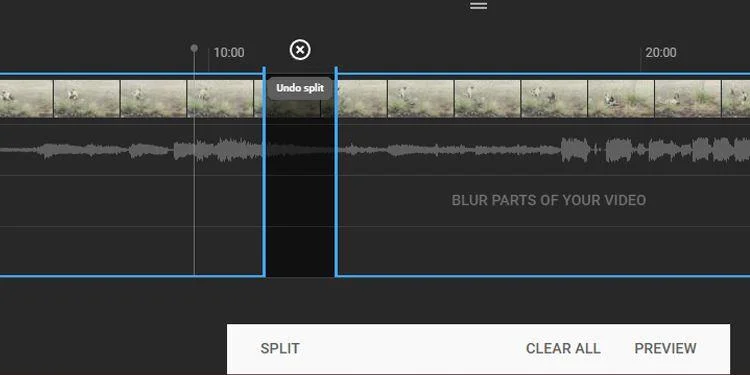
Undo Split

When you want to undo the trimming done at the beginning and end of the video, just drag the blue box to the previous position. However, if you want to delete the cut made in the middle of the video, you need to click the mark xright above the part you want to remove.

If you want to undo all changes made, click Clear All at the bottom of the screen. If you pressed Preview , select Discard Changes instead of Save . You can also click the 3-dot icon next to Save and click Revert to original to cancel all unsaved changes.

Blur parts of YouTube videos

In case someone wants you to delete their image in the video but it is an important scene that you cannot change, blurring the face or that part of the video is a good way. To do this, you need to select the clip, access the editing section in YouTube Studio.

Blur faces automatically in YouTube Studio

How to edit videos posted on YouTube without losing views

Blur faces in YouTube clips

Click Blur parts of your video in the timeline, then select Face blur . YouTube will then automatically process the clip, finding faces. After this process is complete, you can select the face you want to blur, then click Apply .

You can change the time frame of the blur effect by changing the start and end milestones. You can also manually edit its size to accurately blur the face you want to hide.

Once satisfied with the effect, click Save . However, if you want to remove the blur effect, click the Trash icon next to the timestamp or select Discard changes to cancel the entire effect.

Apply blur effect to YouTube videos

How to edit videos posted on YouTube without losing views

Apply blur effect in YouTube videos

In case YouTube does not recognize the face you want to automatically blur, follow these steps:

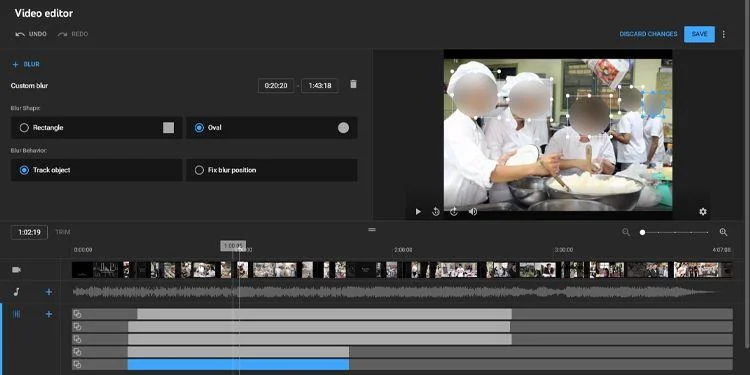
  1. Click Blur parts of your video from the timeline, but this time, select Custom blur .
  2. You will see the Custom blur option right next to the video preview window. You can choose between two blur patterns: Rectangle or Oval . Select the image you want.
  3. Additionally, you can choose between two blur styles : Track object or Fix blur position . Track object automatically adjusts the blur area to the part you want to lock, while Fix blur keeps the blur area intact. Click the option you want, then move to the next step.
  4. Now adjust the blur position in the video preview window to cover the part you want.
  5. If necessary, add blurred parts by clicking & dragging the parts you want to lock. You can also change the duration by adjusting the start and end times.

When you are satisfied with the result, click Save . If not, click the Trash icon to remove the blur effect.

Above is how to edit videos posted on YouTube without reducing views . Hope the article is useful to you.
Leave a Comment

How to Enable IE Mode in Microsoft Edge for Older Websites

How to Enable IE Mode in Microsoft Edge for Older Websites

Master how to enable IE Mode in Microsoft Edge effortlessly. Fix compatibility issues with older websites using this simple, step-by-step guide for seamless access to legacy content. Boost your productivity today!

How to Delete Microsoft Edge Search History and Cache Completely

How to Delete Microsoft Edge Search History and Cache Completely

Discover step-by-step methods to completely delete Microsoft Edge search history and cache. Boost privacy, free up space, and optimize performance with our proven guide. Works on Windows, Mac, and more.

Solving Microsoft Edge Microphone Echo in Web Calls

Solving Microsoft Edge Microphone Echo in Web Calls

Tired of annoying microphone echo ruining your web calls in Microsoft Edge? Get proven, step-by-step solutions to fix Microsoft Edge microphone echo in Zoom, Teams, Google Meet, and more for crystal-clear audio every time.

How to Fix Microsoft Edge Remote Desktop Gateway Error

How to Fix Microsoft Edge Remote Desktop Gateway Error

Struggling with Microsoft Edge "Remote Desktop Gateway" error? Discover step-by-step fixes that work in the latest Edge versions. Clear cache, reset settings, and more—no tech skills needed!

Troubleshooting Microsoft Edge Webview2 Error Code 0x80040c01

Troubleshooting Microsoft Edge Webview2 Error Code 0x80040c01

Struggling with WebView2 Error Code 0x80040c01 in Microsoft Edge? Discover proven troubleshooting steps, common causes, and quick fixes to get back online smoothly. Updated with the latest solutions.

Troubleshooting Microsoft Edge Transparency Issues Win 11

Troubleshooting Microsoft Edge Transparency Issues Win 11

Tired of blurry or missing transparency effects in Microsoft Edge on Windows 11? Follow our proven troubleshooting Microsoft Edge transparency issues Win 11 steps for instant fixes and smooth browsing. Quick, easy solutions!

How to Fix Microsoft Edge Precision Driver Missing Fix

How to Fix Microsoft Edge Precision Driver Missing Fix

Struggling with Microsoft Edge "Precision Driver" Missing error? Discover step-by-step fixes to restore smooth touchpad gestures, updates, and performance. Quick, reliable solutions for Windows users.

How to Fix Microsoft Edge Multiple Profiles Sync Conflict

How to Fix Microsoft Edge Multiple Profiles Sync Conflict

Tired of Microsoft Edge "Multiple Profiles" Sync Conflict ruining your browsing? Discover proven step-by-step fixes to resolve sync errors, manage profiles, and restore seamless syncing across devices. Quick, easy, and effective!

Troubleshooting Microsoft Edge TaskbarX Centered Icons

Troubleshooting Microsoft Edge TaskbarX Centered Icons

Struggling with Microsoft Edge icons refusing to center in TaskbarX? Discover proven troubleshooting steps to restore perfect centered icons on your Windows taskbar. Quick fixes, advanced tips, and prevention strategies included.

How to Fix Microsoft Edge Taskbar Padding Glitch 2026

How to Fix Microsoft Edge Taskbar Padding Glitch 2026

Tired of the frustrating Microsoft Edge Taskbar Padding Glitch wasting your screen space in 2026? Discover proven, step-by-step fixes to restore your taskbar instantly—no tech skills required!

Troubleshooting Microsoft Edge Safe Mode Networking

Troubleshooting Microsoft Edge Safe Mode Networking

Struggling with Microsoft Edge Safe Mode Networking not working? Discover proven steps to troubleshoot and resolve connectivity issues in Edge safe mode. Get online quickly with our expert guide.

How to Reset Microsoft Edge Search History and Suggestions

How to Reset Microsoft Edge Search History and Suggestions

Discover simple, step-by-step methods to reset Microsoft Edge search history and suggestions. Clear your data quickly, improve privacy, and get fresh results in the latest Edge version. No tech skills needed!

How to Fix Error Code 403 Forbidden in Microsoft Edge (2026 Guide)

How to Fix Error Code 403 Forbidden in Microsoft Edge (2026 Guide)

Encountering Error Code 403 Forbidden in Microsoft Edge? Discover proven 2026 fixes like clearing cache, resetting settings, and more. Get back online instantly with this step-by-step guide!

Solving Microsoft Edge FTP Access Denied in Browser

Solving Microsoft Edge FTP Access Denied in Browser

Struggling with Microsoft Edge "FTP Access Denied"? Get step-by-step fixes to restore FTP access in your browser. Quick, reliable solutions for seamless file transfers – no tech expertise needed!

Solving Microsoft Edge Memory Leak Problems on Windows 11

Solving Microsoft Edge Memory Leak Problems on Windows 11

Struggling with Microsoft Edge memory leak on Windows 11? Get step-by-step fixes for high RAM usage, optimize performance, and stop leaks instantly. Boost your browsing speed today!