Clear the ownCloud Apache .htaccess Warning Safely
Set AllowOverride All only for ownCloud’s web root, validate the active Apache vhost, and reload safely to restore .htaccess rules.
For an Apache-hosted ownCloud Classic installation, fix the “AllowOverride All” or “.htaccess is not working” warning by setting AllowOverride All inside a matching Apache <Directory> block for the ownCloud web root in the active virtual host. Test the Apache configuration, reload the service, and refresh ownCloud’s Administration Overview. Do not enable overrides for the entire filesystem.
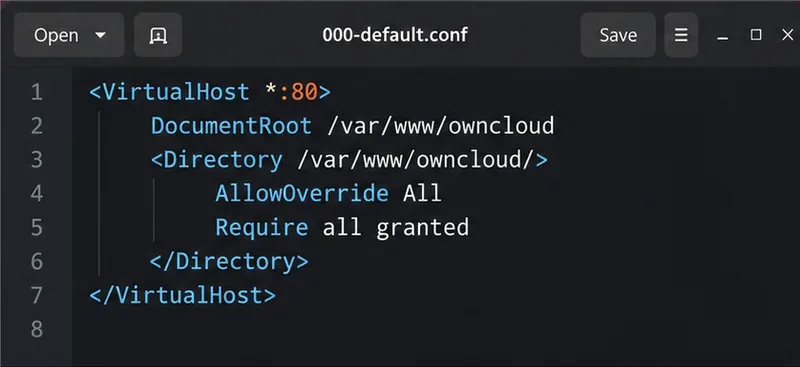
Apache’s AllowOverride directive controls which settings an .htaccess file may apply. If overrides are disabled for the ownCloud directory, Apache can ignore rules in ownCloud’s supplied .htaccess file. This can affect rewrites and security rules, which is why ownCloud’s current 10.16 manual includes AllowOverride All in its Apache setup example.
The directive is valid only in an Apache <Directory> section. It does not belong inside .htaccess, a <Location> block, or a URL path. Apache also cautions administrators not to enable overrides in the global <Directory "/"> block; scope the setting to the ownCloud installation directory instead. See the ownCloud 10.16 Apache installation guide and Apache’s AllowOverride reference.
/var/www/owncloud. Use the filesystem path Apache serves, not a browser URL such as /owncloud./etc/apache2/sites-available/owncloud.conf; other distributions use different locations.On Debian or Ubuntu, sudo apachectl -S lists Apache’s virtual hosts and the configuration files that define them. This helps avoid editing an unused default site while the HTTPS vhost continues to serve ownCloud.
Open the active vhost file and find its existing ownCloud <Directory> section. Add or correct the line there. For a standard installation at /var/www/owncloud, the relevant part can look like this:
DocumentRoot /var/www/owncloud

<Directory /var/www/owncloud/>
  Options +FollowSymLinks -Indexes
  AllowOverride All
  Require all granted
</Directory>
Merge the setting into your existing configuration instead of replacing the entire vhost with this short example. If your ownCloud directory is elsewhere, replace both paths with the actual path. Apache requires the directory path to match the filesystem path it uses for the files.
All permits any directive allowed in an .htaccess file to override server settings in this directory. That is broad permission, so keep this block limited to the ownCloud web root. Do not change AllowOverride None for /, /var/www, or unrelated sites simply to silence the warning.
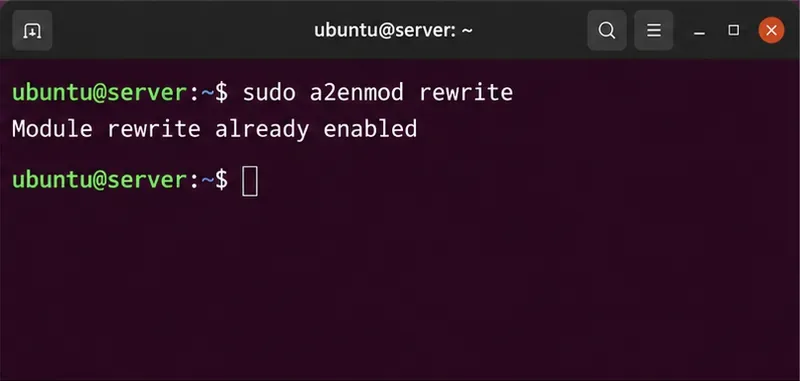
On Debian or Ubuntu, ownCloud documents mod_rewrite as required for its Apache setup. If it is not enabled, enable it with:
sudo a2enmod rewriteThen check the configuration before applying it:
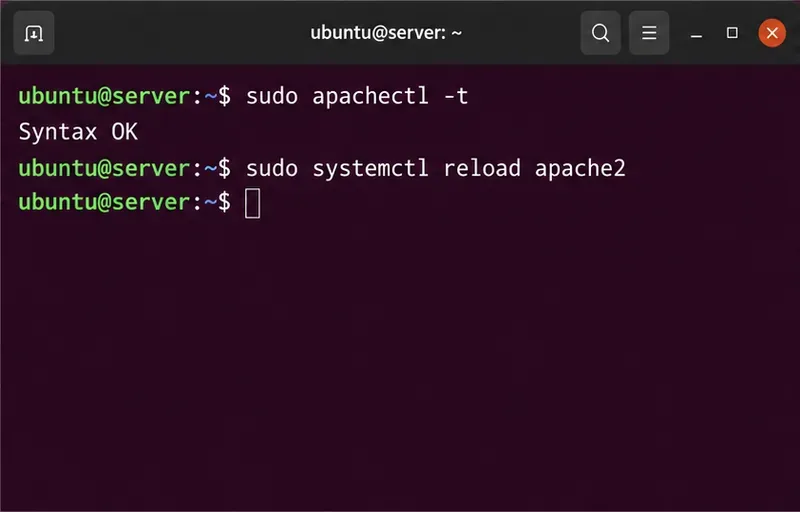
sudo apachectl -tContinue only if Apache reports Syntax OK. Reload Apache so it reads the updated vhost:
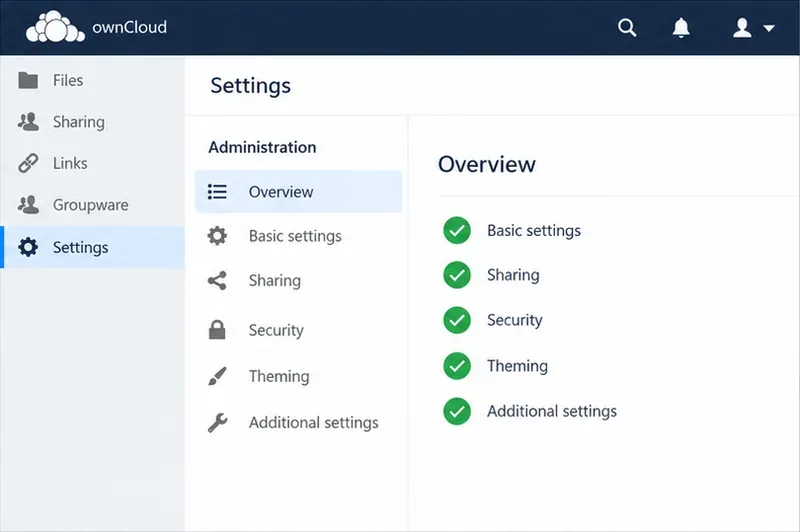
sudo systemctl reload apache2On distributions using the httpd service name, use that distribution’s configuration-test and reload commands instead. Return to ownCloud’s Settings > Administration > Overview and refresh the page. The warning should clear if Apache is reading the edited vhost and processing ownCloud’s .htaccess.
sudo apachectl -S again and confirm that the changed file belongs to the hostname and port used by ownCloud. An AllowOverride All line in a non-matching block has no effect.<Directory /path/to/owncloud/> section and that the path matches the installation directory. Apache ignores AllowOverride in .htaccess and <Location>.occ maintenance:update:htaccess. Run it from the ownCloud directory as the web server user, for example sudo -u www-data php occ maintenance:update:htaccess. The web server user must be able to write the supplied .htaccess file for this update. Do not make the file world-writable; correct its ownership or permissions according to your installation’s guidance..htaccess can still fail if its module is missing or the directive is not permitted. Use the error log to identify the specific module or rule.ownCloud’s documented index.php-less URL setup also calls for mod_rewrite, mod_env, and a writable root .htaccess; that is a related rewrite configuration, not a reason to broaden overrides beyond ownCloud’s directory. If your setup uses PHP-FPM, follow the current ownCloud guidance for that installation rather than changing PHP handlers to address an Apache override warning. If the warning says the data directory may be publicly accessible, verify that the data directory is outside the web root or protected by an explicit Apache rule as well; clearing the .htaccess warning alone is not proof that private files cannot be requested directly.
For the documented behavior and platform limits, consult ownCloud’s index.php-less URL guidance and its OCC command reference.
Set AllowOverride All only for ownCloud’s web root, validate the active Apache vhost, and reload safely to restore .htaccess rules.
Enable ownCloud’s Enterprise Auditing app, route admin_audit events to a protected log file, and confirm that real user actions are being recorded.
Align Keycloak’s realm issuer, web client, and user claims to let ownCloud Infinite Scale sign users in reliably across the web and mobile clients.
Transfer owned files and outgoing shares with ownCloud’s occ command, understand what stays behind, and verify access before deleting the old account.
Learn when ownCloud 10 database indexes need attention, how to apply supported schema updates safely, and when query tuning or a database change is the better fix.
Connect a Windows or Samba network share to ownCloud through External Storage, verify credentials, and troubleshoot inaccessible folders safely.
Remove every stored ownCloud Server Classic file version for one account or all users, and distinguish a full purge from retention-based expiry.
Trace an ownCloud mobile connection refusal by checking the server URL, phone network, HTTPS endpoint, and server logs in the right order.
Replace on-demand job runs with a systemd timer that runs ownCloud’s supported occ system:cron command every 15 minutes.
Trace the WebDAV request through Apache, Nginx, or a reverse proxy, then confirm ownCloud sync works with an authenticated PROPFIND test.