Move ownCloud Files to a New Owner Without Losing Shares
Transfer owned files and outgoing shares with ownCloud’s occ command, understand what stays behind, and verify access before deleting the old account.
To make another user the owner of files currently owned by a departing or changing ownCloud account, use the server-side occ files:transfer-ownership command. The command moves all owned files by default, along with outgoing shares and associated metadata; use --path when you need to transfer only a folder. The web sharing panel changes access permissions, but it is not the ownership-transfer mechanism.
In ownCloud Classic, ownership determines whose personal file space contains the original item and whose account controls the outgoing share. A recipient who has edit access is still a recipient; granting “can edit” does not make that person the file owner. Before running a transfer, decide whether the new owner needs the whole account’s files or only a particular project folder.
--path for a specific directory under the source user’s files. This reduces scope, but check nested content and share relationships before proceeding.The official ownCloud Server 11 sharing documentation states that the command transfers outgoing shares and associated metadata such as tags and comments. Incoming shares are not transferred because another user owns those original files. Trash bin contents are not transferred either.
Confirm the source and destination user IDs exactly. These are account identifiers, not necessarily display names or email addresses. Make sure the destination account exists and can accommodate the transferred data within its quota. Although ownCloud’s command reference notes that a missing target user may be created in some versions, creating and confirming the intended account first avoids moving data under an unintended identity.
Schedule the operation when users are not editing the source files. Make a verified backup of the ownCloud data and database, and ensure you know the restore procedure. Do not copy, rename, or move files directly inside the data directory: the database tracks file metadata and ownership. Use occ so ownCloud can update its records and shares consistently.
ownCloud’s current Classic documentation has separate Server 11.0 and 10.16 manuals. Server 11 documents a Docker-based installation; 10.16 examples use a traditional PHP installation. Use the command form matching the deployed release rather than copying a command blindly.
From the directory containing your Compose deployment, transfer all owned files from the source account to the destination account:
docker compose exec owncloud occ files:transfer-ownership \
  source-user \
  destination-user
Replace both sample IDs with the exact ownCloud user IDs. Review the command output and any prompt about skipped shares. Do not add an option that automatically accepts skipped shares unless you have reviewed and accepted the consequences.
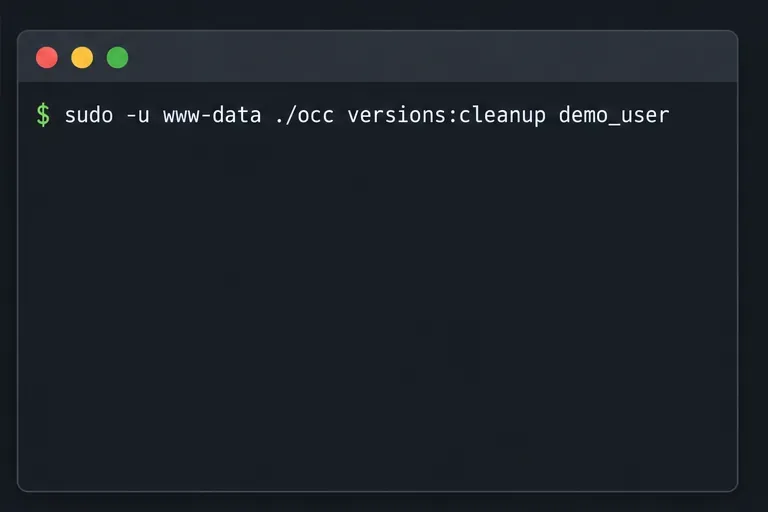
Run occ as the web-server user from the ownCloud installation directory. On many Debian or Ubuntu deployments that user is www-data:
sudo -u www-data php /var/www/owncloud/occ files:transfer-ownership \
  source-user \
  destination-user
Adjust the executable path and account to match your host. If the command reports an unknown option or command, check the installed release’s ownCloud command reference and use occ files:transfer-ownership --help before retrying.
To move a project directory named Projects instead of every file, add the path option before the user IDs:
docker compose exec owncloud occ files:transfer-ownership \
  --path="Projects" \
  source-user \
  destination-user
The path must exist inside data/<source-user>/files. ownCloud does not simply place the folder at the same relative path in the destination. It stores the transferred content under a directory named in the form transferred from <source-user> on <timestamp> inside the destination user’s files. Tell the recipient where to find it after the command completes. Consult the ownCloud 10.16 occ command reference for available options.
A transfer is not a general “change owner” button for every item visible to the source user. Files in incoming shares belong to their original sharer and are not moved. If the required content is an incoming share, coordinate with that owner or make a separate copy using an approved workflow; a copy is a distinct file and may not preserve the original share history or metadata.
There are also storage-specific limits. The ownCloud documentation warns against using this command with S3 primary storage configured with multiple buckets because shares on files can be lost. Enterprise file lifecycle archives also have documented transfer limitations. If either feature applies, check the version-specific documentation and test the procedure on a representative nonproduction account before acting.
If a transfer throws an exception or stops early, do not immediately repeat it. The ownCloud sharing guide recommends running occ files:troubleshoot-transfer-ownership --uid <uid> for both the source and destination user IDs to investigate and repair transfer state. Preserve the original logs and backup until the results are understood.
Sign in as the destination user and confirm the transferred folder appears under the generated “transferred from” directory. Open representative files and check expected folders, tags, comments, and outgoing shares. Ask one intended recipient to verify access through the existing share. Then review the source account for remaining owned files or shares and check the command output for skipped items.
Only delete or disable the source account after the destination owner and relevant collaborators confirm access. ownCloud ties files to their owners, so deleting a user can delete that user’s remaining files and shares. The transfer command does not move the trash bin or incoming shares, and these limits should be included in the handoff checklist.
Transfer owned files and outgoing shares with ownCloud’s occ command, understand what stays behind, and verify access before deleting the old account.
Learn when ownCloud 10 database indexes need attention, how to apply supported schema updates safely, and when query tuning or a database change is the better fix.
Connect a Windows or Samba network share to ownCloud through External Storage, verify credentials, and troubleshoot inaccessible folders safely.
Remove every stored ownCloud Server Classic file version for one account or all users, and distinguish a full purge from retention-based expiry.
Trace an ownCloud mobile connection refusal by checking the server URL, phone network, HTTPS endpoint, and server logs in the right order.
Replace on-demand job runs with a systemd timer that runs ownCloud’s supported occ system:cron command every 15 minutes.
Trace the WebDAV request through Apache, Nginx, or a reverse proxy, then confirm ownCloud sync works with an authenticated PROPFIND test.
Fix Nextcloud’s missing outgoing address warning by setting its canonical URL and checking DNS, HTTPS, and reverse-proxy routing from the server itself.
Configure APCu and Redis over a local Unix socket for Nextcloud caching and file locking, with steps for current and older Nextcloud releases.
Check Nextcloud’s cron mode, repair its systemd service and timer, and verify that background jobs run after startup and every five minutes.