Purge ownCloud File Versions Safely with the occ Command
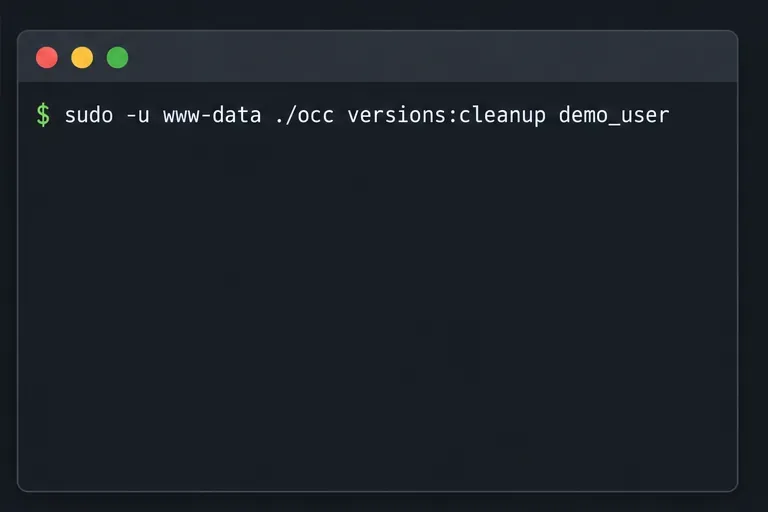
Remove every stored ownCloud Server Classic file version for one account or all users, and distinguish a full purge from retention-based expiry.
If the ownCloud mobile app says “Connection refused,” first open your server address in a browser on the same phone, then confirm the app is using the server’s base URL and the correct network. A refusal usually happens before the app reaches the login step, so check whether the server and its HTTPS endpoint are reachable before changing passwords or app settings.
The app must first establish a network connection to the server; only after that can ownCloud check a username, password, or sign-in flow. A refusal therefore points first to the address, network route, firewall, or web server listener. It is different from an invalid-password message. A certificate warning is also a separate issue: it means the server answered far enough for the app to inspect its TLS certificate.
Before troubleshooting, have the exact server address your administrator gave you, including any path such as /owncloud, and know whether the server is meant to be reachable only on a company network or VPN. If you manage the server, also have access to its DNS, firewall, reverse proxy, and web-server status.
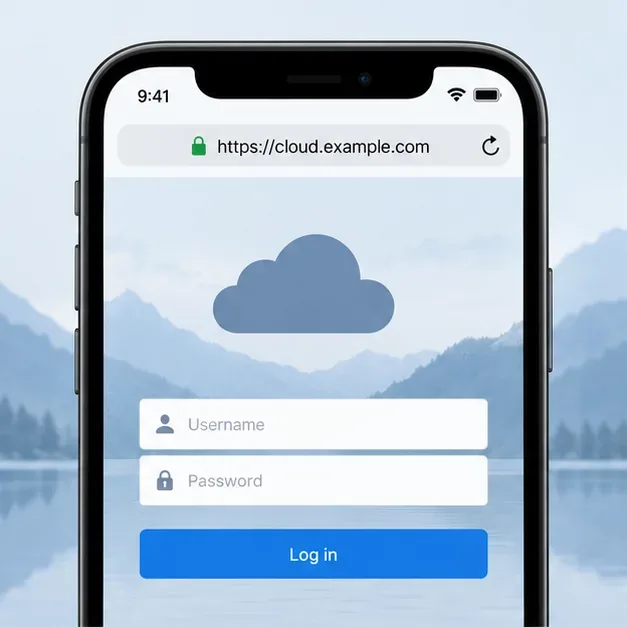
https://cloud.example.com/owncloud; if it is installed at the domain root, the address may be https://cloud.example.com. ownCloud’s server guide says its mobile apps use the base URL and folder. Do not append /remote.php/webdav to the ownCloud mobile app address; that is a WebDAV endpoint for other WebDAV clients. Check for a missing subfolder, typo, extra slash, or an unapproved port. See ownCloud’s mobile and WebDAV URL guidance.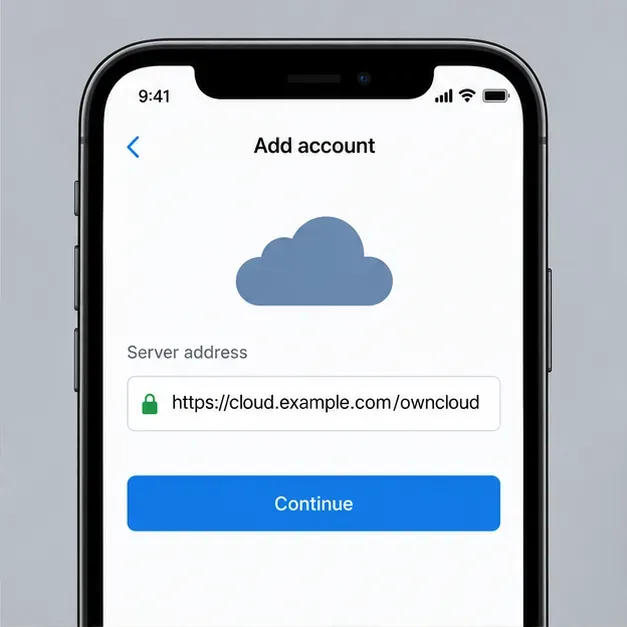
ownCloud recommends HTTPS for mobile connections. Keep https:// unless the server administrator explicitly instructs otherwise; switching to plain HTTP can expose credentials and file traffic. If the app shows a certificate warning after the connection starts, ask the administrator to fix the certificate or confirm the organization’s approved certificate process instead of dismissing the warning automatically. The Android connection instructions describe entering the server URL and the certificate check.
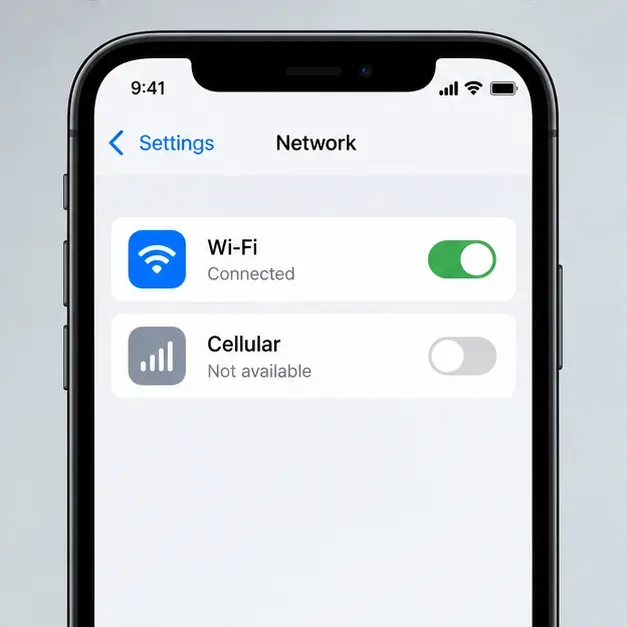
Give the administrator the exact URL, the time of the failed attempt with time zone, whether the browser also fails, and whether Wi-Fi, cellular, or VPN changes the result. Ask them to verify:
For an administrator, a basic external probe can help separate a refused TCP connection from an HTTP response: curl -v --connect-timeout 5 https://cloud.example.com/owncloud/. Replace the example host and path with the real values. A refusal or timeout points toward endpoint or network reachability. An HTTP status means the connection was established, so investigate the returned route, authentication, or certificate behavior instead. Do not open firewall ports broadly or disable the firewall as a test; inspect the intended listener and narrowly scoped rules.
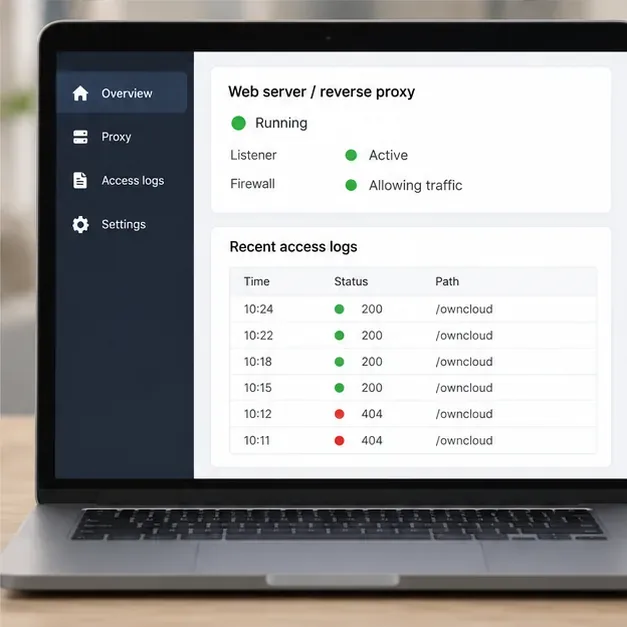
If the server address loads in a browser but the app still fails, collect the mobile-app log and ask the administrator to compare it with ownCloud and web-server logs. The official Android troubleshooting instructions place app logs in Settings; if Logs is hidden, tapping the build number five times reveals it. The iOS troubleshooting instructions describe enabling logging under Settings, then Logging. Request/response logging can contain sensitive details, so share it only with your administrator or ownCloud support through an approved channel.
On the server, ownCloud recommends reviewing its own log and the web server’s error and access logs. For Apache on Linux, the ownCloud Android troubleshooting page says logs are typically in /var/log/apache2; locations differ with other servers, containers, and hosting providers. An access-log entry for the test time shows the request reached that web server. If there is no matching entry, the connection may be failing earlier in DNS, routing, firewall, or proxy handling. See the official ownCloud log collection guidance.
Retry from the ownCloud app using the corrected base URL and the network required by the server. The fix is confirmed when the app gets past its connection check and reaches the expected sign-in or file view without a refusal. If the browser works but the app does not, send the administrator the app version, phone operating-system version, exact server URL with private details redacted, test time, network used, and a sanitized log excerpt.
Remove every stored ownCloud Server Classic file version for one account or all users, and distinguish a full purge from retention-based expiry.
Trace an ownCloud mobile connection refusal by checking the server URL, phone network, HTTPS endpoint, and server logs in the right order.
Replace on-demand job runs with a systemd timer that runs ownCloud’s supported occ system:cron command every 15 minutes.
Trace the WebDAV request through Apache, Nginx, or a reverse proxy, then confirm ownCloud sync works with an authenticated PROPFIND test.
Fix Nextcloud’s missing outgoing address warning by setting its canonical URL and checking DNS, HTTPS, and reverse-proxy routing from the server itself.
Configure APCu and Redis over a local Unix socket for Nextcloud caching and file locking, with steps for current and older Nextcloud releases.
Check Nextcloud’s cron mode, repair its systemd service and timer, and verify that background jobs run after startup and every five minutes.
Enable reliable Nextcloud file locking, choose the right Redis or Valkey backend, and verify the warning clears without risking concurrent file changes.
Fix common Nextcloud scan findings with current updates, HTTPS and HSTS, precise reverse-proxy trust, and checks against the public server.
Back up Nextcloud’s files and MariaDB together, schedule encrypted Restic snapshots with cron, and verify recovery without risking the live server.