What It Takes to Target an A+ Nextcloud Security Rating

Fix common Nextcloud scan findings with current updates, HTTPS and HSTS, precise reverse-proxy trust, and checks against the public server.
For a dependable Nextcloud backup, pause user activity, export the database, and use Restic to capture that export together with the application and data directories. Put the job in a root-owned script and schedule it with cron; verify the snapshots and perform a test restore before relying on the schedule.
This example assumes a Debian or Ubuntu server, a direct Nextcloud installation at /var/www/nextcloud, a separate data directory at /srv/nextcloud-data, and MariaDB. Replace those values with your actual paths and database name. The steps were checked against the Nextcloud 35 Administration Manual and Restic 0.19.1 documentation in October 2026.
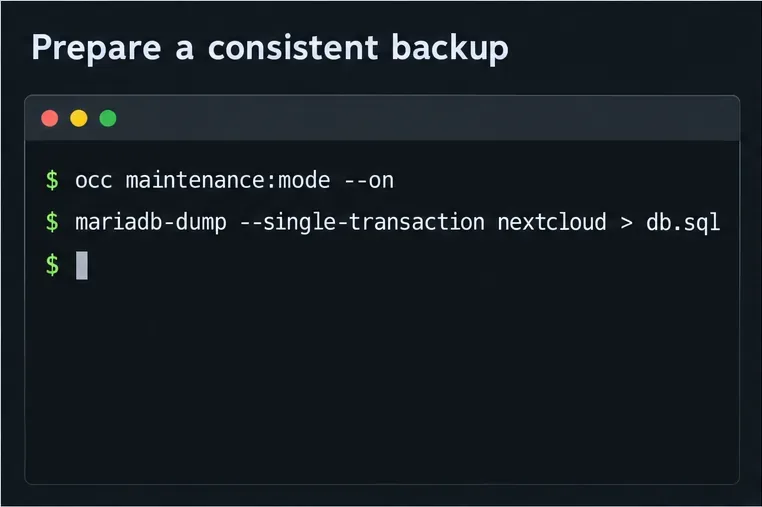
Nextcloud’s backup guidance lists the configuration, data, database, theme, and any custom apps as the important parts to retain. Backing up the full application directory usually includes its configuration and bundled apps, but check whether custom apps, themes, or the data directory live elsewhere on your server. Include every separate path in the Restic command.
Maintenance mode locks existing sessions and prevents new logins while the backup runs. This makes the database and files less likely to change at different moments, but it also makes Nextcloud unavailable for the duration. For a large data store, schedule the job in a quiet window. If your server has external workers or scripts that write directly to the data directory, pause them too.
Nextcloud’s official backup instructions explain the components and database export options. This procedure uses MariaDB; for PostgreSQL, MySQL, or SQLite, use the matching dump and restore commands in the database section of that manual.
Install Restic and the MariaDB client using your distribution’s trusted package source. Choose a repository on a different disk or remote backup target. A repository stored only on the Nextcloud server does not protect against loss of that server or its storage. Do not place the repository inside either directory being backed up.
Restic encrypts repository data, but you need the repository password to restore it. Create a password file and keep a protected copy outside the server, such as in an approved password manager. If the password is lost, the encrypted repository cannot be read. Avoid putting the password directly in a command line, crontab, or script.
sudo install -d -m 700 /root/.config/restic
sudo install -m 600 /dev/null /root/.config/restic/nextcloud-password
sudo install -m 600 /dev/null /root/.config/restic/nextcloud.env
Securely place the chosen Restic password in the password file. Put the repository location and password-file path in the environment file:
RESTIC_REPOSITORY=/mnt/backup/nextcloud
RESTIC_PASSWORD_FILE=/root/.config/restic/nextcloud-password
For a remote backend, use that backend’s documented repository URL and credentials, stored with restricted permissions. Restic documents repository setup and the supported password-file environment variable in its repository preparation guide. Initialize a new repository once, not on every run:
set -a
. /root/.config/restic/nextcloud.env
set +a
restic init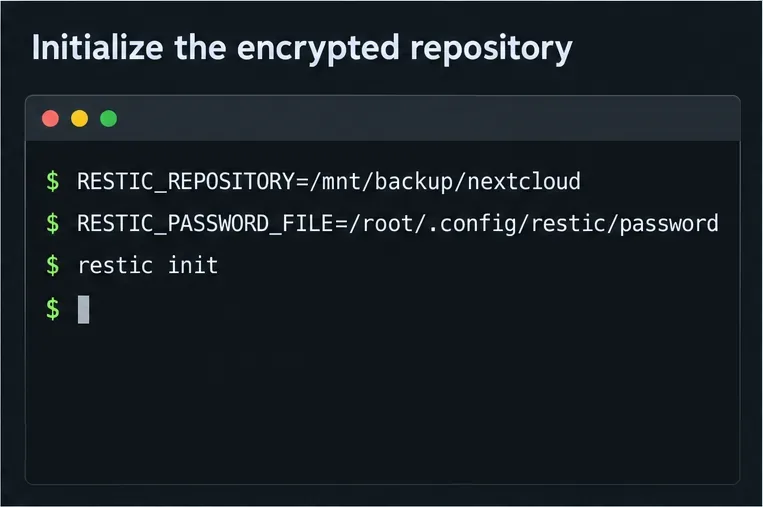
MariaDB credentials also need protection. Configure a root-readable client option file such as /root/.my.cnf with the database user, password, and host, then set its permissions to 600. The script below passes that file to mariadb-dump, so a database password does not appear in the process arguments.
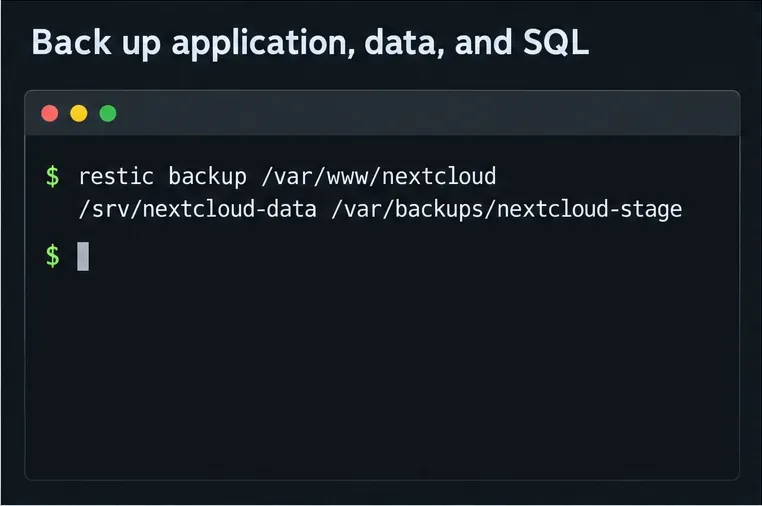
Save the following as /usr/local/sbin/nextcloud-restic-backup. Adjust NC_DATA_DIR and DB_NAME to match config/config.php. The script enables maintenance mode, exports MariaDB, backs up the application, data, and temporary SQL dump, then disables maintenance mode even if a later command fails.
#!/usr/bin/env bash
set -Eeuo pipefail
PATH=/usr/local/sbin:/usr/local/bin:/usr/sbin:/usr/bin:/sbin:/bin

NC_DIR=/var/www/nextcloud
NC_DATA_DIR=/srv/nextcloud-data
DB_NAME=nextcloud
RESTIC_ENV=/root/.config/restic/nextcloud.env
DB_CNF=/root/.my.cnf

set -a
source "$RESTIC_ENV"
set +a
exec 9>/run/lock/nextcloud-restic.lock
flock -n 9 || exit 0

mountpoint -q /mnt/backup || {
  echo "Backup target is not mounted" >&2
  exit 1
}

install -d -m 700 /var/backups/nextcloud
STAGE_DIR=$(mktemp -d /var/backups/nextcloud/db.XXXXXX)
maintenance_on=0

cleanup() {
  if [[ "$maintenance_on" -eq 1 ]]; then
    sudo -u www-data php "$NC_DIR/occ" maintenance:mode --off ||
      logger -t nextcloud-restic "Could not disable maintenance mode"
  fi
  rm -rf "$STAGE_DIR"
}
trap cleanup EXIT
trap 'exit 130' INT
trap 'exit 143' TERM

sudo -u www-data php "$NC_DIR/occ" maintenance:mode --on
maintenance_on=1

mariadb-dump --defaults-extra-file="$DB_CNF"   --single-transaction --default-character-set=utf8mb4 "$DB_NAME"   > "$STAGE_DIR/nextcloud.sql"
test -s "$STAGE_DIR/nextcloud.sql"

restic backup "$NC_DIR" "$NC_DATA_DIR" "$STAGE_DIR" --tag nextcloud
Set ownership and permissions so only root can edit or run the script, then test it manually during a maintenance window. The mountpoint check prevents a missing backup disk from silently sending a large repository into the server’s local filesystem. If your repository is remote rather than mounted locally, replace that check with a reliable check for your backend.
Review your paths before the first run. If the data folder is already inside /var/www/nextcloud, do not assume the example path is correct; use the actual data directory from Nextcloud’s configuration. Also confirm that custom apps or themes stored outside the application directory are explicitly included.
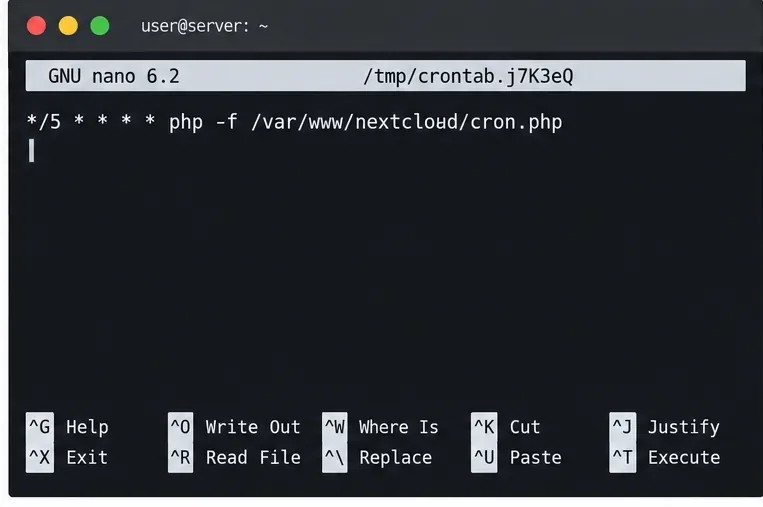
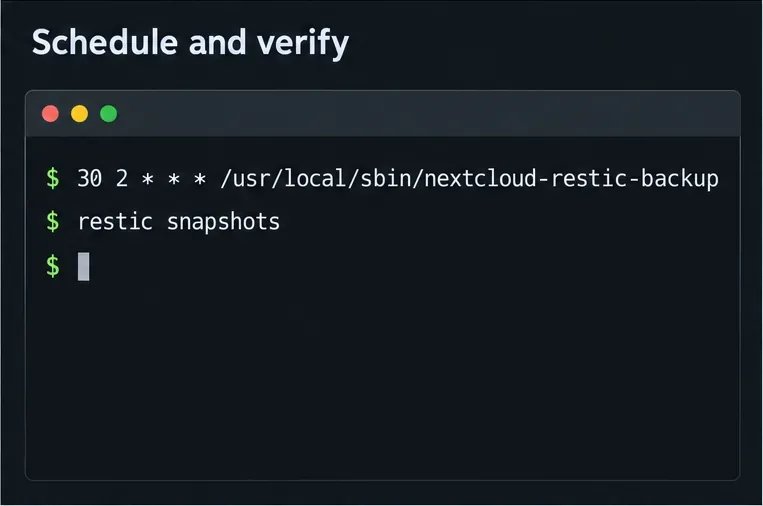
After a successful manual run, add a root crontab entry with sudo crontab -e. This example starts the job daily at 2:30 a.m. using the script’s full path and records output for troubleshooting:
30 2 * * * /usr/local/sbin/nextcloud-restic-backup >> /var/log/nextcloud-restic.log 2>&1Cron provides a limited environment, so the script sets an explicit PATH and loads the Restic settings itself. Check that cron is enabled on your distribution and that this time does not overlap with Nextcloud’s background-job runner or another maintenance task. The Linux crontab manual describes the schedule format and the environment cron supplies.
Confirm the job worked by checking /var/log/nextcloud-restic.log for a successful exit and listing recent snapshots:
sudo bash -lc 'set -a; source /root/.config/restic/nextcloud.env; set +a; restic snapshots'
sudo bash -lc 'set -a; source /root/.config/restic/nextcloud.env; set +a; restic check'
Restic’s normal check verifies repository structure. A full data read takes longer and may use significant bandwidth for a remote repository; schedule restic check --read-data periodically, or use --read-data-subset to check portions over time. See Restic’s repository integrity documentation.
A snapshot listing is not a restore test. Restore a recent snapshot to a separate scratch directory with restic restore latest --target /tmp/nextcloud-restore-test, then confirm that the app files, data directory, and SQL dump are present. Do not restore over a live installation as a test. For an actual recovery, restore the files and database as one matched set; Nextcloud’s restore instructions cover database recreation and client synchronization considerations.
This setup provides repeatable encrypted snapshots, but cron does not monitor its own failures and Restic does not decide your retention policy. Review the log or configure alerting for failed runs, keep a separate copy of the repository credentials, and test recovery on a regular schedule. If the maintenance window is too long, use coordinated filesystem snapshots and a database-consistent export designed for your storage platform rather than backing up changing files live.
Fix common Nextcloud scan findings with current updates, HTTPS and HSTS, precise reverse-proxy trust, and checks against the public server.
Back up Nextcloud’s files and MariaDB together, schedule encrypted Restic snapshots with cron, and verify recovery without risking the live server.
Configure Nextcloud SSE for the storage that needs it, protect encryption keys, and measure transfer and CPU impact before encrypting existing files.
Connect Nextcloud’s file search to Elasticsearch, index document contents, and choose a setup that fits your server and security needs.
Configure Nextcloud to remove deleted files after a defined retention period, schedule background jobs reliably, and avoid commands that purge every user’s trash.
Run Nextcloud’s OCC repair safely, preview the database changes, and check why the warning might remain.
Allow larger Nextcloud browser uploads by aligning PHP, Nginx or Apache, temporary storage, and timeout settings—and verify which limit is blocking the file.
Set the PHP memory limit Nextcloud actually uses, restart the right service, and confirm the 512 MB setting in Admin Overview.
Mount a compatible object-storage bucket in Nextcloud using its S3 backend, with the right endpoint, credentials, access scope, and verification steps.
Safely move a Linux Nextcloud data directory to an external drive using a persistent UUID mount, maintenance mode, a verified copy, and the original-path symlink.