Purge ownCloud File Versions Safely with the occ Command
Remove every stored ownCloud Server Classic file version for one account or all users, and distinguish a full purge from retention-based expiry.
For ownCloud Server Classic, the administrator command for removing saved file versions is occ versions:cleanup. Add one or more user IDs to limit the purge; omit user IDs only when you intend to delete version history for every user. This is destructive, so back up the ownCloud database and file storage first.
Hypothetical example: Alex administers a Classic ownCloud server and needs to remove old revisions for a retired test account named demo_user. This fictional example shows the targeted command and contrasts it with a server-wide cleanup; it does not describe a real run or result.
The steps below use occ, the command-line interface documented for ownCloud Server 10.16. They do not apply to ownCloud Infinite Scale (oCIS), which uses a different command set. If you are unsure which product is installed, check with the administrator before running a purge.
On a regular Linux installation, change to the ownCloud installation directory. The following path is an example for Ubuntu; use your actual path:
cd /var/www/owncloud
Check that the Versions app is enabled and verify the account ID you intend to target:
sudo -u www-data ./occ app:list --enabled files_versions
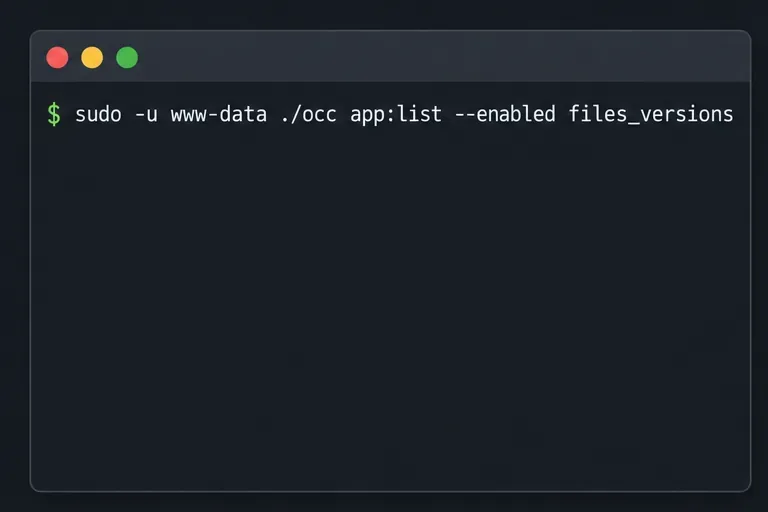
files_versions app before using its cleanup command.The ownCloud reference says version commands are available only when files_versions is enabled and are not available in single-user maintenance mode. Run occ as the web server’s HTTP user so file permissions remain consistent. On Debian or Ubuntu this is usually www-data; other distributions may use a different account. See ownCloud’s occ command reference.
Before deleting history, take a backup using your normal ownCloud backup procedure. Include the database and the storage location that holds users’ files and versions. Confirm that the backup completed and can be restored; a database-only copy may not contain the actual version files.
For Alex’s hypothetical case, the intended scope is only demo_user. The user ID must match the account on this server. Do not substitute an email address, display name, or a different user because the command accepts user IDs. Confirm the account identifier in ownCloud’s user administration before running the command, especially if names in a directory service differ from the login ID.
If the goal is to remove every old version for this account, use versions:cleanup. There is no dry-run option documented for this command, so review the target and backup before executing it. Do not place the server in single-user maintenance mode for this operation: ownCloud documents the Versions commands as unavailable in that mode.
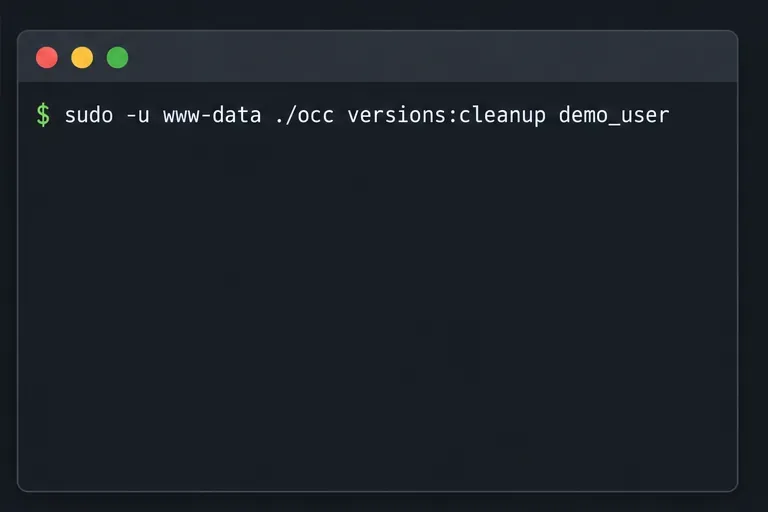
For a regular Linux installation, run the command from the ownCloud directory as the HTTP user. On Debian or Ubuntu, Alex would run:
sudo -u www-data ./occ versions:cleanup demo_user
demo_user limits the cleanup to that ownCloud account.In the documented syntax, versions:cleanup [user_id]... accepts one or more account IDs. If no ID is given, it deletes versioned files for all users. Use the global form only after explicitly approving that scope:
sudo -u www-data ./occ versions:cleanup
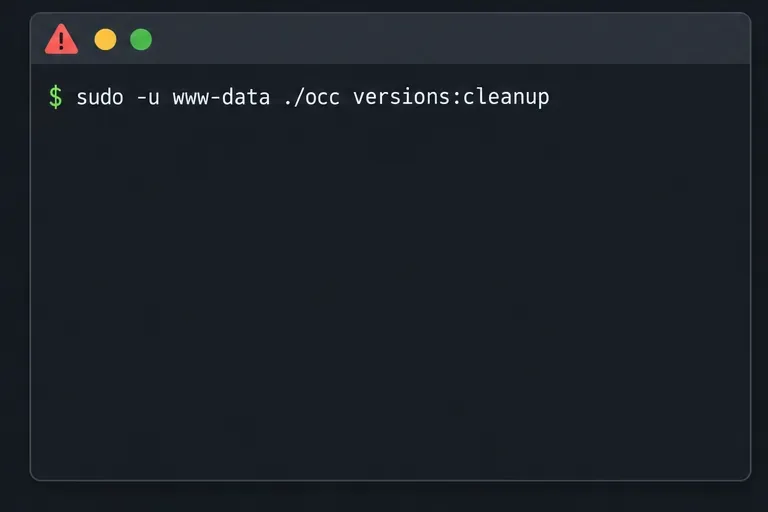
ownCloud’s example shows the command identifying all users for deletion when no ID is supplied; supplying IDs narrows the operation to those accounts. The manual also notes that published persistent major versions are removable by an administrator with this command, even though normal retention policies do not expire them. Check with content owners before purging accounts that may contain approved or published revisions. Do not add --no-interaction to skip prompts. For a container installation, the documented pattern is docker exec --user www-data <owncloud-container-name> occ <your-command>; replace the placeholder with the actual container name and the command you selected. Consult the Docker and occ instructions if your deployment uses a different container user.
If Alex wanted ownCloud to remove only versions that have expired under the configured retention policy, the more appropriate command would be:
sudo -u www-data ./occ versions:expire demo_user
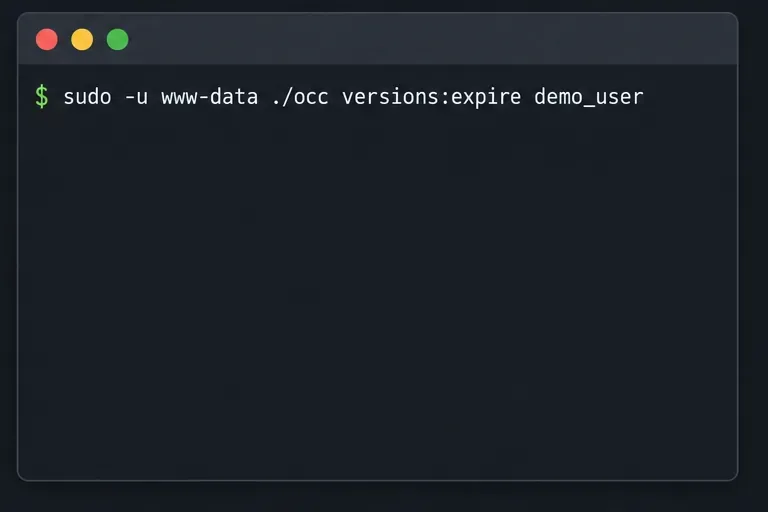
versions:expire applies configured retention rules; it does not promise to remove every saved version.The ownCloud reference defines versions:expire as deleting only versions that are expired according to versions_retention_obligation. By contrast, versions:cleanup deletes all versions within its selected scope. Review the documented version-retention settings before changing policy. The setting disabled disables version deletion; it does not purge the versions already stored.
This article covers ownCloud Server Classic. Infinite Scale has its own revision-cleanup commands; follow the oCIS revisions cleanup documentation instead of running occ there.
After the command completes without an error, open the Versions view for a file owned by the targeted account. Confirm that prior revisions are no longer listed and that the current file is still present. For an all-user cleanup, check representative accounts rather than assuming a targeted command ran globally. Keep the backup until the owner confirms that no historical version is still needed. If your purpose was only to meet a retention schedule, use versions:expire and verify against that policy instead of expecting an immediate full purge.
This command is specifically for file versions. It does not clear items in the Deleted Files trash bin, remove backup archives, or delete the current files themselves. Treat those as separate data-retention tasks; do not manually remove the versions directory to substitute for the documented command.
Remove every stored ownCloud Server Classic file version for one account or all users, and distinguish a full purge from retention-based expiry.
Trace an ownCloud mobile connection refusal by checking the server URL, phone network, HTTPS endpoint, and server logs in the right order.
Replace on-demand job runs with a systemd timer that runs ownCloud’s supported occ system:cron command every 15 minutes.
Trace the WebDAV request through Apache, Nginx, or a reverse proxy, then confirm ownCloud sync works with an authenticated PROPFIND test.
Fix Nextcloud’s missing outgoing address warning by setting its canonical URL and checking DNS, HTTPS, and reverse-proxy routing from the server itself.
Configure APCu and Redis over a local Unix socket for Nextcloud caching and file locking, with steps for current and older Nextcloud releases.
Check Nextcloud’s cron mode, repair its systemd service and timer, and verify that background jobs run after startup and every five minutes.
Enable reliable Nextcloud file locking, choose the right Redis or Valkey backend, and verify the warning clears without risking concurrent file changes.
Fix common Nextcloud scan findings with current updates, HTTPS and HSTS, precise reverse-proxy trust, and checks against the public server.
Back up Nextcloud’s files and MariaDB together, schedule encrypted Restic snapshots with cron, and verify recovery without risking the live server.