Clear Nextcloud’s File Locking Warning with Redis
Enable reliable Nextcloud file locking, choose the right Redis or Valkey backend, and verify the warning clears without risking concurrent file changes.
To clear Nextcloud’s transactional file locking warning, first make sure locking is enabled, then configure a persistent Redis-compatible backend such as Redis or Valkey. On a small instance, Nextcloud can use its database locking backend by default; for a production server or shared workload, Redis-backed locking is the usual choice because it reduces lock traffic to the database. Do not assign file locks to Memcached: Nextcloud warns that cached values can disappear unexpectedly.
Transactional file locking protects file operations from conflicting writes and can release locks when an upload or other transaction is interrupted. It helps prevent corruption during normal operation, including work involving shared files and external storage. It does not prevent two people from editing the same document at once or provide presence indicators; it controls simultaneous saves. See the Nextcloud 35 transactional file locking documentation.
memcache.locking.For a small home server, database locking may be enough if there is no locking warning and no database pressure. Choose Redis or Valkey for busy instances, multiple application servers, or when you want file locks handled outside the database. The current Nextcloud 35 memory caching guidance recommends APCu for local cache and Redis for locking in common single-server deployments. Clustered web nodes must all use the same Redis or Valkey endpoint or cluster.
Find the active Nextcloud configuration file, usually config/config.php under the Nextcloud installation directory. Back it up before changing it. Search for filelocking.enabled and memcache.locking. The configuration reference sets locking to enabled by default; if you find an explicit false value, change it to true or remove that override.
'filelocking.enabled' => true,Do not add a second copy of an existing key. PHP configuration arrays should contain one effective value for each setting. If you use a container or managed hosting panel, make changes through its supported configuration mechanism so they persist after upgrades or redeployments. The Nextcloud 35 admin warning reference identifies the locking warning and links to the backend requirements.
On Debian or Ubuntu, package names commonly look like redis-server and php-redis; use your distribution’s packages and match the PHP module to the PHP version used by the web server. If using the classic Redis backend, install and start the Redis service and confirm the PHP Redis extension is enabled for the web SAPI. A CLI-only PHP module does not prove PHP-FPM or Apache can load it.
Add the locking backend and connection details to the existing config.php array. This example assumes Redis is running on the same machine, listening on localhost port 6379, and accessible to the Nextcloud PHP process:
'memcache.locking' => '\OC\Memcache\Redis',
'redis' => [
    'host' => 'localhost',
    'port' => 6379,
    'timeout' => 0.0,
],
Set authentication details if your Redis server requires them. Avoid exposing Redis to the public internet; restrict it to the host or private network and configure authentication and firewall rules. For a Unix socket, use the socket path as the Redis host and port 0, and ensure the web server user can access that socket. Do not copy localhost settings into a multi-server deployment unless Redis is genuinely local and shared consistently; all Nextcloud application nodes need to address the same backend.
On Nextcloud 34.0.2 or later, KeyValueCache can connect to Redis or Valkey without a separately installed PHP extension. Configure the backend and key-value store as follows, replacing the host and any credentials with your environment’s values:
'memcache.locking' => '\OC\Memcache\KeyValueCache',
'memcache.kvstore' => [
    'server' => [
        'host' => 'localhost',
        'port' => 6379,
    ],
],
Do not configure both Redis and KeyValueCache as competing locking providers. Follow the Nextcloud documentation for credentials, TLS, sockets, Sentinel, or cluster topology rather than adapting a single-server example by guesswork.
Restart the Redis-compatible service if you changed its service configuration, then restart the web server or PHP-FPM process if you installed or enabled a PHP extension. Check service status using the service name for your distribution; for example, systemctl status redis-server on many Debian or Ubuntu systems. Confirm the service is active and that the PHP process can connect. Container deployments should use the Redis service name on the container network, not localhost unless both services share a network namespace.
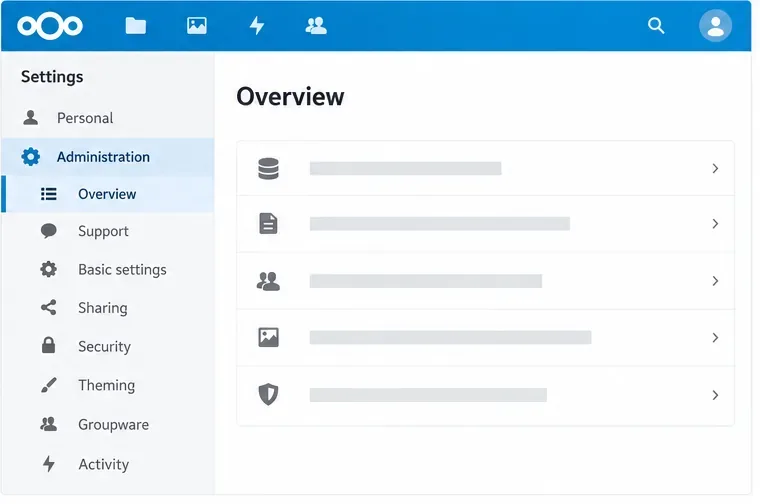
Sign in to Nextcloud as an administrator and refresh the Administration overview. The transactional file locking warning should disappear when the configured backend is available and the setting is loaded. Upload, download, and sync a test file, then review the Nextcloud and PHP logs if a Redis connection or permission error appears. A warning that remains usually points to a typo, a duplicate configuration key, the wrong PHP extension/SAPI, a blocked network connection, incorrect socket permissions, or an unreachable backend. Correct that specific cause rather than disabling locking.
For deployment-specific options, consult the versioned official references before changing topology: Transactional file locking, Memory caching and Redis/Valkey configuration, and configuration parameters.
Enable reliable Nextcloud file locking, choose the right Redis or Valkey backend, and verify the warning clears without risking concurrent file changes.
Fix common Nextcloud scan findings with current updates, HTTPS and HSTS, precise reverse-proxy trust, and checks against the public server.
Back up Nextcloud’s files and MariaDB together, schedule encrypted Restic snapshots with cron, and verify recovery without risking the live server.
Configure Nextcloud SSE for the storage that needs it, protect encryption keys, and measure transfer and CPU impact before encrypting existing files.
Connect Nextcloud’s file search to Elasticsearch, index document contents, and choose a setup that fits your server and security needs.
Configure Nextcloud to remove deleted files after a defined retention period, schedule background jobs reliably, and avoid commands that purge every user’s trash.
Run Nextcloud’s OCC repair safely, preview the database changes, and check why the warning might remain.
Allow larger Nextcloud browser uploads by aligning PHP, Nginx or Apache, temporary storage, and timeout settings—and verify which limit is blocking the file.
Set the PHP memory limit Nextcloud actually uses, restart the right service, and confirm the 512 MB setting in Admin Overview.
Mount a compatible object-storage bucket in Nextcloud using its S3 backend, with the right endpoint, credentials, access scope, and verification steps.