Mount an SMB/CIFS Share in ownCloud Without a Linux Mount
Connect a Windows or Samba network share to ownCloud through External Storage, verify credentials, and troubleshoot inaccessible folders safely.
To access a Windows or Samba share in ownCloud Server, enable the External Storage Support app and add an SMB/CIFS storage mount from the ownCloud administration page. Use the share’s server address, share name, and valid SMB credentials; you generally do not need to mount the share with Linux mount.cifs first.
This method exposes existing network files inside the ownCloud Files interface while preserving permissions enforced by the SMB server. The instructions below apply to the classic ownCloud Server external-storage interface documented for versions 10.16 and 11.0, not ownCloud Infinite Scale.
You need administrator access to ownCloud, a reachable SMB server, a share you are authorized to access, and an SMB account with the necessary read or write permissions. Keep TCP port 445 reachable between ownCloud and the file server, preferably over a trusted private network or VPN rather than exposing SMB to the public internet.
For a concrete example, suppose the SMB server is files.internal.example, the share is Projects, and the service account is ACME\oc-share. The folder to display in ownCloud will be Team Projects. These are fictional values; substitute your real server details.
On a conventional Linux installation, the Samba client and the appropriate PHP SMB client extension may be required. For example, on a Debian-based host, install the command-line test client:
sudo apt update
sudo apt install smbclient
Check which PHP version and installation method ownCloud uses before installing an extension. ownCloud’s Server 10.16 Ubuntu installation instructions describe php7.4-smbclient for their PHP 7.4 setup; use that package only when it matches your actual supported PHP environment and repository. After enabling the extension, restart the PHP service or web server that runs ownCloud, and check module loading with php -m | grep -i smbclient. The command checks CLI PHP; the web process can have a separate configuration.
For the official ownCloud Server 11.0 Docker image, the SMB documentation says runtime SMB dependencies are included, although the image does not include the smbclient command for manual tests. Do not assume the same host-package commands apply inside every container image.
Before changing ownCloud settings, test name resolution, authentication, and the share itself from the ownCloud host or its network environment. On a host with smbclient, run:
smbclient -L //files.internal.example -U 'ACME/oc-share'
smbclient //files.internal.example/Projects -U 'ACME/oc-share' -c 'ls'
Enter the SMB account password when prompted instead of placing it in the command line. The first command lists available shares; the second checks access to the specific share. A listing is not proof of write permission. If the command fails, confirm the server name or IP, share spelling, credentials, domain, firewall rules, and effective permissions on the Windows or Samba server before proceeding. The ownCloud SMB/CIFS guide also recommends testing with smbclient before configuration.
You do not need to enable Allow users to mount external storage merely to create an administrator-managed share. That separate setting allows users to create their own mounts, potentially including connections to network services the administrator would not otherwise expose. See ownCloud’s External Storage Configuration manual.
In the new storage row, supply the connection information. The following example keeps the SMB share name separate from the folder name users see in ownCloud.
| ownCloud field | Example value | Purpose |
|---|---|---|
| Folder name | Team Projects | Name displayed in the Files interface |
| External storage | SMB / CIFS | Uses the SMB backend directly |
| Host | files.internal.example | Hostname or IP of the SMB server |
| Share | Projects | Remote share name, without a full UNC path |
| Remote subfolder | Team (optional) | Limits the mount to an existing folder in the share |
| Domain | ACME (if required) | Domain or workgroup associated with the account |
| Authentication | Username and password | Explicit credentials for this share |
| Available for | Selected ownCloud group | Restricts visibility of the mount |
Enter oc-share as the username when you have supplied ACME in the separate Domain field. Do not put //files.internal.example/Projects into the Host field, and do not confuse the share name with an optional subfolder. For a remote subfolder, ownCloud supports $user to select an existing directory matching the current ownCloud username; it does not create that directory.
For a common service account, Username and password is straightforward, but its access applies according to that account’s SMB permissions. If users authenticate to SMB with their own matching ownCloud credentials, Log-in credentials, save in session may fit better. However, ownCloud documents important limits with session credentials: background scans and direct sharing of the mounted storage cannot work as they do with stored credentials. Choose based on the actual authentication and scanning requirements, not convenience alone. Refer to External Storage Authentication Mechanisms.
Restrict Available for to the intended ownCloud users or groups; an administrator-created mount is otherwise available to all users by default. If staff only need to browse files, turn on the mount’s Read Only option, and also enforce read-only access on the SMB server. Leave sharing from the mount disabled unless your access policy requires it.
Once the required fields are entered, ownCloud automatically saves the storage row. Its green status indicator means the connection is ready; a red or yellow indicator calls for further investigation. ownCloud can mark a failed external storage as unavailable for ten minutes, so click its status indicator or reload the administration page after resolving the underlying problem.
smbclient test using the same account.occ files:scan as a supposed fix for that limitation.A kernel-level CIFS mount exposed back to ownCloud as Local storage is usually the wrong fallback. ownCloud warns that if such a filesystem mount disappears, it may see an empty local directory and propagate deletion events. Use the direct SMB/CIFS backend instead; refer to the official Local Storage warning.
Sign in as a user permitted in Available for. Open Files and locate Team Projects. Browse an existing directory and open a small test file. If the SMB account and ownCloud mount both allow writing, upload a harmless test file and verify that it appears on the SMB server; delete it after the check. For read-only mounts, confirm that modification is blocked instead.
Finally, check the storage row stays green after a page reload and that another user outside the permitted group cannot see the mount. These checks establish that ownCloud can reach the correct SMB share, the remote account has the intended access, and the mount is exposed only to its intended audience.
Connect a Windows or Samba network share to ownCloud through External Storage, verify credentials, and troubleshoot inaccessible folders safely.
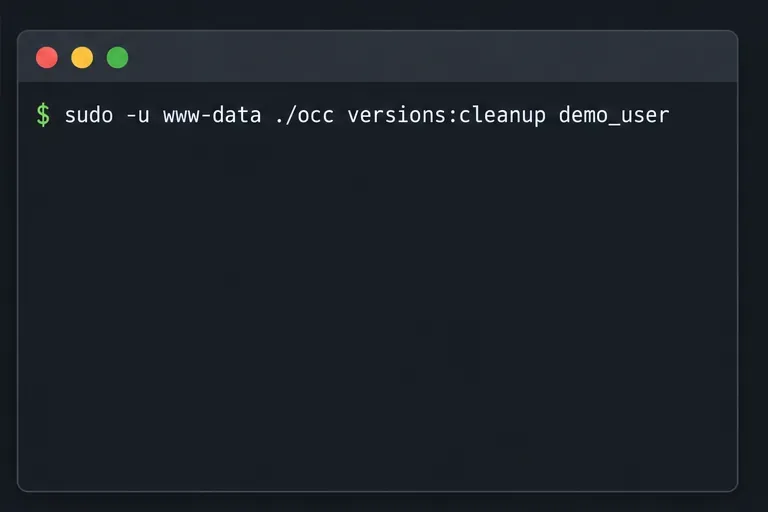
Remove every stored ownCloud Server Classic file version for one account or all users, and distinguish a full purge from retention-based expiry.
Trace an ownCloud mobile connection refusal by checking the server URL, phone network, HTTPS endpoint, and server logs in the right order.
Replace on-demand job runs with a systemd timer that runs ownCloud’s supported occ system:cron command every 15 minutes.
Trace the WebDAV request through Apache, Nginx, or a reverse proxy, then confirm ownCloud sync works with an authenticated PROPFIND test.
Fix Nextcloud’s missing outgoing address warning by setting its canonical URL and checking DNS, HTTPS, and reverse-proxy routing from the server itself.
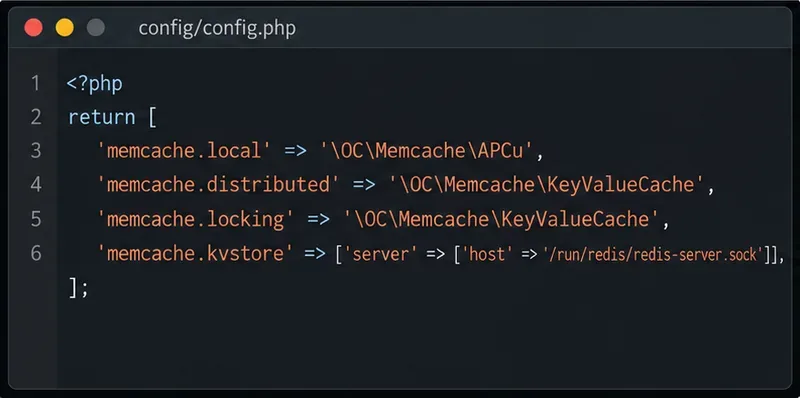
Configure APCu and Redis over a local Unix socket for Nextcloud caching and file locking, with steps for current and older Nextcloud releases.
Check Nextcloud’s cron mode, repair its systemd service and timer, and verify that background jobs run after startup and every five minutes.
Enable reliable Nextcloud file locking, choose the right Redis or Valkey backend, and verify the warning clears without risking concurrent file changes.
Fix common Nextcloud scan findings with current updates, HTTPS and HSTS, precise reverse-proxy trust, and checks against the public server.