Clear the ownCloud Apache .htaccess Warning Safely
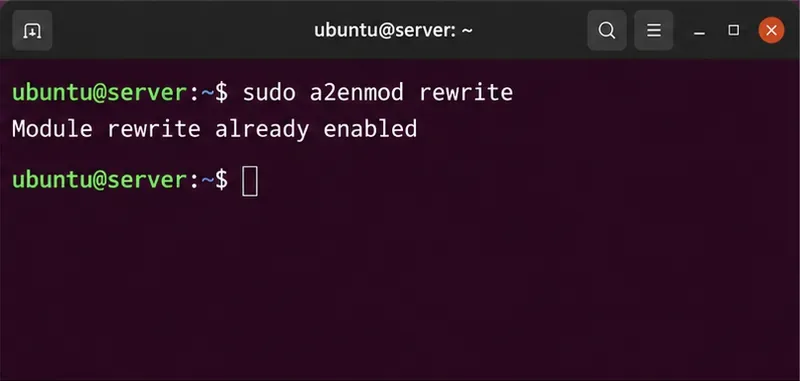
Set AllowOverride All only for ownCloud’s web root, validate the active Apache vhost, and reload safely to restore .htaccess rules.
When the ownCloud Files page sits at 99 percent, first check whether the complete file already appears in the destination folder before retrying. If it is missing or incomplete, ask the administrator to check the user quota, free space in the PHP temporary and ownCloud chunk directories, then the PHP and web-server request limits. A 99-percent indicator is not enough to identify which part failed.
This practical reference covers uploads through the ownCloud Server (Classic) 10.16 web interface. Infinite Scale and desktop-sync uploads use different server paths and logs. The examples follow the official 10.16 documentation; use the settings and file paths for your own deployment.
| What you see | Check first |
|---|---|
| The file appears complete after refreshing the folder | Compare its size with the local file and open it before uploading again. |
| Only large files stall or fail | Compare the file size with PHP, web-server, and proxy limits; check temporary storage. |
| Uploads fail for one user or one folder | Check that user’s quota, folder permissions, and whether the destination is external storage. |
| Uploads fail for many users | Check shared disk space, PHP/web-server logs, and any proxy or hosting limits. |
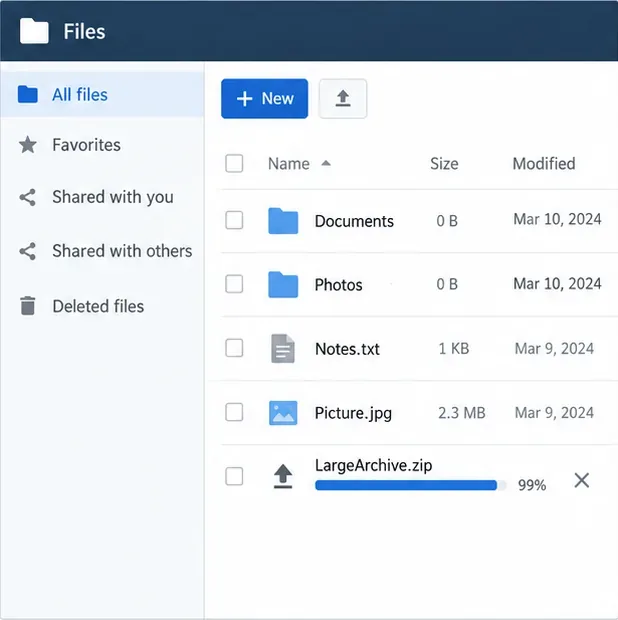
Open the destination folder in a second tab or refresh it after the upload has stopped changing. If the file is present, compare its byte size with the local original and open it. A complete file with a stale progress bar points to a missed completion response or a browser display problem; it does not justify uploading a second copy.
If the file is absent or smaller, try a small test file in the same folder, then try the original from another browser or network if available. Record the file size, user, destination, approximate time, and whether the test failed. These comparisons help separate a single-file or client issue from a server-wide one. Avoid repeatedly canceling and restarting a large upload while the server is still processing it.
Ask the ownCloud administrator to verify the affected user’s quota and the destination folder’s write permission. A quota limit can prevent a new file from being stored even when the browser has sent most of its data. If the destination is an external mount, check that backend’s available space and write access too.
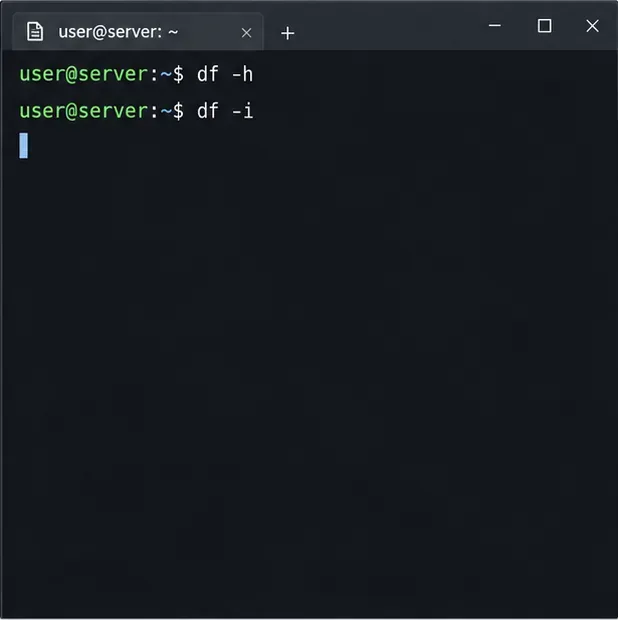
On the server, check free blocks and inodes on the data directory and every relevant temporary directory. An inode is the filesystem record used to create a file; a volume can have free gigabytes but no inodes left. Use the actual paths from your PHP and ownCloud configuration:
df -h /path/to/owncloud-data /path/to/php-temp /path/to/chunk-temp
df -i /path/to/owncloud-data /path/to/php-temp /path/to/chunk-temp
PHP’s upload_tmp_dir must be writable by the PHP/web-server account. ownCloud also has a temporary directory setting, and chunk uploads are staged under the user’s uploads directory by default. During assembly, ownCloud may need temporary space roughly equal to the final file size there. The configured dav.chunk_base_dir can change that location. Check all these volumes, not only the main data disk.
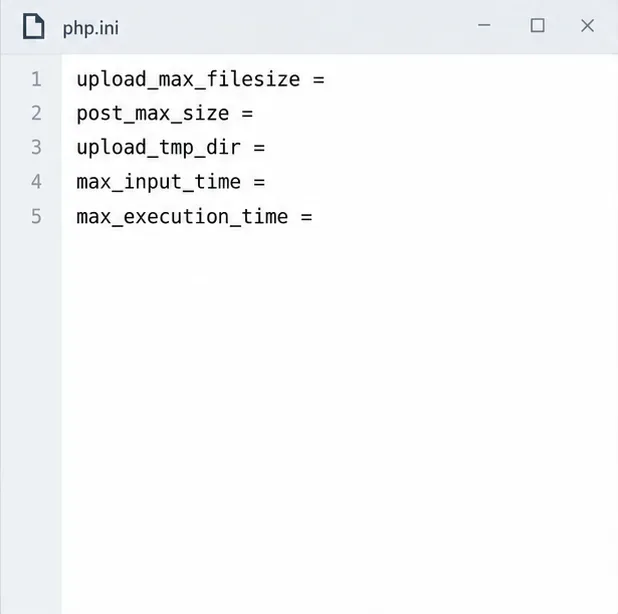
If small files work but a larger file does not, compare its size with the effective web-PHP settings: upload_max_filesize and post_max_size. PHP requires post_max_size to be larger than upload_max_filesize. Check the PHP configuration used by the web server or PHP-FPM; the command-line PHP configuration can be different. In PHP-FPM setups, ownCloud notes that PHP settings belong in .user.ini or the FPM configuration, not only in .htaccess.
Also review max_input_time when uploads take a long time, and the PHP execution timeout if the logs show a timeout. Set limits for your expected workload rather than copying an example number; restart or reload PHP and the web server after changing the configuration. See ownCloud’s Big File Upload Configuration and PHP’s upload directive reference.
Then check each HTTP layer in front of PHP. Nginx’s client_max_body_size rejects oversized request bodies with HTTP 413; set it high enough for the request size used by your upload path. Apache’s LimitRequestBody and mod_reqtimeout can also restrict uploads. ownCloud specifically warns that reverse proxies, Cloudflare, hosting I/O limits, and Apache request-timeout settings can affect large uploads. Change only the layer implicated by the logs, and avoid disabling security modules globally as a first fix. See the official Nginx request-body documentation.
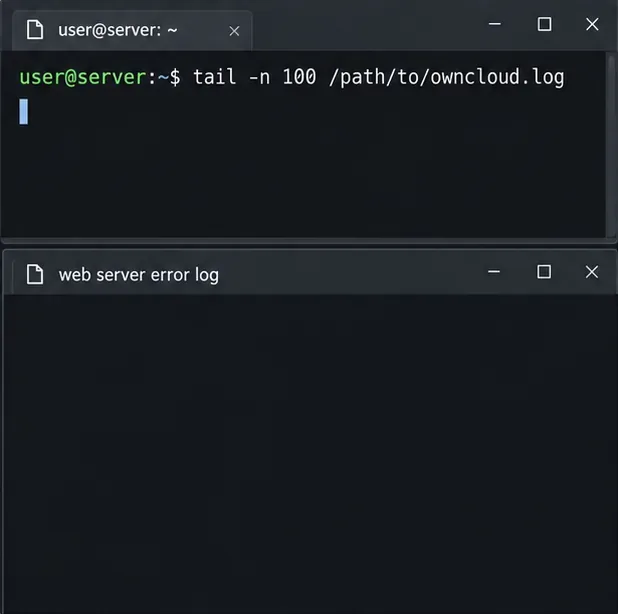
Reproduce the issue once while noting the time, then check the ownCloud log and the web server or proxy error log for that same minute. The ownCloud log is usually under the configured data directory; the actual path can be overridden in config.php. Search for messages about quota, permissions, temporary files, locks, request size, or timeout. If the request never appears in ownCloud’s log, investigate the proxy or web server first.
tail -n 100 /path/to/owncloud.logReplace the placeholder with the path configured on your installation. The command only displays recent log lines; it does not change server data. Avoid posting raw logs publicly without removing usernames, file paths, IP addresses, and tokens. ownCloud explains log locations in its debugging documentation.
Do not increase every limit or turn off request protections at once. A targeted change followed by one controlled retry makes it easier to confirm the cause and keeps the rest of the server configuration intact.
Set AllowOverride All only for ownCloud’s web root, validate the active Apache vhost, and reload safely to restore .htaccess rules.
Enable ownCloud’s Enterprise Auditing app, route admin_audit events to a protected log file, and confirm that real user actions are being recorded.
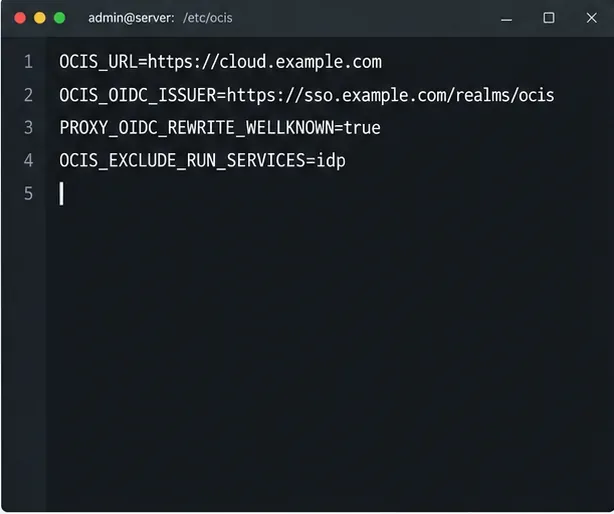
Align Keycloak’s realm issuer, web client, and user claims to let ownCloud Infinite Scale sign users in reliably across the web and mobile clients.
Transfer owned files and outgoing shares with ownCloud’s occ command, understand what stays behind, and verify access before deleting the old account.
Learn when ownCloud 10 database indexes need attention, how to apply supported schema updates safely, and when query tuning or a database change is the better fix.
Connect a Windows or Samba network share to ownCloud through External Storage, verify credentials, and troubleshoot inaccessible folders safely.
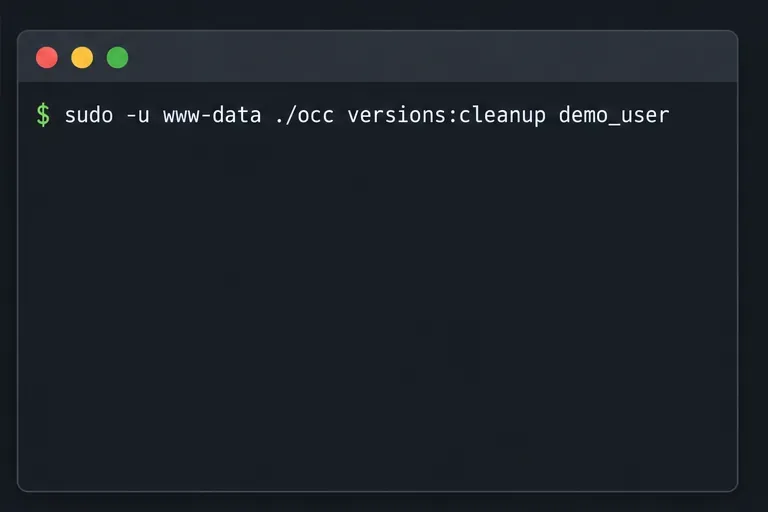
Remove every stored ownCloud Server Classic file version for one account or all users, and distinguish a full purge from retention-based expiry.
Trace an ownCloud mobile connection refusal by checking the server URL, phone network, HTTPS endpoint, and server logs in the right order.
Replace on-demand job runs with a systemd timer that runs ownCloud’s supported occ system:cron command every 15 minutes.
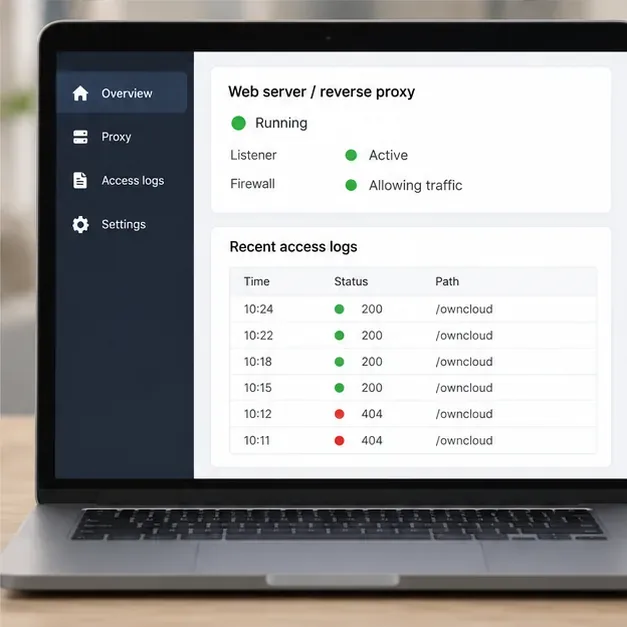
Trace the WebDAV request through Apache, Nginx, or a reverse proxy, then confirm ownCloud sync works with an authenticated PROPFIND test.