Clear an ownCloud Integrity Warning After an Upgrade
Use the invalid-file report to identify mismatched core files or app signatures, restore the correct release files, and verify the integrity check safely.
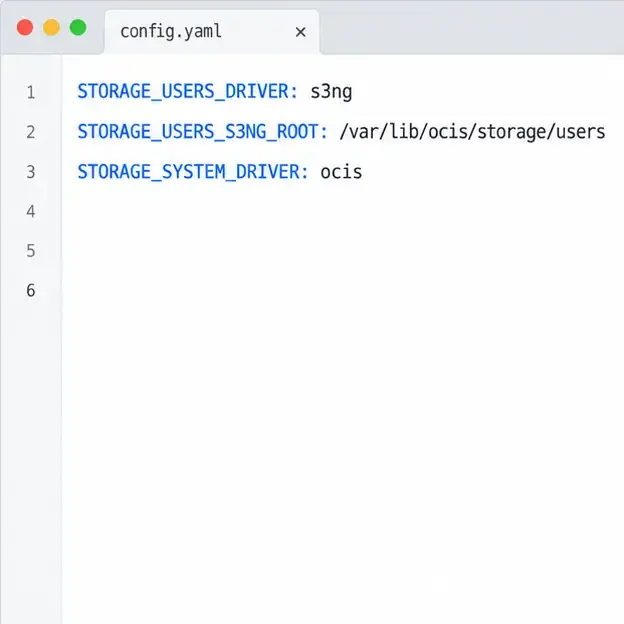
To store user file contents in S3 with ownCloud Infinite Scale (oCIS), configure the Storage-Users service to use the s3ng driver, point it to a pre-created bucket, and keep the service’s metadata directory on persistent POSIX storage. S3 holds the file blobs; it does not replace every local oCIS data path.
The configuration below follows the ownCloud Infinite Scale 8.2 documentation. Compare variable names and deployment examples with the documentation for your installed release before changing a production system.
In this context, a blob is the stored file content, and metadata is the information oCIS uses to organize and find files. With S3NG, blobs go to the S3-compatible object store while metadata remains on a POSIX filesystem. Keep that filesystem mounted persistently and included in backups. The system storage driver should remain ocis.
Use this short preflight checklist:
The ownCloud storage layout notes describe which information remains outside the S3 bucket. This is why restoring the bucket alone is not a complete recovery plan.
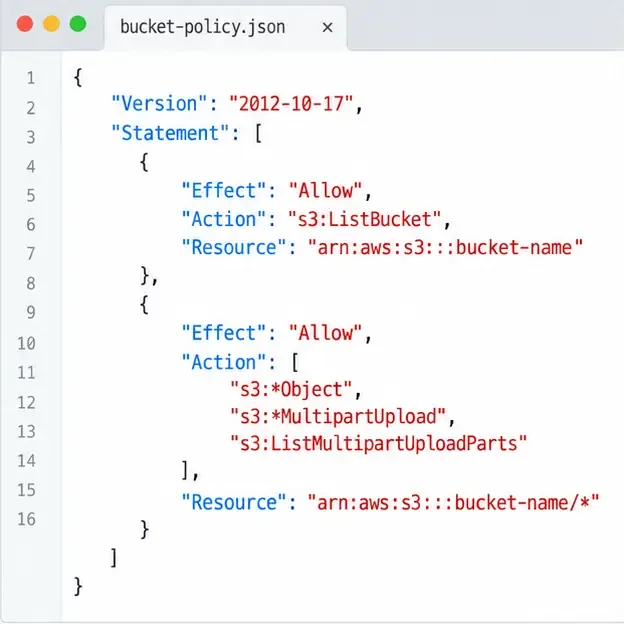
Configure the bucket in the provider’s console or infrastructure tooling, then give the oCIS service identity only the access required for its bucket. The ownCloud S3 page documents a baseline policy for an AWS-style S3 API. Replace bucket-name with your bucket and adapt the policy syntax to your provider if it is S3-compatible rather than Amazon S3.
{
  "Version": "2012-10-17",
  "Statement": [
    {
      "Effect": "Allow",
      "Action": ["s3:ListBucket"],
      "Resource": ["arn:aws:s3:::bucket-name"]
    },
    {
      "Effect": "Allow",
      "Action": [
        "s3:*Object",
        "s3:*MultipartUpload",
        "s3:ListMultipartUploadParts"
      ],
      "Resource": ["arn:aws:s3:::bucket-name/*"]
    }
  ]
}
The bucket-level ARN and object-level ARN are different: the first permits listing the bucket; the second applies actions to objects inside it. Follow the ownCloud S3 bucket policy requirements and your provider’s current policy documentation. Do not paste credentials into a policy file, source repository, or screenshot.
For a service environment or a Compose file that accepts standard oCIS environment variables, set the following values. These example values are placeholders; use the endpoint and region assigned by your provider.
STORAGE_USERS_DRIVER: s3ng
STORAGE_USERS_S3NG_ROOT: /var/lib/ocis/storage/users
STORAGE_SYSTEM_DRIVER: ocis
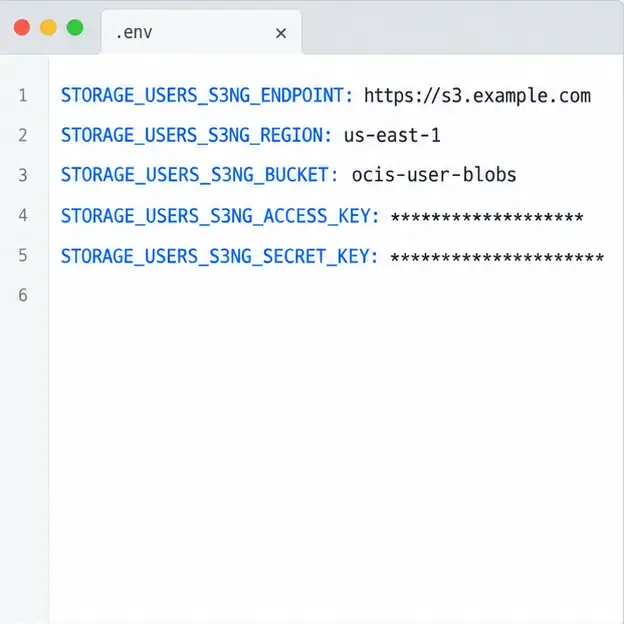
STORAGE_USERS_S3NG_ENDPOINT: https://s3.example.com
STORAGE_USERS_S3NG_REGION: us-east-1
STORAGE_USERS_S3NG_ACCESS_KEY: ${OCIS_S3_ACCESS_KEY}
STORAGE_USERS_S3NG_SECRET_KEY: ${OCIS_S3_SECRET_KEY}
STORAGE_USERS_S3NG_BUCKET: ocis-user-blobs
Mount /var/lib/ocis/storage/users (or your selected root) on durable POSIX storage. Do not point this metadata path at the S3 bucket. Inject the access key and secret securely; the variable references above assume your deployment provides those secret values. The endpoint must be reachable from the oCIS service, and the bucket name, region, and credentials must refer to the same provider account and bucket.
If you use ownCloud’s modular ocis_full Compose example, its optional S3 overlay uses an example-specific S3NG setting and a separate s3ng.yml configuration file. Follow that example as a complete deployment pattern rather than mixing it blindly with another Compose file. See the official oCIS Compose deployment example and the Storage-Users environment reference.
Large files are uploaded in multipart chunks. Amazon S3 documents a 5 TiB maximum object size and a 10,000-part limit; the part size must be between 5 MiB and 5 GiB. S3NG’s documented default part size is 16 MiB. At that default, the part-count limit can become the practical ceiling before the provider’s maximum object size. ownCloud’s 8.2 page estimates the default ceiling as 160 GiB; use the configured part size and your provider’s rules to calculate a safe maximum, and leave margin.
The only multipart parameter ownCloud documents as configurable here is STORAGE_USERS_S3NG_PUT_OBJECT_PART_SIZE. Increase the part size if your supported file size would require more than 10,000 parts. The value is a uint64 (an unsigned integer), so configure it as the number of bytes, not a string with “MiB” appended. Keep it within the documented 5 MiB–5 GiB range and confirm your S3 provider supports the chosen value. For a 5 TiB object across 10,000 parts, the average part would need to be 500 MiB.
Also reserve temporary storage on the oCIS host or container: ownCloud notes that it needs at least as much temporary capacity as the largest expected file to buffer incoming data. A valid bucket and credentials will not prevent failures caused by an undersized part limit or full temporary disk. See ownCloud’s S3 upload limits and its environment variable type reference.
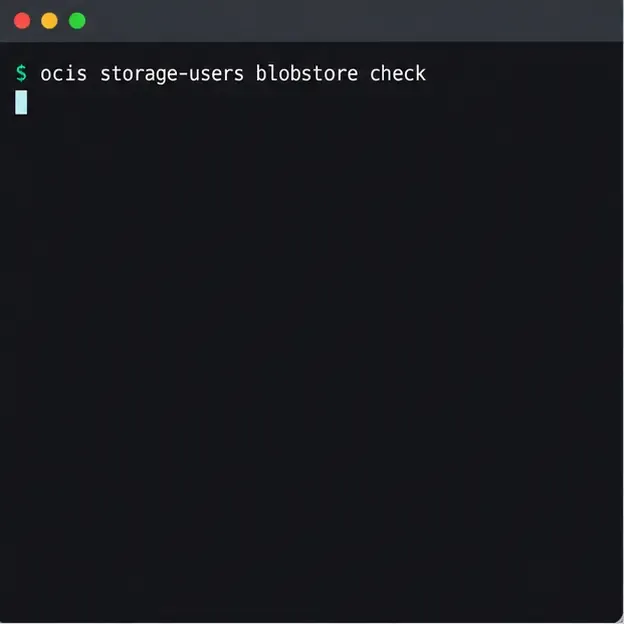
After saving the configuration, restart or redeploy oCIS using the procedure for your installation. Check service logs for configuration, endpoint, permission, or connection errors. Then run the blobstore check in the same configured runtime as oCIS:
ocis storage-users blobstore checkThis maintenance command uses the configured blobstore and performs an upload, download, and delete round trip with a random test payload. It is a focused storage check, not proof that every user-facing workflow or very large upload will succeed. The blobstore command reference documents its options, including a configurable test payload size.
Finally, upload a small test file through the client or web interface and confirm it appears and opens. For a large-file deployment, also test a representative file size before relying on the setup. A successful small round trip does not validate multipart capacity or available temporary disk.
Back up the S3 objects and the POSIX metadata, configuration, and other required oCIS data as a coordinated set. ownCloud’s backup guidance says to stop the instance for a backup and to handle externally stored S3 blobs separately. Keep recoverable copies of both storage layers and test a restore procedure before treating the deployment as protected: ownCloud backup considerations.
STORAGE_USERS_DRIVER is s3ng; system storage remains ocis.Use the invalid-file report to identify mismatched core files or app signatures, restore the correct release files, and verify the integrity check safely.
Deploy ownCloud Infinite Scale from its official Compose example, configure domains and persistent storage, then verify TLS, containers, and first login.
Set up the S3NG driver, bucket permissions, persistent metadata storage, and upload sizing so ownCloud Infinite Scale can store file contents reliably.
Find why an ownCloud Server upload stops near completion by checking file status, quota, temporary disk space, PHP limits, and proxy timeouts.
Set AllowOverride All only for ownCloud’s web root, validate the active Apache vhost, and reload safely to restore .htaccess rules.
Enable ownCloud’s Enterprise Auditing app, route admin_audit events to a protected log file, and confirm that real user actions are being recorded.
Align Keycloak’s realm issuer, web client, and user claims to let ownCloud Infinite Scale sign users in reliably across the web and mobile clients.
Transfer owned files and outgoing shares with ownCloud’s occ command, understand what stays behind, and verify access before deleting the old account.
Learn when ownCloud 10 database indexes need attention, how to apply supported schema updates safely, and when query tuning or a database change is the better fix.
Connect a Windows or Samba network share to ownCloud through External Storage, verify credentials, and troubleshoot inaccessible folders safely.