Fix High CPU Usage by Tracker-Miner-3 in Ubuntu GNOME

Learn why tracker-miner-fs-3 uses high CPU in Ubuntu GNOME and how to check indexing, exclude folders, update Ubuntu, or safely rebuild the search index.
There are many ways to protect sensitive folders and data, such as hiding them in hard-to-find places, storing them in removable storage devices and putting them in safes, and storing them in the cloud with strong passwords. But if you have to access them frequently, you will have to leave them on your computer, even in the most accessible places. In that case, a more effective way to protect folders is to hide them, set a password, or encrypt them.
In the article below, WebTech360 will guide you through 5 ways to protect folders on Windows:
Windows has a built-in tool that allows you to hide folders that you want to hide. This is a low-security method and should not be used to protect important data. You can also use this tool to hide folders that you find annoying.
How to do as follows:
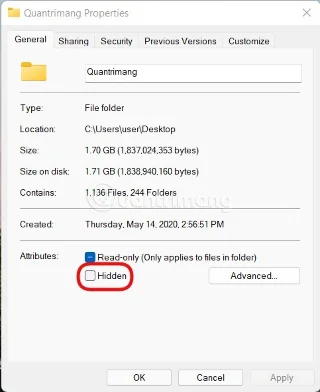
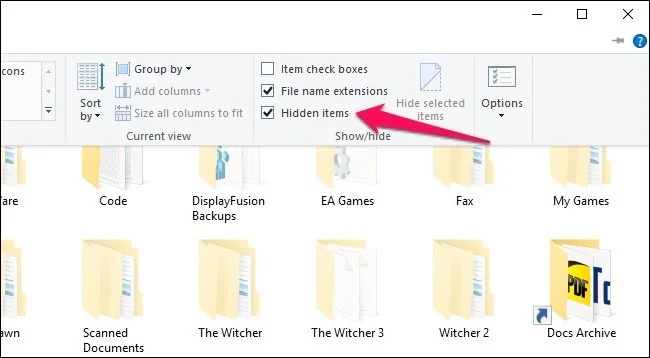
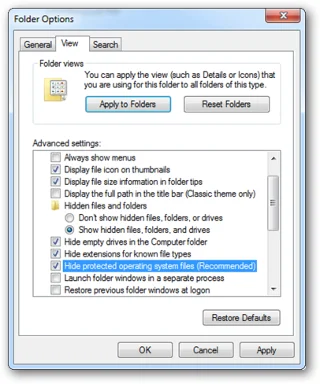
To view the files again, all you need to do is on the Folder Options window , uncheck the items Show hidden files, folders, and drives and Hide protected operating system files . Or you can click on the " Hidden items " box in the View menu of File Explorer.
Command Prompt is a command-line interpreter application available in most Windows operating systems. It is used to execute entered commands. Most of these commands automate tasks through scripts and batch files, perform advanced administrative functions, and troubleshoot or resolve certain types of Windows issues.
Command Prompt's official name is Windows Command Processor, but it's sometimes referred to as the command shell, or even by its file name, cmd.exe.
Turning a regular folder into a hidden system folder using Command Prompt is a bit more difficult than the previous method, so of course the security will be higher. To do it successfully, you will have to manipulate a bit with the Command Prompt command line window.
How to do as follows:
attrib +s +h “C:\Users\Quantrimang\Desktop\Bi Mat”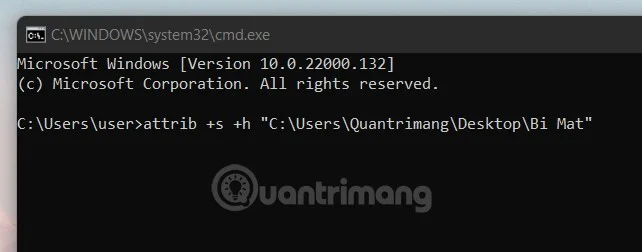
Encryption is an effective way to protect your files. Microsoft includes an encryption tool in Windows that makes it easy to protect your data.
How to do as follows:
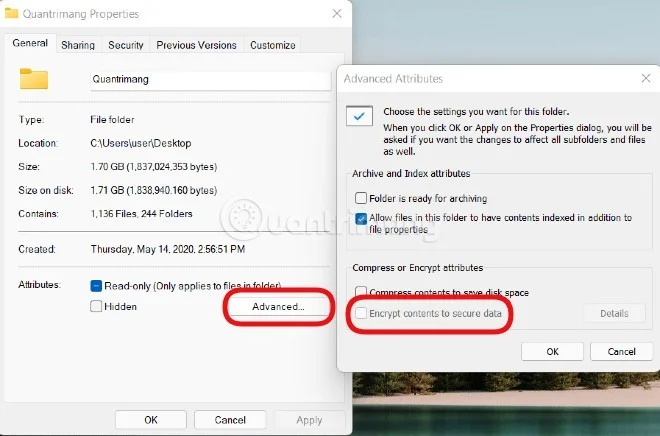
The only downside to this method is that it ties the encryption to your user account. This means that other accounts on the same computer will not be able to open the files or folders you encrypted. However, if you share an account, this method will not work.
How to Backup Locked Folder Encryption Key in Windows 10
Follow these steps to manually back up keys for encrypted folders:
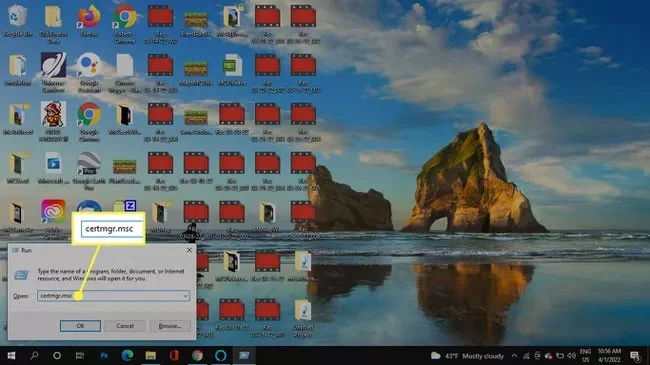
1. Press Windows key + R to open the Run command dialog box , type certmgr.msc , and then select OK.
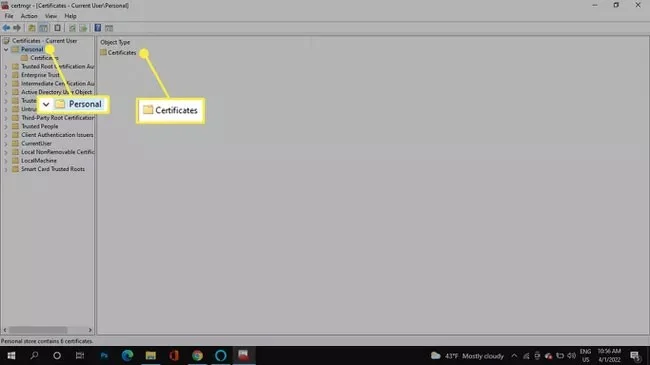
2. In the left pane, go to Personal store > Certificates .
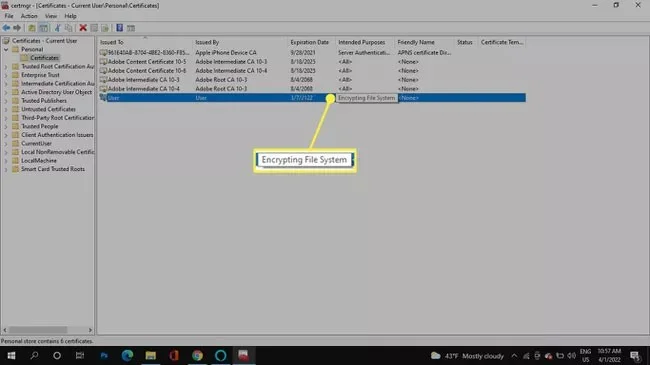
3. Select all certificates for Encrypting File System .
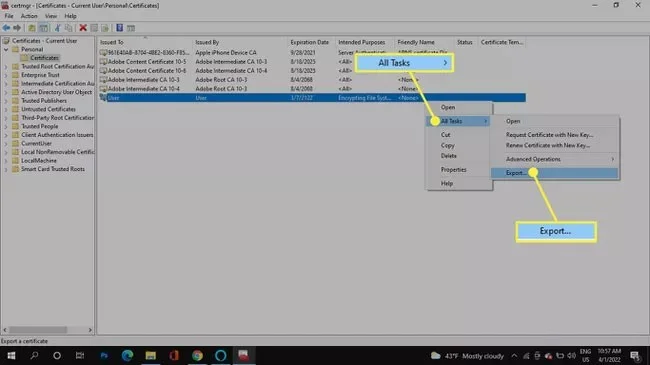
4. Right-click on the selected files, then go to All Tasks > Export .
5. Start the Certificate Export Wizard by selecting Next on the first screen.
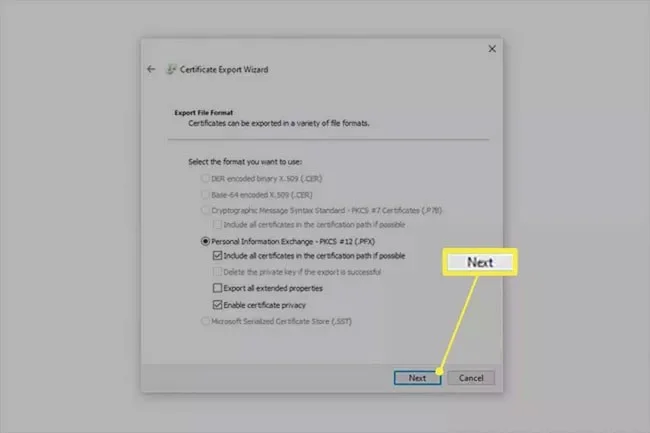
6. Keep the default values selected, then click Next again.
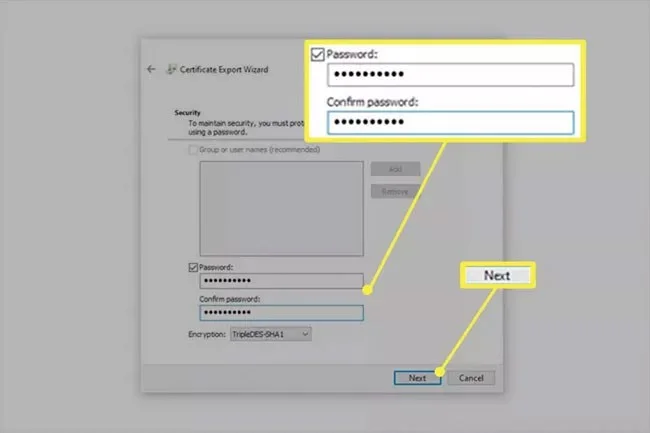
7. Check the box next to Password to enable passwords and fill in the text fields below. Select Next.
8. Choose where to save the PFX file and name the file.
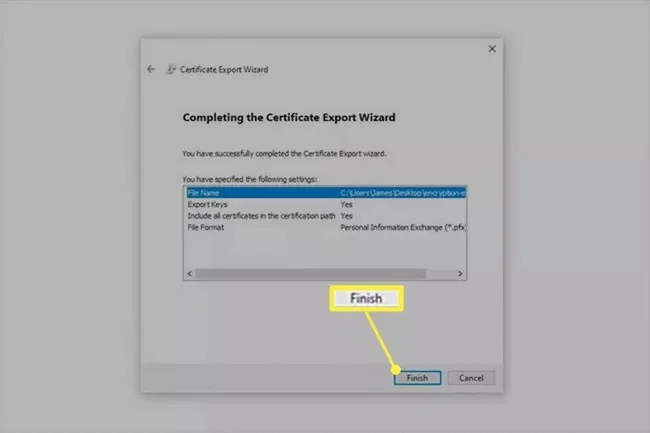
9. Select Next to review the information you have provided and select Finish to complete the export.
10. Select OK on the export success prompt. If you need to use this certificate, simply open the certificate from wherever you saved it in step 9 and follow the on-screen prompts.
1. Before you begin, you must create a folder to store the folders that need to be protected. To do this, simply create a folder in the usual way and give it any name.
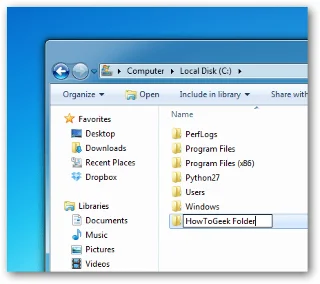
2. Navigate to the folder you just created, open it and create a new Text Document by right-clicking on any empty space in the folder, selecting New => Text Document.
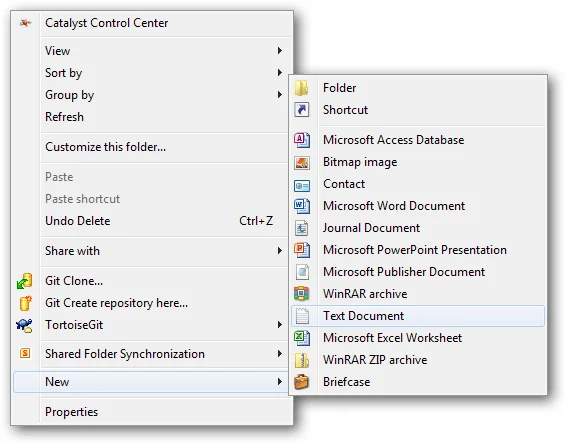
3. Open the Text Document file you just created, copy and paste the code below into it:
cls
@ECHO OFF
title Folder Private
if EXIST "HTG Locker" goto UNLOCK
if NOT EXIST Private goto MDLOCKER
:CONFIRM
echo Are you sure you want to lock the folder(Y/N)
set/p "cho=>"
if %cho%==Y goto LOCK
if %cho%==y goto LOCK
if %cho%==n goto END
if %cho%==N goto END
echo Invalid choice.
goto CONFIRM
:LOCK
ren Private "HTG Locker"
attrib +h +s "HTG Locker"
echo Folder locked
goto End
:UNLOCK
echo Enter password to unlock folder
set/p "pass=>"
if NOT %pass%== PASSWORD_GOES_HERE goto FAIL
attrib -h -s "HTG Locker"
ren "HTG Locker" Private
echo Folder Unlocked successfully
goto End
:FAIL
echo Invalid password
goto end
:MDLOCKER
md Private
echo Private created successfully
goto End
:End
Note:
In the above code, replace PASSWORD_GOES_HERE with the password you want to set. Finally, in Save as type select All type , name the file locker.bat .
4. Now you can delete the original text file.
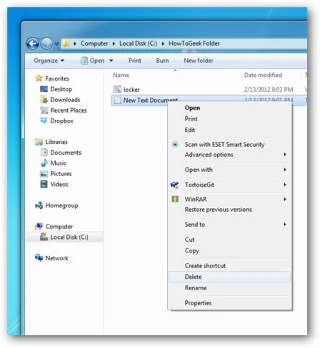
5. Next, double-click on the locker.bat file to open it. This will create a new folder named Private . This Private folder is where you can store all important files and folders....
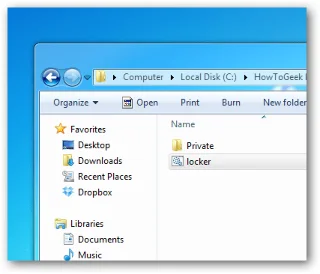
6. After moving the data that needs to be secured into the Private folder, double-click on the locker.bat file .
Immediately a command line dialog box will appear asking if you agree to hide this folder, just type “Y” and press ENTER.
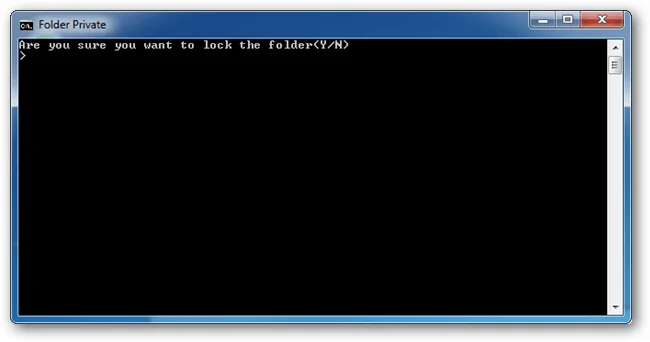
7. Once done the Private folder will disappear.
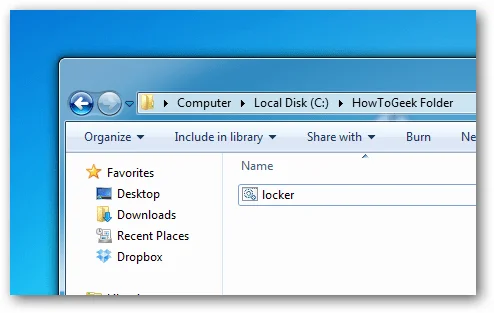
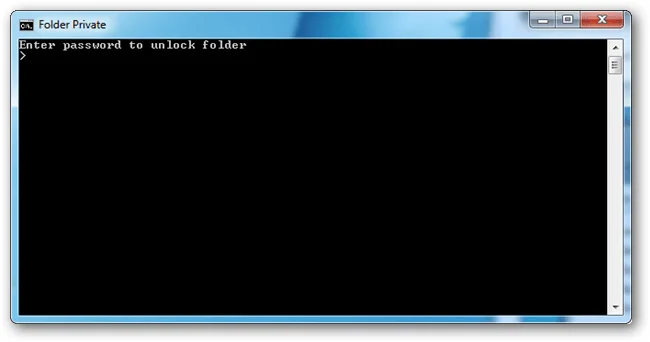
8. If you want to access the Private folder, double-click on the locker.bat file and enter the password you set in the command line window and press ENTER.
To view the files again, all you need to do is on the Folder Options window, uncheck the Show hidden files, folders, and drives and Hide protected operating system files .
Then a warning window will appear on the screen as shown below:
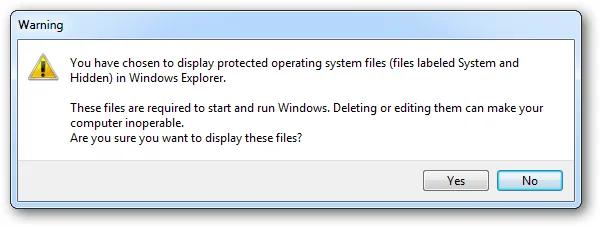
To open the Folder Options window as well as to hide or show files and folders on Windows 7, 8 and 10, please refer to the steps here .
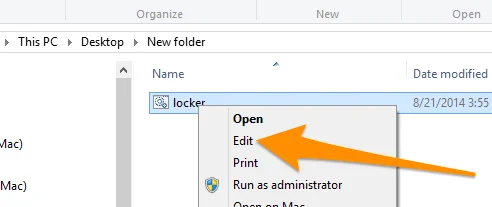
If you accidentally forget your password or if you want to change it, all you need to do is right-click on the locker.bat file and select Edit and proceed to change the password.
The above method only helps protect your sensitive files from prying eyes. People who know this trick or have knowledge of computers can easily open the files you have hidden, then you need a real password setting tool for the folder. You can see the 3 software that WebTech360 has introduced such as: Wise Folder Hider , Folder Guard , Secure Folder
Some frequently asked questions
How to lock a folder in Windows 10 to prevent deletion?
One option is to right-click the folder and select Properties > Security > Advanced > Disable Inheritance > Convert inherited permissions into explicit permissions on this object . Then, select a user from the list, select Edit > Show advanced permissions > Type > Deny and check the box next to Delete.
How to hide a folder on PC and lock it yourself in Windows 10?
To hide files and folders in Windows 10, right-click the folder and select Properties > General > Hidden > Apply > OK . While you can prevent hidden files from showing up by adjusting your File Explorer view, other users can easily show hidden items by changing this setting. A third-party tool to add password protection and hide folders more effectively.
Learn why tracker-miner-fs-3 uses high CPU in Ubuntu GNOME and how to check indexing, exclude folders, update Ubuntu, or safely rebuild the search index.
Fix Debian’s UEFI boot error by checking boot mode, the EFI System Partition, GRUB files, and firmware boot order—without reinstalling Debian first.
The Outlook Inbox Repair Tool fixes corrupted PST files quickly so you can recover emails and restore normal Outlook function. Follow these exact steps to run scanpst.exe without data loss.
Get the Adobe PDF Installer Offline to install Acrobat Reader on any PC without needing internet during setup. Follow these exact steps for the full standalone package.
Learn how to Chromecast from laptop to TV with this step-by-step guide. Stream browser tabs, videos, or your full screen from Windows or Mac to your TV in minutes.
Learn how to edit an Adobe PDF file in Adobe Acrobat with precise steps for text, images, and layout changes. Make professional edits quickly and save time.
Get your Free Foxit Reader Free Download from the official source with this step-by-step guide that ensures a safe and quick installation for viewing PDFs.
Learn how to get help in Windows 11 with built-in tools like the Get Help app and Quick Assist for fast, official support without third-party downloads.
Learn how to retract an Outlook email in Microsoft Outlook when you need to correct a mistake before the recipient opens it. Follow these precise steps for Exchange accounts.
Learn how to Chromecast in Samsung TV by connecting a Chromecast device and streaming from your phone or computer in just a few minutes.








