How to block Internet connection of Windows 10 software and applications

If you are connected to the Internet, almost any application can access the network connection without much difficulty. Of course, applications connect to the Internet to provide additional features or services, send telemetry information, and receive updates.

While allowing applications to access the Internet without any restrictions is not a big deal, there may be situations where you need to block or prevent a program from doing so.

In addition to antivirus software to protect computers from dangers, Windows has a built-in Windows Firewall to protect the system from external dangers. And during use, users can customize Windows Firewall to turn on or off to suit their needs. Or you can block Internet connection of any application or software through Windows Firewall.

We can block Internet access for any application or software on the computer, while other programs can still access the network. The following article will guide readers on how to disable Internet access for software and applications on Windows.

Things to note

The procedure below only works for regular win32 programs. If you want to restrict modern Store or UWP apps, you should enable metered connections . Metered connections (internet connections with a data limit attached to them) restrict updates and internet access in the background.

Although the whole configuration is quite easy, you should follow the steps carefully. Don't touch anything else unless you know what you are doing.

How to disable Windows 10 software network connection

Note that to do this, Windows Firewall on your computer must be active.

Step 1:

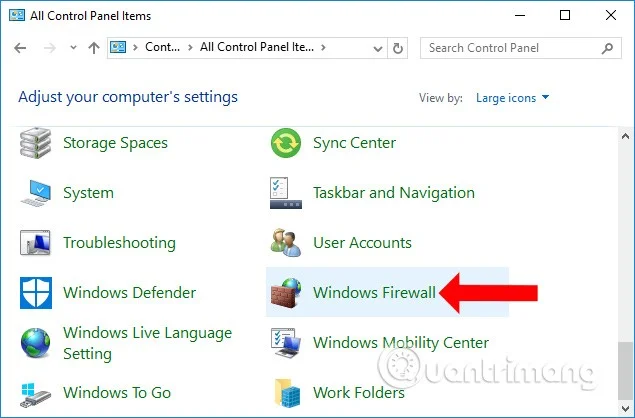
Go to Control Panel and change the arrangement to Large icons . Then click on Windows Firewall below.

How to block Internet connection of Windows 10 software and applications

Step 2:

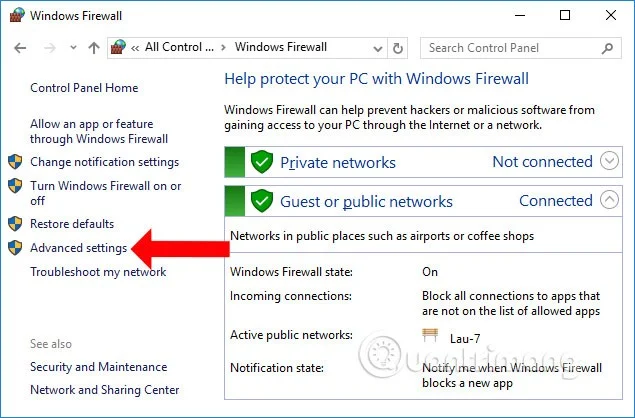
Switch to the new interface and click on Advanced Settings in the list on the left side of the screen.

How to block Internet connection of Windows 10 software and applications

Step 3:

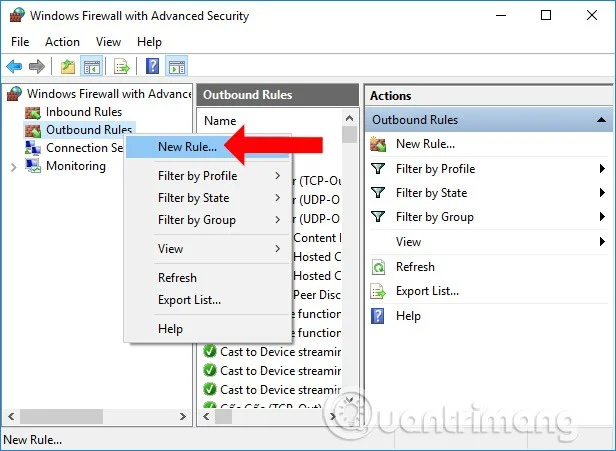
The Windows Firewall with Advanced Security interface appears . Here, click on Outbound Rules below, then right-click on New Rule… to create a new setting.

How to block Internet connection of Windows 10 software and applications

Step 4:

Users need to perform 5 steps to set up blocking Internet connection for the software.

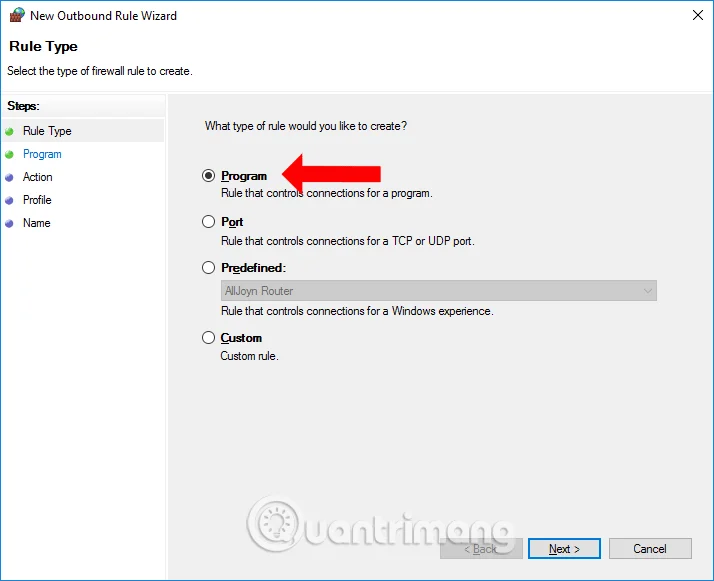
Go to the new page, select Program to create settings for software and applications on the computer, then click the Next button below.

How to block Internet connection of Windows 10 software and applications

Step 5:

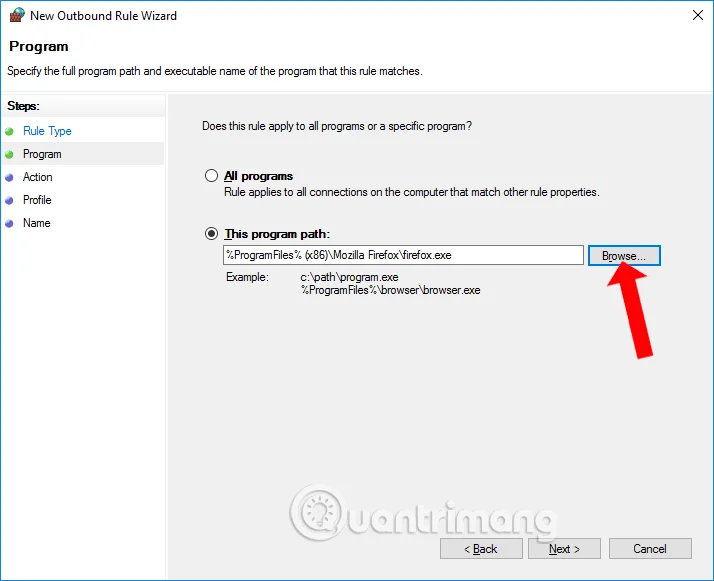
In this interface, we can choose All program if we want to select all applications and software installed on the device. If we want to select software, click on This program path , then select Browse and find the software you want to block the Internet and click Next . For example, it will block Internet access of Firefox browser.

How to block Internet connection of Windows 10 software and applications

Step 6:

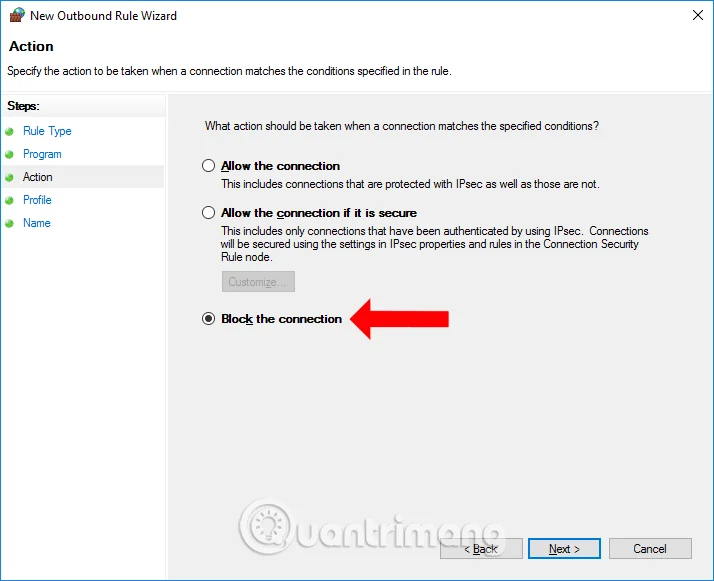
In this interface, select Block the connection then click Next to continue.

How to block Internet connection of Windows 10 software and applications

Step 7:

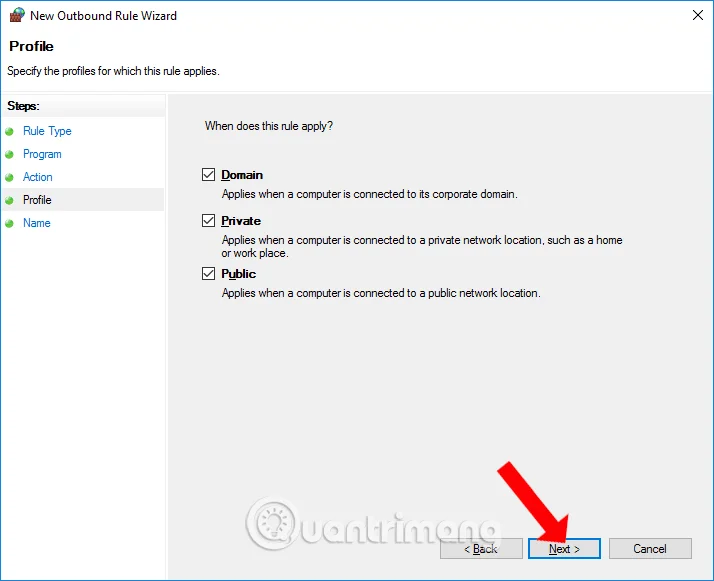
Switch to the new interface, click Next below.

How to block Internet connection of Windows 10 software and applications

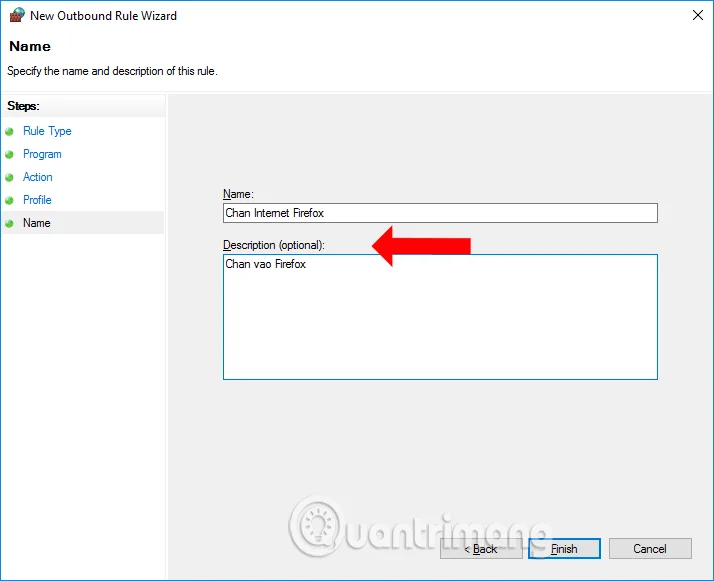
Finally, you fill in the name for the setup and description below and click Finish to finish.

How to block Internet connection of Windows 10 software and applications

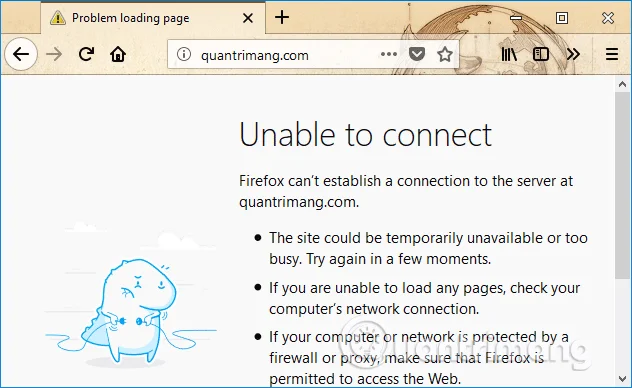
Now open Firefox browser and you will see a message saying no network connection as shown. Other applications or software can still be accessed normally.

How to block Internet connection of Windows 10 software and applications

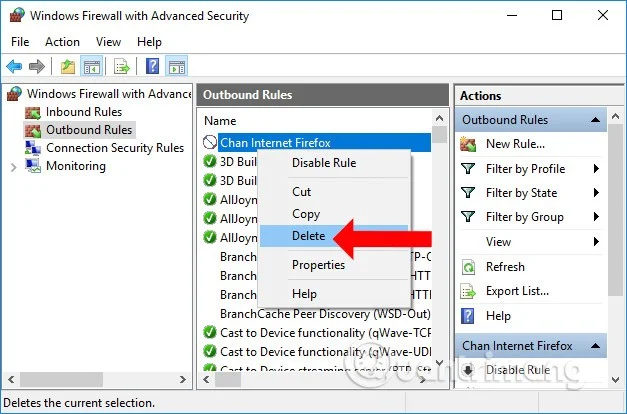
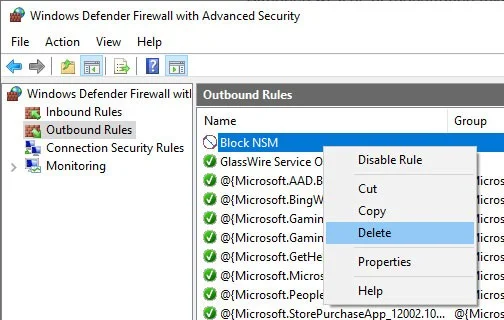
To unblock the Internet connection for the software, reopen the network connection for the selected application, you access the main interface of Windows Firewall with Advanced Security again, right-click on the newly created setting and select Disable to temporarily disable, or Delete to completely delete.

How to block Internet connection of Windows 10 software and applications

Without installing software, we can completely block the Internet connection of any software or application installed on the computer. Unblocking network connection is also simple when Windows Firewall supports you to disable or turn it off completely.

Unblock applications from connecting to the Internet

If you want to allow the program you just blocked to connect to the internet, you can do it in 2 ways.

Unblock temporarily

To temporarily disable the rule and allow the application, simply right-click on the rule you just created and click on the "Disable Rule" option.

How to block Internet connection of Windows 10 software and applications
Click on the "Disable Rule" option

To block the program again, click the "Enable Rule" option.

Delete rule

To delete a rule, all you have to do is right-click on it and select the “Delete” option.

How to block Internet connection of Windows 10 software and applications
Select the "Delete" option to delete the rule

All done! It’s that simple to block an application from connecting to the internet using Windows Firewall. If you have any trouble or need some help, leave a comment below!
See also:

Good luck!

Tags: #System

Leave a Comment

Fix Windows Error Code 0xc0000098: Backup ACPI.sys to Prevent Boot Failure

Fix Windows Error Code 0xc0000098: Backup ACPI.sys to Prevent Boot Failure

Error code 0xc0000098 in Windows causes a blue screen error on startup. The ACPI.sys driver is often to blame, especially on unsupported versions of Windows 11 like 23H2 or 22H2 or Windows 10.

Quickly fix Windows 10/8/7 computer error that freezes and cannot exit Safe Mode

Quickly fix Windows 10/8/7 computer error that freezes and cannot exit Safe Mode

In some cases, sometimes you start your computer in Safe Mode and the computer freezes. So how to fix the error in this case, please refer to the article below of WebTech360.

How to fix Snipping Tool keeps showing error

How to fix Snipping Tool keeps showing error

Snipping Tool is a powerful photo and video capture tool on Windows. However, this tool sometimes has some errors, such as constantly displaying on the screen.

How to get the fastest internet connection from your router

How to get the fastest internet connection from your router

Every network has a router to access the Internet, but not everyone knows how to make the router work better. In this article, we will introduce some router tips to help speed up the wireless connection in the network.

Common Mistakes When Performing Internet Speed ​​Tests

Common Mistakes When Performing Internet Speed ​​Tests

If the results seem slower than expected, don't be too quick to blame your ISP - mistakes when performing the test can skew your numbers.

What is QoS? How to use QoS for faster Internet speeds when you need it most

What is QoS? How to use QoS for faster Internet speeds when you need it most

In the article below, we will introduce and guide you to learn about the concept of QoS - Quality of Service on router devices.

Why cant this built-in Credential Manager feature in Windows replace a password manager?

Why cant this built-in Credential Manager feature in Windows replace a password manager?

Windows has a built-in Credential Manager, but it's not what you think it is—and certainly not a replacement for a password manager.

How to install free HEVC codecs on Windows 10 (for H.265 video)

How to install free HEVC codecs on Windows 10 (for H.265 video)

Microsoft charges for its official codecs and doesn't include them in Windows 10. However, you can get them for free without pulling out your credit card and spending $0.99.

Instructions to fix Access Denied error when accessing files or folders on Windows

Instructions to fix Access Denied error when accessing files or folders on Windows

While having trouble accessing files and folders can be frustrating, don't panic—with a few simple tweaks, you can regain access to your system.

How to check if USB Boot has been created successfully?

How to check if USB Boot has been created successfully?

After creating a USB boot to install Windows, users should check the USB boot's performance to see if it was created successfully or not.

4 Types of Windows Data That Are Growing in Size: How to Control Them?

4 Types of Windows Data That Are Growing in Size: How to Control Them?

Although Windows Storage Sense efficiently deletes temporary files, some types of data are permanent and continue to accumulate.

How to turn off background apps in Windows 11, reduce RAM consumption on Win 11

How to turn off background apps in Windows 11, reduce RAM consumption on Win 11

You can turn off Windows 11 background apps to optimize performance, save battery and reduce RAM consumption.

Instructions to fix the error “Network path was not found” in Windows

Instructions to fix the error “Network path was not found” in Windows

When a computer, mobile device, or printer tries to connect to a Microsoft Windows computer over a network, for example, the error message network path was not found — Error 0x80070035 may appear.

How to Stay Safe on Windows 10 Until 2030

How to Stay Safe on Windows 10 Until 2030

Instead of paying $30 for a year of security updates, keep Windows 10 safe until 2030 with this simple solution.

How to Use Windows 11 Quick Assist for Help

How to Use Windows 11 Quick Assist for Help

Discover how to use Windows 11 Quick Assist for seamless remote support. Learn step-by-step setup, troubleshooting, and tips to help friends or family with tech issues instantly.

Troubleshooting Windows 11 Dual Monitor Lag Fixes

Troubleshooting Windows 11 Dual Monitor Lag Fixes

Struggling with dual monitor lag on Windows 11? Discover proven troubleshooting fixes to eliminate stuttering, delays, and performance issues for seamless multi-monitor setups. Step-by-step guide inside.

How to Fix Windows 11 Startup Settings Blank Error

How to Fix Windows 11 Startup Settings Blank Error

Struggling with the frustrating Windows 11 "Startup Settings" blank error? Discover proven, step-by-step fixes to restore your boot options quickly and get your PC running smoothly again. No tech expertise needed!

How to Activate Windows 11 Enterprise with KMS

How to Activate Windows 11 Enterprise with KMS

Discover how to activate Windows 11 Enterprise using KMS effortlessly. This comprehensive guide covers everything from requirements to troubleshooting, ensuring seamless activation for your business needs.

How to Fix Windows 11 Kmode Exception Not Handled

How to Fix Windows 11 Kmode Exception Not Handled

Struggling with the dreaded KMODE EXCEPTION NOT HANDLED error on Windows 11? Discover proven, step-by-step fixes to resolve this blue screen nightmare quickly and get your PC running smoothly again. No tech expertise needed!

Troubleshooting Windows 11 Motherboard Driver Error Fix

Troubleshooting Windows 11 Motherboard Driver Error Fix

Struggling with Windows 11 "Motherboard" Driver Error? Discover proven troubleshooting steps to fix it fast and get your PC running smoothly again. Easy, step-by-step guide for beginners.

How to Fix Windows 11 Ping Spikes Over Wi-Fi Fixes

How to Fix Windows 11 Ping Spikes Over Wi-Fi Fixes

Struggling with ping spikes on Windows 11 over Wi-Fi? Discover proven fixes to stabilize your connection, reduce lag, and enjoy smooth gaming or streaming. Step-by-step solutions for instant results.

How to Recover Deleted Photos in Windows 11

How to Recover Deleted Photos in Windows 11

Accidentally deleted precious photos? Discover proven methods to recover deleted photos in Windows 11 effortlessly. Step-by-step guides, tools, and tips to restore your images safely.

How to Use Windows 11 Terminal Instead of CMD

How to Use Windows 11 Terminal Instead of CMD

Discover how to use Windows 11 Terminal instead of CMD for a modern, efficient command-line interface. Learn installation, setup, and tips to boost your productivity with tabs, themes, and more.

How to Activate Windows 11 Pro Without a Product Key

How to Activate Windows 11 Pro Without a Product Key

Discover safe, legitimate ways to activate Windows 11 Pro without a product key. Learn step-by-step methods using built-in tools and official Microsoft options to get your OS up and running smoothly. No risks, no hassle – just pure productivity.

Fixing Battery Drain During Hibernate in Windows 11

Fixing Battery Drain During Hibernate in Windows 11

Struggling with battery drain during hibernate in Windows 11? Discover expert fixes to preserve your laptop

How to Fix Windows 11 Input Lag for Valorant and CS2

How to Fix Windows 11 Input Lag for Valorant and CS2

Struggling with input lag in Windows 11 while playing Valorant or CS2? Discover proven, step-by-step fixes to restore smooth gameplay and boost your performance. Say goodbye to delays and hello to precision shots.

How to Fix Out of Memory Error in Microsoft Edge

How to Fix Out of Memory Error in Microsoft Edge

Struggling with the frustrating "Out of Memory" error in Microsoft Edge? Discover proven, step-by-step fixes to reclaim your browsing speed and stability. Updated with the latest tips for optimal performance.

How to Fix Windows 11 Google Drive Not Launching Fix

How to Fix Windows 11 Google Drive Not Launching Fix

Struggling with Google Drive not launching on Windows 11? Discover proven fixes to resolve the issue fast, from restarts to advanced troubleshooting. Get your cloud storage working seamlessly today!

How to Disable Gamebar Presence Writer for Performance

How to Disable Gamebar Presence Writer for Performance

Discover how to disable Game Bar Presence Writer on Windows to optimize gaming performance. Step-by-step guide to reduce lag, boost FPS, and enhance your setup for smoother gameplay. Essential tips for gamers in 2026.