4 ways to delete apps on iPhone that dont appear on the screen

You want to delete an application on your iPhone but can't find it anywhere on the home screen. Although the application does not appear on the iPhone screen due to an error, or because you have hidden the application on the iPhone , users can still delete the application on the iPhone very simply. Below are instructions for deleting applications on the iPhone that do not appear on the screen.

Table of Contents

Why is the app not showing on the iPhone home screen?

There could be a number of reasons below why the app is not showing up on the iPhone screen:

  • Because you have deleted the app from the home screen on your iPhone.
  • You set the mode to only display newly downloaded applications in the App Library so they do not appear on the iPhone home screen.
  • From iOS 14 onwards, if you hide your iPhone's home screen pages, all apps on this page will also automatically hide.
  • The app can be hidden inside the app folder or on the second or third page inside the folder.

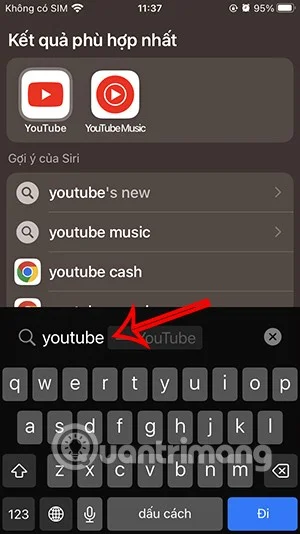
How to Delete Hidden Apps on iPhone from Spotlight

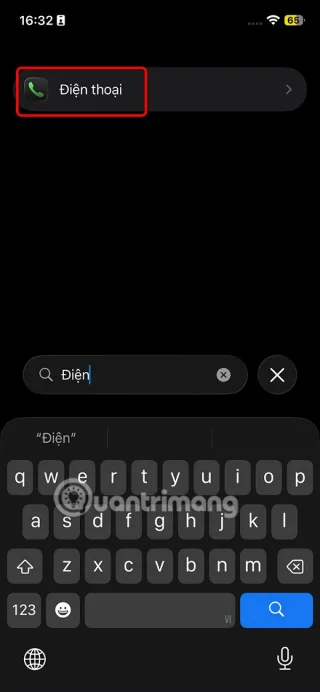
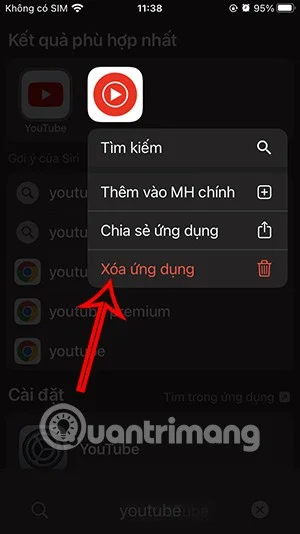
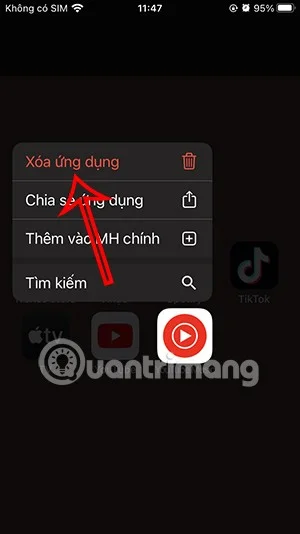
You open Spotlight on iPhone then enter the name of the application on iPhone that you want to delete but hide on the screen. Next, you press and hold on the application and select Delete application in the displayed menu.

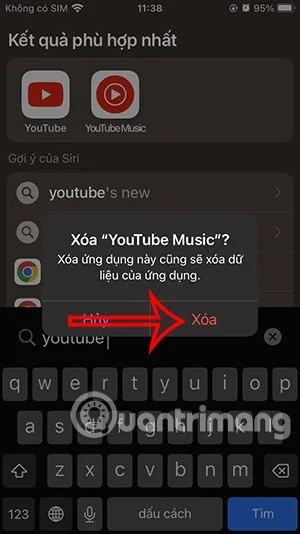
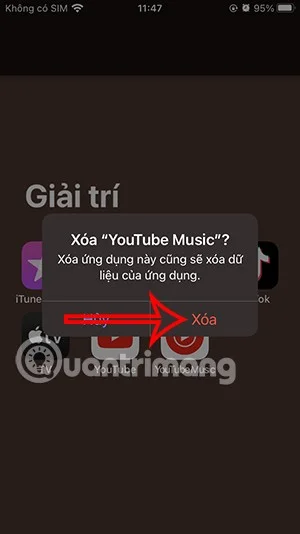
You will then be asked if you are sure you want to delete this application, click Delete to proceed .
4 ways to delete apps on iPhone that don't appear on the screen

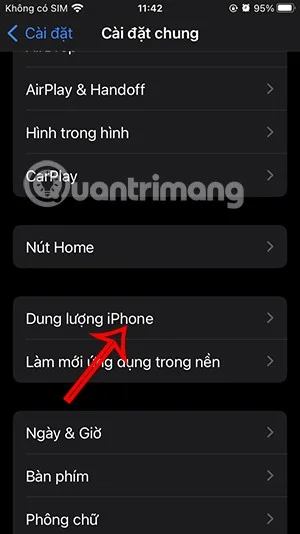
Delete Hidden Apps on iPhone in Settings

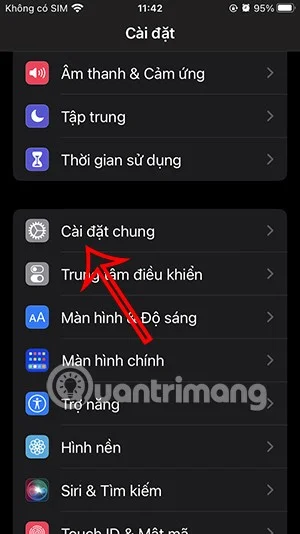
You click on Settings on iPhone then click on General Settings . Next you click on iPhone Storage .

4 ways to delete apps on iPhone that don't appear on the screen

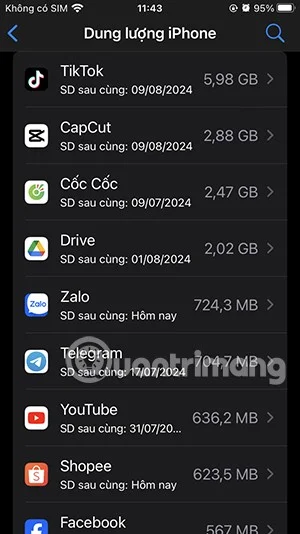
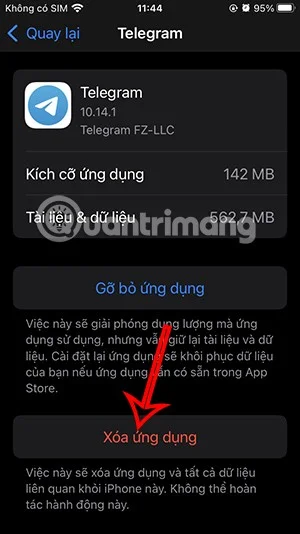
Then you will see all the applications installed on your iPhone. You click on the application you want to delete in the list. Next, you click on Delete application to delete.

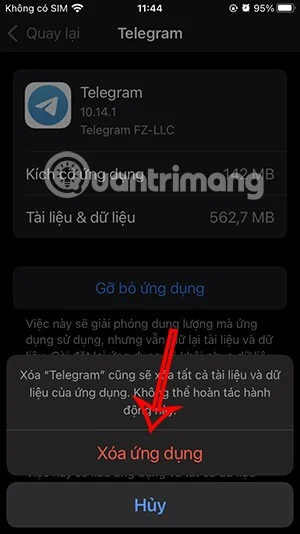
Finally, you just need to click on Delete application to remove the application on iPhone.

4 ways to delete apps on iPhone that don't appear on the screen

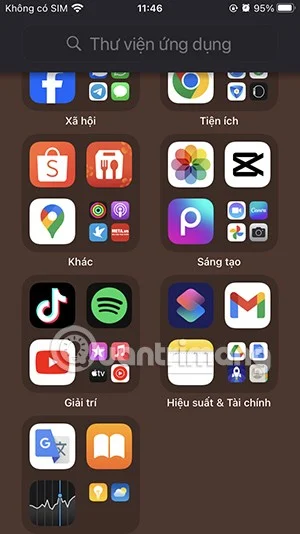
Delete Hidden Apps on iPhone from App Library

Swipe left on the home screen until you reach the App Library. Here you'll see your apps grouped together in folders.
4 ways to delete apps on iPhone that don't appear on the screen

From this app library, press and hold the app you want to delete and select Delete app in the menu that appears. You will then be asked if you want to delete this app, press Delete to do so.

4 ways to delete apps on iPhone that don't appear on the screen

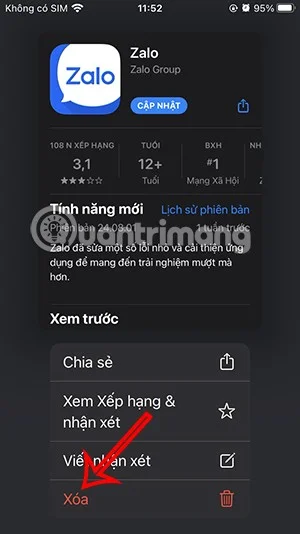
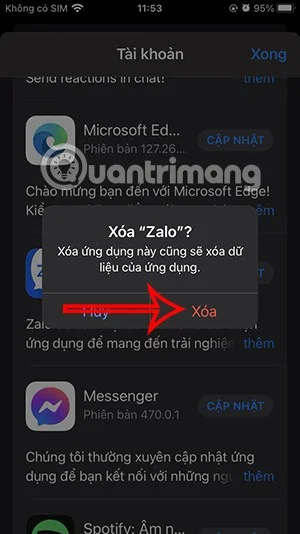
Delete Hidden Apps on iPhone from App Store

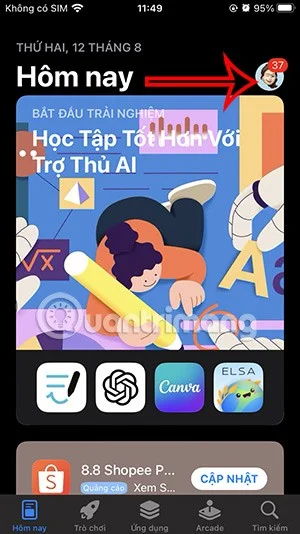
You open the App Store on your iPhone and then click on the avatar in the top right corner. Then go to the new interface, you scroll down below the Available Updates section with the applications that have new versions .

4 ways to delete apps on iPhone that don't appear on the screen

You can delete hidden apps on iPhone from this Apple Store interface. We hold down on the app in the list interface and select Delete to do it. Finally, press Delete to agree.

4 ways to delete apps on iPhone that don't appear on the screen
Tags: #iPhone
Sign up and earn $1000 a day ⋙

Leave a Comment

How to Recover Deleted Password on iPhone

How to Recover Deleted Password on iPhone

You can use iCloud Keychain or iCloud Keychain to save your passwords and easily access them on your iPhone. Here's how to recover deleted passwords on your iPhone.

How to View and Delete Call History on iPhone

How to View and Delete Call History on iPhone

The Phone app on iPhone when upgraded to iOS 18 has been updated with a call history search feature. Below are instructions for searching call history on iPhone.

Instructions for saving bank card information in iPhone Wallet

Instructions for saving bank card information in iPhone Wallet

The Wallet app on iOS 26 lets you store physical card information alongside your digital payment card. This feature lets you quickly access your account number, expiration date, and other information without having to carry your physical card.

5 Things Your iPhone Can Do When Used with a Mac

5 Things Your iPhone Can Do When Used with a Mac

You may have had an iPhone for years, but pairing it with a Mac completely changes the way you use it. There's a whole layer of functionality that only comes to light when the two devices work together.

Why is the iPhone battery icon yellow, how to fix it?

Why is the iPhone battery icon yellow, how to fix it?

The yellow battery color displayed on the iPhone screen is actually due to a new feature called Low Power Mode by Apple. This feature will not be automatically activated without the user's permission. If you accidentally allowed the mode to be activated while using it and now do not know how to turn off the yellow iPhone battery icon, please refer to the following instructions.

Instructions for creating 3D graphs on iPhone without applications

Instructions for creating 3D graphs on iPhone without applications

The Notes app on iOS 26 gets an update that lets you create 3D graphs from functions you enter without needing another app or doing too much work.

How to send invisible messages on iPhone

How to send invisible messages on iPhone

The Messages app on iPhone has a lot of fun and cool features, like the invisible ink effect that will hide your messages.

Instructions to enlarge iPhone lock screen clock

Instructions to enlarge iPhone lock screen clock

iOS 26 has added an option to enlarge the lock screen clock so that users can adjust it if needed. Below are instructions to enlarge the iPhone lock screen clock.

How to fix Apple Account login error on the web

How to fix Apple Account login error on the web

The Apple account web interface in your browser lets you view your personal information, change settings, manage subscriptions, and more. But sometimes you can't sign in for a variety of reasons.

5 tips to make Find My on iPhone more accurate

5 tips to make Find My on iPhone more accurate

When Find My becomes inaccurate or unreliable, apply a few tweaks to make it more accurate when it's needed most.

How to find missed calls from unknown numbers on iPhone

How to find missed calls from unknown numbers on iPhone

After updating iPhone to iOS 26, missed calls from unknown numbers do not show up in the Calls or Recents section of the Phone app.

How to Set Up the Back Tap Gesture on iPhone

How to Set Up the Back Tap Gesture on iPhone

Many people only recently discovered Back Tap, a hidden gesture that can run shortcuts, open apps, or take screenshots.

Instructions for confirming trust in applications on iPhone

Instructions for confirming trust in applications on iPhone

When you install an application on your iPhone from another source, you will need to manually confirm that the application is trusted. Then the application will be installed on your iPhone for use.

4 iMessage Tricks You Should Use Right Now

4 iMessage Tricks You Should Use Right Now

Like most people, you probably just send (or read) a message and move on. But chances are you're missing out on a bunch of hidden features.

How to enable developer options and disable it on Android

How to enable developer options and disable it on Android

Developer options on Android devices are hidden by default, to avoid changes that affect the system. The following article will guide readers on how to enable developer mode on Android, illustrated on the Samsung Galaxy S9, and how to disable this option if you no longer use it.

How to Free Up Space on Android

How to Free Up Space on Android

Smartphones and tablets can easily fill up with storage, especially if you've been using them for a while. Here are some ways to free up space on your Android device.

Pre-installed apps that can be safely uninstalled on Samsung phones

Pre-installed apps that can be safely uninstalled on Samsung phones

Deleting apps you know you won't use is a great way to save storage space and minimize background processes on your phone.

7 Screenshots Hackers Like You To Save In Your Gallery

7 Screenshots Hackers Like You To Save In Your Gallery

It's easy to think of screenshots as temporary, but many of us never delete them. The danger is that some of them can become gold mines for hackers, identity thieves, or even just curious friends.

Turn Off These 8 Samsung Settings to Stop Your Phone from Draining Your Battery Quickly!

Turn Off These 8 Samsung Settings to Stop Your Phone from Draining Your Battery Quickly!

Many people think that their Samsung phone battery can no longer meet the daily needs. But after turning off these overlooked settings, the battery can easily last all day.

How to delete browsing history on Android phone

How to delete browsing history on Android phone

Current web browsers on computers or phones all have the option to delete browsing history, such as deleting browsing history on Chrome, deleting browsing history on Firefox,...

How to Recover Deleted Password on iPhone

How to Recover Deleted Password on iPhone

You can use iCloud Keychain or iCloud Keychain to save your passwords and easily access them on your iPhone. Here's how to recover deleted passwords on your iPhone.

How to View and Delete Call History on iPhone

How to View and Delete Call History on iPhone

The Phone app on iPhone when upgraded to iOS 18 has been updated with a call history search feature. Below are instructions for searching call history on iPhone.

Instructions for saving bank card information in iPhone Wallet

Instructions for saving bank card information in iPhone Wallet

The Wallet app on iOS 26 lets you store physical card information alongside your digital payment card. This feature lets you quickly access your account number, expiration date, and other information without having to carry your physical card.

5 Things Your iPhone Can Do When Used with a Mac

5 Things Your iPhone Can Do When Used with a Mac

You may have had an iPhone for years, but pairing it with a Mac completely changes the way you use it. There's a whole layer of functionality that only comes to light when the two devices work together.

Why is the iPhone battery icon yellow, how to fix it?

Why is the iPhone battery icon yellow, how to fix it?

The yellow battery color displayed on the iPhone screen is actually due to a new feature called Low Power Mode by Apple. This feature will not be automatically activated without the user's permission. If you accidentally allowed the mode to be activated while using it and now do not know how to turn off the yellow iPhone battery icon, please refer to the following instructions.

Instructions for creating 3D graphs on iPhone without applications

Instructions for creating 3D graphs on iPhone without applications

The Notes app on iOS 26 gets an update that lets you create 3D graphs from functions you enter without needing another app or doing too much work.

How to send invisible messages on iPhone

How to send invisible messages on iPhone

The Messages app on iPhone has a lot of fun and cool features, like the invisible ink effect that will hide your messages.

Why Smart Launcher is the Android launcher worth switching to?

Why Smart Launcher is the Android launcher worth switching to?

Many people never thought they would leave Stock Android. But after just a week of using this launcher, they now find the original interface bland and restrictive.

Instructions to enlarge iPhone lock screen clock

Instructions to enlarge iPhone lock screen clock

iOS 26 has added an option to enlarge the lock screen clock so that users can adjust it if needed. Below are instructions to enlarge the iPhone lock screen clock.