Home
» Wiki
»
6 key differences between the Galaxy Z Fold 6 and Z Fold 5
6 key differences between the Galaxy Z Fold 6 and Z Fold 5
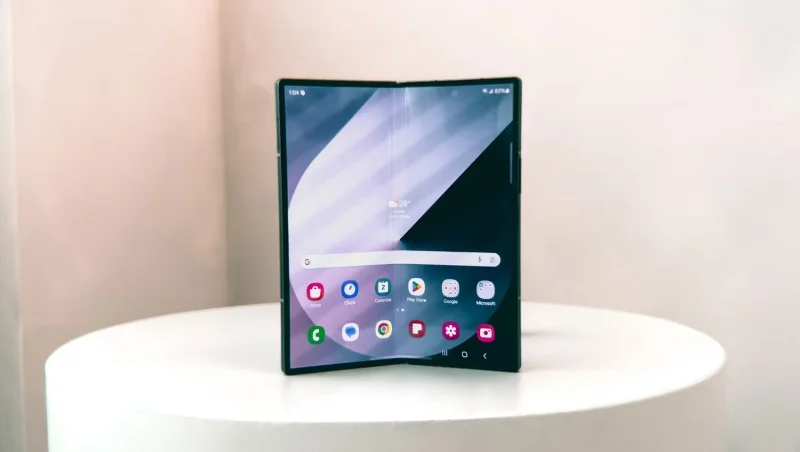
The Galaxy Z Fold 6 may not seem like a major upgrade over the Z Fold 5, but Samsung has improved the hardware and added some nifty features to make for a better experience. Here are the key differences between the Galaxy Z Fold 6 and Z Fold 5.
1. Z Fold 6 is lighter and thinner
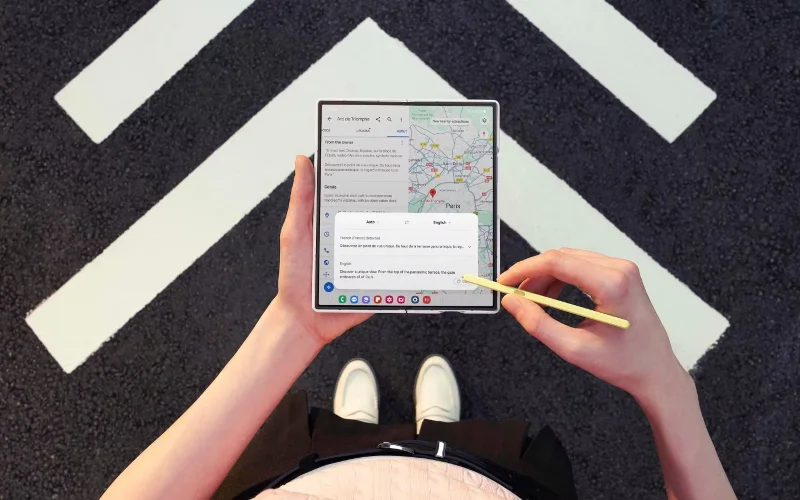
Samsung Galaxy Z Fold 6 with S Pen
The Galaxy Z Fold 6 is significantly lighter and thinner than the Fold 5. Specifically, it is 1.3mm thinner when folded (0.5mm thinner when unfolded) and 14 grams lighter. While it is not the thinnest foldable phone on the market, it is the thinnest foldable phone that Samsung has made.
The lighter body will make the Z Fold 6 more comfortable to use with one hand. Long gaming sessions on the large display inside won't be tiring either. Likewise, the thinner design will allow the phone to slip easily into a pocket.
2. Small screen improvements
The book-style folding display offers a large foldable display inside. And the Galaxy Z Fold 6 has two important improvements over the Fold 5 in this area.
While the display size remains the same on both models at 7.6 inches, the Fold 6's internal display can reach a maximum brightness of 2,600 nits. For comparison, the Fold 5's display peaked at 1,750 nits. The higher brightness should improve the display's visibility when using the phone outdoors in direct sunlight.
The Fold 6’s foldable display is also more durable thanks to “advanced layers.” Samsung has essentially replaced the ultra-thin glass on the foldable panel with a thin foldable glass that’s a little more resistant to sharp objects and external forces.
The Fold 6 has a key improvement to the cover display. It has a slightly wider 22.1:9 aspect ratio, which makes it feel less cramped and ideal for one-handed use. By comparison, the Fold 5's cover display is 6.2 inches with a 23.1:9 aspect ratio.
This is a welcome change, as cramped external displays were a big issue with previous models. However, the OnePlus Open and Google Pixel Fold have larger screens, and Samsung has a lot of room to improve in this area.
3. More powerful with Snapdragon 8 Gen 3
Multitasking on Samsung Galaxy Z Fold 6 with Google Maps open in the background
Like the best Android smartphones launched in 2024, the Galaxy Z Fold 6 uses Qualcomm’s Snapdragon 8 Gen 3 chip. Qualcomm claims the chip is 20% more efficient and offers 30% faster CPU performance than its predecessor. This should bode well for the Z Fold 6’s battery life, especially since its capacity remains unchanged at 4,400mAh.
Additionally, the Snapdragon 8 Gen 3 GPU is 25% faster and more efficient than the Gen 8 on the Z Fold 5. And to keep the chip cool, the Z Fold 6 has a heatsink that's 1.6x larger than the older model, meaning thermal throttling isn't an issue despite having a more powerful chip.
Still, the Snapdragon 8 Gen 2 is a powerful chip, and you'll only notice the Fold 6's faster performance when handling heavy workloads. The RAM and storage options on both foldables remain the same: 12GB of RAM and up to 1TB of storage.
4. Better durability with IP48 rating
A big issue with all foldable devices is their durability. Because of the moving parts and fragile foldable displays, they can’t withstand the same daily abuse as regular smartphones. Samsung has made notable progress in this area over the years.
The Galaxy Z Fold 5 has an IPX8 rating, meaning it's water-resistant for up to 30 minutes in fresh water at a depth of up to 1 meter. However, Samsung has achieved an IP48 rating with the Z Fold 6. The newer model offers limited protection against dust ingress of 1mm or more.
While not as good as the IP68 certification on current flagship smartphones, it’s still a notable improvement, and if anything, it should bring Samsung one step closer to achieving an IP68 rating for its future foldable devices.
In addition to a more durable frame made of Armor Aluminum, Samsung has reinforced the folding edge to better distribute impact force when dropped or bumped.
5. Longer software support
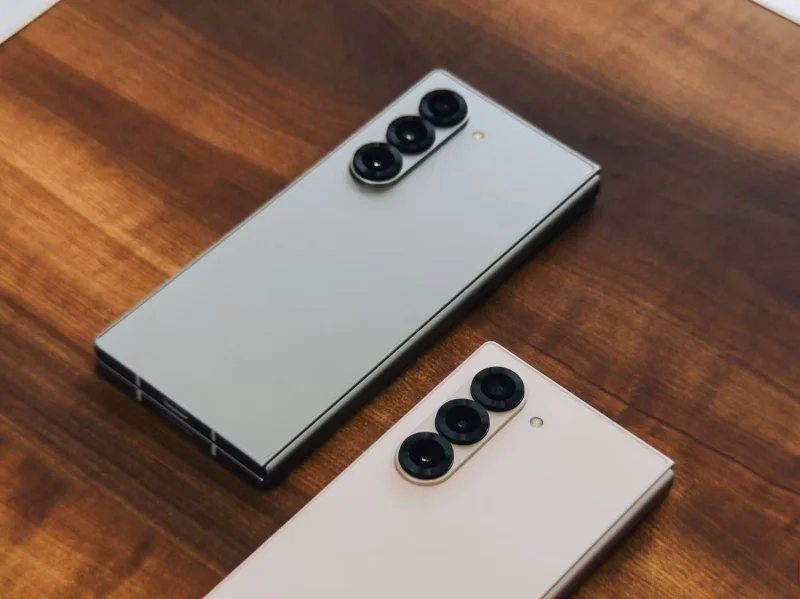
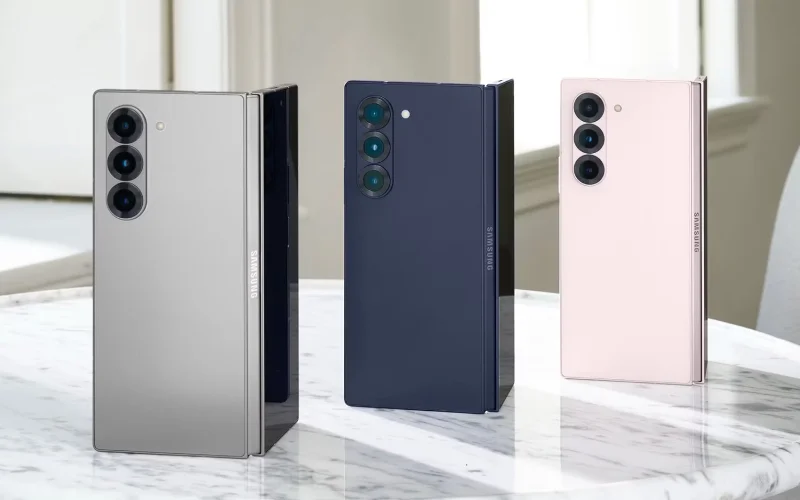
Samsung Galaxy Z Fold 6 in Silver and Pink
The Z Fold 6 comes with One UI 6.1.1 based on Android 14 and integrates some new Galaxy AI features. Previously in 2024, Samsung rolled out One UI 6.1 based on Android 14 for the Galaxy Z Fold 5, bringing Galaxy AI features from the S24 Ultra. And according to a report by SamMobile, Samsung is also planning to bring the new Galaxy AI features from the Z Fold 6 to the Z Fold 5.
Where the two phones differ on the software front is in terms of long-term support. Samsung promised four years of Android upgrades and five years of security updates when it launched the Z Fold 5, so the phone will get updates until 2028. With the Z Fold 6, however, Samsung is promising seven years of OS and security updates, just like it did with the Galaxy S24 series.
Extensive software support is one of the best features of the Galaxy Z Fold 6, as it easily surpasses even its competitors with superior hardware and design in this area.
6. Higher price and new color options
Despite all the modest improvements over its predecessor, the Galaxy Z Fold 6 still comes with a $100 price increase. The base model with 256GB of storage now costs $1,899 instead of $1,799. The same $100 price increase applies to the higher-storage variants.
With no significant hardware upgrades, the price increase on the Z Fold 6 is hard to justify. You can take advantage of various deals that Samsung runs from time to time to get a better deal, including increasing the trade-in value of older devices.
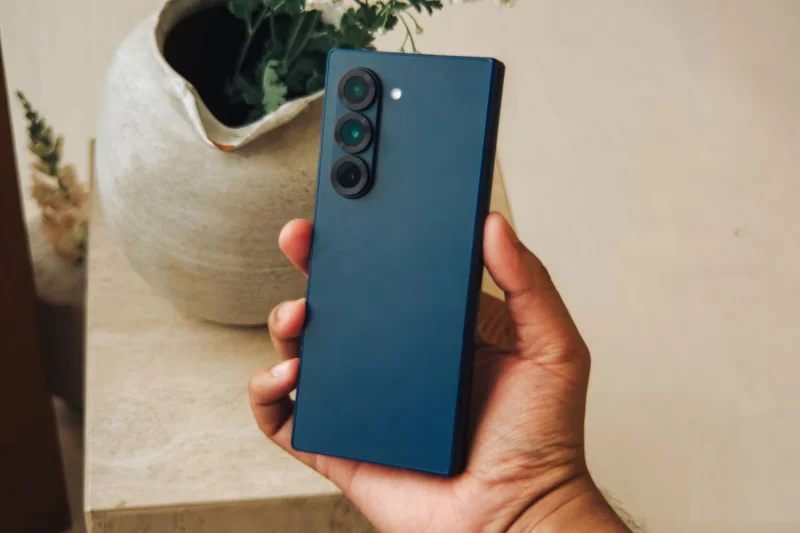
In terms of colors, the Galaxy Z Fold 6 comes in five colors, all of which are different from the Fold 5. These include Pink, Blue, Silver, White, and Black, with the last two being exclusive colors that you can only buy from Samsung.
If you own a Galaxy Z Fold 5, upgrading to the Fold 6 doesn’t make much sense. The improvements are modest and not immediately noticeable. A lighter, more durable chassis, brighter display, and better performance are welcome changes, but they won’t radically improve or benefit your workflow. Wait until 2025 to see what Samsung has in store for the Z Fold 7.