
How to Update Google Chrome Browser

Learn how to update Google Chrome browser on Windows, Mac, and Android in minutes to enjoy better security, speed, and new features. Follow these clear steps.
Circle to Search is a handy search tool that lets you quickly look up what’s on your phone screen without leaving the current app. While you may already know and use Circle to Search for many things, let’s explore some clever use cases.
Table of Contents
Misinformation is becoming more prevalent on the internet , and you can see it every day on social media or messaging apps . But if you have a phone that supports Google's Circle to Search feature, it's surprisingly easy to fact-check misleading content.
Start by opening the page, image, or text that contains the content you want to verify. Then, activate Circle to Search and select the content with the suspected misinformation. Circle to Search will then automatically search the Internet and return the response for that information in Google Search results.
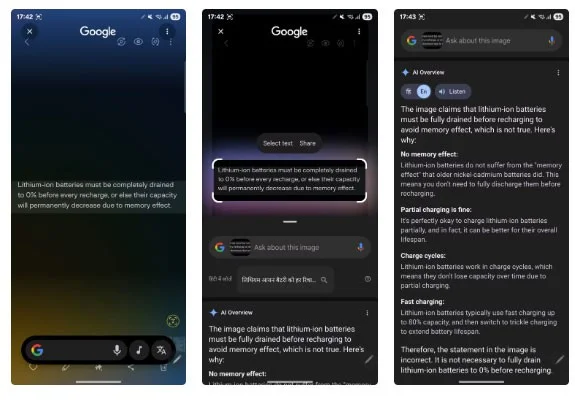
If you don't like reading the feedback, tap the Listen button to hear the entire thing read to you. Tap the Export button and choose the appropriate option to copy the feedback or save it to a document in Google Docs .
As you go about your day-to-day life on your phone, you may stumble across unfamiliar words, definitions, or topics. When this happens, instead of copying the content (if possible) and looking it up online, you can ask Circle to Search to analyze it for you.
With the content you want to research open on the screen, open Circle to Search and select the text you want to learn more about. If it's a word or phrase, Circle to Search will Google it and return its definition or meaning. Meanwhile, if it's a concept or phenomenon, you'll see a detailed explanation of the concept or phenomenon. You can continue your question to learn more.
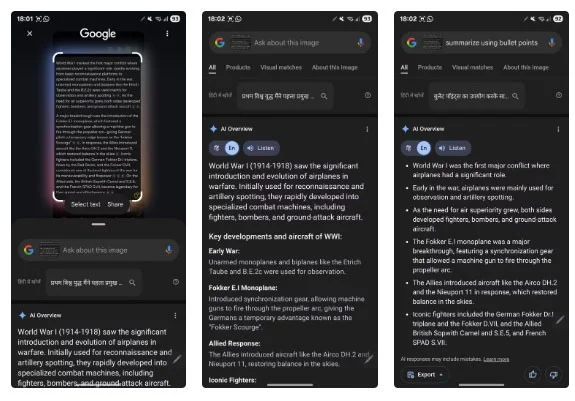
In addition to learning new things, Circle to Search can also help you summarize text. That way, you don't have to read through long paragraphs to understand the content or find information within them.
Using Circle to Search to summarize text is easy. With the content you want to summarize open on the screen, open Circle to Search. Then, select the text you want to summarize and you'll see an explanation or additional information. Tap the search bar at the top and ask for a summary of the text by typing something like "Summarize the selected text" or "Summarize the text on the screen." It will then return a gist.
Typically, you'll see a paragraph summary. However, you can ask Google to show you the results in the style you want. For example, if you want a bulleted summary, you can specify that in your query by typing "Bulleted text summary." If you feel like there's too much information, you can ask Google to cut out the extra information and list only the main points by typing "Outline only the main points in the content" or a similar query.
Similarly, Circle to Search can also help translate text you come across on different apps or websites. To do this, hold the text you want to translate on the screen and go to Circle to Search. You will see a translated version of the text in your device's default language. If you have any other queries, you can tap the search bar at the top and type them in.
If you are conscious about your diet and trying to eat healthy, Circle to Search can help you on your journey. With this app, you can quickly and easily find out everything you need to know about ingredients or other nutritional information in packaged food items.
Sure, you can check the packaging yourself to see what’s inside, but sometimes you might come across ingredients that you know very little about or may have never read about before. In such situations, instead of looking them up individually, you can use Circle to Search to get all the relevant information.
To do this, first take a photo of the food packaging. Alternatively, open the photo if you already have it in your camera roll or another app. Then, open Circle to Search and highlight the area with the ingredients. You’ll see on-screen feedback with a bunch of information about the ingredients you selected. If you want to learn more or have questions about an ingredient, type that information into the search bar at the top.
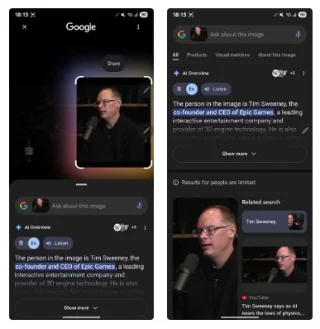
There may have been times when you were watching a video, show, or movie and a bunch of unfamiliar faces appeared on the screen. Your natural reaction would be to look up the cast of the show or movie online; it's hard to do that with a video you're watching online or a video someone shared with you.
Circle to Search makes it easy to identify people in situations like this. Start playing a video and pause at a frame where the face of the person you want to identify is clearly visible. Then, enable Circle to Search and select the person's face. You'll now see their name along with a bunch of other information in the results. If you want to know more about the person, type your query into the search bar at the top.
Last but not least, you can use Circle to Search to troubleshoot problems with your vehicle or device. This can prove to be a lifesaver when, for example, you see a warning light on your car’s dashboard or an error message on your laptop screen and are at a loss for what to do. Whatever the device or problem is, you can identify it, learn more about it, and find a solution to fix it yourself.
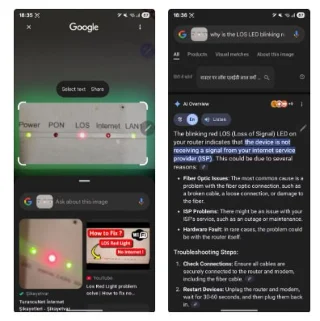
First, take a photo of the vehicle or device that has the problem. Open the photo, open Circle to Search, and select the area where the problem or error message is.
Circle to Search will search online and return an explanation. In some cases, you may not see the answer right away. Tap the search bar at the top and type in your query. For example, if you see the LOS LED flashing red on your router , you can ask a question like "What is LOS and why is the LED flashing red?"
Google will then return a detailed explanation, along with possible reasons why you're having trouble and solutions you can try to fix it. If it doesn't return a fix, you can ask it as a follow-up question.
These are just a few examples of Circle to Search’s clever uses in everyday life. However, its scope of use doesn’t stop there: The feature likely has many more interesting applications, such as solving math equations, looking up products to buy online, etc., which you’ll discover once you start using it more often.
Circle to Search is available on many Android phones from Google, Samsung, OnePlus, etc. If you haven't tried it yet, give it a try! It will definitely satisfy most of your image search needs.
Learn how to update Google Chrome browser on Windows, Mac, and Android in minutes to enjoy better security, speed, and new features. Follow these clear steps.
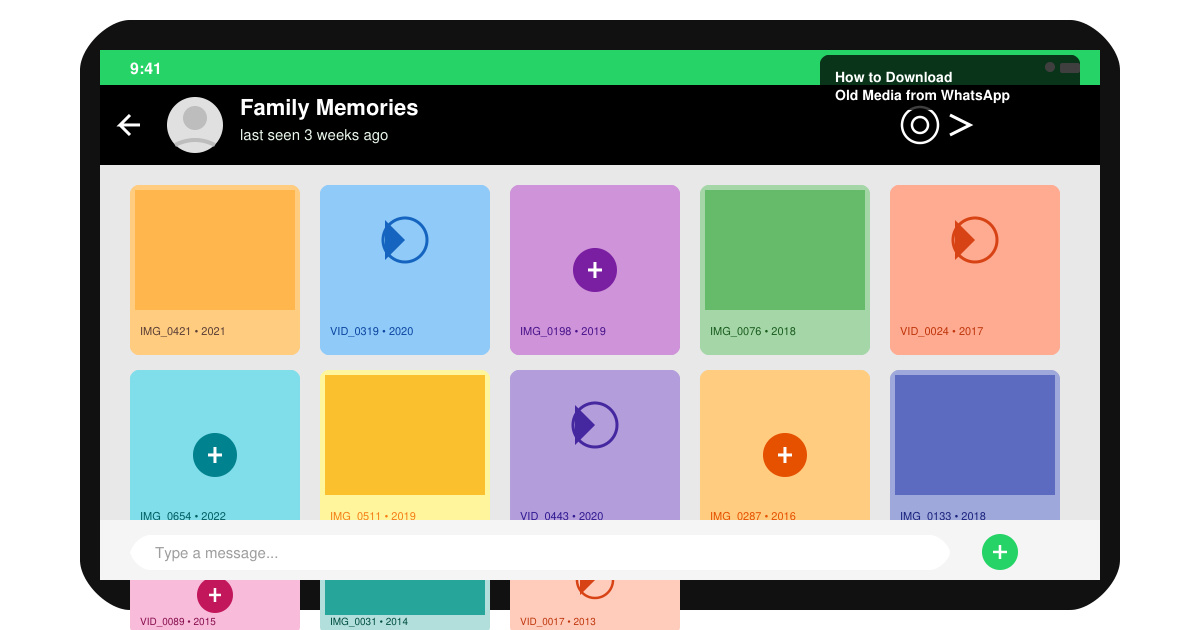
Learn how to download old media from WhatsApp and recover photos or videos from past chats. Follow these clear steps to save files that no longer appear in your gallery.
Facebook Messenger Isn T Working on your device? Use these exact troubleshooting steps to restore chats, calls, and notifications fast on Android, iOS, or desktop.
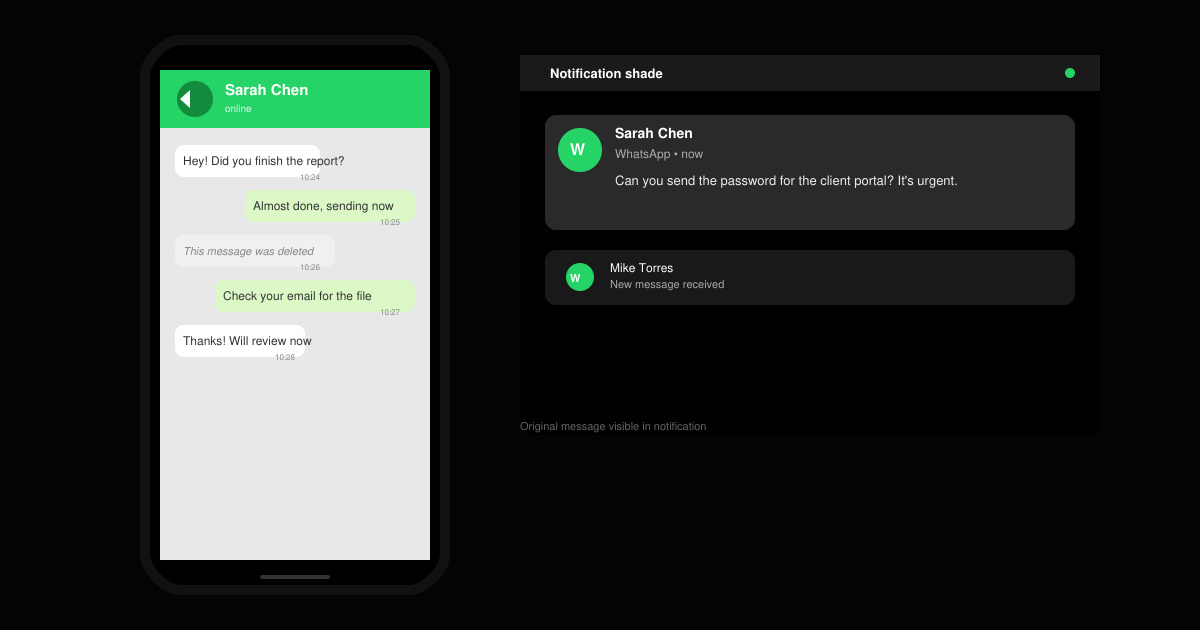
How to See Deleted WhatsApp Messages using your phone's built-in tools. Follow these exact steps to recover messages that contacts have deleted from chats.
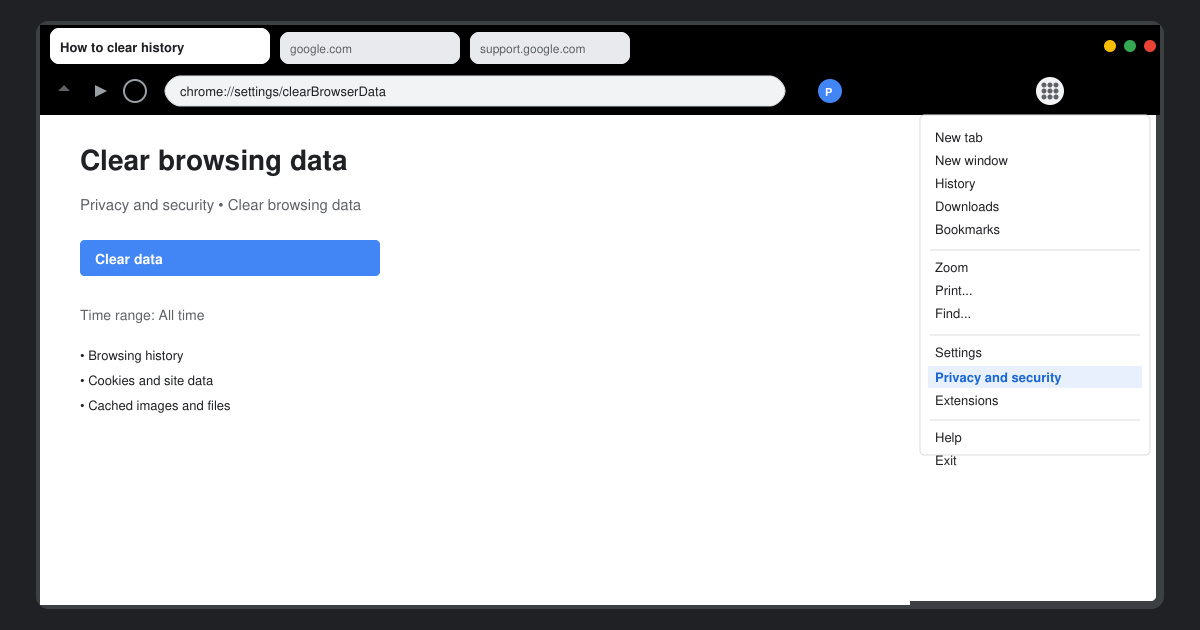
Learn how to clear browser history in Chrome on desktop and Android with this exact step-by-step process. Keep your browsing private and free up storage space quickly.
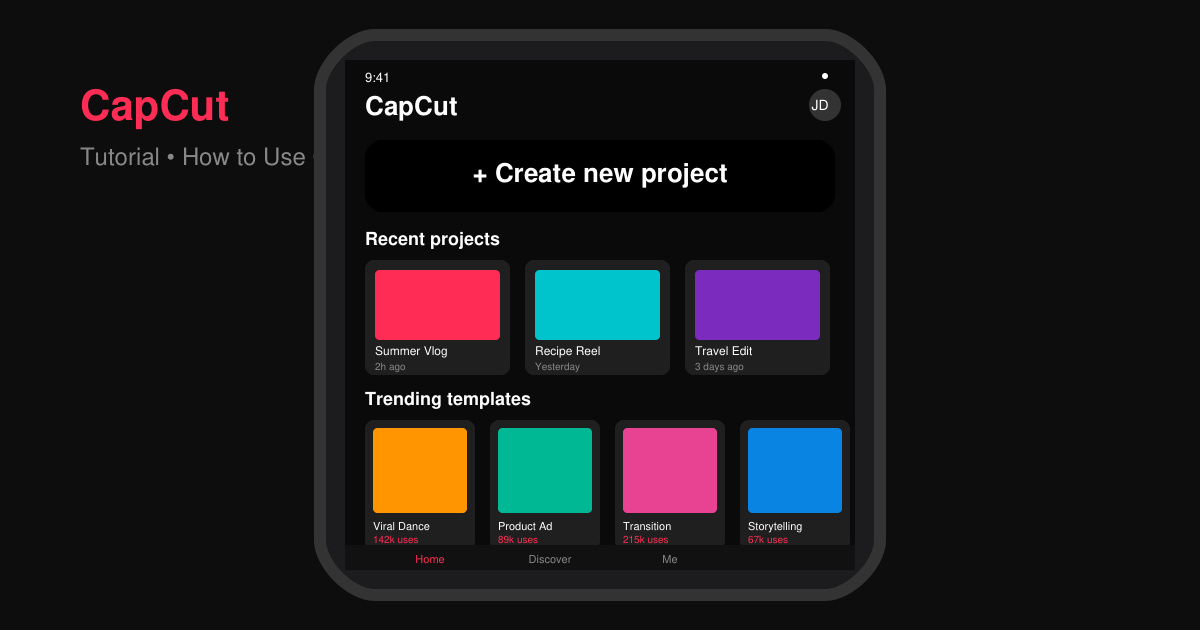
Master how to use CapCut with this practical walkthrough covering project setup, editing tools, effects, and export options for high-quality video results.
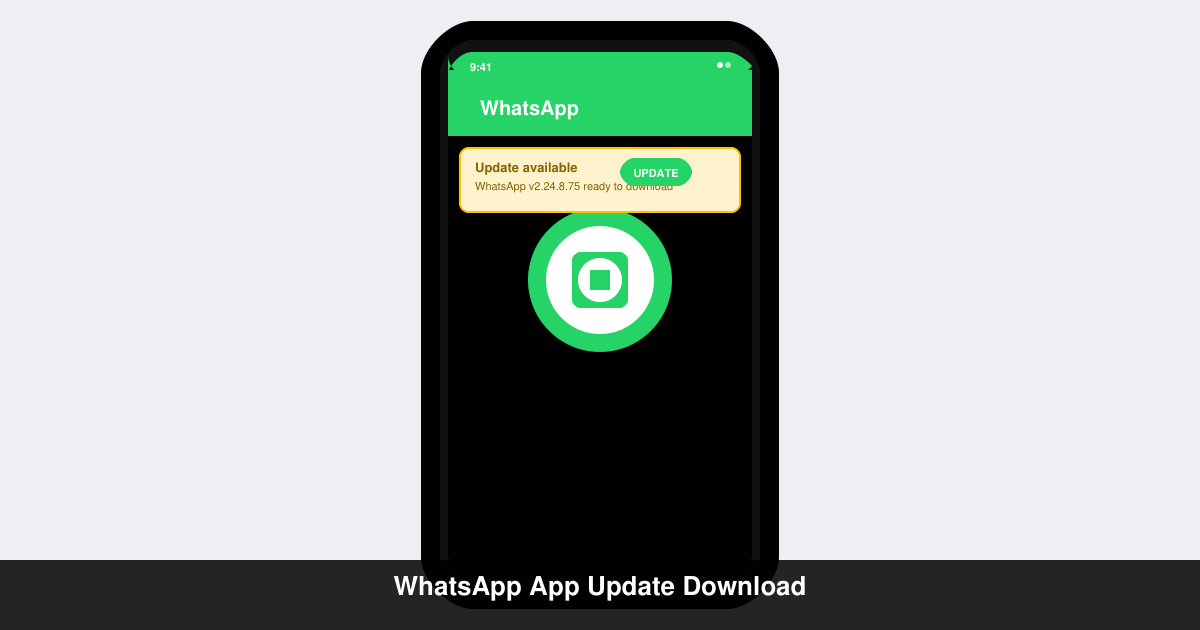
Get the latest WhatsApp App Update Download from official sources to access new features and security improvements. Follow these clear steps for Android and iOS devices.
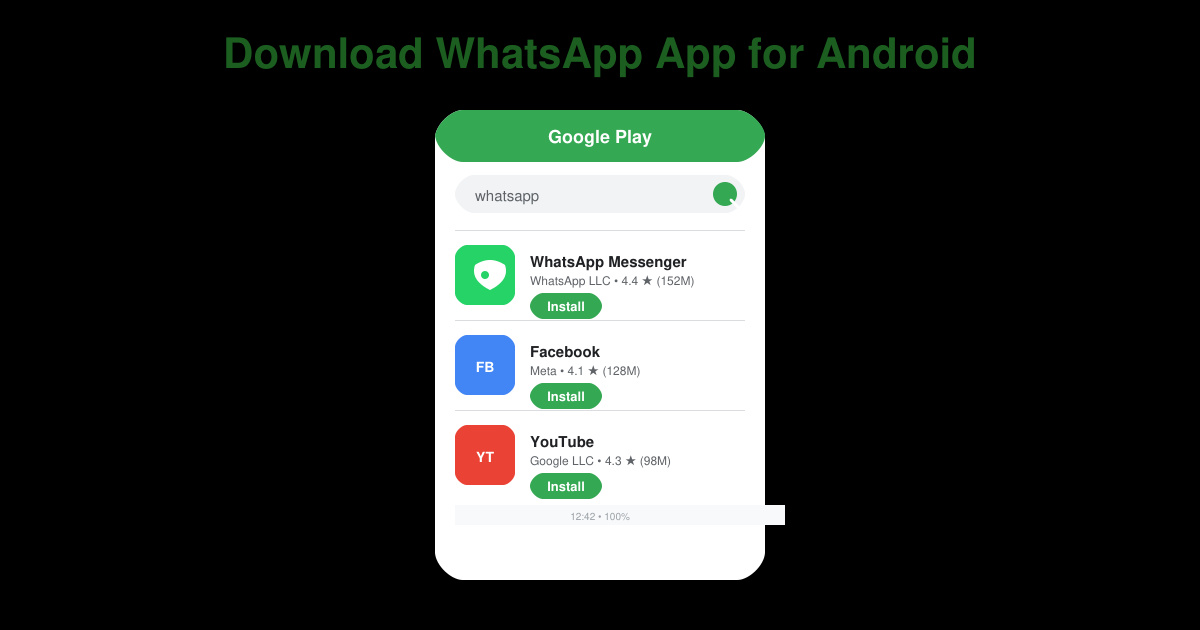
Learn how to safely Download WhatsApp App for Android from the official Google Play Store. Follow our clear step-by-step instructions to install the latest version quickly and securely.
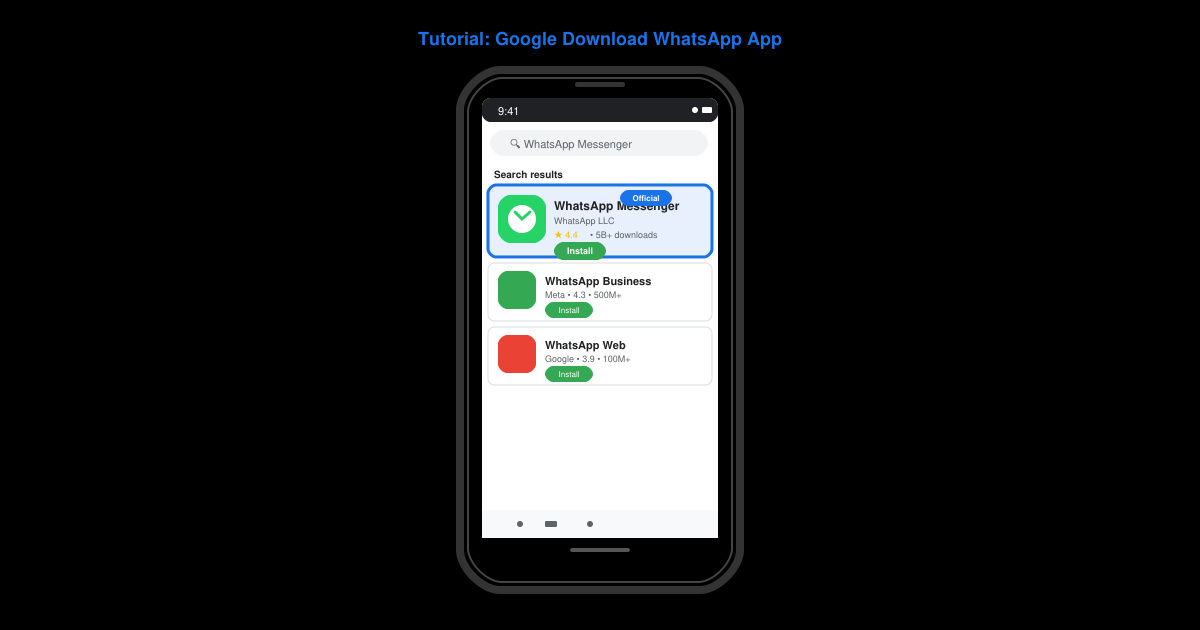
Google Download WhatsApp App safely through the Google Play Store with this clear guide. Get the official version on your Android device quickly and avoid fake downloads.
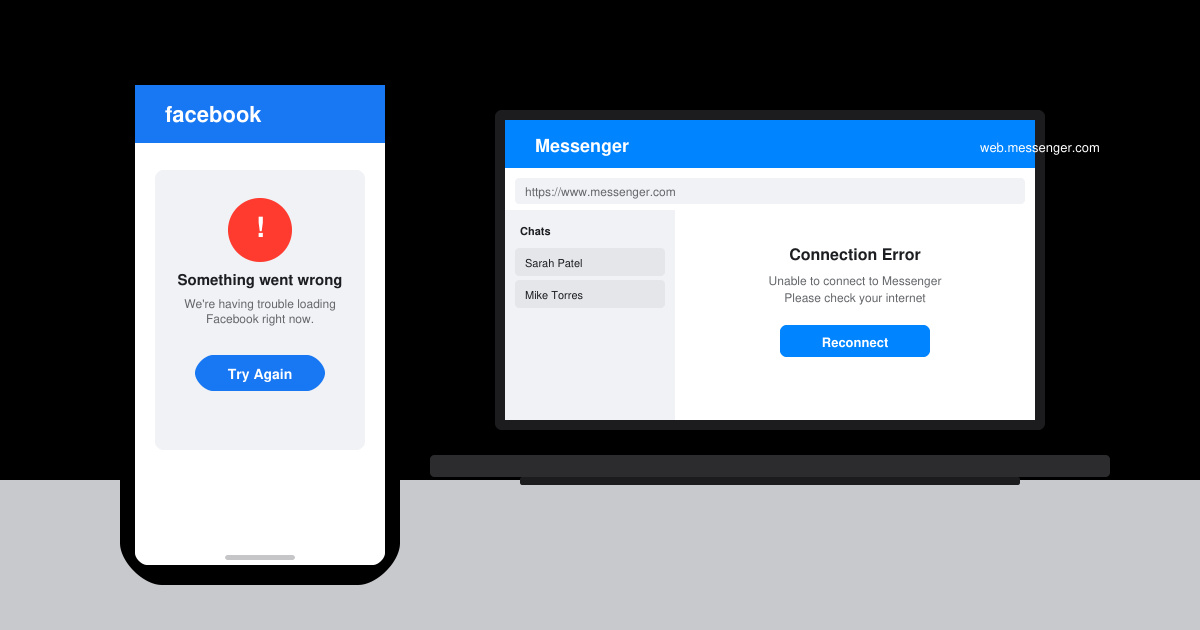
Facebook and Messenger not working can disrupt your day. Follow these targeted fixes to restore access quickly on mobile and desktop.