Restore ownCloud Sync by Matching the Client to Your Server
Check whether the issue is an OC10 and 7.x compatibility break or a damaged CSync journal, then apply the right fix without deleting synced files.
ownCloud Infinite Scale does not provide a standalone 2FA switch in its user interface. For time-based one-time passwords (TOTP), configure an OpenID Connect identity provider such as Keycloak, require users to enroll an authenticator there, and let it challenge users during login. Infinite Scale’s own MFA settings are for step-up checks on protected routes; they do not create an OTP enrollment flow.
This guide uses Keycloak as the example identity provider. The exact menu labels can vary by Keycloak release. The screenshots below are interface illustrations, not captures of a tested server. ownCloud’s current 8.2 documentation lists OCIS_MFA_ENABLED and OCIS_MFA_AUTH_LEVEL_NAMES for route-level enforcement, introduced in Infinite Scale 7.3.0.
First decide whether people should enter a second factor at every new sign-in or only when they reach a sensitive part of the service. Keycloak can require TOTP in its browser authentication flow. Infinite Scale can request step-up authentication for selected routes using the OIDC Authentication Context Class Reference (ACR) claim. They solve related but different problems.
| Approach | Good fit | Trade-off |
|---|---|---|
| Keycloak TOTP at sign-in | Organizations that want a second factor for browser logins | Users need an authenticator app and a recovery plan; existing sessions may remain valid until they expire or users sign in again. |
| Infinite Scale step-up MFA | Teams protecting selected routes or data actions | Requires an IdP that supports step-up authentication and ACR claims, plus matching configuration on both sides. |
| WebAuthn security key or passkey | Teams prioritizing phishing-resistant authentication | Enrollment, device support, and account recovery need planning; this is a different second-factor choice from TOTP. |
For a straightforward TOTP rollout, start with Keycloak’s browser login flow. Keep step-up MFA as a separate, deliberate policy when you need route-specific checks. See the ownCloud proxy documentation on ACR and step-up authentication for the server-side behavior.
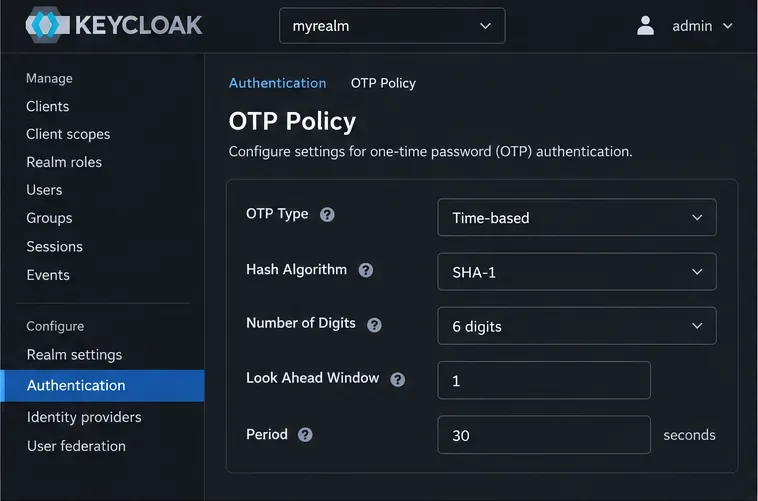
Illustration: Keycloak’s OTP policy settings for time-based codes. Check your realm’s actual values before enrolling users.
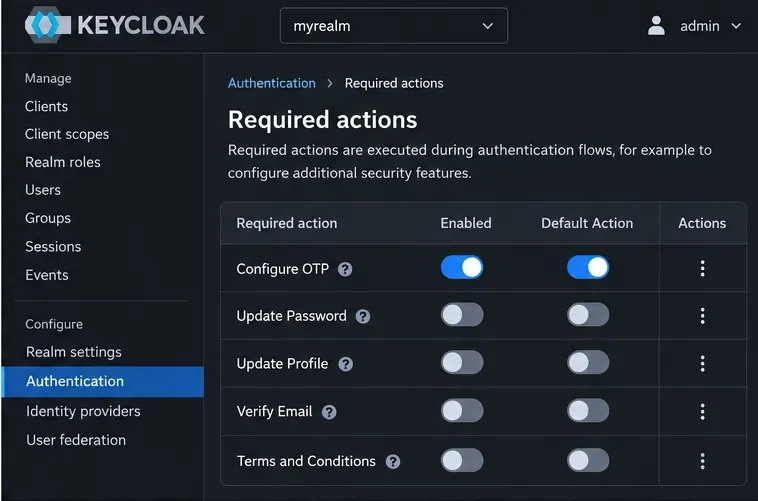
Illustration: Configure OTP is enabled as a required action and default action; existing users still need an enrollment plan.
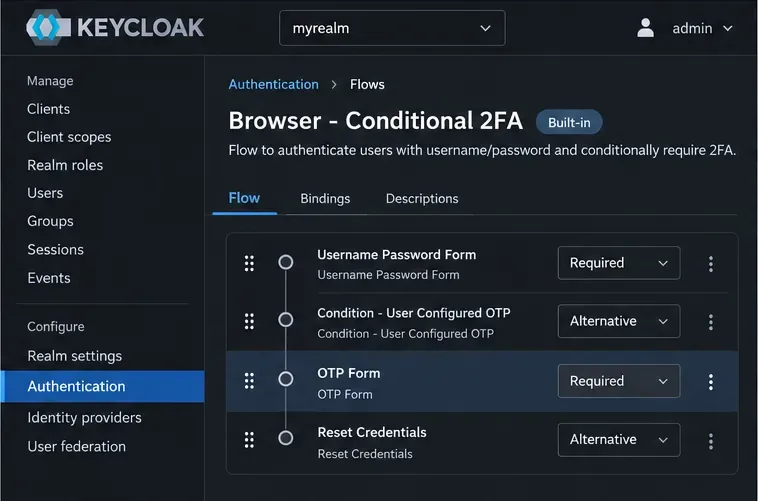
Illustration: a browser flow that requires OTP. Roll it out only after enrollment and recovery have been tested.
Keycloak’s default browser flow can behave conditionally: users who have not enrolled a second factor may not see an OTP challenge unless the flow is changed. Review the Keycloak Server Administration Guide before changing flow requirements, especially if you also use identity brokering, passkeys, desktop clients, or mobile clients.
For route-level checks, configure the proxy and frontend with matching MFA settings. In a deployment configuration that accepts environment variables, the current 8.2 names include:
OCIS_MFA_ENABLED: "true"
OCIS_MFA_AUTH_LEVEL_NAMES: "advanced"
Use the same accepted ACR value that your identity provider places in the access token after successful MFA. Configure the intended protected paths according to the proxy and frontend deployment documentation, then redeploy the affected services. This setting is disabled by default and does not, by itself, turn on TOTP or enforce OTP for every login. If a user reaches a protected route without the required MFA level, Infinite Scale documents a 403 response with an X-OCIS-MFA-Required header. See the ownCloud MFA environment-variable reference and the proxy service configuration.
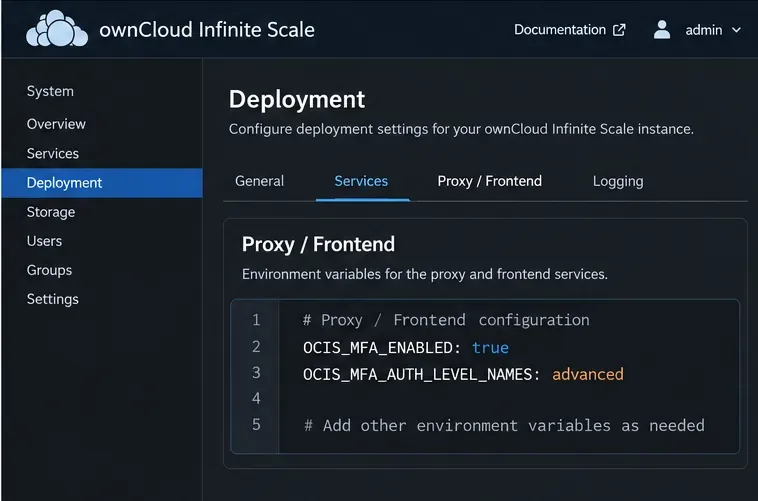
Illustration: the current plural environment variable name for accepted MFA authentication levels; its value must match the IdP’s ACR claim.
Test the policy with a normal user, a user who has not enrolled, an administrator, and any desktop or mobile client your organization depends on. Confirm that a fresh browser login asks for TOTP and that a valid code succeeds. For step-up, request a protected route with a session that has not completed MFA, then confirm the IdP challenge occurs and the route works after the required ACR level is issued.
Keep an administrator recovery procedure available before requiring OTP across the realm. Document how to reset a lost authenticator, maintain access to the identity-provider console, and avoid relying on one person’s phone as the only path back into the service. TOTP is widely supported and easy to deploy, while WebAuthn can offer stronger phishing resistance; choose based on the devices, support capacity, and recovery controls your users actually have. The ownCloud knowledge base identifies Keycloak as an option for Infinite Scale 2FA.
Check whether the issue is an OC10 and 7.x compatibility break or a damaged CSync journal, then apply the right fix without deleting synced files.
Choose HTTP-01 or DNS-01, configure an ownCloud reverse proxy, and verify Certbot renews HTTPS certificates automatically.
Configure oCIS LDAP sign-in, align user and group lookups, and verify TLS and schema settings before rollout.
Add an Amazon S3 bucket to ownCloud 10, prepare compatible credentials and endpoints, and check access without confusing a mount with primary storage.
Schedule protected MariaDB dumps for ownCloud Server, handle maintenance mode safely, and verify each backup before relying on it.
Plan an ownCloud 10 to oCIS migration with the supported app, ordered commands, identity checks, and a clear list of data that needs separate handling.
Replace ownCloud Classic 10 logos and tune web UI colors with a theme app, while avoiding upgrade and integrity-check pitfalls.
Assign byte-based storage limits to new ownCloud Infinite Scale users by role, with a proxy.yaml example and a safe verification checklist.
Restore ownCloud desktop syncing by checking the server hostname, certificate chain, private CA trust, and captive portal issues without disabling TLS verification.
Use the invalid-file report to identify mismatched core files or app signatures, restore the correct release files, and verify the integrity check safely.