Restore ownCloud Sync by Matching the Client to Your Server
Check whether the issue is an OC10 and 7.x compatibility break or a damaged CSync journal, then apply the right fix without deleting synced files.
First check the Desktop Client version. If you connect to ownCloud Server Classic (OC10) with Desktop Client 7.x, use the supported 6.x client line: ownCloud removed OC10 support starting with 7.0, so changing credentials or deleting a sync database will not restore compatibility. If you are using a compatible 6.x client and it reports “CSync Unknown Error,” quit the client, back up the affected sync folder, then remove that account’s hidden ._sync_xxxxxxx.db journal file and restart. The client rebuilds its sync state, but some “which files to download” settings are reset.
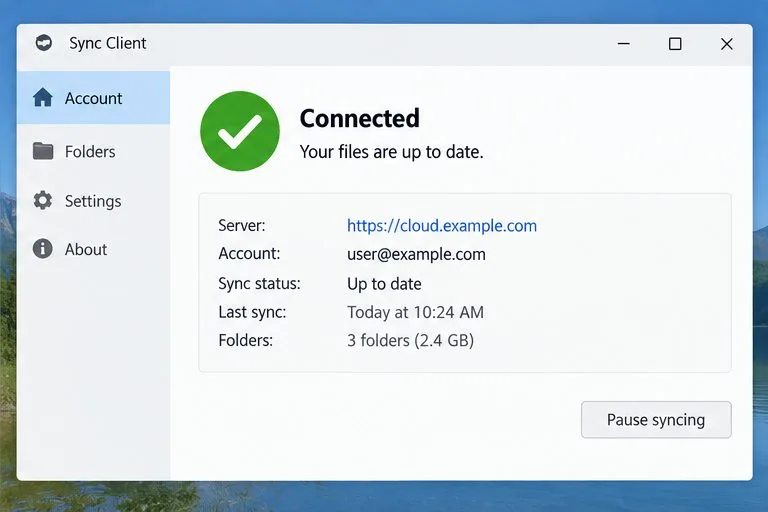
Check the version shown in the Desktop Client’s About window before changing anything. The ownCloud Desktop Client 7.1.0 changelog lists removal of ownCloud Server (OC10) support, and ownCloud’s 7.1 guidance says the 7.x line connects to Infinite Scale only. That means a Classic account that stopped syncing immediately after upgrading to 7.x has a compatibility problem, not necessarily a bad password or broken server.
If your server is ownCloud Infinite Scale, do not downgrade just because of this article’s OC10 compatibility note. For a Classic server using a 6.x client, follow the journal reset below. If multiple users or computers fail to connect while browser access still works, ask the server administrator to check the connection URL, proxy, and WebDAV setup before resetting local client state.
._sync_xxxxxxx.db in the folder for each configured account. Locate the file belonging to the affected account and sync connection. Do not remove other files with similar names, the actual synced documents, or the server’s data.._sync_xxxxxxx.db file. If you want a reversible checkpoint, copy it to a location outside every synchronized folder first; then remove the original journal from the account folder. The journal stores synchronization state, not a replacement copy of your documents. Removing it forces the client to reconstruct state by comparing local and remote content.For example, if one laptop shows the error but the same account works in the web interface and on a second computer, this points toward local client state rather than a server-wide outage. Reset only the journal for that laptop’s affected account. If the error returns immediately, stop repeating the reset and collect logs; the underlying cause may be a client defect, permissions problem, server response, or an incompatible client/server pair.
For an OC10 account, install a compatible 6.x Desktop Client and restore the saved 6.x configuration instead of launching it against the configuration written by 7.x. ownCloud notes that reinstalling 6.x alone may fail because 7.x uses a configuration format the older client cannot open. The client keeps backups of its configuration from before major upgrades; ownCloud points users to a platform-specific recovery procedure for locating and restoring them.
Use the official ownCloud recovery instructions linked below for your operating system. Do not improvise by deleting the whole application configuration directory: it may contain account settings and the backup needed to recover. After restoring 6.x, confirm the account URL points to your ownCloud Classic server. If your organization manages client versions centrally, ask its administrator to prevent another automatic upgrade to 7.x until your server migration plan is ready.
The repair is complete when the client finishes its scan without the CSync error, the account shows no pending changes, and a small test file added from one side appears on the other. Check the web interface and local folder for a few important files before resuming normal work. Recheck selective-sync or virtual-file choices because the journal reset can erase some download-selection settings.
If the error persists, enable detailed logging from the client’s Advanced > Log Settings menu, reproduce the problem once, and share the relevant log with your administrator or ownCloud support through a private channel. Logs can include file and folder names, metadata, and server URLs, so review them before sharing. Include the client version, operating system, server type (Classic or Infinite Scale), whether browser login works, and whether the issue affects one device or several. Avoid synchronizing the same local folder simultaneously with another sync service; ownCloud warns that this arrangement is unsupported and can cause data loss.
Check whether the issue is an OC10 and 7.x compatibility break or a damaged CSync journal, then apply the right fix without deleting synced files.
Choose HTTP-01 or DNS-01, configure an ownCloud reverse proxy, and verify Certbot renews HTTPS certificates automatically.
Configure oCIS LDAP sign-in, align user and group lookups, and verify TLS and schema settings before rollout.
Add an Amazon S3 bucket to ownCloud 10, prepare compatible credentials and endpoints, and check access without confusing a mount with primary storage.
Schedule protected MariaDB dumps for ownCloud Server, handle maintenance mode safely, and verify each backup before relying on it.
Plan an ownCloud 10 to oCIS migration with the supported app, ordered commands, identity checks, and a clear list of data that needs separate handling.
Replace ownCloud Classic 10 logos and tune web UI colors with a theme app, while avoiding upgrade and integrity-check pitfalls.
Assign byte-based storage limits to new ownCloud Infinite Scale users by role, with a proxy.yaml example and a safe verification checklist.
Restore ownCloud desktop syncing by checking the server hostname, certificate chain, private CA trust, and captive portal issues without disabling TLS verification.
Use the invalid-file report to identify mismatched core files or app signatures, restore the correct release files, and verify the integrity check safely.