Connect an S3 Bucket to ownCloud 10 as External Storage
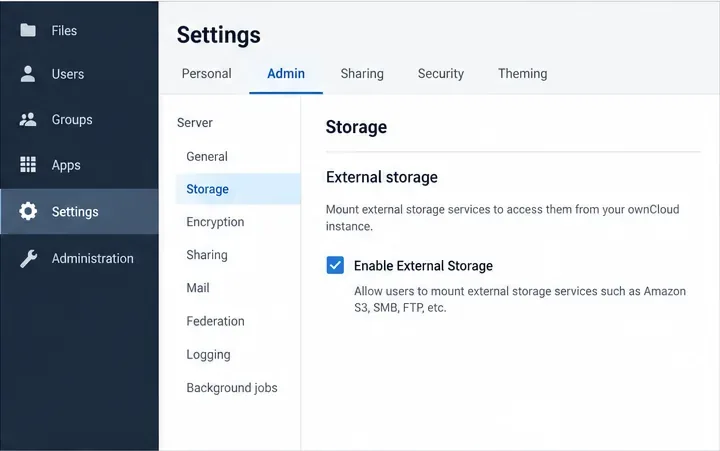
If you want files in an Amazon S3 bucket to appear inside ownCloud 10, add the bucket as an external storage mount: a folder shown in ownCloud that reads and writes to a separate storage service. In ownCloud 10.3 and later, install and enable the separate files_external_s3 app as well as External Storage support; then add an Amazon S3 mount under Settings > Admin > Storage. You will need the bucket name, access key, secret key, and the correct region or endpoint information.
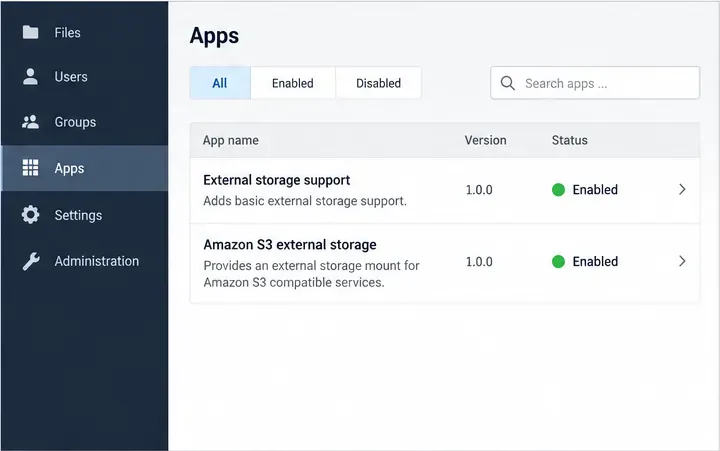
Illustrative ownCloud Apps screen with External storage support and Amazon S3 external storage listed as enabled
This interface illustration depicts the two enabled app rows needed for an S3 mount: External Storage support and the separate Amazon S3 backend.

What to prepare before configuring the mount

S3 is object storage: it stores named objects in buckets rather than files on a server’s local disk. ownCloud presents the bucket as a familiar folder, but it does not turn the bucket into a POSIX filesystem. The steps below configure a secondary mount for user files. This is different from configuring S3 as ownCloud’s primary data store, which uses a separate app and configuration.

  • Confirm the ownCloud version. These instructions refer to ownCloud Classic 10, with the current 10.16 documentation used for the External Storage workflow. Since the 10.3 release, the S3 external-storage backend is no longer bundled with ownCloud. Install a files_external_s3 release compatible with your server from the ownCloud Market or by the supported manual app-install method, and enable it. If the S3 option is missing, check this app before changing server configuration. See the ownCloud Server release notes.
  • Get bucket access details. Ask the bucket administrator for the exact bucket name, an access key and secret key, and the bucket’s region. The credentials must permit the operations your users need, such as listing, downloading, uploading, and deleting objects. Use a dedicated credential limited to this bucket where your provider supports it; do not paste a secret into a ticket or article.
  • Collect endpoint details for compatible services. If the target is a private S3-compatible service rather than Amazon S3, obtain its hostname, port, region value, TLS requirements, and whether it requires path-style requests. Those values are provider-specific. Do not substitute a generic AWS endpoint for a private object-storage endpoint.
  • Choose who can see the mount. An admin-created mount is available to all users by default. You can restrict it to selected users or groups in the Available for control.
Illustrative ownCloud Admin Storage screen with the Enable External Storage checkbox selected
The Admin Storage illustration highlights the Enable External Storage control, which must be on before adding a mount.

Install the backend and add the bucket

  1. Enable External Storage support. Sign in as an ownCloud administrator. Open Settings > Apps, find External storage support, and enable it if needed. Next install and enable the separate Amazon S3 external-storage app, files_external_s3, if your server does not already have it. App names and installation controls can vary with packaging, so use an app build compatible with your ownCloud release.
  2. Open the Storage settings. Go to Settings > Admin > Storage and make sure Enable External Storage is selected. The ownCloud manual places the general prerequisite at Settings > Apps and the enable control under Storage.
  3. Create a mount row. In the external-storage section, choose Amazon S3 from the storage type selector. Enter a short Folder name such as TeamArchive; this is the folder users see in ownCloud, not the bucket name. Choose the access-key authentication option, then enter the bucket name, access key, and secret key in their matching fields.
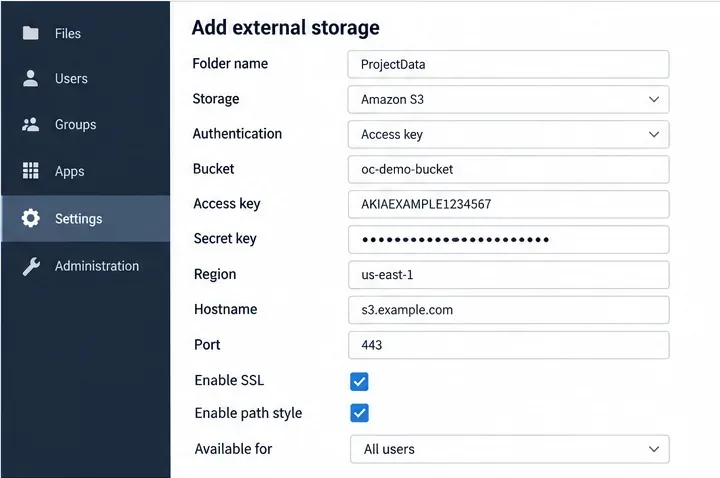
  4. Set the connection options. For Amazon S3, enter the bucket’s actual region when prompted. Leave hostname and port at their defaults unless you need to override them. For an S3-compatible service, enter the endpoint hostname, port, and region supplied by its administrator. Select Enable SSL to use HTTPS; ownCloud recommends SSL. Leave Enable path style off for ordinary Amazon S3 use. ownCloud notes that path-style requests are generally unnecessary and incompatible with newer Amazon datacenters, but can be needed by non-Amazon services whose DNS cannot route bucket names as subdomains. The ownCloud 10.16 manual documents the general mount workflow; detailed provider-specific options are in the ownCloud 11.0 Amazon S3 backend reference, so field labels can vary by app build. Confirm non-AWS requirements with your provider.
  5. Limit access and save. In Available for, choose the users or groups that should use the mount. Admin mounts are global by default, so restrict access if the bucket is not intended for everyone. ownCloud saves the mount when its required fields are complete. The displayed field set depends on the selected backend and authentication method.
Illustrative S3 external storage form showing a mount folder, bucket, masked secret, region, endpoint, SSL, and path-style options
The sample form illustrates that the visible folder name differs from the bucket name and masks the secret key.

Read the status and troubleshoot connection failures

Look at the status icon beside the mount. ownCloud’s External Storage configuration guide says a green dot means the storage is ready; a red or yellow indicator means it could not connect. Fix the basic connection details before changing permissions or deleting and recreating the mount.

  • No Amazon S3 option: verify both External Storage support and files_external_s3 are installed and enabled. On ownCloud 10.3 and newer, the latter is separate from the bundled support app.
  • Red or yellow status: recheck the bucket spelling, access-key pair, region, endpoint hostname, and port. Confirm ownCloud’s server can reach the endpoint and that TLS certificates are trusted. For a self-signed certificate, ownCloud requires importing the certificate before using the mount.
  • Connection succeeds but users cannot use it: check the Available for selection and ensure the bucket credentials allow the requested object operations. A working connection indicator does not grant permissions to users excluded from the mount.
  • Files added directly in the bucket do not appear: the 10.16 documentation says occ files:scan cannot rescan S3 or compatible filesystems. Changes made through ownCloud are reflected through the mount; externally added or changed objects may not be detected reliably. Avoid using a manual file scan as an S3 repair step.

When ownCloud marks a failed mount unavailable, the current configuration guide says it may remain unavailable for ten minutes. Click the colored status indicator or reload the Admin page to check it again after correcting the cause. Do not remove and recreate a production mount casually: changing or removing an external-storage configuration can leave old metadata entries in ownCloud’s database.
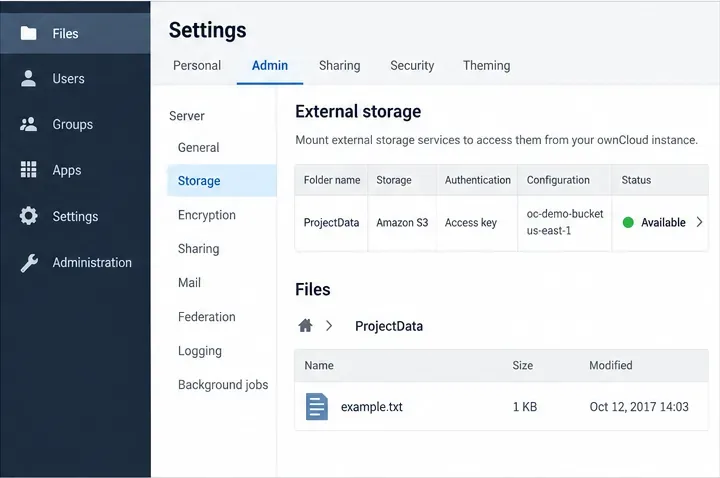
Illustrative Admin Storage list with a green Available status and a sample text file inside the mounted folder
The final interface illustration pairs an Available status with a sample file visible inside the mounted folder.

Verify the mount with a small test

Open the ownCloud Files view with an account included in Available for. Confirm the mount folder appears, upload a harmless test file, open or download it, and then remove that test file through ownCloud. If permitted, confirm the same object is present in the bucket. This verifies both visibility and write access; a green connection status alone only confirms that ownCloud can connect to the configured storage.

For reference, see ownCloud’s ownCloud 10.16 External Storage configuration and its explanation of the distinct S3 primary-storage setup. The latter is not needed for a bucket mounted as an ordinary folder.

Leave a Comment

Connect an S3 Bucket to ownCloud 10 as External Storage

Connect an S3 Bucket to ownCloud 10 as External Storage

Add an Amazon S3 bucket to ownCloud 10, prepare compatible credentials and endpoints, and check access without confusing a mount with primary storage.

Automate ownCloud Database Dumps with a Safe Nightly Cron Job

Automate ownCloud Database Dumps with a Safe Nightly Cron Job

Schedule protected MariaDB dumps for ownCloud Server, handle maintenance mode safely, and verify each backup before relying on it.

Move ownCloud Classic to oCIS with a Supported Migration

Plan an ownCloud 10 to oCIS migration with the supported app, ordered commands, identity checks, and a clear list of data that needs separate handling.

Brand ownCloud Classic 10 with a Theme App and CSS

Replace ownCloud Classic 10 logos and tune web UI colors with a theme app, while avoiding upgrade and integrity-check pitfalls.

Set Default Storage Quotas by User Role in ownCloud oCIS

Set Default Storage Quotas by User Role in ownCloud oCIS

Assign byte-based storage limits to new ownCloud Infinite Scale users by role, with a proxy.yaml example and a safe verification checklist.

Fix ownCloud Sync Certificate Errors at the TLS Source

Fix ownCloud Sync Certificate Errors at the TLS Source

Restore ownCloud desktop syncing by checking the server hostname, certificate chain, private CA trust, and captive portal issues without disabling TLS verification.

Clear an ownCloud Integrity Warning After an Upgrade

Use the invalid-file report to identify mismatched core files or app signatures, restore the correct release files, and verify the integrity check safely.

Install ownCloud Infinite Scale with Docker Compose

Deploy ownCloud Infinite Scale from its official Compose example, configure domains and persistent storage, then verify TLS, containers, and first login.

Configure S3 Blob Storage for ownCloud Infinite Scale

Configure S3 Blob Storage for ownCloud Infinite Scale

Set up the S3NG driver, bucket permissions, persistent metadata storage, and upload sizing so ownCloud Infinite Scale can store file contents reliably.

When ownCloud Uploads Stall at 99%, Check These Limits

When ownCloud Uploads Stall at 99%, Check These Limits

Find why an ownCloud Server upload stops near completion by checking file status, quota, temporary disk space, PHP limits, and proxy timeouts.