Automate ownCloud Database Dumps with a Safe Nightly Cron Job
Schedule protected MariaDB dumps for ownCloud Server, handle maintenance mode safely, and verify each backup before relying on it.
Current version note: ownCloud’s current documentation lists Classic 11.0 as the stable release line and says Classic 11 supports Docker-based installation only. The reliable automation point for that deployment is a host cron job that runs a script from the Docker Compose project directory. For a MariaDB-backed stack, the script briefly enables maintenance mode, stops the web service, exports the database with mysqldump, validates the compressed file, and starts ownCloud again. ownCloud documents maintenance mode and database-tool dumps as part of its backup procedure.
This example uses the official Compose service names owncloud and mariadb. If you run ownCloud Server 10.16, a non-Docker installation, or PostgreSQL, use the service names and database-specific commands for that deployment instead of copying the script unchanged.
Run the backup from the host that runs Docker Compose, not from inside the ownCloud web container. In the Compose project directory, create a client option file that the MariaDB client can read without placing a password in the backup script or crontab:
mkdir -p secrets
nano secrets/db-backup-client.cnf
Enter the database account used for dumps. For the official sample stack, the MariaDB root password is already configured in the deployment environment; a dedicated backup account with only the privileges required by your MariaDB version is preferable for production.
[client]
user=root
password=REPLACE_WITH_YOUR_DATABASE_PASSWORD
host=localhost
Restrict the file on the host so only the deployment administrator can read it:
chmod 600 secrets/db-backup-client.cnf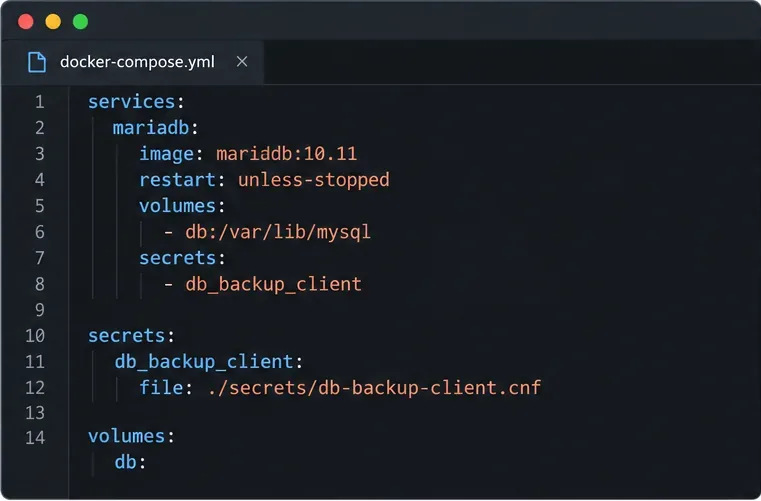
Mount the file as a Compose secret on the MariaDB service. Add the secrets entry under the existing mariadb service and declare the secret at the top level. Preserve all other settings in your Compose file:
services:
  mariadb:
    secrets:
      - db_backup_client

secrets:
  db_backup_client:
    file: ./secrets/db-backup-client.cnf
Compose makes this file available in the MariaDB container at /run/secrets/db_backup_client. Recreate or restart that service if your Compose implementation requires it to apply the new mount. Do not use sample passwords from documentation in a real installation.
Create /usr/local/sbin/owncloud-db-backup as root. This version assumes the project lives at /srv/owncloud and writes dumps to a separate host directory. Change both paths to match your server. Maintenance mode and stopping the app service create a brief nightly interruption, but prevent web requests from changing data during the export. The cleanup trap attempts to restart the service and turn maintenance mode off if a command fails.
#!/usr/bin/env bash
set -Eeuo pipefail
cd /srv/owncloud
BACKUP_DIR=/srv/backups/owncloud-db
STAMP=$(date -u +%Y%m%dT%H%M%SZ)
TMP="$BACKUP_DIR/.owncloud-db-$STAMP.sql.gz.tmp"
FINAL="$BACKUP_DIR/owncloud-db-$STAMP.sql.gz"
install -d -m 700 "$BACKUP_DIR"
exec 9>/run/lock/owncloud-db-backup.lock
flock -n 9 || { echo "Backup already running" >&2; exit 1; }
maintenance=0
app_stopped=0
cleanup() {
  status=$?
  if (( app_stopped )); then docker compose start owncloud || status=1; fi
  if (( maintenance )); then docker compose exec -T owncloud occ maintenance:mode --off || status=1; fi
  rm -f -- "$TMP"
  exit "$status"
}
trap cleanup EXIT
maintenance=1
docker compose exec -T owncloud occ maintenance:mode --on
app_stopped=1
docker compose stop owncloud
docker compose exec -T mariadb /usr/bin/mysqldump \
  --defaults-extra-file=/run/secrets/db_backup_client \
  --single-transaction owncloud | gzip -c > "$TMP"
gzip -t "$TMP"
test -s "$TMP"
mv -- "$TMP" "$FINAL"
docker compose start owncloud
app_stopped=0
docker compose exec -T owncloud occ maintenance:mode --off
maintenance=0
trap - EXIT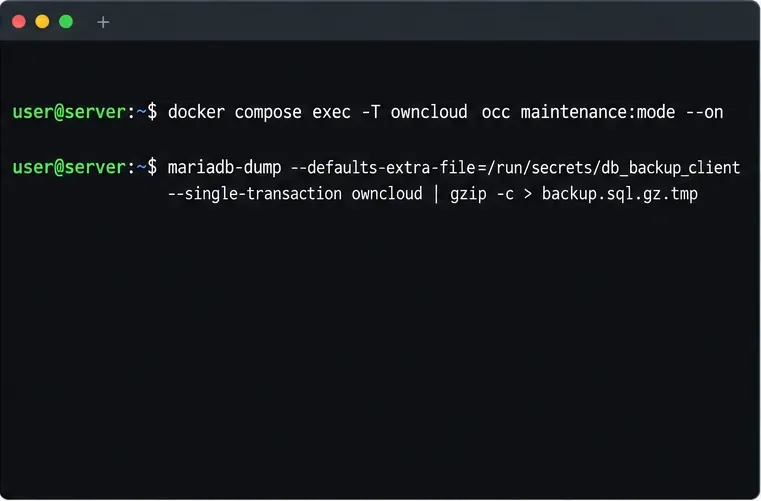
--single-transaction is the database option used in ownCloud’s MariaDB/MySQL backup example. The temporary filename keeps an incomplete dump from looking like a finished backup; gzip -t and test -s must succeed before the file is renamed. The lock prevents a slow run from overlapping the next scheduled run. If your Compose project uses a different database name, change the final owncloud argument to match it.
Install the script and make it executable, then run it once manually before scheduling it. A manual run lets you verify the Compose paths, secret mount, available disk space, and maintenance-mode recovery while you can watch the logs.
sudo chmod 700 /usr/local/sbin/owncloud-db-backup
sudo /usr/local/sbin/owncloud-db-backup
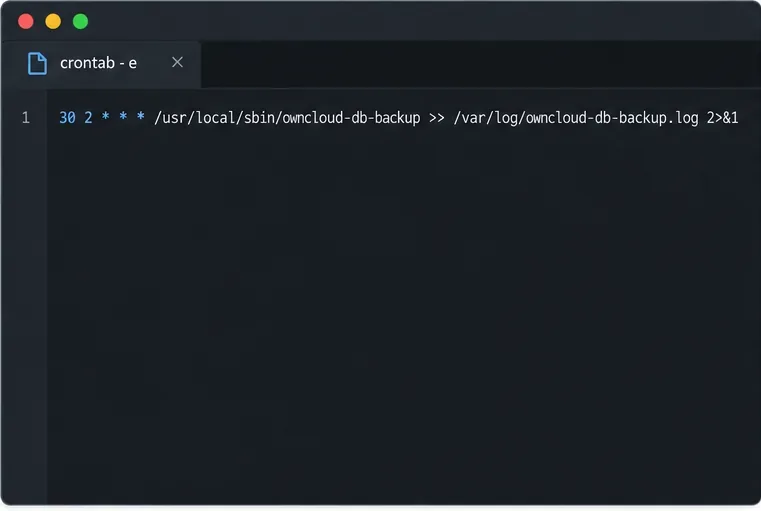
If it completes and ownCloud returns to normal operation, open root’s crontab and add a daily 2:30 a.m. job. Cron uses the host’s local time zone; change the schedule to a quiet window in your environment.
sudo crontab -e
30 2 * * * /usr/local/sbin/owncloud-db-backup >> /var/log/owncloud-db-backup.log 2>&1
The job runs as root because it needs to control Docker, write to the protected backup directory, and create the lock file. Keep the script and database secret readable only by administrators. Configure log rotation and an alert or monitoring check for nonzero job exits; cron logging alone does not prove that a usable backup exists.
After the manual run and again after the first scheduled run, check that a new timestamped file exists, is nonempty, and passes a gzip integrity check:
ls -lh /srv/backups/owncloud-db/
gzip -t /srv/backups/owncloud-db/owncloud-db-YYYYMMDDTHHMMSSZ.sql.gz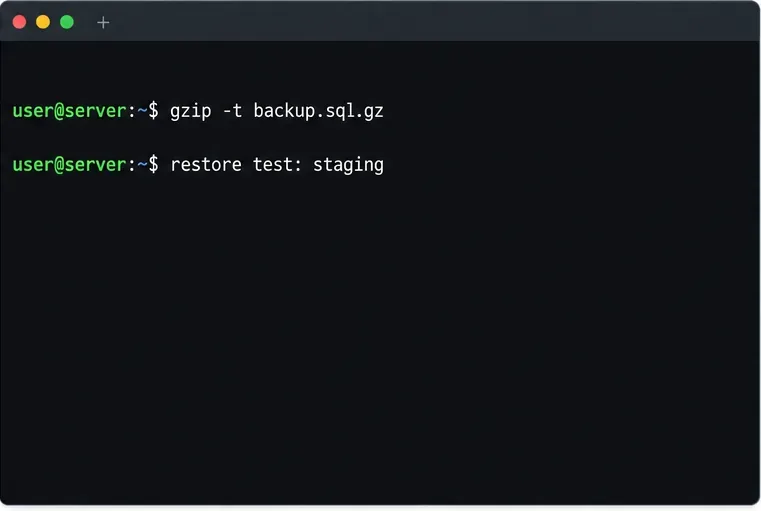
A successful gzip -t confirms the compressed stream is readable; it does not prove that MariaDB can restore the SQL or that the restored ownCloud instance works. Periodically restore a copy into a disposable staging stack using the ownCloud restore instructions. Never test by importing over the live database.
Keep database dumps outside the Compose project and send an encrypted copy to separate storage. Set retention based on recovery needs and available capacity, and monitor the destination so it cannot fill silently. A database dump alone is not a complete ownCloud backup: the current restore guide also requires the Docker volume data containing the apps, config, and files folders, plus any custom theme files or separately located encryption keys.
If your ownCloud installation uses PostgreSQL, switch to the documented pg_dump and pg_restore format; the current Server guide supports MySQL/MariaDB and PostgreSQL for production. SQLite is described for evaluation, not production. Also note that ownCloud’s “Backup Cron Jobs” section refers to preserving an existing www-data crontab; it does not create a recurring database dump.
Schedule protected MariaDB dumps for ownCloud Server, handle maintenance mode safely, and verify each backup before relying on it.
Plan an ownCloud 10 to oCIS migration with the supported app, ordered commands, identity checks, and a clear list of data that needs separate handling.
Replace ownCloud Classic 10 logos and tune web UI colors with a theme app, while avoiding upgrade and integrity-check pitfalls.
Assign byte-based storage limits to new ownCloud Infinite Scale users by role, with a proxy.yaml example and a safe verification checklist.
Restore ownCloud desktop syncing by checking the server hostname, certificate chain, private CA trust, and captive portal issues without disabling TLS verification.
Use the invalid-file report to identify mismatched core files or app signatures, restore the correct release files, and verify the integrity check safely.
Deploy ownCloud Infinite Scale from its official Compose example, configure domains and persistent storage, then verify TLS, containers, and first login.
Set up the S3NG driver, bucket permissions, persistent metadata storage, and upload sizing so ownCloud Infinite Scale can store file contents reliably.
Find why an ownCloud Server upload stops near completion by checking file status, quota, temporary disk space, PHP limits, and proxy timeouts.
Set AllowOverride All only for ownCloud’s web root, validate the active Apache vhost, and reload safely to restore .htaccess rules.