Microsoft Word is an indispensable software in everyone's computer today. This is a tool that makes our writing and editing work easier than writing on paper.
In the process, text editing sometimes we make mistakes uppercase, lowercase and this is quite inconvenient if we delete and then re-enter. To help remedy this, here we invite you to follow the article instructions on uppercase and lowercase letters in Word.
Download Microsoft Office 2016 Download Microsoft Office 2019
1. How to change uppercase and lowercase letters directly in Word
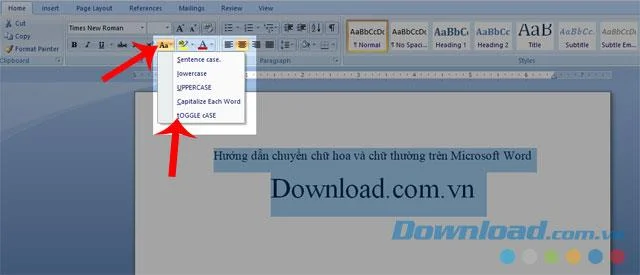
Step 1: First, highlight the converted text from lowercase to uppercase and vice versa.
Step 2: Click on Home .
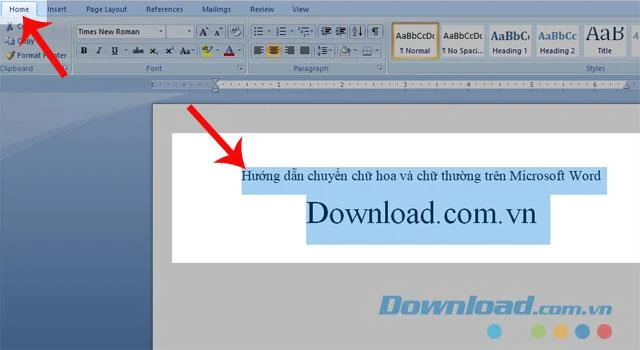
Step 3: Click on the Aa icon .
Step 4: Choose one of the following to convert lowercase and uppercase letters.
- Sentence case: Capitalize the first letter.
- lowercase: Lowercase all letters.
- Capitalize Each Word: Capitalize the first letter of each word.
- tGOOGLE cASE: Lowercase the first letter of each word.

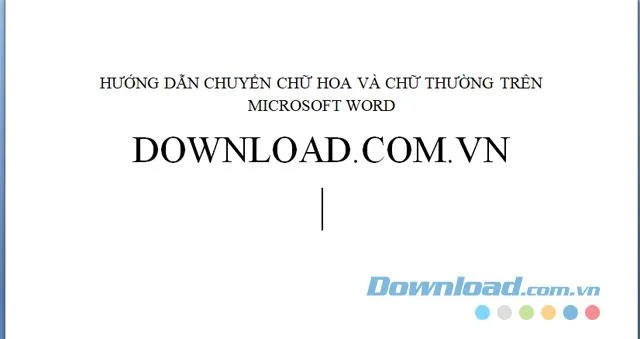
This is the result after changing from lowercase to uppercase.

2. How to convert lowercase and uppercase letters through Unikey
Download Unikey on Windows
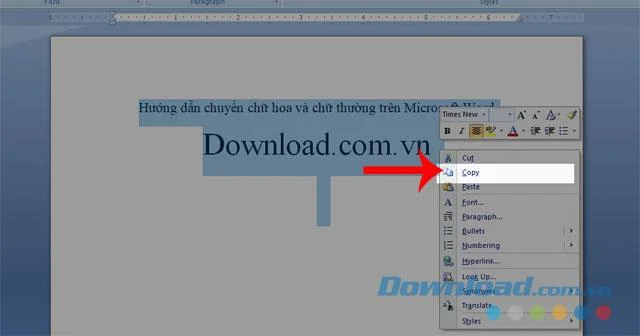
Step 1: Highlight the text to be converted.
Step 2: Right-click and select Copy, or press the key combination Ctrl + C .

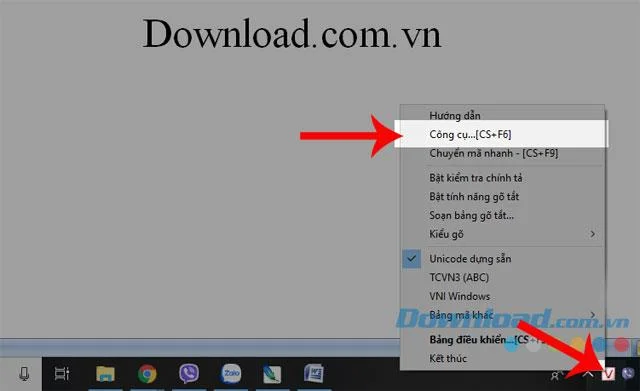
Step 3: Next, right-click the Unikey icon , at the bottom of the computer system bar.
Step 4: Click Tools ... [CS + F6] or press Ctrl + Shift + F6 .

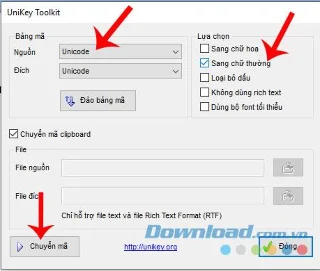
Step 5: Now at the Unikey Toolkit window , set the following options:
- In the Encoding section , choose Source and Destination as Unicode .
- In the Selection section , please tick the box to Uppercase or S S lowercase .
Step 6: Click the Transcoding button .

Step 7: Now, a message of Successfully converted appears, click the OK button .
Step 8: Back to the text in Word, right-click and choose Paste or press the key combination Ctrl + V .
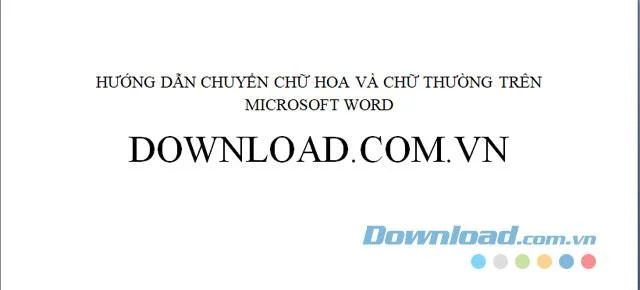
Below will be the result after converting from lowercase to uppercase with Unikey.

Above are some ways to convert uppercase and lowercase letters in Microsoft Word, we hope that these will help your process of completing your work becomes easier and faster.
In addition, you can also refer to some other articles such as:
I wish you successful implementation!