Install and use Deep Freeze to freeze hard drive

Deep Freeze Standard is the most popular computer hard drive freezing software today. Particularly loved by many Internet cafes, after installing even if customers have installed applications, changed system settings, virus attacks ... it also becomes meaningless when the computer is restarted.

So, do you know how to install and use this popular hard drive freeze software? Please refer to the following article to easily use the Deep Freeze Standard software.

Installation instructions Deep Freeze Standard

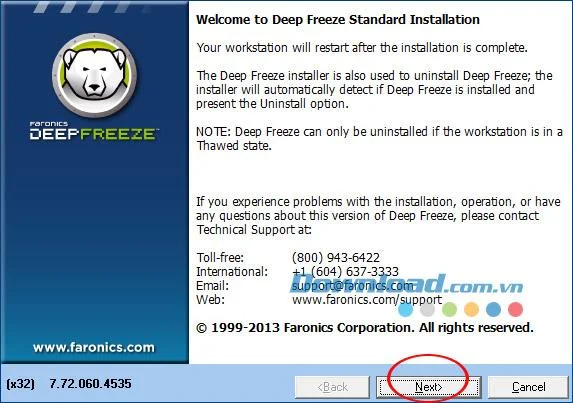
Step 1: Double-click the DFStd.exe file , a window to start installing Deep Freeze Standard, click Next to continue.

Install and use Deep Freeze to freeze hard drive

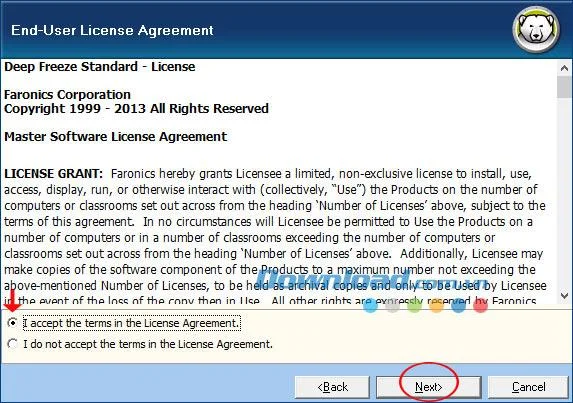
Step 2: The next window is the terms that the manufacturer requires before installing. Select I accept the terms in the License Agreement to agree to the terms. Then click Next to continue.

Install and use Deep Freeze to freeze hard drive

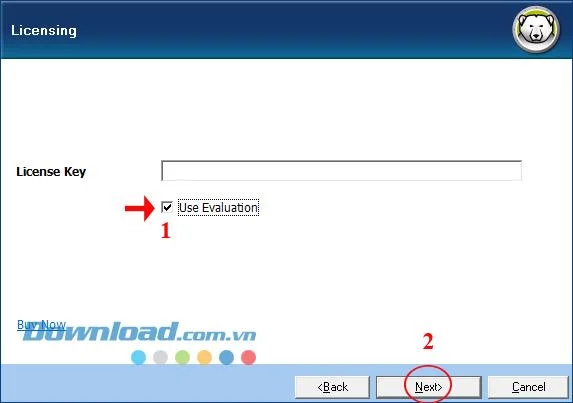
Step 3: Tick ​​the button Use Evaluation to try, if using the copyright, enter the code in the License Key box . Then click Next to continue.

Install and use Deep Freeze to freeze hard drive

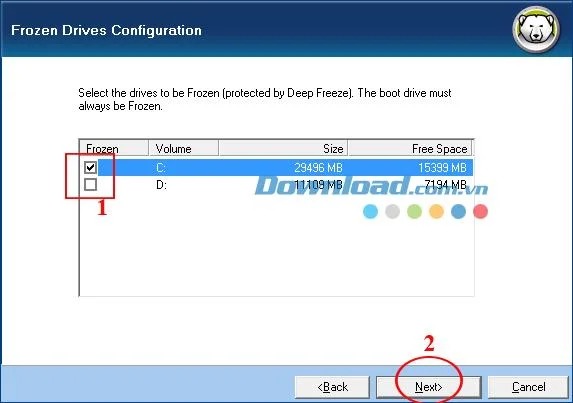
Step 4: This window displays the entire hard drive, select which drive freezes (here select drive C ). Then click Next to continue.

Install and use Deep Freeze to freeze hard drive

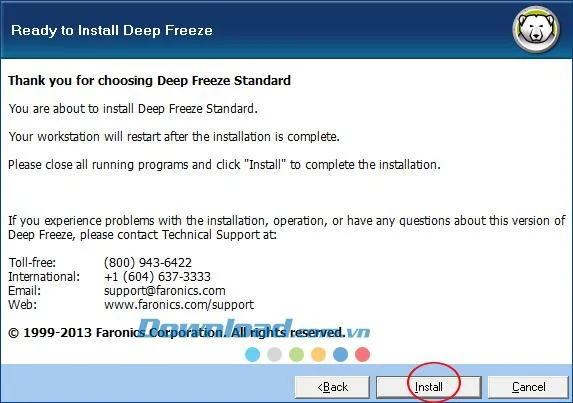
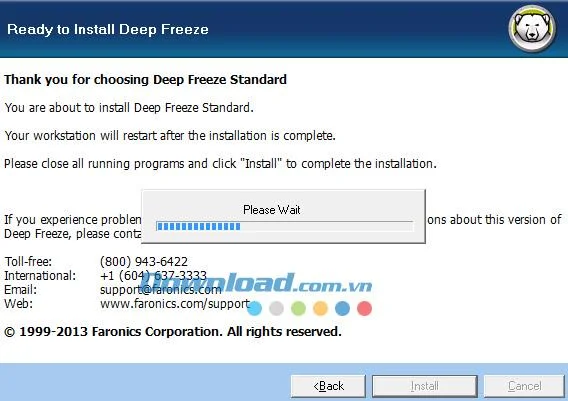
Step 5: Click Install to start the installation.

Install and use Deep Freeze to freeze hard drive

Installation process:

Install and use Deep Freeze to freeze hard drive

After installation is completed, the system will reboot.

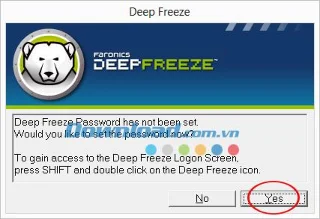
Step 6: After restarting the Deep Freeze window appears asking you to set a Deep Freeze management password. Click Yes to continue.

Install and use Deep Freeze to freeze hard drive

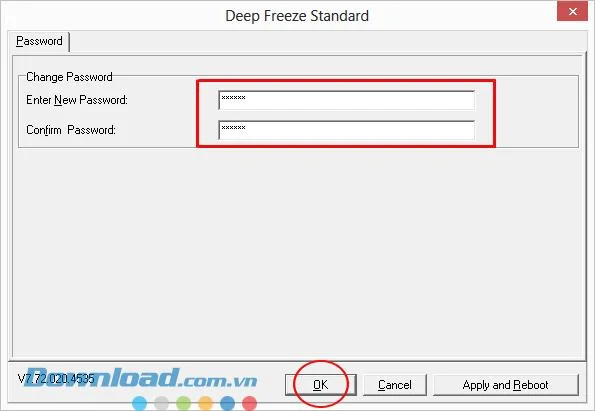
Enter the new password in the Enter New Password box , retype the password in the Confirm Password box , then click OK to complete the password setting process.

Note: You need to remember this password to manage Deep Freeze. Ex: To freeze another drive, remove ... then you must use this password.

Install and use Deep Freeze to freeze hard drive

At this time, a window appears informing you that a new password has been successfully set. Click OK to continue.

Install and use Deep Freeze to freeze hard drive

Instructions for using Deep Freeze Standard

Step 1: You can use the following 2 ways to open Deep Freeze Standard:

  • Method 1: Hold the Shift key on the keyboard and double-click the icon in the system tray.
  • Method 2: Use the key combination Ctrl + Alt + Shift + F6.

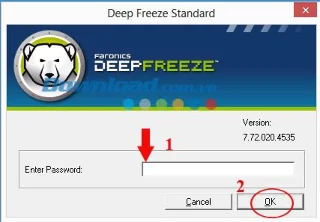
Now the Deep Freeze Standard window appears, asking you to enter the password in the Enter Password box . Then click OK to continue using:

Install and use Deep Freeze to freeze hard drive

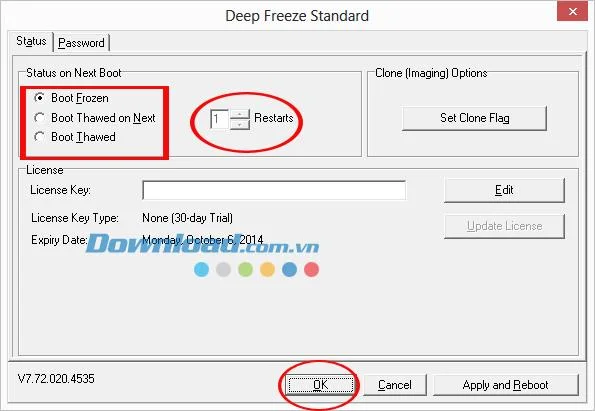
Step 2: This is the main interface of Deep Freeze Standard, at the Status tab includes 3 main settings for you to choose:

  • Frozen Boot (default mode): Turn on freezing mode.
  • Boot Thawed on Next : Allow the computer to reboot with a predetermined number of times (choose the number of times in Restarts ).
  • Boot Thawed : Turn off the freezing mode immediately after booting.

After selecting the modes, click OK to apply, and Apply and Reboot to apply and reboot.

Install and use Deep Freeze to freeze hard drive

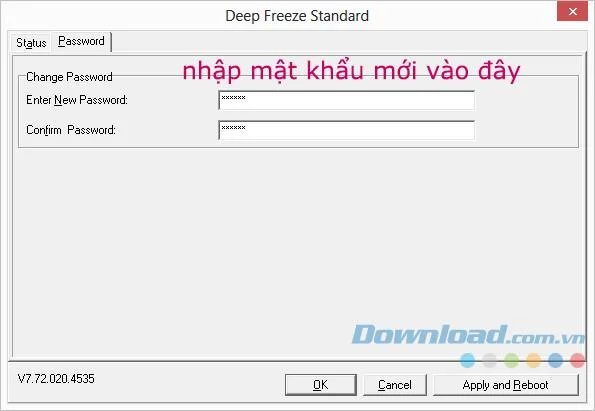
3. Change management password Deep Freeze:

To change your Deep Freeze password , open the main management screen:

Install and use Deep Freeze to freeze hard drive

And select the Password tab as shown below:

Install and use Deep Freeze to freeze hard drive

Enter the new password 2 times, then click OK

Note : The computer must be restarted to activate.

Video on installing and using Deep Freeze freezes the hard drive
I wish you successful implementation!

Leave a Comment

How to Fix Microsoft Teams Error Today on Windows 10

How to Fix Microsoft Teams Error Today on Windows 10

Tired of the frustrating Microsoft Teams "Error Today" on Windows 10? Discover proven, step-by-step fixes to resolve it quickly and restore smooth teamwork. No tech skills needed!

Troubleshooting Microsoft Teams Room Basic vs Pro Errors

Troubleshooting Microsoft Teams Room Basic vs Pro Errors

Struggling with Troubleshooting Microsoft Teams Room Basic vs Pro Errors? Get step-by-step fixes for common issues, comparisons, and pro tips to resolve connectivity, licensing, and setup problems fast in both versions.

How to Fix Microsoft Teams Screen Sharing Lag in 2026

How to Fix Microsoft Teams Screen Sharing Lag in 2026

Tired of Microsoft Teams screen sharing lag ruining your 2026 meetings? Get instant fixes for lag, freezes, and poor quality. Proven steps to optimize performance and share screens flawlessly. Boost productivity today!

Troubleshooting Microsoft Teams Installation Errors on macOS

Troubleshooting Microsoft Teams Installation Errors on macOS

Struggling with Microsoft Teams installation errors on macOS? This ultimate guide provides proven, step-by-step fixes for common issues like Gatekeeper blocks, permission errors, and download failures to get Teams running smoothly on your Mac. Updated with the latest solutions.

How to Create and Manage a Bot in Microsoft Teams (2026)

How to Create and Manage a Bot in Microsoft Teams (2026)

Master how to create and manage a bot in Microsoft Teams (2026) with this expert guide. From setup to advanced management, unlock productivity boosts using the latest Bot Framework and Azure tools.

Troubleshooting Microsoft Teams Remote Control Request Error

Troubleshooting Microsoft Teams Remote Control Request Error

Tired of Microsoft Teams "Remote Control" Request Error blocking your meetings? Follow our proven, step-by-step troubleshooting guide with the latest fixes to restore seamless remote control and boost productivity instantly.

How to Fix Microsoft Teams Planner Error: Tasks Not Loading

How to Fix Microsoft Teams Planner Error: Tasks Not Loading

Struggling with Microsoft Teams Planner error where tasks not loading? Discover step-by-step fixes for Microsoft Teams Planner Error: Tasks Not Loading. Quick solutions for instant relief in Teams Planner. Updated with latest troubleshooting tips.

Troubleshooting Microsoft Teams Version History Errors

Troubleshooting Microsoft Teams Version History Errors

Tired of Microsoft Teams version history errors disrupting your workflow? This step-by-step troubleshooting guide covers common issues, quick fixes, and pro tips to restore seamless file versioning in Teams. Updated with the latest solutions!

Solving Microsoft Teams Error 2400: Unable to Connect to Servers

Solving Microsoft Teams Error 2400: Unable to Connect to Servers

Tired of Microsoft Teams Error 2400 blocking your connection? Follow our proven, step-by-step fixes to solve "Unable to Connect to Servers" and get back to productive meetings fast.

Where is My Microsoft Teams Recording Saved? Find Your Files Fast

Where is My Microsoft Teams Recording Saved? Find Your Files Fast

Struggling to locate your Microsoft Teams recording? Discover exactly where Teams saves meeting files in OneDrive or SharePoint, plus quick steps to find and access them instantly. No more lost recordings!

How to Fix Microsoft Teams Error G Audio

How to Fix Microsoft Teams Error G Audio

Struggling with Microsoft Teams "Error G" audio? Discover step-by-step fixes for microphone and speaker issues. Quick, easy solutions to get back to seamless meetings without frustration. Works on Windows, Mac & more!

Fixing Microsoft Teams Vcruntime140.dll Missing Error

Fixing Microsoft Teams Vcruntime140.dll Missing Error

Tired of the frustrating Microsoft Teams Vcruntime140.dll missing error crashing your meetings? Discover proven, step-by-step fixes to resolve it fast and restore smooth teamwork. No tech skills needed!

How to Fix Microsoft Teams Undefined Error (2026)

How to Fix Microsoft Teams Undefined Error (2026)

Struggling with Microsoft Teams 'Undefined Error' (2026)? Discover proven, step-by-step fixes like clearing cache, updating the app, and more. Get back to seamless collaboration fast!

How to Disable Microsoft Teams at Startup for Better PC Performance

How to Disable Microsoft Teams at Startup for Better PC Performance

Discover simple, step-by-step methods to disable Microsoft Teams at startup and unlock better PC performance. Faster boot times, less resource drain—perfect for Windows users seeking smooth operation.

How to Fix Microsoft Teams Network Error Offline

How to Fix Microsoft Teams Network Error Offline

Stuck with Microsoft Teams "Network Error" offline? Discover proven, step-by-step solutions to fix Microsoft Teams network error offline quickly. Get back online fast—no tech skills needed!